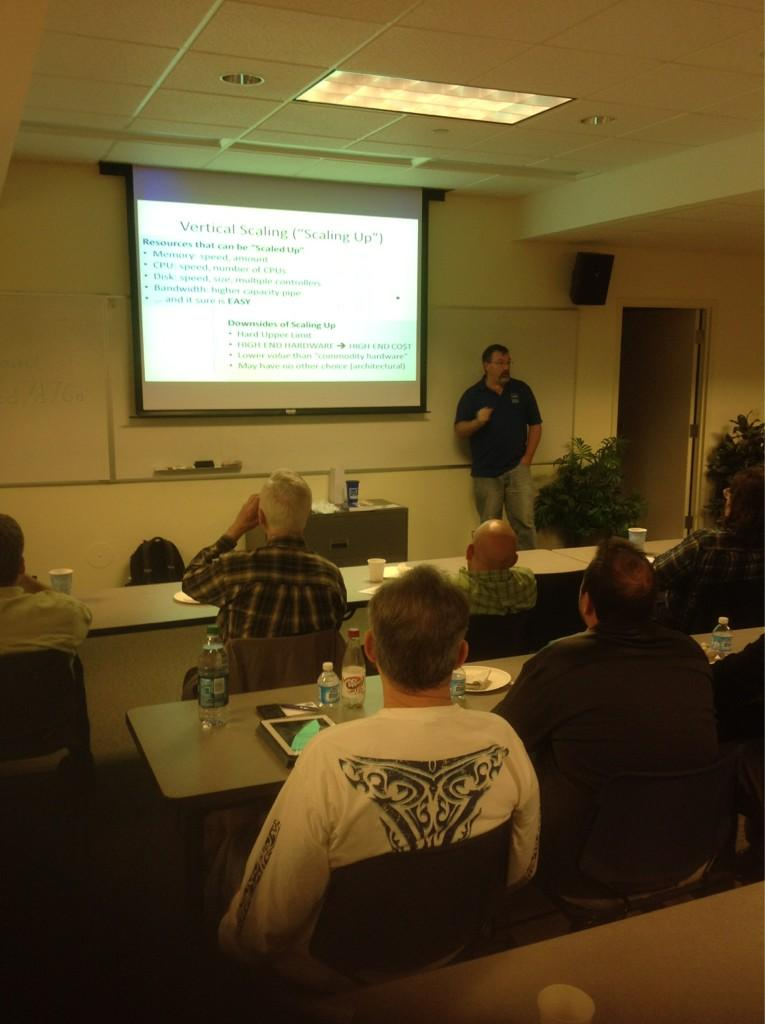
At most recent Boston Azure meeting I give (what turns out to be…) the first part of a multi-part talk on Running Azure Securely. Even though I did not cover all this content, I’ve attached the whole powerpoint deck below.
I was pleased to speak at the O’Reilly Software Architecture Conference (#oreillysacon) in Boston today. My talk was Cloud Architecture Anti-Patterns: A concise overview of some bad ideas, delivered to an engaged, inquisitive audience.
I am a heavy user of PowerShell and recently I ran across an annoying problem that I didn’t find anywhere mentioned in the google. I was running the Add-AzureAccount cmdlet from the Azure PowerShell module. (Want it too? Start here. Or simply install it from the mighty Web Platform Installer.)
The Add-AzureAccount command usually pops up a login dialog so I can authenticate against my Azure account. But the behavior I was seeing never made it to that pop-up dialog – rather it quickly dumped out the following error at the command line:
Add-AzureAccount : The data is invalid.
At line:1 char:1
+ Add-AzureAccount + ~~~~~~~~~~~~~~~~ + CategoryInfo : CloseError: (:) [Add-AzureAccount], AadAuthenticationFailedException + FullyQualifiedErrorId : Microsoft.WindowsAzure.Commands.Profile.AddAzureAccount
As mentioned above, I could not find useful references to Add-AzureAccount “data is invalid” via search engine, so I tried a few things. I first updated to the latest module. Didn’t help me – but you can check which version you have installed as follows:
PS> (Get-Module Azure).Version
Major Minor Build Revision
----- ----- ----- --------
0 8 11 -1
Then I tried both the -Debug and -Verbose command line options, which are often useful. But no difference in the output. So this was failing pretty early!
Since this might be related to some cached credentials, I tried deleting TokenCache.dat in case there was something funky there. Nope. Here is command to view – and then delete – TokenCache.dat:
gci "$env:APPDATA\Windows Azure Powershell\TokenCache.dat"
ri "$env:APPDATA\Windows Azure Powershell\TokenCache.dat"
Finally, a kind sole suggested I simply try hosing out cookies from IE. That worked! Since I was in a PowerShell kind of mood, here’s how I emptied the cookie jar:
RunDll32.exe InetCpl.cpl,ClearMyTracksByProcess 2
(I learned of this technique on many web sites by searching for ‘clear IE browser cache command line’.)
My problem was solved, and I am back to productively using Add-AzureAccount.
On October 27, 2008, Windows Azure was unveiled publicly by Microsoft Chief Architect Ray Ozzie at Microsoft’s Professional Developer’s Conference.
Less than a year later, on November 17, 2009, Windows Azure was unleashed on the world – anyone could go create an account.
Only a couple of months later, on January 1, 2010, Windows Azure turned on its Service Level Agreement (SLA) – you could now get production support.
And finally, on Feb 1, 2010, Windows Azure became self-aware – billing was turned on, completing the last step in them being fully open as a business.
That was 4 years ago today. Happy Anniversary Azure! I am not calling this a “birthday” since it isn’t – it was born years earlier as the Red Dog project – but this is the fourth anniversary of it being a fully-operational, pay-as-you-go, public cloud platform.
At the time, there were 6 Windows Azure data centers available – 2 each in Asia, Europe, and North America: East Asia, SE Asia, North Europe, West Europe, North Central US, South Central US. (Ignoring the Content Delivery Network (CDN) nodes which I plan to cover another time.)
What about today? With the addition in 2012 of East US and West US data centers, today there are 8 total production data centers, but more on the way.
Here’s a map of the Windows Azure data center landscape. (Source data is in a JSON file in GitHub; pull requests with additions/corrections welcome. CDN data is TBD.)
The lines between data center regions represent failover relationships drawn from published geo-replication sites for Windows Azure Storage. Mostly they are bi-directional, except for Brazil which is one-directional; the metadata on each pushpin specifies its failover region explicitly.
NOTE: this is a work-in-progress that will be updated as “official” names are published for geos and regions.
Also, be sure to click on the map pushpins to see which data center regions are in production and where are coming attractions. Not all of these pushpins represent data centers you can access right now.
There are three insets in order – first a GeoJSON rendering, second a TopoJSON rendering (which should look identical to the GeoJSON one, but included for demonstration purposes, as it is lighter weight), and the third is the raw JSON data from which I am generating the GeoJSON and TopoJSON files. [All the code is here: https://github.com/codingoutloud/azuremap. I plan to blog in the future on how it works.]
This file contains hidden or bidirectional Unicode text that may be interpreted or compiled differently than what appears below. To review, open the file in an editor that reveals hidden Unicode characters.
Learn more about bidirectional Unicode characters
The map data is derived from public (news releases and blog posts for coming data centers and Windows Azure documentation for existing production regions).
The city information for data centers is not always published, so what I’m using is a mix of data directly published, and information derived from published data. For example, it is well known there is a data center in Dublin, Ireland, but where city should I used for US West region that’s in California? For the latter, I used IP address geocoding of the published data center IP address ranges. This is absolutely not definitive, but just makes for a slightly nicer map. It was from this data that I made assumptions around Tokyo and Osaka locations in Japan and San Francisco in California for US West.
Finally, this map is at the region level which equates roughly to a city (see the project readme for terminology I am using). A region is not necessarily a single location, since there may well be multiple data centers per region and though they will be “near” each other, this is not necessarily in the same city – they could be 1 kilometer apart with a city border between them.
Discover how you can successfully architect Windows Azure-based applications to avoid and mitigate performance and reliability issues with our live webinar
Microsoft’s Windows Azure cloud offerings provide you with the ability to build and deliver a powerful cloud-based application in a fraction of the time and cost of traditional on-premise approaches. So what’s the problem? Tried-and-true traditional architectural concepts don’t apply when it comes to cloud-native applications. Building cloud-based applications must factor in answers to such questions as:
How to scale?
How to overcome failure?
How to build a manageable system?
How to minimize monthly bills from cloud vendors?
During this webinar, we will examine why cloud-based applications must be architected differently from that of traditional applications, and break down key architectural patterns that truly unlock cloud benefits. Items of discussion include:
Architecting for success in the cloud
Getting the right architecture and scalability
Auto-scaling in Azure and other cloud architecture patterns
If you want to avoid long nights, help-desk calls, frustrated business owners and end-users, then don’t miss this webinar or your chance to learn how to deliver highly-scalable, high-performance cloud applications.
On October 9, 2012, I was pleased to speak to the Connecticut .NET Developers Group. It was really fun since the crowd was extremely engaged. 🙂 There was a lot of good back-and-forth discussion.
This was the talk abstract:
Just because we get an application to run on cloud infrastructure does not ensure that it runs well. To truly take advantage of the cloud we need to build cloud-native applications. The architecture of a cloud-native application is different than the architecture of a traditional application. A cloud-native application is architected for cost-efficiency, availability, and scalability. We will examine several key architecture patterns that help unlock cloud-native benefits, spanning computation, database, and resource-focused patterns. By the end of the talk you should appreciate how cloud architecture is more demanding than you might be accustomed to in some areas, but with high payoff such as handling failure without downtime, scaling arbitrarily, and allowing aggressive cost-optimization.
All the concepts and patterns I spoke about are also discussed in my recently released book, Cloud Architecture Patterns:
If you do read the book, I’d very much appreciate a short review on Amazon.
Also, please stay in touch via twitter (@codingoutloud) or email (my twitter handle at gmail). Got Azure or Cloud questions? Feedback on the book? Please reach out.
You new to Windows Azure? Experienced with Windows Azure? Wondering what all the buzz is about…
You can Meet #WindowsAzure in a live stream featuring keynote speaker Scott Guthrie (@ScottGu) along with other Azure/cloud experts. Event is June 7 at 4:00 PM Boston time (UTC-7 hours).
I will be watching and you can find discussions on the Twitters…. I am @codingoutloud, the event hashtag is #MeetAzure, and be sure to check out the Lanyard page that Magnus set up.
Also if you are an Azure fan in the Boston area, please check out the Boston Azure cloud user group (www.bostonazure.org). The group meets monthly, with occasional special events, such as the 2-day bootcamp later this month. The group events are usually at NERD in Cambridge, MA.
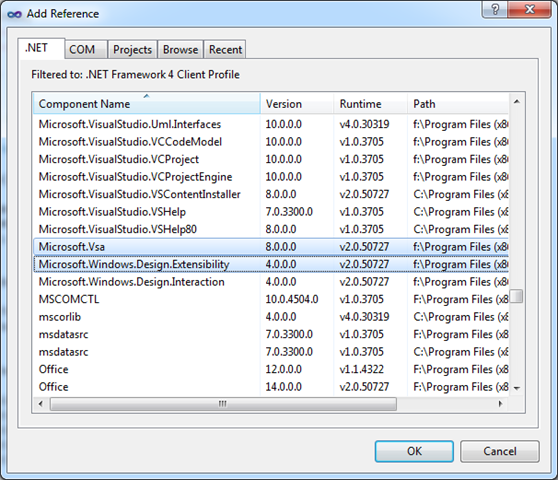
You are writing an application for Windows – perhaps a Console App or a WPF Application – or maybe an old-school Windows Forms app. Every is humming along. Then you want to interact with Windows Azure storage. Easy, right? So you Right-Click on the References list in Visual Studio, pop up the trusty old Add Reference dialog box, and search for Microsoft.WindowsAzure.StorageClient in the list of assemblies.
You sort the list by Component Name, then leveraging your absolute mastery of the alphabet, you find the spot in the list where the assemblies ought to be, but they are not there. You see the one before in the alphabet, the one after it in the alphabet, but no Microsoft.WindowsAzure.StorageClient assembly in sight. What gives?
Look familiar? Where is the Microsoft.WindowsAzure.StorageClient assembly?
Azure Managed Libraries Not Included in .NET Framework 4 Client Profile
If your eyes move a little higher in the Add Reference dialog box, you will see the problem. You are using the .NET Framework 4 Client Profile. Nothing wrong with the Client Profile – it can be a friend if you want a lighter-weight version of the .NET framework for deployment to desktops where you can’t be sure your .NET platform bits are already there – but Windows Azure Managed Libraries are not included with the Client Profile.
Bottom line: Windows Azure Managed Libraries are simply not support in the .NET Framework 4 Client Profile
How Did This Happen?
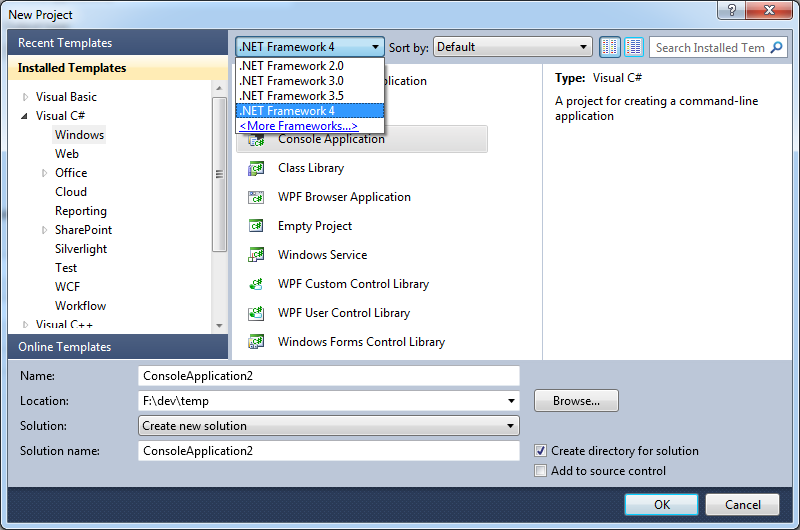
It turns out that in Visual Studio 2010, the default behavior for many common project types is to use the .NET Framework 4 Client Profile. There are some good reasons behind this, but it is something you need to know about. It is very easy to create a project that uses the Client Profile because it is neither visible – and with not apparent option for adjustment – on the Add Project dialog box – all you see is .NET Framework 4.0:
The “Work-around” is Simple: Do Not Use .NET Framework 4 Client Profile
While you are not completely out of luck, you just can’t use the Client Profile in this case. And, as the .NET Framework 4 Client Profile documentation states:
If you are targeting the .NET Framework 4 Client Profile, you cannot reference an assembly that is not in the .NET Framework 4 Client Profile. Instead you must target the .NET Framework 4.
So let’s use the (full) .NET Framework 4.
Changing from .NET Client Profile to Full .NET Framework
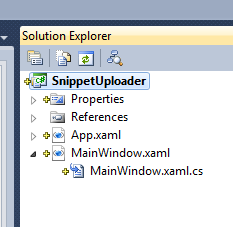
To move your project from Client Profile to Full Framework, right-click on your project in Solution Explorer (my project here is called “SnippetUploader”):
From the bottom of the pop-up list, choose Properties.
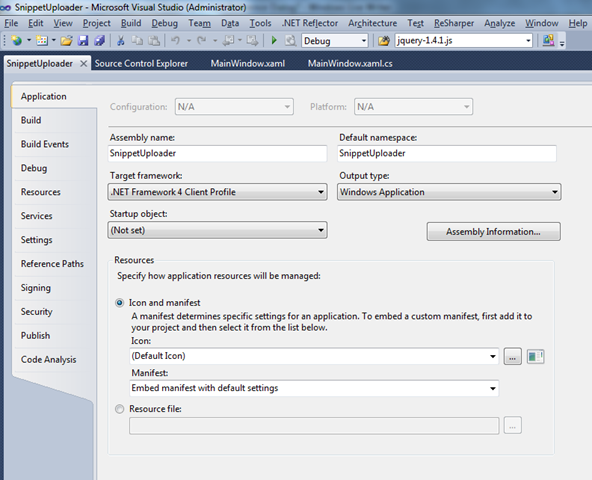
This will bring up the Properties window for your application. It will look something like this:
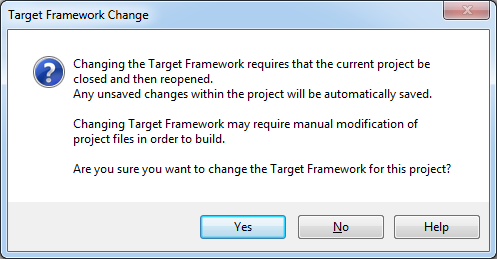
Of course, by now you probably see the culprit in the screen shot: change the “Target framework:” from “.NET Framework 4 Client Profile” to “.NET Framework 4” (or an earlier version) and you have one final step:
Are you developing Silverlight apps that would like to talk directly to Windows Azure APIs? That is perfectly legal, using the REST API. But if you want to use the handy-dandy Windows Azure Managed Libraries – such as Microsoft.WindowsAzure.StorageClient.dll to talk to Windows Azure Storage – then that’s not available in Silverlight.
As you may know, Silverlight assembly format is a bit different than straight-up .NET, and attempting to use Add Reference from a Silverlight project to a plain-old-.NET assembly just won’t work. Instead, you’ll see something like this:
If you pick a class from the StorageClient assembly – let’s say, CloudBlobClient – and check the documentation, it will tell you where this class is supported:
Okay – so maybe it doesn’t exactly – the Target Platforms list is empty – presumably an error of omission. But going by the Development Platforms list, you wouldn’t expect it to work in Silverlight.
There’s Always REST
As mentioned, you are always free to directly do battle with the Azure REST APIs for Storage or Management. This is a workable approach. Or, even better, expose the operations of interest as Azure services – abstracting them as higher level activities. You have heard of SOA, haven’t you? 🙂