On Thursday December 3, 2015 I spoke to an engaged crowed at Andy Novick’s New England Microsoft Developers’ Group. The topic was a high-level look at the Microsoft Azure cloud platform with the perspective of a toolbox for developers.
At this past Monday’s Boston Azure meeting, I spoke about using Azure Automation Runbooks to automate your automation. I have a short overview to define the need, then mostly gave demos.
I am a heavy user of PowerShell and recently I ran across an annoying problem that I didn’t find anywhere mentioned in the google. I was running the Add-AzureAccount cmdlet from the Azure PowerShell module. (Want it too? Start here. Or simply install it from the mighty Web Platform Installer.)
The Add-AzureAccount command usually pops up a login dialog so I can authenticate against my Azure account. But the behavior I was seeing never made it to that pop-up dialog – rather it quickly dumped out the following error at the command line:
Add-AzureAccount : The data is invalid.
At line:1 char:1
+ Add-AzureAccount + ~~~~~~~~~~~~~~~~   + CategoryInfo : CloseError: (:) [Add-AzureAccount], AadAuthenticationFailedException    + FullyQualifiedErrorId : Microsoft.WindowsAzure.Commands.Profile.AddAzureAccount
As mentioned above, I could not find useful references to Add-AzureAccount “data is invalid” via search engine, so I tried a few things. I first updated to the latest module. Didn’t help me – but you can check which version you have installed as follows:
PS>    (Get-Module Azure).Version

Major  Minor  Build  Revision
-----  -----  -----  --------
0      8      11     -1
Then I tried both the -Debug and -Verbose command line options, which are often useful. But no difference in the output. So this was failing pretty early!
Since this might be related to some cached credentials, I tried deleting TokenCache.dat in case there was something funky there. Nope. Here is command to view – and then delete – TokenCache.dat:
gci "$env:APPDATA\Windows Azure Powershell\TokenCache.dat"
ri "$env:APPDATA\Windows Azure Powershell\TokenCache.dat"
Finally, a kind sole suggested I simply try hosing out cookies from IE. That worked! Since I was in a PowerShell kind of mood, here’s how I emptied the cookie jar:
RunDll32.exe InetCpl.cpl,ClearMyTracksByProcess 2
(I learned of this technique on many web sites by searching for ‘clear IE browser cache command line’.)
My problem was solved, and I am back to productively using Add-AzureAccount.
A couple of nights ago, I gave a guest lecture at Dino Konstantopoulos’ BU MET CS755 Cloud Computing class to a small group whose ability to stay awake and alert until 9:00 PM was impressive. My deck is attached.
For any of that class (or anyone else reading this), if interested in more Azure goodness, check out Boston Azure – www.bostonazure.org – a local user group that has now been meeting regularly (mostly at NERD) for around 4 1/2 years to learn about Azure, the cloud, architecting applications for the cloud, and more.
The glitch is that when running SSL on the MSDN VM the digital certificate for the SSL cert isn’t quite right. Here is a description of what you might see, followed by a workaround (until fixed at the source in the VM image).
The Problem
Visual Studio 2013 uses IIS Express by default and offers a very simple experience for HTTPS locally:
Create a web application
Look at the properties for ‘WebApplication1’ and you’ll see an option SSL Enabled — by default it is false, but change it to true
By setting SSL Enabled to true, you will now have a value forSSL URL which is something like https://localhost:44300 or above (ports 44300-44399 are reserved for this I think, and next new project gets next available – check out C:\Users\YOURACCOUNT\Documents\IISExpress\config\applicationhost.config to see the bindings that were set up)
Hit F5 to run, and if you can navigate to the HTTPS URL and you get the “hey, this cert isn’t trusted!” warning, but otherwise works fine — at least on the desktop. The behavior is different in the MSDN Visual Studio Azure VMs (NOTE: these are very specific VMs, described here – for those of you interested in taking advantage of those specially licensed VM resources associated with MSDN accounts).
Using MSDN Visual Studio Azure VMs, this developer experience does not quite work out of the box. SSL Enabled is true automatically when creating an ASP.NET app that uses Azure Active Directory for org authentication. If you create a new web app, then simply click Change Authentication and select Organizational Accounts, set one up, and then proceed as normal, then hit F5. When your app runs, it will try to authenticate over HTTPS, and it fails as in the scenario above if running on one of these MSDN Visual Studio Azure VMs.
The Solution
Follow these steps:
RDP into your MSDN Visual Studio Azure VM
Paste the following into a PowerShell Window and run them:
if ($thumb –ne $null) { del Cert:\LocalMachine\my\${thumb} }
control /name Microsoft.ProgramsAndFeatures
The above code will work in the default state of these VMs at this time which assumes only a single certificate with Subject of ‘CN=localhost’ is present in the certificate store.
Right-click on IIS Express and select Repair.
Celebrate your now functioning local F5-ready SSL experience.
A professional reality is looming: fear of obsolescence. Like so many of you, I worry about becoming obsolete (I work in cloud software which moves VERY FAST and getting faster), so I figured it was time to do something for a small (and shrinking) set of people supporting my profession. For these people, their job has groan increasingly difficult: I refer, of course, to the fine people who work inside of cloud data centers. The job is so difficult primarily because it is boring.
This is not because cloud data centers are not advancing – in fact that is the root of the problem – there are so few data center workers because of the growing efficiencies in cloud data centers simply means fewer people are needed to run them.
You may be wondering how you can help. It is very simple – remotely connect into a server on the data center of your choice, and just talk to the nice people in that data center through the speaker on the computer your’ve remoted into. But first you’ll need to enable the audio service on the operating system, since it is off by default in the cloud. But turning it on is fairly simple. This short video shows you how.
What will YOU say to the lonely cloud data center people?
Today I spoke at VirtG Boston’s annual Deep Dive Day. The title of my talk, Meet Windows Azure, Your Next Data Center, is probably descriptive enough to get the gist of it.
[Ugh – editing 2nd week in a row after accidental early publishing.]
The original programming model for Windows Azure applications was to use Cloud Services (originally known as Hosted Services, but still the same thing). Of particular note, Cloud Services run on VMs with disks that are not-persistent – you can write data locally (some pointers here), but any locally stored data is not guaranteed to stick around. This is a powerful model for some scenarios, especially highly scalable applications. Another feature of Cloud Services has always been that it comes with an emulator you can run locally – on your laptop at 30,000 feet was a common way to hammer home the point. (Remember, Cloud Services were announced in 2008 – a long time before we had wifi on airplanes!) There are actually two emulators: Compute – which emulates the Cloud Service model by supporting Web Role and Worker Role abstractions, and Storage – which emulates Blob, Table, and [Storage] Queue Services. The rest of this post will focus specifically on the Storage Emulator.
Since their announcement in 2012, Windows Azure Web Sites and Virtual Machines have been taking on many of the common workloads that used to require Cloud Services. This diagram at least conceptually should capture the sense that the when to use which model decision has become blurred over time. This is good – with more choice comes the freedom to get started more simply – often a Virtual Machine is an easier onramp for existing apps, and a Web Site can be a great onramp for a website that adheres to some of the well-known programming stacks running on PHP, ASP.NET, Python, or Node.js. If you are a big success, consider upgrading to Cloud Services.
Notably absent from the diagram is the Storage Emulator. It should be in the middle of the diagram because while the local storage emulator is still useful for Cloud Services, you can also use it locally when developing applications targeting Windows Azure Web Sites or Virtual Machines.
This is awesome – of course, it will be popular to create applications destined for Windows Azure Web Sites or Virtual Machines that take advantage of the various Storage Services.
So that’s the trick – be sure to take advantage of the Storage Emulator, even when you are not targeting a Cloud Service. You need to know two things: how to turn it on, and how to address it.
Turning on the Storage Emulator
If you create a regular old Web Site and run that in Visual Studio, the Storage Emulator is not turned on. Visual Studio only turns on the Storage Emulator for you when you debug using a Cloud Service, but this is not convenient.
Find csrun.exe — In my case: “C:\Program Files\Microsoft SDKs\Windows Azure\Emulator\csrun.exe”
Run csrun.exe with the parameter /devstore:start which indicates to start up the Storage Emulator.
Done. Of course you might want this is a bat file or as a PowerShell function.
Here’s PowerShell script that will turn it on:
This file contains hidden or bidirectional Unicode text that may be interpreted or compiled differently than what appears below. To review, open the file in an editor that reveals hidden Unicode characters.
Learn more about bidirectional Unicode characters
The latest version of the Windows Azure Storage Emulator (v2.2.1) is in Preview. This release has support for “2013-08-15” version of Storage which adds CORS and JSON and still has all those features from years gone by…
A comparison of emulated and cloud storage services is also available. There are some differences.
I updated the JSON meta data in the Azure Map project to indicate these data center regions into the “Production” mode, then re-ran my script to regenerate and upload the GeoJSON and TopoJSON maps. All data is in GitHub. For more info, see these two posts:
[Edit: I originally accidentally published an old draft. The draft went out to all email subscribers and was public for around 90 minutes. Fixed now.]
In the most recent Stupid Azure Trick installment, I explained how one could host a 1000 visitor-per-day web site for one penny per month. Since then I also explained my choice to use CORS in that same application. Here I will dig into specifically using CORS with Windows Azure.
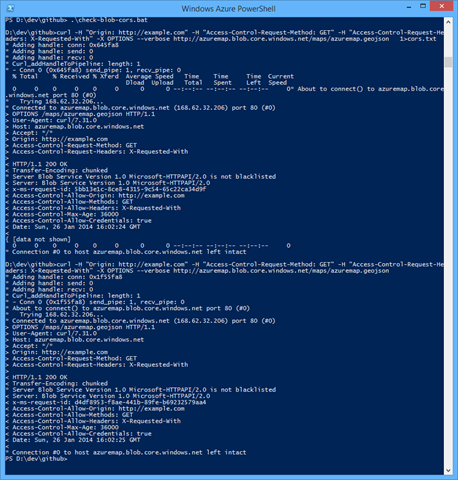
I also show how the curl command line tool can be helpful to examine CORS properties in HTTP headers for a blob service.
I also will briefly describe a simple tool I built that could quickly turn CORS on or off for a specified Blob service – the CORS Toggler. The CORS Toggler (in its current simple form) was useful to me because of two constraints that were true for my scenario:
I was only reading files from the Windows Azure Blob Service. When just reading, pre-flight request doesn’t matter when you are just reading. Simplification #1.
I didn’t care whether the blob resource is publicly available, rather than just available to my application. So the CORS policy was to open to any caller (‘*’). Simplification #2.
These two simplifications mean that the toggler knew what it meant to enable CORS (open up for reading to all comers) and to disable. (Though it is worth noting that opening up CORS to any caller is probably a common scenario. Also worth noting that tool could easily extended to support a whitelist for allowed domains or other features.)
First, here’s the code for the toggler – there are three files here:
Driver program (Console app in C#) – handles command line params and such and then calls into the …
Code to perform simple CORS manipulation (C# class)
The above two and driven (in my fast toggler) through the third file (command line batch file) which passes in the storage keys and storage account name for the service I was working with
This file contains hidden or bidirectional Unicode text that may be interpreted or compiled differently than what appears below. To review, open the file in an editor that reveals hidden Unicode characters.
Learn more about bidirectional Unicode characters
This file contains hidden or bidirectional Unicode text that may be interpreted or compiled differently than what appears below. To review, open the file in an editor that reveals hidden Unicode characters.
Learn more about bidirectional Unicode characters
This file contains hidden or bidirectional Unicode text that may be interpreted or compiled differently than what appears below. To review, open the file in an editor that reveals hidden Unicode characters.
Learn more about bidirectional Unicode characters
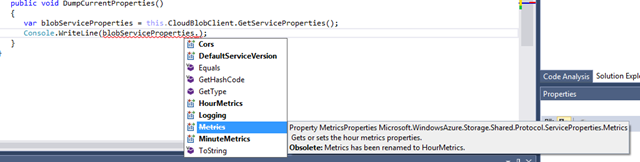
One simple point to highlight – CORS properties are simply available on the Blob service object (and would be same for Table or Queue service within Storage):
Yes, this is a very simple API.
Showing the Service Object Contents
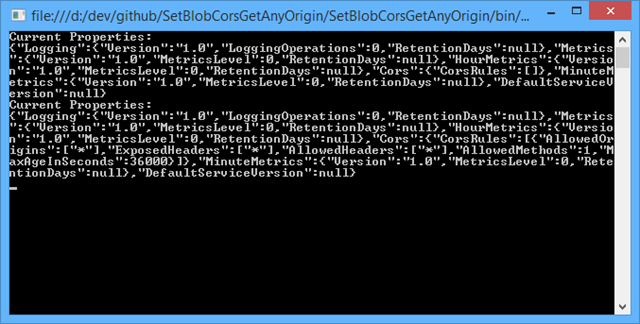
For those interested in the contents of these objects, here are a few ways to show content of properties (in code) before turning on CORS and after. (The object views are created using the technique I described my post on using JSON.NET as an object dumper that’s Good Enough™.)
DUMPING OBJECT BEFORE CORS ENABLED (just CORS properties):
DUMPING OBJECT BEFORE CORS ENABLED (but including ALL properties):
Current Properties:
{“Logging”:{“Version”:”1.0″,”LoggingOperations”:0,”RetentionDays”:null},”Metrics
“:{“Version”:”1.0″,”MetricsLevel”:0,”RetentionDays”:null},”HourMetrics”:{“Versio
n”:”1.0″,”MetricsLevel”:0,”RetentionDays”:null},”Cors”:{“CorsRules”:[]},”MinuteM
etrics”:{“Version”:”1.0″,”MetricsLevel”:0,”RetentionDays”:null},”DefaultServiceV
ersion”:null}
DUMPING OBJECT AFTER CORS ENABLED (but including ALL properties):
Current Properties:
{“Logging”:{“Version”:”1.0″,”LoggingOperations”:0,”RetentionDays”:null},”Metrics
“:{“Version”:”1.0″,”MetricsLevel”:0,”RetentionDays”:null},”HourMetrics”:{“Versio
n”:”1.0″,”MetricsLevel”:0,”RetentionDays”:null},”Cors”:{“CorsRules”:[{“AllowedOr
igins”:[“*”],”ExposedHeaders”:[“*”],”AllowedHeaders”:[“*”],”AllowedMethods”:1,”M
axAgeInSeconds”:36000}]},”MinuteMetrics”:{“Version”:”1.0″,”MetricsLevel”:0,”Rete
ntionDays”:null},”DefaultServiceVersion”:null}
Using ‘curl’ To Examine CORS Data:
This file contains hidden or bidirectional Unicode text that may be interpreted or compiled differently than what appears below. To review, open the file in an editor that reveals hidden Unicode characters.
Learn more about bidirectional Unicode characters
* Adding handle: conn: 0x805fa8
* Adding handle: send: 0
* Adding handle: recv: 0
* Curl_addHandleToPipeline: length: 1
* – Conn 0 (0x805fa8) send_pipe: 1, recv_pipe: 0
* About to connect() to azuremap.blob.core.windows.net port 80 (#0)
* Trying 168.62.32.206…
* Connected to azuremap.blob.core.windows.net (168.62.32.206) port 80 (#0)
> OPTIONS /maps/azuremap.geojson HTTP/1.1
> User-Agent: curl/7.31.0
> Host: azuremap.blob.core.windows.net
> Accept: */*
> Origin: http://example.com
> Access-Control-Request-Method: GET
> Access-Control-Request-Headers: X-Requested-With
>
< HTTP/1.1 403 CORS not enabled or no matching rule found for this request.
< Content-Length: 316
< Content-Type: application/xml
* Server Blob Service Version 1.0 Microsoft-HTTPAPI/2.0 is not blacklisted
< Server: Blob Service Version 1.0 Microsoft-HTTPAPI/2.0
< x-ms-request-id: 04402242-d4a7-4d0c-bedc-ff553a1bc982
< Date: Sun, 26 Jan 2014 15:08:11 GMT
<
<?xml version=”1.0″ encoding=”utf-8″?><Error><Code>CorsPreflightFailure</Code><Message>CORS not enabled or no matching rule found for this request.
RequestId:04402242-d4a7-4d0c-bedc-ff553a1bc982
Time:2014-01-26T15:08:12.0193649Z</Message><MessageDetails>No CORS rules matches this request</MessageDetails></Error>*
Connection #0 to host azuremap.blob.core.windows.net left intact
CURL OUTPUT AFTER CORS ENABLED:
D:\dev\github>curl -H “Origin: http://example.com” -H “Access-Control-Request-Method: GET” -H “Access-Control-Request-Headers: X-Requested-With” -X OPTIONS –verbose http://azuremap.blob.core.windows.net/maps/azuremap.geojson
* Adding handle: conn: 0x1f55fa8
* Adding handle: send: 0
* Adding handle: recv: 0
* Curl_addHandleToPipeline: length: 1
* – Conn 0 (0x1f55fa8) send_pipe: 1, recv_pipe: 0
* About to connect() to azuremap.blob.core.windows.net port 80 (#0)
* Trying 168.62.32.206…
* Connected to azuremap.blob.core.windows.net (168.62.32.206) port 80 (#0)
> OPTIONS /maps/azuremap.geojson HTTP/1.1
> User-Agent: curl/7.31.0
> Host: azuremap.blob.core.windows.net
> Accept: */*
> Origin: http://example.com
> Access-Control-Request-Method: GET
> Access-Control-Request-Headers: X-Requested-With
>
< HTTP/1.1 200 OK
< Transfer-Encoding: chunked
* Server Blob Service Version 1.0 Microsoft-HTTPAPI/2.0 is not blacklisted
< Server: Blob Service Version 1.0 Microsoft-HTTPAPI/2.0
< x-ms-request-id: d4df8953-f8ae-441b-89fe-b69232579aa4
< Access-Control-Allow-Origin: http://example.com
< Access-Control-Allow-Methods: GET
< Access-Control-Allow-Headers: X-Requested-With
< Access-Control-Max-Age: 36000
< Access-Control-Allow-Credentials: true
< Date: Sun, 26 Jan 2014 16:02:25 GMT
<
* Connection #0 to host azuremap.blob.core.windows.net left intact
Resources
A new version of the Windows Azure Storage Emulator (v2.2.1) is now in Preview. This release has support for “2013-08-15” version of Storage which includes CORS (and JSON and other) support.
Overall description of Azure Storage’s CORS Support:


 Coding Out Loud