Author Archives: Bill Wilder

Unknown's avatar

About Bill Wilder

My professional developer persona: coder, blogger, community speaker, founder/leader of Boston Azure cloud user group, and Azure MVP

Talk: Guest Lecture at BU Cloud Computing Class

A couple of nights ago, I gave a guest lecture at Dino Konstantopoulos’ BU MET CS755 Cloud Computing class to a small group whose ability to stay awake and alert until 9:00 PM was impressive. My deck is attached.

For any of that class (or anyone else reading this), if interested in more Azure goodness, check out Boston Azure – www.bostonazure.org – a local user group that has now been meeting regularly (mostly at NERD) for around 4 1/2 years to learn about Azure, the cloud, architecting applications for the cloud, and more.

My book is available on Amazon: Cloud Architecture Patterns.

Slides from the talk: 2014-04-17 – April 17 – Building Cloud-Native Applications – Bill Wilder (blog.codingoutloud.com) – BU MET CS755

Stupid Azure Trick #10 – Use SSL on MSDN Visual Studio Azure VMs

If you are trying to Embrace SSL During Development when authenticating with Azure Active Directory, you may run into a little glitch if you do so on one of those handy MSDN Dev/Test VMs in Azure.

The glitch is that when running SSL on the MSDN VM the digital certificate for the SSL cert isn’t quite right. Here is a description of what you might see, followed by a workaround (until fixed at the source in the VM image).

The Problem

Visual Studio 2013 uses IIS Express by default and offers a very simple experience for HTTPS locally:

  • Create a web application
  • Look at the properties for ‘WebApplication1’ and you’ll see an option SSL Enabled — by default it is false, but change it to true
  • By setting SSL Enabled to true, you will now have a value forSSL URL which is something like https://localhost:44300 or above (ports 44300-44399 are reserved for this I think, and next new project gets next available – check out C:\Users\YOURACCOUNT\Documents\IISExpress\config\applicationhost.config to see the bindings that were set up)
  • Hit F5 to run, and if you can navigate to the HTTPS URL and you get the “hey, this cert isn’t trusted!” warning, but otherwise works fine — at least on the desktop. The behavior is different in the MSDN Visual Studio Azure VMs (NOTE: these are very specific VMs, described here – for those of you interested in taking advantage of those specially licensed VM resources associated with MSDN accounts).

Using MSDN Visual Studio Azure VMs, this developer experience does not quite work out of the box. SSL Enabled is true automatically when creating an ASP.NET app that uses Azure Active Directory for org authentication. If you create a new web app, then simply click Change Authentication and select Organizational Accounts, set one up, and then proceed as normal, then hit F5. When your app runs, it will try to authenticate over HTTPS, and it fails as in the scenario above if running on one of these MSDN Visual Studio Azure VMs.

The Solution

Follow these steps:

  1. RDP into your MSDN Visual Studio Azure VM
  2. Paste the following into a PowerShell Window and run them:
  3. $thumb = (dir Cert:\LocalMachine\my | Where-Object Subject -eq ‘CN=localhost’ | Select-Object Thumbprint –First 1).Thumbprint
  4. if ($thumb –ne $null) { del Cert:\LocalMachine\my\${thumb} }
    control /name Microsoft.ProgramsAndFeatures

    The above code will work in the default state of these VMs at this time which assumes only a single certificate with Subject of ‘CN=localhost’ is present in the certificate store.

  5. Right-click on IIS Express and select Repair.
  6. Celebrate your now functioning local F5-ready SSL experience.


[This is part of a series of posts on #StupidAzureTricks, explained here.]

Speak to the Lonely Cloud Data Center Workers

A professional reality is looming: fear of obsolescence. Like so many of you, I worry about becoming obsolete (I work in cloud software which moves VERY FAST and getting faster), so I figured it was time to do something for a small (and shrinking) set of people supporting my profession. For these people, their job has groan increasingly difficult: I refer, of course, to the fine people who work inside of cloud data centers. The job is so difficult primarily because it is boring.

This is not because cloud data centers are not advancing – in fact that is the root of the problem – there are so few data center workers because of the growing efficiencies in cloud data centers simply means fewer people are needed to run them.

You may be wondering how you can help. It is very simple – remotely connect into a server on the data center of your choice, and just talk to the nice people in that data center through the speaker on the computer your’ve remoted into. But first you’ll need to enable the audio service on the operating system, since it is off by default in the cloud. But turning it on is fairly simple. This short video shows you how.

What will YOU say to the lonely cloud data center people? 


Microsoft Azure Data Center Regions in Mainland China now in Production (that makes 12!), #AzureMap updated

Coming one month after a pair of new data center regions went into production in Japan, another set of Windows Microsoft Azure data center regions have moved into production – in mainland China this time. There was a press release detailing how this is done in partnership with 21Vianet, “the largest carrier-neutral internet data center services provider in China” (source).

The addition of these two new data center regions – in Beijing and Shanghai areas – increases Microsoft’s footprint for Azure data center regions to 12 – joining these 10: Asia Pacific East, Asia Pacific Southeast, Japan East, Japan West, Europe North, Europe West, US West, US East, US South Central, US North Central.

There are also 3 more in the works – one in Brazil and a pair in Australia. In addition there is a pair of US Government-specific Fedramp data center regions.

Loading
Sorry, something went wrong. Reload?
Sorry, we cannot display this file.
Sorry, this file is invalid so it cannot be displayed.
Loading
Sorry, something went wrong. Reload?
Sorry, we cannot display this file.
Sorry, this file is invalid so it cannot be displayed.
[
{ "Geo" : "Asia Pacific", "Region": "Asia Pacific East", "Location": "Hong Kong", "Failover Region" : "Asia Pacific Southeast", "Status" : "Production" },
{ "Geo" : "Asia Pacific", "Region": "Asia Pacific Southeast", "Location": "Singapore", "Failover Region" : "Asia Pacific East", "Status" : "Production" },
{ "Geo" : "Asia Pacific", "Region": "Shanghai China", "Location": "Shanghai China", "Failover Region" : "Beijing China", "Status" : "Production" },
{ "Geo" : "Asia Pacific", "Region": "Beijing China", "Location": "Beijing, China", "Failover Region" : "Shanghai China", "Status" : "Production" },
{ "Geo" : "Australia", "Region": "Australia East", "Location": "Sydney, New South Wales, Australia", "Failover Region" : "Australia SE", "Status" : "Production" },
{ "Geo" : "Australia", "Region": "Australia SE", "Location": "Melbourne, Victoria, Australia", "Failover Region" : "Australia East", "Status" : "Production" },
{ "Geo" : "South America", "Region": "Brazil South", "Location": "Brazil", "Failover Region" : "US South Central", "Status" : "Production" },
{ "Geo" : "Europe", "Region": "Europe West", "Location": "Amsterdam, Netherlands", "Failover Region" : "Europe North", "Status" : "Production" },
{ "Geo" : "Europe", "Region": "Europe North", "Location": "Dublin, Ireland", "Failover Region" : "Europe West", "Status" : "Production" },
{ "Geo" : "Japan", "Region": "Japan East", "Location": "Saitama, Japan", "Failover Region" : "Japan West", "Status" : "Production" },
{ "Geo" : "Japan", "Region": "Japan West", "Location": "Osaka, Japan", "Failover Region" : "Japan East", "Status" : "Production" },
{ "Geo" : "United States", "Region": "US North Central", "Location": "Chicago, IL, USA", "Failover Region" : "US South Central", "Status" : "Production" },
{ "Geo" : "United States", "Region": "US Central", "Location": "Iowa, USA", "Failover Region" : "US East 2", "Status" : "Production" },
{ "Geo" : "United States", "Region": "US East", "Location": "Bristow, Virginia, USA", "Failover Region" : "US West", "Status" : "Production" },
{ "Geo" : "United States", "Region": "US East 2", "Location": "Virginia, USA", "Failover Region" : "US Central", "Status" : "Preview" },
{ "Geo" : "United States", "Region": "US West", "Location": "San Francisco, California, USA", "Failover Region" : "US East", "Status" : "Production" },
{ "Geo" : "United States", "Region": "US Gov-Iowa", "Location": "Iowa, USA", "Failover Region" : "US Gov-Virginia", "Status" : "Preview" },
{ "Geo" : "United States", "Region": "US Gov-Virginia", "Location": "Virginia, USA", "Failover Region" : "US Gov-Iowa", "Status" : "Production" }
]

Microsoft Azure is New Brand

This all comes on the heels of Microsoft recognizing its cloud brand is bigger than just “Windows” and rebranding from Windows Azure to Microsoft Azure. With Linux VMs available, tons of services available over APIs, SDKs for PHP, Python, Ruby, Java, .NET, Node.js, iOS, Android, Windows 8, and Windows Phone, the platform has taken on a decidedly cross-technology feel, with a focus on features rather than on Windows.

Azure Map Updated

For the Azure Map I am maintaining, I updated the JSON meta data in the Azure Map project to promote these two data center regions to “Production” then re-generated and re-posted the GeoJSON and TopoJSON maps. All data is in GitHub. For more info, see these two posts:

The full interactive single-page Azure Map is here: http://azuremap.blob.core.windows.net/apps/bingmap-geojson-display.html

Stupid Azure Trick #9 – Embrace SSL During Development when authenticating with Azure Active Directory

If you are developing applications that authenticate users or handle sensitive personal or business data, you should be using SSL for your whole site. That’s the most secure approach. Plain old HTTP is not gonna cut it, and flipping between HTTP and HTTPS exposes undesirable vulnerabilities.

So let’s suppose you are building a Windows Azure Web Site using ASP.NET MVC and you want to take advantage of Azure Active Directory for authentication. Maybe you create an Azure Active Directory account, add some users, now you are ready to use it for authentication within your application.

Using SSL during development will help you smoke out issues – one might be cross-protocol warnings – while also keeping your credentials secure on the wire (if you develop locally using AAD, logins still travel over public internet). It’s just good hygiene. But there is a nuisance factor because, by default, using SSL locally (in the latest tool stack for ASP.NET development) uses the SSL certificate that ships with IIS Express, and that’s not trusted by your web browser, so you get a warning every time. This tip today will show you how to easily fix that. (To skip all the context and get right to the main point, search for the word ‘core’ below.)

Certificate Store on Windows

The Certificate Storage on Windows (desktop and server) is a trusted location for storing digital certificates for all kinds of reasons, including those used by Web Browsers to trust whether or not to trust an SSL connection to a web site, or whether to give a warning.

Only certificates that live in a special location in your local Windows Certificate Store – or digital certificates signed by those certificates (or in a signing chain) – are allowed to be used without a warning. This special location is called Trusted Root Certification Authorities. If your certificate is not in there, or itself was not signed by a certificate in there, and so on, then the browsers will show the users a stern warning.

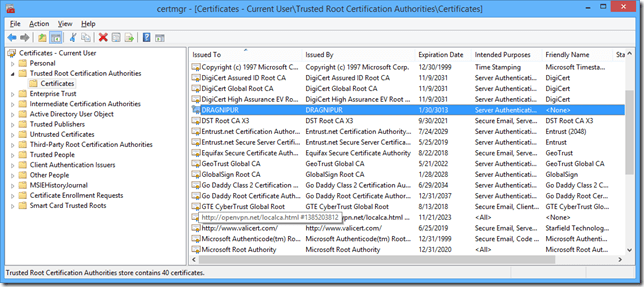
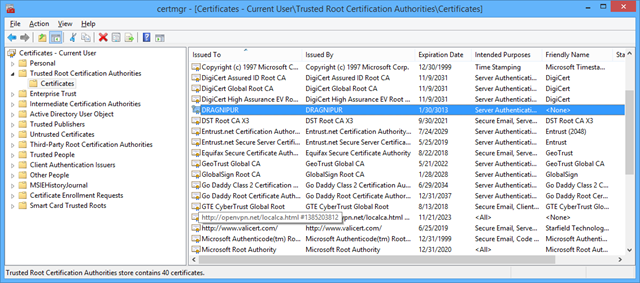
You can view the certificates in your Trusted Root Certification Authorities store by running certmgr.msc from a command program. Here’s what it looks like on my machine.
image

We’ll come back to this tool later.

Create a Simple ASP.NET MVC app that authenticates with Azure Active Directory

You can skip this section if you already know how to do this. This is a quick walkthrough showing how to use Visual Studio 2013 to create simple ASP.NET MVC application and connect it to an existing Azure Active Directory. (You can easily create an AAD either from the Windows Azure portal, or outside it. You can also substitute an Office 365 directory since that automatically uses AAD.)

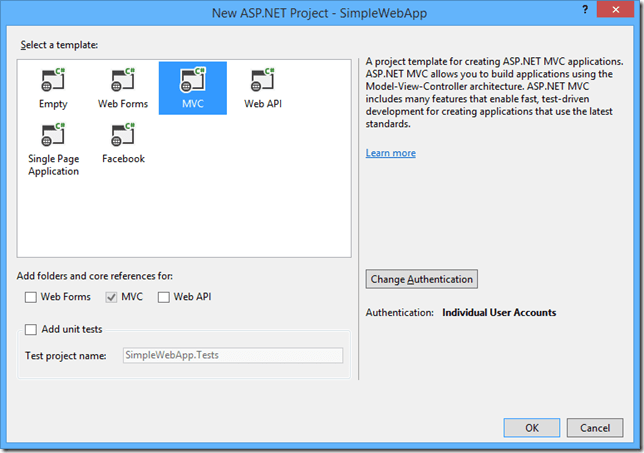
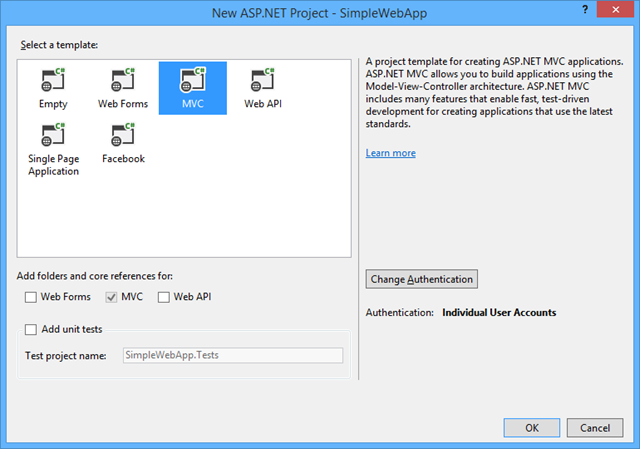
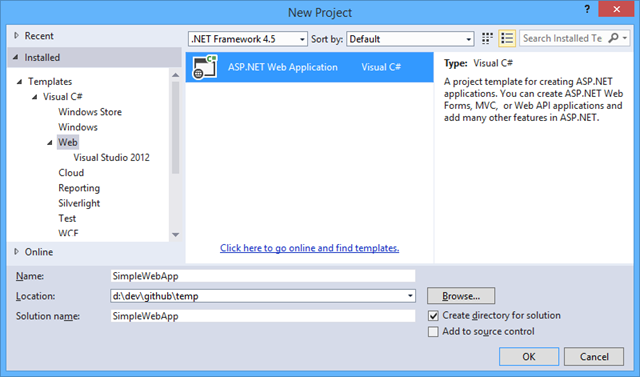
File | New Project, choose as below:
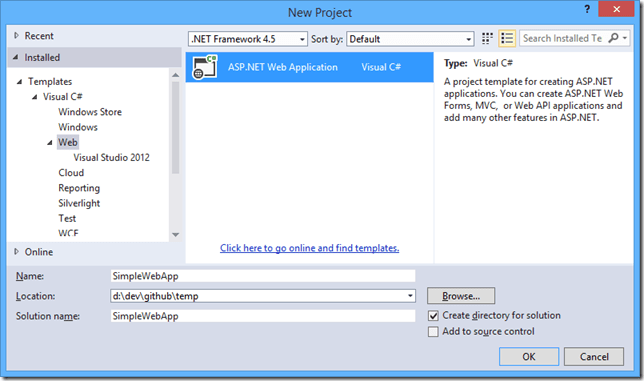
image

Click OK.

image

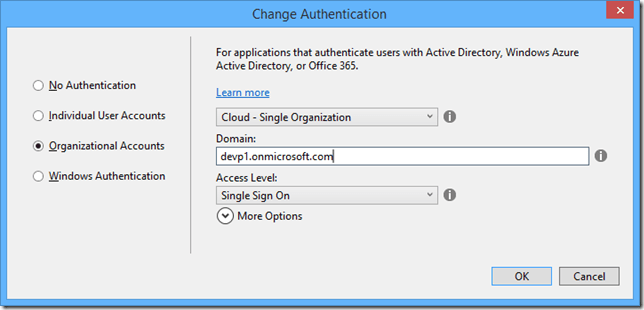
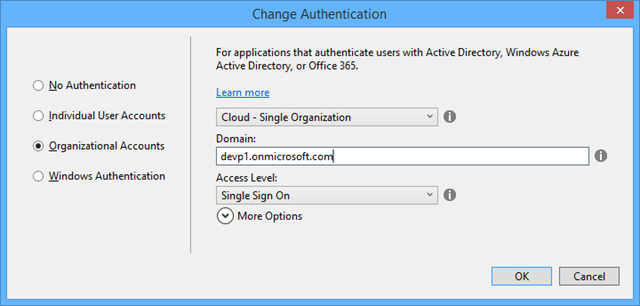
Click Change Authentication.

image

Slect Organizational Accounts in the radio button on the left, and type in your AAD domain (could also be Office 365). Choose Single Sign On for Access Level for simple authentication, or choose Single Sign On, Read directory data if you also plan to use AAD for authorization (such as RBAC). Click OK.

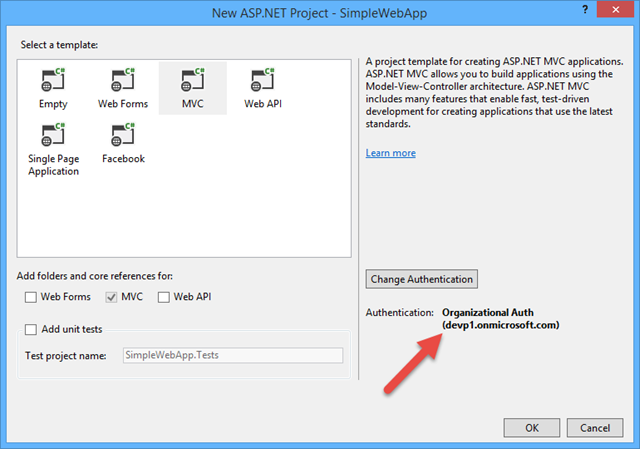
After authenticating as a Global Administrator user on the specified domain, you will be back to your New ASP.NET Project dialog, though with a new value for Authentication setting.
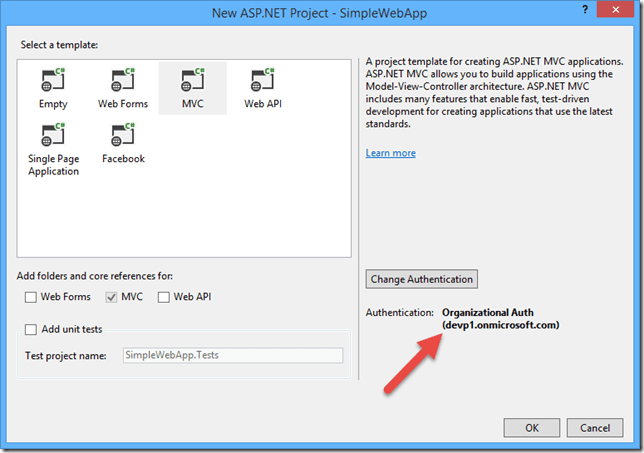
image

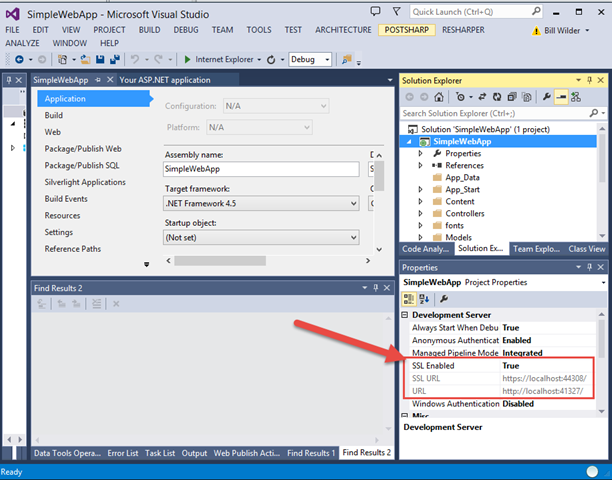
Click OK. Now your project will be generated. If you display the Project Properties window for your project, as shown below, notice the configuration options for SSL. You also have both an SSL endpoint and a regular HTTP endpoint.
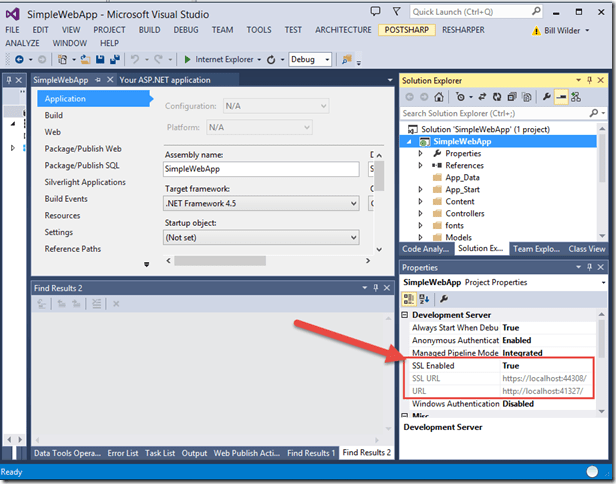
image

Simply hit F5 now to debug. The default configuration here will bring up the SSL endpoint. Let’s explore what happens below.

Web Browser, Please Protect Me!

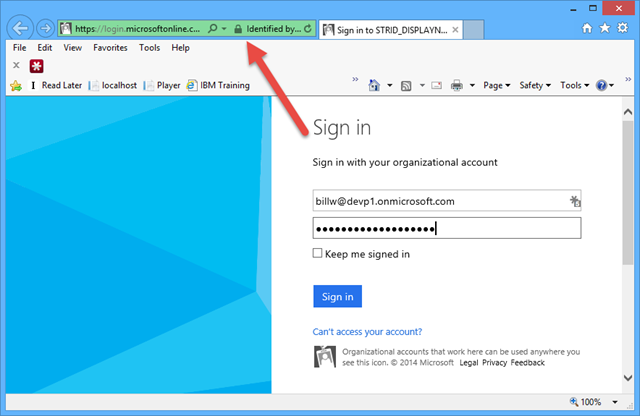
Once you’ve started to debug, you won’t see your app directly, but rather you’ll see something like the following:
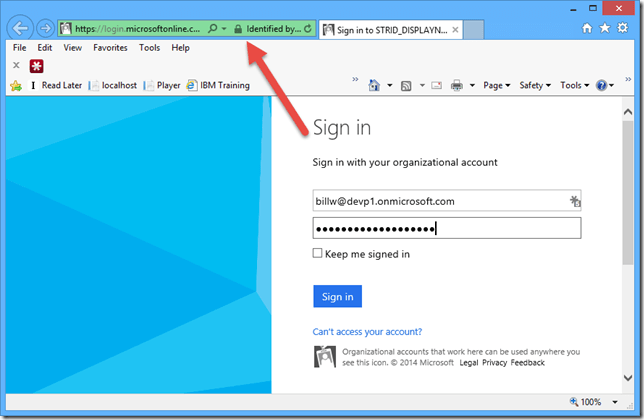
image

This is because of this entry in Web.config:

<system.web>

<authorization>
<deny users="?" />
</authorization>


</system.web>

This says, in a nutshell, only allow authenticated users access to my site, and if they are not authenticated already, send them to the configured AAD login screen.

(It is possible to selectively disable this for certain pages or areas, but we won’t cover that here. But you can see an example in you web.config that uses the location element.)

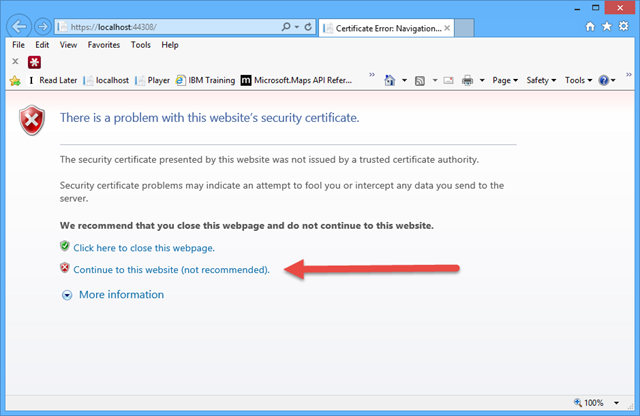
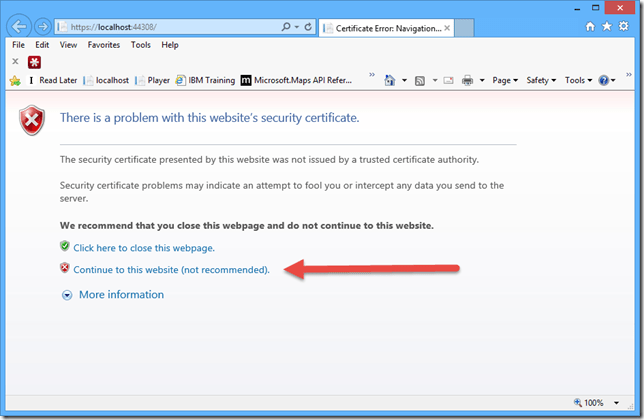
Also note that the login screen is using SSL. After logging in, we stay on SSL, and get the following warning:
image

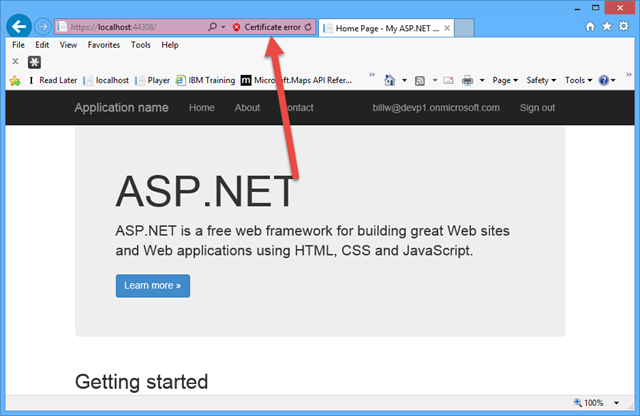
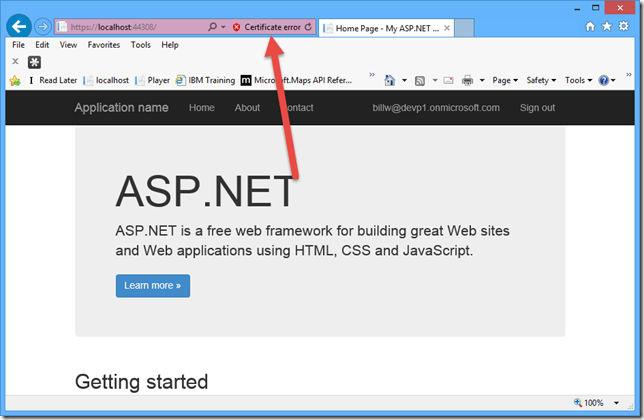
Click the Continue to this websites (not recommended). link and you get your application page, but without the trusty padlock:
image

What does this mean – SSL without the padlock? It means your data is cryptographically secure on the wire (safe from snooping, because the channel is encrypted), but you are sending your data to a web site whose identity has not been independently verified.

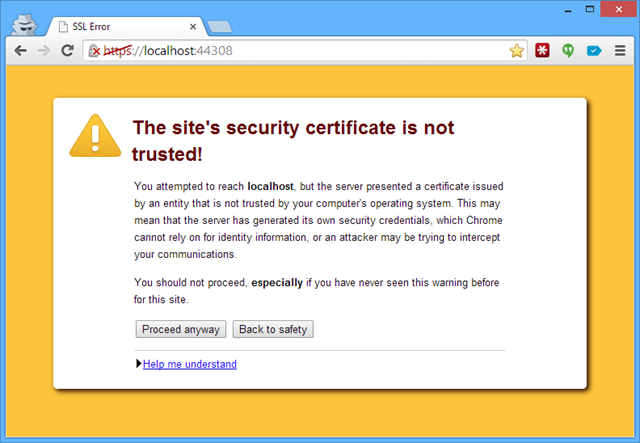
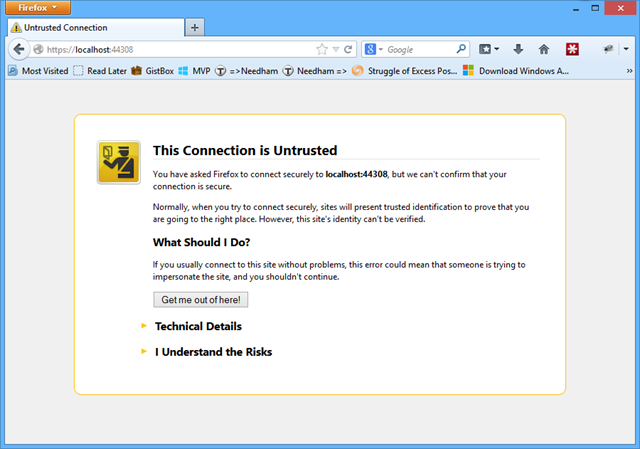
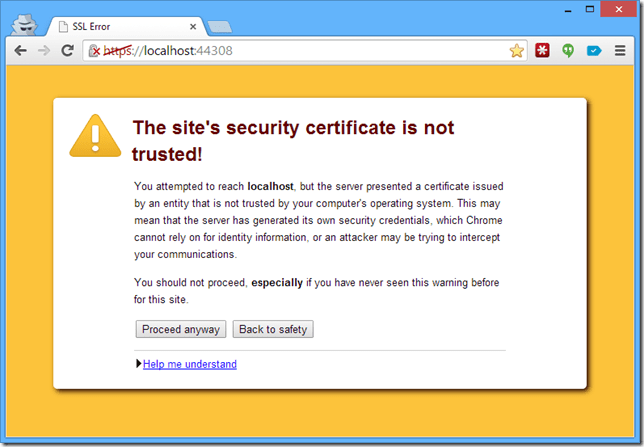
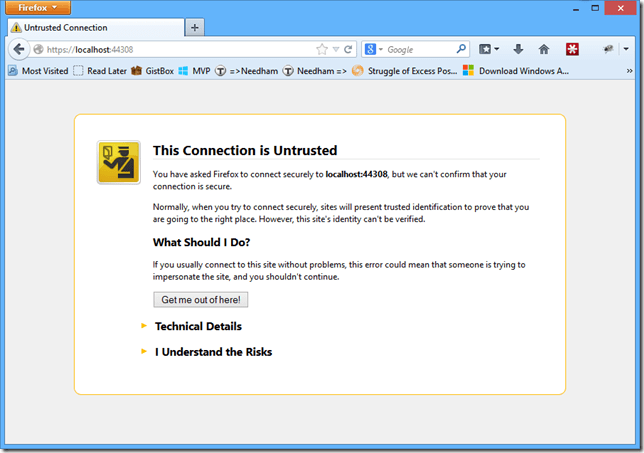
The experience with Chrome and Firefox is similar:

Warning from Chrome – “The site’s security certificate is not trusted!”

Hit F5 from Visual Studio if Chrome is your default browser (or type the appropriate URL into Chrome while debugging from Visual Studio).
image

Warning from Firefox – “This Connection is Untrusted”

Hit F5 from Visual Studio if Firefox is your default browser (or type the appropriate URL into Firefox while debugging from Visual Studio).
image

Why Getting Rid of SSL Warnings is OKAYish Here

Before we get rid of the warning, let’s cover a couple of basics.

We get rid of the SSL warnings by telling Windows to trust the IIS Express certificate. In general, this is a Bad Idea, but in this narrow case it ought to be fine. Here’s the logic:

  1. Your IIS Express certificate is unique to your machine
  2. It only honors ports starting at 44300 (up to, I think, 44399)
  3. You can undo this
  4. You are a developer and Know What You Are Doing
  5. You would NEVER do this on an internet-facing production machine

We’ll use Internet Explorer to make the fix, but realize that since all browsers are using the same underlying Certificate Store on Windows, you only need to do this ONCE (in IE in our case) and the others will also automatically trust the certificate for SSL.

Getting Rid of SSL Warnings for *all* Browsers, Courtesy of IE

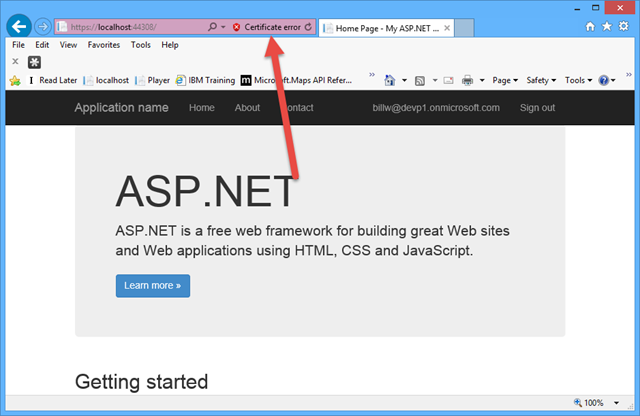
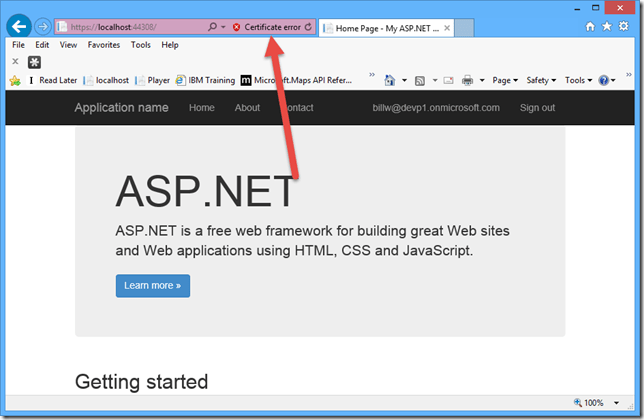
Here’s the core of the tip in this article, and it starts at the point after you’ve hit F5 in Visual Studio, and assumes IE is configured as the default browser (and, if not, simple load the page into IE before proceeding).
image

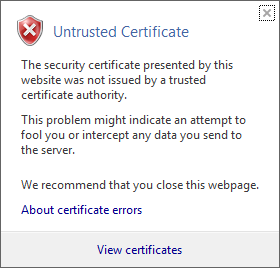
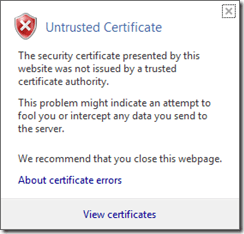
Simple click on Certificate error and you’ll see this popop:
image

Click on View certificates.

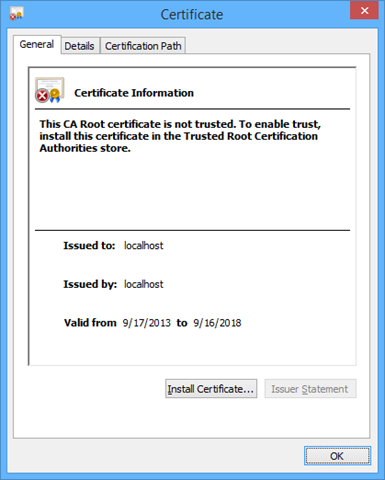
image

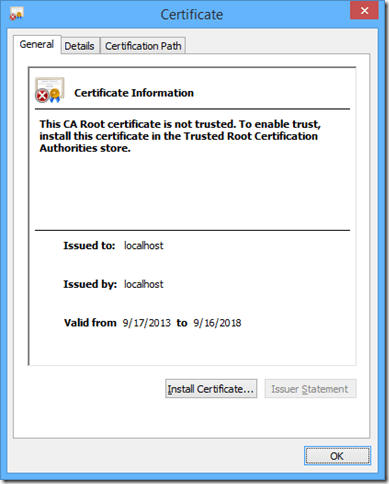
Click on Install Certificate.

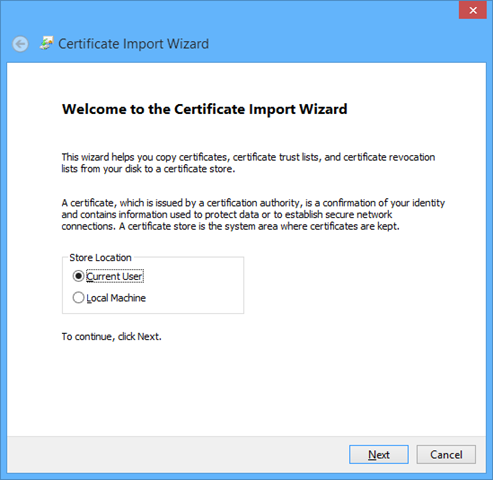
image

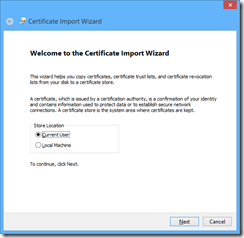
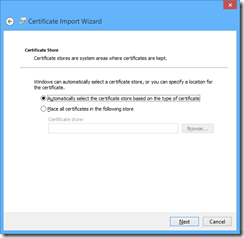
Click Next (Current User is desired location).
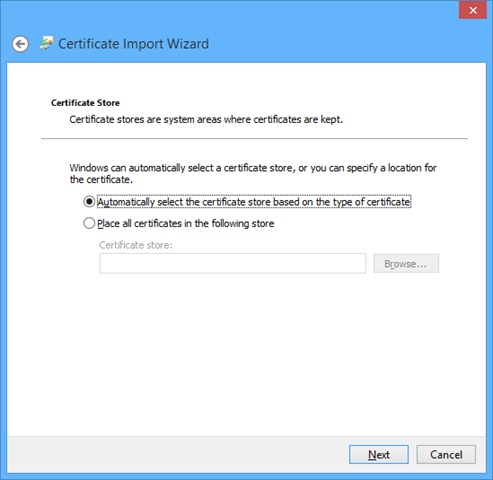
image

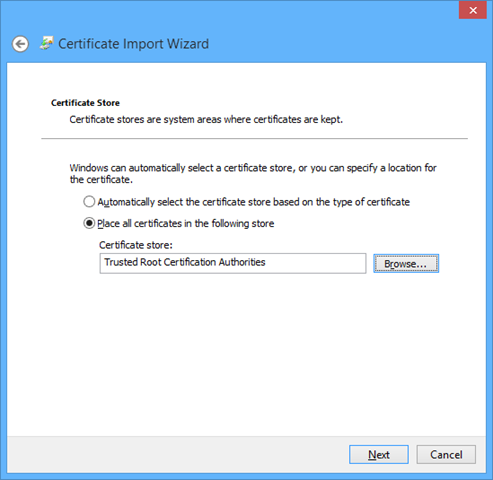
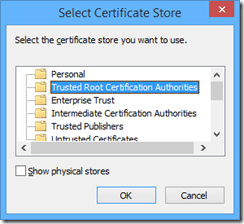
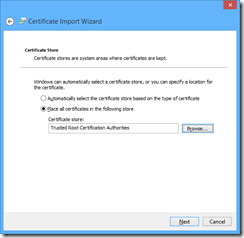
Click Place all certificates in the following store and click browse:
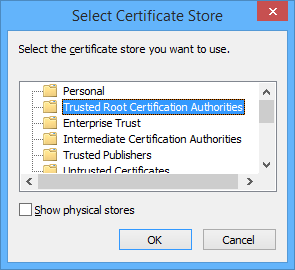
image

Choose Trusted Root Certification Authorities. Click OK.
image

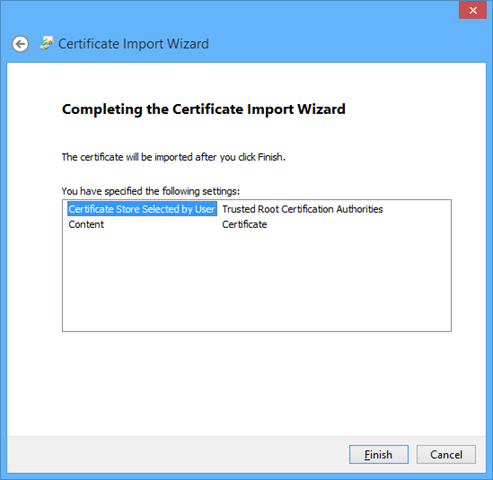
Click Next.

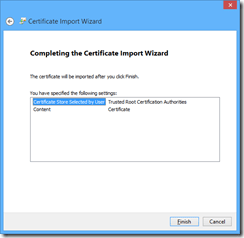
image

Click Finish.

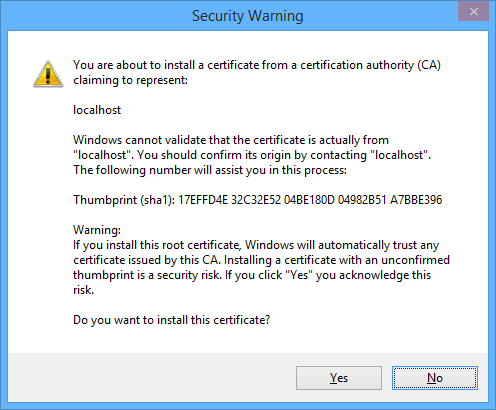
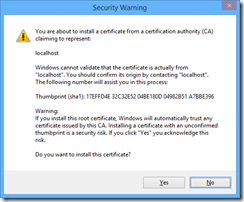
There will be a Security Warning:
image

Now read it. If you are cool with it, click Yes.

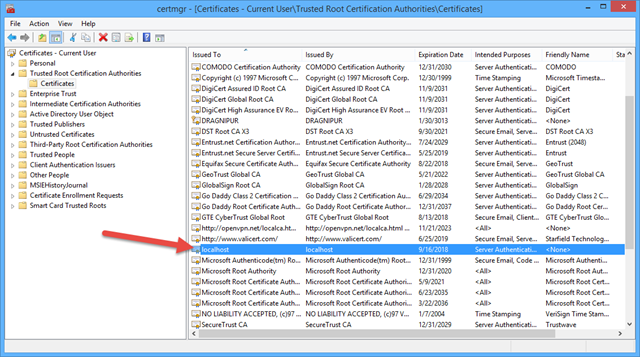
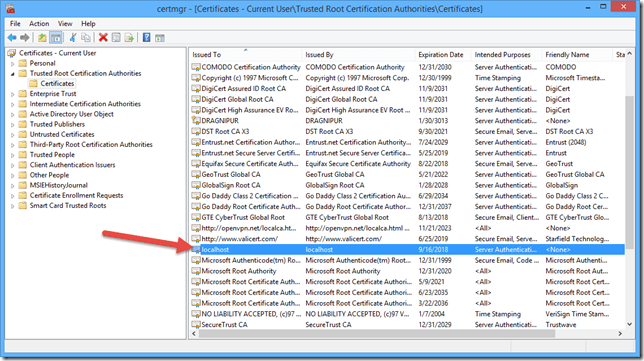
Now if you run certmgr.msc again, you can see the new entry:
image

Undoing the Fix

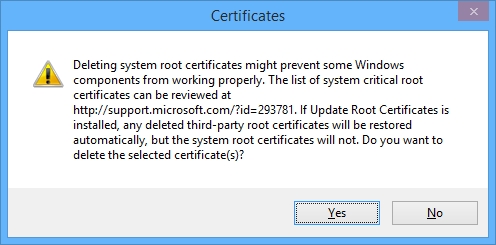
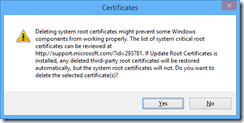
To remove it again, simply select it, as show above, and hit the DELETE key. You’ll get a couple of warnings:
image

Click Yes.

Back to normal.

[This is part of a series of posts on #StupidAzureTricks, explained here.]

Talk: Meet Windows Azure, Your Next Data Center

Today I spoke at VirtG Boston’s annual Deep Dive Day. The title of my talk, Meet Windows Azure, Your Next Data Center, is probably descriptive enough to get the gist of it.

My slide deck follows.

2014-03-12 – Meet Windows Azure, Your Next Data Center – VirtG Virtualization Deep Dive Day

Stupid Azure Trick #8 – Take control of Management Certificate names

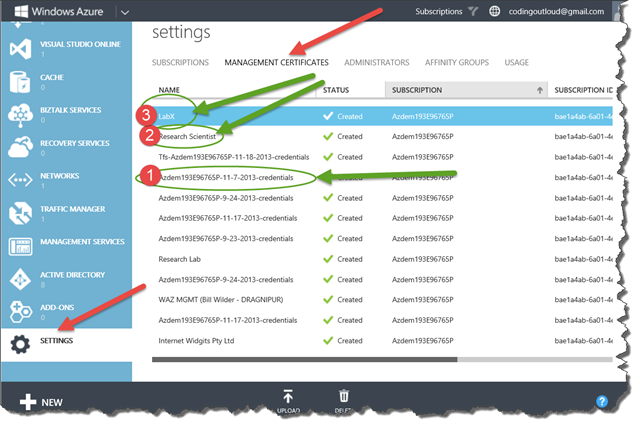
Examine your Windows Azure MANAGEMENT CERTIFICATES in the Windows Azure Portal (under “SETTINGS” in the left nav, then “MANAGEMENT CERTIFICATES” in the top nav). These are the certificates that control which people or which machines can programmatically manipulate your Windows Azure resources through the Service Management API.

Every time you initiate a Publish Profile file download (whether through the portal, with PowerShell, or through the CLI), a new certificate is generated and added to your list of management certificates. You cannot control these names – they are generated.

Upon examination, you may find that some certificates – like #1 shown below – have generated names. And also look at the several certificates immediately below #1 – they have similar names – also generated. These are hard to distinguish from each other.

SNAGHTML2f43f75e

But this is okay some of the time – it is convenient to let tools create these certificates for you since it saves time. It may be perfectly adequate on low security accounts – perhaps a developer’s individual dev-test account from MSDN, or an account only used to give demos with. But for a team account running production, you probably don’t want it to have 17 untraceable, indistinguishable certificates hanging off it.

Now look at the names for #2 and 3 shown above. They are custom names.

Managing Your Management Certificates Starts with Meaningful Names

While we can debate whether the custom names shown above are truly meaningful (this is a demo account), you can probably appreciate that seeing a certificate name like “BUILD SERVER” or “Person/Machine” (e.g., “Maura/DRAGNIPUR”) or “Foobar Contractor Agency” might be more useful than “Azdem123EIEIO” to a human.

Controlling Certificate Names

The Windows Azure Management Portal has some heuristics for deciding what to display for a certificate’s name, but the first one it considers is the Common Name, and will display its value if present. So the short answer: take control of the Common Name.

Here we show creating a Service Management certificate manually in two steps – first the PEM (for use locally) and second deriving a CER (for uploading to the portal).

openssl req -x509 -nodes -days 365 -newkey rsa:1024 -keyout mycert.pem -out mycert.pem -subj "/CN=This Name Shows in the Portal"
openssl x509 -inform pem -in mycert.pem -outform der -out mycert.cer

Note the use of -subj "/CN=This Name Shows in the Portal" when generating a PEM in the first command. The specified text will appear as the description for this certificate within the Windows Azure Portal. OpenSSL is available on Linux and Mac systems by default. For Windows, you can install it directly, or – if you happen to use GitHub for Windows – it gets installed along with it.

For a pure Windows solution, use makecert to create a Management Certificate for Windows Azure.

Considerations

Once you assume responsibility for naming your own certificates, you are simultaneously also taking on generating them, deploying the certificates containing the private keys to the machines from which your Windows Azure resources will be managed using the Service Management API, and uploading the CER public keys to the portal. To make some parts of this easier – especially if you are distributing to a team – consider building your own publish settings file. Also, realize the same certificate can be used by more than one client, and the can also be applied to more than one subscription on Windows Azure; its a many-to-many relationship that’s allowed.

Resources

Create and Upload a Management Certificate for Windows Azure

X.509 Certificates

Build your own Publish Settings File

[This is part of a series of posts on #StupidAzureTricks, explained here.]
Talk: 7 Things Software Testing Professionals Should Know About the Public Cloud

Today I partnered with XBOSoft to present the webinar: 7 Things Software Testing Professionals Should Know About the Public Cloud.image

This is one of a series of webinars hosted by XBOSoft (@xbosoft) as part of their 2014 Webinar series from the XBOSoft Software Quality Knowledge Center. They are a global company (San Francisco, Amsterdam, Oslo & Beijing) focused on Software Quality Improvement. Check them out here: www.xbosoft.com.

The free Webinar was held on March 6, 2014.

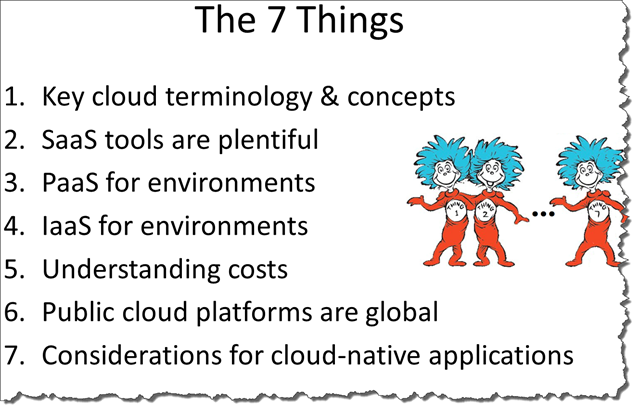
At a high level, these are the 7 things discussed:

  1. Key cloud terminology & concepts
  2. SaaS tools are plentiful
  3. PaaS for environments
  4. IaaS for environments
  5. Understanding costs
  6. Public cloud platforms are global
  7. Considerations for cloud-native applications

The PowerPoint deck I used to walk through the topics is here:

7 Things Software Testing Pros Should Know About Public Cloud

Stupid Azure Trick #7 – Use Windows Azure’s Local Storage Emulator with Web Sites & VMs

[Ugh – editing 2nd week in a row after accidental early publishing.]

The original programming model for Windows Azure applications was to use Cloud Services (originally known as Hosted Services, but still the same thing). Of particular note, Cloud Services run on VMs with disks that are not-persistent – you can write data locally (some pointers here), but any locally stored data is not guaranteed to stick around. This is a powerful model for some scenarios, especially highly scalable applications. Another feature of Cloud Services has always been that it comes with an emulator you can run locally – on your laptop at 30,000 feet was a common way to hammer home the point. (Remember, Cloud Services were announced in 2008 – a long time before we had wifi on airplanes!) There are actually two emulators: Compute – which emulates the Cloud Service model by supporting Web Role and Worker Role abstractions, and Storage – which emulates Blob, Table, and [Storage] Queue Services. The rest of this post will focus specifically on the Storage Emulator.

waws-wavm-wacs-venn

Since their announcement in 2012, Windows Azure Web Sites and Virtual Machines have been taking on many of the common workloads that used to require Cloud Services. This diagram at least conceptually should capture the sense that the when to use which model decision has become blurred over time. This is good – with more choice comes the freedom to get started more simply – often a Virtual Machine is an easier onramp for existing apps, and a Web Site can be a great onramp for a website that adheres to some of the well-known programming stacks running on PHP, ASP.NET, Python, or Node.js. If you are a big success, consider upgrading to Cloud Services.

Notably absent from the diagram is the Storage Emulator. It should be in the middle of the diagram because while the local storage emulator is still useful for Cloud Services, you can also use it locally when developing applications targeting Windows Azure Web Sites or Virtual Machines.

This is awesome – of course, it will be popular to create applications destined for Windows Azure Web Sites or Virtual Machines that take advantage of the various Storage Services.

So that’s the trick – be sure to take advantage of the Storage Emulator, even when you are not targeting a Cloud Service. You need to know two things: how to turn it on, and how to address it.

Turning on the Storage Emulator

If you create a regular old Web Site and run that in Visual Studio, the Storage Emulator is not turned on. Visual Studio only turns on the Storage Emulator for you when you debug using a Cloud Service, but this is not convenient.

It is easy to turn on. I have a whole post that explains how to start the storage emulator from a shortcut, but the keys are:

  1. Find csrun.exe — In my case: “C:\Program Files\Microsoft SDKs\Windows Azure\Emulator\csrun.exe” 
  2. Run csrun.exe with the parameter /devstore:start which indicates to start up the Storage Emulator.
  3. Done. Of course you might want this is a bat file or as a PowerShell function.

Here’s PowerShell script that will turn it on:

& 'C:\Program Files\Microsoft SDKs\Windows Azure\Emulator\csrun.exe' /devstore:start

Addressing the Storage Emulator

The other part is knowing how to set up your Storage Connection String so that it accesses local storage emulator instead of the cloud.

Here are the values to use to make it look like any other Storage Account, while still addressing local emulated storage rather than in the cloud:

Emulator Storage Account Name: devstoreaccount1
Emulator Storage Account Key: Eby8vdM02xNOcqFlqUwJPLlmEtlCDXJ1OUzFT50uSRZ6IFsuFq2UVErCz4I6tq/K1SZFPTOtr/KBHBeksoGMGw==

Resources

The latest version of the Windows Azure Storage Emulator (v2.2.1) is in Preview. This release has support for “2013-08-15” version of Storage which adds CORS and JSON and still has all those features from years gone by…

A comparison of emulated and cloud storage services is also available. There are some differences.

[This is part of a series of posts on #StupidAzureTricks, explained here.]
Windows Azure Japan Data Center Regions now in Production, AzureMap updated

Two more Windows Azure data center regions have moved into production – in Japan this time.

There was a press release, but in Japanese. You can either learn Japanese or read the Bing Translator or Google Translate versions.

I updated the JSON meta data in the Azure Map project to indicate these data center regions into the “Production” mode, then re-ran my script to regenerate and upload the GeoJSON and TopoJSON maps. All data is in GitHub. For more info, see these two posts: