I attended the 16th (!) edition of New England Code Camp on Saturday 29-Oct-2011. I presented a talk called Cloud Architecture Patterns for Mere Mortals in which I introduced some big architecture ideas – e.g., CQRS, NoSQL, Sharding, and Eventual Consistency – with specific examples of how to realize these patterns drawn from the Windows Azure Platform. My slide deck is here: new-england-code-camp-16-Cloud-Architecture-Patterns-for-Mere-Mortals-bill-wilder-29-oct-2011
I also attended some cool talks – Brock Allen spoke about WIF, David Padbury on node.js, and Dominic Denicola on various Async approaches like Promises. Good time as usual! No after-event celebrating – everyone is running for cover due to the Nor’easter!
If you are interested in learning more about the Windows Azure Platform, please come join us at a Boston Azure cloud user group meeting. Details at www.bostonazure.org. We meet every month to learn about Azure. Sometimes we learn through prepared talks, sometimes we hold training events, and sometimes coding/hackathons. We are the oldest such user group in the world, turning two years old this month. Hope to see you!
Our next meeting is Thursday November 17 (the Thursday before Thanksgiving), featuring a very Azurey talk by Chris Rolon of Neudesic.
Got Azure Question? I am also a Windows Azure MVP for Windows Azure and know a thing or two about the platform. I am happy to answer questions you may have. Feel free to contact me on twitter (@codingoutloud) or by email (which is my twitter handle at gmail.com).
For my part, I attended a number of interesting sessions (especially the frighteningly entertaining talk by Francis Brown on using Google and Bing to hack (or protect) web properties). Due to scheduling challenges, I missed Andrew Wilson‘s talk on Reversing Web Applications, which I wanted to check out.
For my part, I offered a Birds-of-a-Feather session on Securing Applications in the Cloud (with examples drawn from Windows Azure Platform). In this session, I reviewed both pros and cons of cloud deployments from a security point of view, and attempted to make the case that, ultimately, either your applications will simply be safer in the cloud, or at least if you want them to be sufficiently safe, it will be more cost-effective to let the specialists at Microsoft (or some other trusted cloud vendor) handle much of the dirty work.
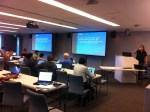
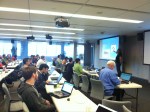
On Friday September 30 and Saturday October 1 the Boston Azure cloud user group hosted the Boston Azure Bootcamp – with a few of our friends – and it was a big success.
Here are a few links that folks attending might have been told about, plus a couple of answers I offered to gather offline.
Where can I get the materials used in the Bootcamp?
However, as I explained at the bootcamp, the actual materials used at our sessions were a mix of what is posted on the web and some slide decks that had been updated (mostly for the Azure SDK 1.5, but also other changes in some cases). So you can pull the materials as linked to above and you’ll be pretty close, but the updated ones are not yet publicly posted.
You can thank our TWO MAJOR SPONSORS: This event was provided free to you because our Gold Sponsor SNI TECHNOLOGY generously sponsored the food, and Microsoft NERD donated the space. Many thanks to these major sponsors!
Without these sponsors this event would simply not have happened.
And you can thank the Boston Azure Bootcamp team which included (in alphabetical order): Andy Novick (who led the SQL Azure segment), Arra Derderian (helped during labs), George Babey (“swag guy” – and helped during labs), Jim O’Neil (lab-time tech support, lecture-time answer-man), Joan Wortman (ran the registration), Maura Wilder (who led the Azure Table Storage segment – and helped during labs), Nazik Huq (“twitter guy” – plus made sure there was food – and helped during labs), and William Wilder (yes, that’s me; you can call me “Bill” but wanted to be listed last…). Also, many thanks to Martha O’Neil for baking us a cloudy cake. 🙂
We are planning another Boston Azure Bootcamp in 2012. Stay tuned!
Update 22-Oct-2011: Here is contact info for our Gold sponsors at SNI TECHNOLOGY:
Are you interested in Cloud Computing generally, or specifically Cloud Computing using the Windows Azure Platform? Listed below are the upcoming Azure-related events in the Greater Boston area which you can attend in person and for FREE (or low cost).
Since this summary page is – by necessity – a point-in-time SNAPSHOT of what I see is going on, it will not necessarily be updated when event details change. So please always double-check with official event information!
updates: Added Tech Boston event + more details on Boston Azure
Know of any more cloud events of interest to the Windows Azure community? Have any more information or corrections on the events listed? Please let us know in the comments.
Events are listed in the order in which they will occur.
October Events
1. Mongo Boston
when: Mon 03-Sep-2011, 9:00-5:00 PM
where: Hosted at NERD Center
wifi: Wireless Internet access will be available
food: Provided
cost: $30
what: The main Azure-related content is a talk by Jim O’Neilon using Mongo with the Windows Azure Platform – from the published program description: “MongoDB in the Cloud, Jim O’Neil – Developer Evangelist, Microsoft: MongoDB is synonomous with scale and performance, and, hey, so is cloud computing! It’s peanut butter and chocolate all over again as we take a look at why you might consider running MongoDB in the cloud in general and also look at the alpha release of MongoDB on Azure, a collaboration from 10gen and Microsoft.”
where: CloudCamp Boston #5 is Co-located with the OpenStack Design Summit. Intercontinental Hotel, 510 Atlantic Ave, Salon A (between Congress St & Fort Hill Wharf), Boston, MA 02210
wifi: (not sure)
food: (not sure, though food and beer were offered last time)
cost:
what: (from the event description on cloudcamp.org) “CloudCamp is an unconference where early adopters of Cloud Computing technologies exchange ideas. With the rapid change occurring in the industry, we need a place where we can meet to share our experiences, challenges and solutions. At CloudCamp, you are encouraged to share your thoughts in several open discussions, as we strive for the advancement of Cloud Computing. End users, IT professionals and vendors are all encouraged to participate.”
what: “You’ve probably seen the “to the cloud” commercial and are aware of the hype
that makes cloud computing sound like the next best thing since sliced bread,
but do you really know what cloud computing is? And what it’s not? When does it
make sense? And when doesn’t it? What does it mean to us as software developers,
startup entrepreneurs, and end-users? And how do you sort through all of the
vendors and offerings to determine whose cloud portfolio offers the most value
to you? We’ll look at all of these questions and more as we spend the evening
navigating through the cloudscape.” (text taken from the Meetup listing)
4. Boston Azure User Group meeting: Cloud Architecture Patterns
when: Thu 27-Oct-2011, 6:00 – 8:30 PM
where: Hosted at NERD Center
wifi: Wireless Internet access will be available
food: Pizza and drinks will be provided
cost: FREE
what: Featured talk: “There are some big ideas in software architecture that are particularly relevant for cloud platforms. In this talk we will introduce a few of these big ideas – eventual consistency, scale out, and design for failure – and discuss the implications of these big ideas on cloud application architecture generally, with specific examples of useful patterns and services drawn from the Windows Azure Platform.” There will also be a shorter opening topic.
Along with MauraWilder and JoanWortman, I made the trek to Vermont from Boston to hang out with the cool kids at Vermont Code Camp III. The three of us gave talks and attended a bunch of excellent sessions. For my part, I attended talks on Hadoop, Visual Studio tools for Unit Testing, EF, software consulting, and Maura and Joan’s talk Introduction to the Ext JS JavaScript framework “for Rich Apps in Every Browser” (after which I admit I was convinced that this is a framework to take seriously – very impressive).
Also, you are all invited to the (free) Boston Azure Bootcamp to be held in the Boston area (Cambridge, MA) on Friday September 30 and Saturday October 1. Sign up here, and please help spread the word. Hope to see some Vermont Code Camp friends there! Let me know if you have a strong desire to “couch surf”, especially on the middle night, and I’ll see if I can help out. Tickets won’t last forever, so I encourage you to sign up sooner than later.
Thank you to all the Vermont Code Camp III organizers, volunteers, and sponsors – like last year, this was an inspired event and I’m glad I made the trip. Find them on Twitter at @VTCodeCamp.
A handful of Vermont Code Camp photos follow… (and a couple from Sunday night on Church Street in Burlington)
Q. How often do Windows Azure VMs synchronize their internal clocks to ensure they are keeping accurate time?
A. This basic question comes up occassionally, usually when there is concern around correlating timestamps across instances, such as for log files or business events. Over time, like mechanical clocks, computer clocks can drift, with virtual machines (especially when sharing cores) effected even more. (This is not specific to Microsoft technologies; for example, it is apparently an annoying issue on Linux VMs.)
I can’t find any official stats on how much drift happens generally (though some data is out there), but the question at hand is what to do to minimize it. Specifically, on Windows Azure Virtual Machines (VMs) – including Web Role, Worker Role, and VM Role – how is this handled?
According to this Word document – which specifies the “MICROSOFT ONLINE SERVICES USE RIGHTS SUPPLEMENTAL LICENSE TERMS, MICROSOFT WINDOWS SERVER 2008 R2 (FOR USE WITH WINDOWS AZURE)” – the answer is once a week. (Note: the title above includes “Windows Server 2008 R2” – I don’t know for sure if the exact same policies apply to the older Windows Server 2008 SP2, but would guess that they do.)
Here is the full quote, in the context of which services you can expect will be running on your VM in Windows Azure:
Windows Time Service. This service synchronizes with time.windows.com once a week to provide your computer with the correct time. You can turn this feature off or choose your preferred time source within the Date and Time Control Panel applet. The connection uses standard NTP protocol.
So Windows Azure roles use the time service at time.windows.com to keep their local clocks up to snuff. This service uses the venerable Network Time Protocol (NTP), described most recently in RFC 5905.
UDP Challenges
The documentation around NTP indicates it is based on User Datagram Protocol (UDP). While Windows Azure roles do not currently support you building network services that require UDP endpoints (though you can vote up the feature request here!), the opposite is not true: Windows Azure roles are able to communicate with non-Azure services using UDP, but only within the Azure Data Center. This is how some of the key internet plumbing based on UDP still works, such as the ability to do Domain Name System (DNS) lookups, and – of course – time synchronization via NTP.
This may lead to some confusion since UDP support is currently limited, while NTP being already provided.
The document cited above mentions you can “choose your preferred time source” if you don’t want to use time.windows.com. There are other sources from which you can update the time of a computing using NTP, such as free options from National Institute for Standards and Technology (NIST).
Here are the current NTP Server offerings as seen in the Control Panel on a running Windows Azure Role VM (logged in using Remote Desktop Connection). The list includes time.windows.com and four options from NIST:
Interestingly, when I manually tried changing the time on my Azure role using a Remote Desktop session, any time changes I made were immediately corrected whenever I tried to make changes. Not sure if it was doing an automatic NTP correction after any time change, but my guess is something else was going on since the advertised next time it would sync via NTP did not change based on this.
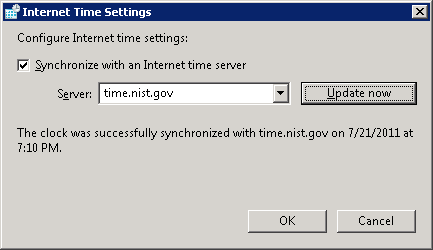
When choosing a different NTP Server, it did not always succeed (sometimes timing out), but also I did see it succeed, as in the following:
The interesting part of seeing any successful sync with time.nist.gov is that it implies UDP traffic leaving and re-entering the Windows Azure data center. This, in general, is just not allowed – all UDP traffic leaving or entering the data center is blocked (unless you use a VM Role with Windows Azure Connect). To prove this for yourself another way, configure your Azure role VM to use a DNS server which is outside of the Azure data center; all subsequent DNS resolution will fail.
If “weekly” is Not Enough
If the weekly synchronization frequency is somehow inadequate, you could write a Startup Task to adjust the frequency to, say, daily. This can be done via the Windows Registry (full details here including all the registry settings and some tools, plus there is a very focused summary here giving you just the one registry entry to tweak for most cases).
How frequently is too much? Not sure about time.windows.com, but time.nist.gov warns:
All users should ensure that their software NEVER queries a server more frequently than once every 4 seconds. Systems that exceed this rate will be refused service. In extreme cases, systems that exceed this limit may be considered as attempting a denial-of-service attack.
They recommend against using any of the servers, at least at the moment I grabbed these Status values from their web site. I find this amusing since – other than the default time.windows.com – these are the only four servers offered as alternatives in the User Interface of the Control Panel applet. As I mentioned above, sometimes these servers timed out on an on-demand NTP sync request I issued through the applet user interface; this may explain why.
It may be possible to use a commercial NTP service, but I don’t know if the Windows Server 2008 R2 configuration supports it (at least I did not see it in the user interface), and if there was a way to specify it (such as in the registry), I am not sure that the Windows Azure data center will allow the UDP traffic to that third-party host. (They may – I just don’t know. They do appear to allow UDP requests/responses to NIST servers. Not sure if this is a firewall/proxy rule, and if so, is it for NTP, or just NTP to NIST?)
And – for the (good kind of) hacker in you – if you want to play around with accessing an NTP service from code, check out this open source C# code.
Is this useful? Did I leave out something interesting or get something wrong? Please let me know in the comments! Think other people might be interested? Spread the word!
I recently did some work with Windows Services, and since it had been rather a long while since I’d done so, I had to recall a couple of tips and tricks from the depths of my memory in order to get my “edit, run, test” cycle to be efficient. The singular challenge for me was quickly getting into a debuggable state with the service. How I did this is described below.
Does Windows Azure support Windows Services?
First, a trivia question…
Trivia Question: Does Windows Azure allow you to deploy your Windows Services as part of your application or cloud-hosted service?
Short Answer: Windows Azure is more than happy to run your Windows Services! While a more native approach is to use a Worker Role, a Windows Service can surely be deployed as well, and there are some very good use cases to recommend them.
More Detailed Answer: One good use case for deploying a Windows Service: you have legacy services and want to use the same binary on-prem and on-azure. Maybe you are doing something fancy with Azure VM Roles. These are valid examples. In general – for something only targetting Azure – a Worker Role will be easier to build and debug. If you are trying to share code across a legacy Windows Service and a shiny new Windows Azure Worker Role, consider following the following good software engineering practice (something you may want to do anyway): factor out the “business logic” into its own class(es) and invoke it with just a few lines of code from either host (or a console app, a Web Service, a unit test (ahem), etc.).
Windows Services != Web Services
Most readers will already understand and realize this, but just to be clear, a Windows Service is not the same as a Web Service. This post is not about Web Services. However, Windows Azure is a full-service platform, so of course has great support for not only Windows Services but also Web Services. Windows Communication Foundation (WCF) is a popular choice for implementing Web Services on Windows Azure, though other libraries work fine too – including in non-.NET languages and platforms like Java.
Now, on to the main topic at hand…
Why is Developing with Windows Services Slower?
Developing with Windows Services is slower than some other types of applications for a couple of reasons:
It is harder to stop in the Debugger from Visual Studio. This is because a Windows Service does not want to be started by Visual Studio, but rather by the Service Control Manager (the “scm” for short – pronounced “the scum”). This is an external program.
Before being started, Windows Services need to be installed.
Before being installed, Windows Services need to be uninstalled (if already installed).
Tip 1: Add Services applet as a shortcut
I find myself using the Services applet frequently to see which Windows Services are running, and to start/stop and other functions. So create a shortcut to it. The name of the Microsoft Management Console snapin is services.msc and you can expect to find it in Windows/System32, such as here: C:\Windows\System32\services.msc
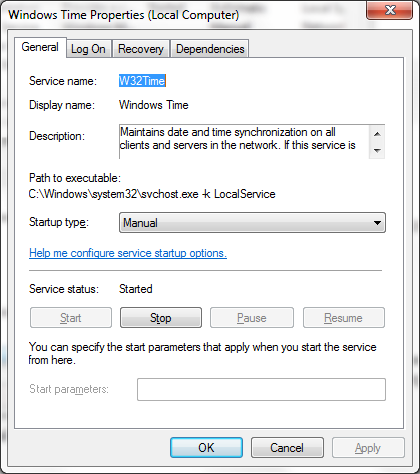
A good use of the Services applet is to find out the Service name of a Windows Service. This is not the same as the Windows Services’s Display name you seen shown in the Name column. For example, see the Windows Time service properties – note that W32Time is the real name of the service:
Tip 2: Use Pre-Build Event in Visual Studio
Visual Studio projects have the ability to run commands for you before and after the regular compilation steps. These are known as Build Events and there are two types: Pre-build events and Post-build events. These Build Events can be accessed from your Project’s properties page, on the Build Events side-tab. Let’s start with the Pre-build event.
Use this event to make sure there are no traces of the Windows Service installed on your computer. Depending on where you install your services from (see Tip 3), you may find that you can’t even recompile your service until you’ve at least stopped it; this smooths out that situation, and goes beyond it to make the usual steps happen faster than you can type.
One way to do this is to write a command file – undeploy-service.cmd – and invoke it as a Pre-build event as follows:
undeploy-service.cmd
You will need to make sure undeploy-service.cmd is in your path, of course, or else you could invoke it with the path, as in c:\tools\undeploy-service.cmd.
The contents of undeploy-service.cmd can be hard-coded to undeploy the service(s) you are building every time, or you can pass parameters to modularize it. Here, I hard-code for simplicity (and since this is the more common case).
Set a reusable variable to the name of my service (set ServiceName=NameOfMyService)
Stop it, if it is running (net stop)
Uninstall it (installutil.exe /u)
If the service is still around at this point, ask the SCM to nuke it (sc delete)
Return from this .cmd file with a success status so that Visual Studio won’t think the Pre-Build event ended with an error (exit /b 0 => that’s a zero on the end)
In practice, you should not need all the horsepower in steps 2, 3, and 4 since each of them does what the prior one does, plus more. They are increasingly powerful. I include them all for completeness and your consideration as to which you’d like to use – depending on how “orderly” you’d like to be.
Tip 3: Use Post-Build Event in Visual Studio
Use this event to install the service and start it up right away. We’ll need another command file – deploy-service.cmd – to invoke as a Post-build event as follows:
deploy-service.cmd $(TargetPath)
What is $(TargetPath) you might wonder. This is a Visual Studio build macro which will be expanded to the full path to the executable – e.g., c:\foo\bin\debug\MyService.exe will be passed into deploy-service.cmd as the first parameter. This is helpful so that deploy-service.cmd doesn’t need to know where your executable lives. (Visual Studio build macros may also come in handy in your undeploy script from Tip 2.)
Within deploy-service.cmd you can either copy the service executables to another location, or install the service inline. If you copy the service elsewhere, be sure to copy needed dependencies, including debugging support (*.pdb). Here is what deploy-service.cmd might contain:
set ServiceName=NameOfMyService
set ServiceExe=%1
C:\WINDOWS\Microsoft.NET\Framework\v4.0.30319\InstallUtil.exe %ServiceExe%
net start %ServiceName%
Here is what the commands each do:
Set a reusable variable to the name of my service (set ServiceName=NameOfMyService)
Set a reusable variable to the path to the executable (passed in via the expanded $(TargetPath) macro)
Install it (installutil.exe)
Start it (net start)
Note that net start will not be necessary if your Windows Service is designed to start automatically upon installation. That is specified through a simple property if you build with the standard .NET template.
Tip 4: Use System.Diagnostics.Debugger in your code
If you follow Tip 2 when you build, you will have no trouble building. If you follow Tip 3, your code will immediately begin executing, ready for debugging. But how to get it into the debugger? You can manually attach it to a running debug session, such as through Visual Studio’s Debug menu with the Attach to Process… option.
I find it is often more productive to drop a directive right into my code, as in the following:
void Foo()
{
int x = 1;
System.Diagnostics.Debugger.Launch(); // use this…
System.Diagnostics.Debugger.Break(); // … or this — but not both
}
System.Diagnostics.Debugger.Launch will launch into a into debugger session once it hits that line of code and System.Diagnostics.Debugger.Break will break on that line. They are both useful, but you only need one of them – you don’t need them both – I only show both here for illustrative purposes. (I have seen problems with .NET 4.0 when using Break, but not sure if .NET 4.0 or Break is the real culpret. Have not experienced any issues with Launch.)
This is the fastest way I know of to get into a debugging mood when developing Windows Services. Hope it helps!
I recently attended an event where one of the speakers was the CTO of a company built on top of Amazon cloud services, the most critical of these being the Simple Storage Service known as Amazon S3.
The S3 service runs “out there” (in the cloud) and provides a scalable repository for applications to store and manage data files. The service can support files of any size, as well as any quantity. So you can put as much stuff up there as you want – and since it is a pay-as-you-go service, you pay for what you use. The S3 service is very popular. An example of a well-known customer, according to Wikipedia, is SmugMug:
Photo hosting service SmugMug has used S3 since April 2006. They experienced a number of initial outages and slowdowns, but after one year they described it as being “considerably more reliable than our own internal storage” and claimed to have saved almost $1 million in storage costs.
Good stuff.
Of course, Amazon isn’t the only cloud vendor with such an offering. Google offers Google Storage, and Microsoft offers Windows Azure Blob Storage; both offer features and capabilities very similar to those of S3. While Amazon was the first to market, all three services are now mature, and all three companies are experts at building internet-scale systems and high-volume data storage platforms.
As I mentioned above, S3 came up during a talk I attended. The speaker – CTO of a company built entirely on Amazon services – twice touted S3’s incredibly strong Service Level Agreement (SLA). He said this was both a competitive differentiator for his company, and also a competitive differentiator for Amazon versus other cloud vendors.
Pause and think for a moment – any idea? – What is the SLA for S3? How about Google Storage? How about Windows Azure Blob Storage?
Before I give away the answer, let me remind you that a Service Level Agreement (SLA) is a written policy offered by the service provider (Amazon, Google, and Microsoft in this case) that describes the level of service being offered, how it is measured, and consequences if it is not met. Usually, the “level of service” part relates to uptime and is measured in “nines” as in 99.9% (“three nines”) and so forth. More nines is better, in general – and wikipedia offers a handy chart translating the number of nines into aggregate downtime/unavailability. (More generally, an SLA also deals with other factors – like refunds to customers if expectations are not met, what speed to expect, limitations, and more. I will focus only on the “nines” here.)
So… back to the question… For S3 and equivalent services from other vendors, how many nines are in the Amazon, Google, and Microsoft SLAs? The speaker at the talk said that S3 had an uptime SLA with 11 9s. Let me say that again – eleven nines – or 99.999999999% uptime. If you attempt to look this up in the chart mentioned above, you will find this number is literally “off the chart” – the chart doesn’t go past six nines! But my back-of-the-envelope calculation says it amounts to – on average – less than 32 milliseconds of downtime per year. This is about half what “a blink of your eye” would take – yes, a mere half of an eye-blink. (Which ends with your eyes closed. :-))
Storage SLAs for Amazon, Google, and Microsoft all have exactly the same number of nines: they are all 99.9%. That’s three nines.
I am not picking on the CTO I heard gushing about the (non-existant) eleven-nines SLA. (In fact, his or her identity is irrelevent to the overall discussion here.) The more interesting part to me is the impressive reality distortion field around Amazon and its platform’s capabilities. The CTO I heard speak got it wrong, but this is not the first time it was misinterpreted as an SLA, and it won’t be the last.
I tracked down the origin of the eleven nines. Amazon CTO Werners Vogels mentions in a blog post that the S3 service is “design[ed]” for “99.999999999% durability” – choosing his words carefully. Consistent with Vogels’ language is the following Amazon FAQ on the same topic:
Q: How durable is Amazon S3? Amazon S3 is designed to provide 99.999999999% durability of objects over a given year. This durability level corresponds to an average annual expected loss of 0.000000001% of objects. For example, if you store 10,000 objects with Amazon S3, you can on average expect to incur a loss of a single object once every 10,000,000 years. In addition, Amazon S3 is designed to sustain the concurrent loss of data in two facilities.
First of all, these mentions are a comment on a blog and an item in an FAQ page; neither is from a company SLA. And second, they both speak to durability of objects – not uptime or availability. And third, also critically, they say “designed” for all those nines – but guarantee nothing of the sort. Even still, it is a bold statement. And good marketing.
It is nice that Amazon can have so much confidence in their S3 design. I did not find a comparable statement about confidence in the design of their compute infrastructure… Reality is that [cloud] services are about more than design and architecture – also about implementation, operations, management, and more. To have any hope, architecture and design need to be solid, of course, but alone they cannot prevent a general service outage which could take your site down with it (and even still lose dataoccasionally). Some others on the interwebs are skeptical as I am, not just of Amazon, but anyone claiming too many nines.
How about the actual 99.9% “three-nines” SLA? Be careful in your expectations. As a wise man once told me, there’s a reason they are called Service Level Agreements, rather than Service Level Guarantees. There are no guarantees here.
This isn’t to pick on Amazon – other vendors have had – and will have – interruptions in service. For most companies, the cloud will still be the most cost-effective and reliable way to host your applications; few companies can compete with the big platform cloud vendors for expertise, focus, reliability, security, economies-of-scale, and efficiency. It is only a matter of time before you are there. Today, your competitors (known and unknown) are moving there already. As a wise man once told me (citing Crossing the Chasm), the innovators and early adoptors are those companies willing to trade off risk for competitive advantage. You saw it here first: this Internet thing is going to stick around for a while. Yes, and cloud services will just make too much sense to ignore. You will be on the cloud; it is only a matter of where you’ll be on the curve.
Back to all those nines… Of course, Amazon has done nothing wrong here. I see nothing inaccurate or deceptive in their documentation. But those of us in the community need to pay closer attention to what is really being described. So here’s a small favor I ask of this technology community I am part of: Let’s please do our homework so that when we discuss and compare the cloud platforms – on blogs, when giving talks, or chatting 1:1 – we can at least keep the discussions based on facts.
The July Boston Azure User Group meeting had a tough act to follow: the June meeting included a live, energy-packedRock, Paper, Azure hacking contest hosted by Jim O’Neil! The winners were chosen completely objectively since the Rock, Paper, Azure server managed the who competition. First prize was taken by two teenagers (Kevin Wilder and T.J. Wilder) whose entry beat out around 10 others (including a number of professional programmers!).
This month’s July Boston Azure User Group meeting was up for the challenge.
Mark Eisenberg of Microsoft then shared some great insights about the cloud and the Windows Azure Platform – what they really are, why they matter, and how they fit into the real world. You can find Mark on Twitter @azurebizandtech.
We wrapped up the meeting with a short live demonstration of the Windows Azure Portal doing its thing. Then a few of us retired to the Muddy.
Hope to see you at the Boston Azure meeting in August (Windows Phone 7 + Azure), two meetings in September (one in Waltham (first time EVER), and the “usual” one at NERD), and then kicking off a two-day Boston Azure Bootcamp!
Are you interested in Cloud Computing generally, or specifically Cloud Computing using the Windows Azure Platform? Listed below are the upcoming Azure-related events in the Greater Boston area which you can attend in person and for FREE.
[Note – this post originally was mis-titled to say July and August instead of the correct August and September. I have not changed its URL, but did fix the title.]
Since this summary page is – by necessity – a point-in-time SNAPSHOT of what I see is going on, it will not necessarily be updated when event details change. So please always double-check with official event information!
Know of any more cloud events of interest to the Windows Azure community? Have any more information or corrections on the events listed? Please let us know in the comments.
Events are listed in the order in which they will occur.
August Events
1. Boston Azure User Group meeting: Special Guest John Garland on Windows Phone
when: Thu 25-Aug-2011, 6:30 – 8:30 PM
where: Hosted at NERD Center
wifi: Wireless Internet access will be available
food: Pizza and drinks will be provided
cost: FREE
what: Windows Phone 7 expert JohnGarland (a Senior Consultant at Wintellect) is the featured speaker. John’s presentation will show how the Windows Azure Toolkit for Windows Phone 7 can be used to quickly create Azure-enabled applications for the Windows Phone platform. This talk will also include a discussion of some of the new features available in the Windows Phone “Mango” release due later this Fall (update), and how they can be used to further enhance the experience of working with Azure-based applications.
While not strictly a “Boston-area” event, this may be of interest still. I attended Vermont Code Camp 2010 as both an attendee (hitting lots of great sessions) and as a speaker (spoke about Azure, of course). There was a great deal of buzz and energy at the event. There was also major swag – some really good stuff. I don’t know what this year will hold, but they did set a pretty high bar last year across the board. I will be attending again this year (and have proposed a talk: Applying Architecture Patterns for Scalability and Reliability to the Windows Azure Cloud Platform). Hope to see you there!
when: Saturday, September 10, 2011 8am–6pm
where: Kalkin Hall on the University of Vermont campus in Burlington, VT
wifi: (I think so)
food: (Pretty sure)
cost: FREE
what: It’s a Code Camp! (from http://vtcodecamp.org/): “Last year’s event had four rooms with sessions on .NET, PHP, Ruby, Python, and more. Two of the rooms had .NET topics and another had sessions on free/open source software. There was a fourth room where developers were introduced to various technologies that they may not use every day. Check back for details about Vermont Code Camp 2011 or follow us on Twitter.”
where: Hosted at Microsoft Office in Waltham (201 Jones Road, Waltham, MA 02451 – come to the 6th floor) – ample free parking is available
wifi: Wireless Internet access is NOT available to attendees
food: Pizza and drinks will be provided
cost: FREE
what: Special Guest speaker is Thom Robbins
Kentico CMS: A Case Study in Building for Today’s Web
Building software is a set of smart choices to meet the needs of your customers and the possibilities of technology. Today’s Web demands that customers have a choice in how they deploy their applications. With over 7,000 websites in 84 countries, Kentico CMS for ASP.Net is delivered as a single code base for use as a cloud, hosted, or on-premise solution. With over 34 out of the box modules and everything built on a SQL Server backend – How did we do it? What tradeoffs did we make? In this session we will answer that question and look at how to build a rich and compelling website using Windows Azure.
About Thom Robbins
Thom Robbins is the Chief Evangelist for Kentico Software. He is responsible for evangelizing Kentico CMS for ASP.NET with Web developers, Web designers and interactive agencies. Prior to joining Kentico, Thom joined Microsoft Corporation in 2000 and served in a number of executive positions. Most recently, he led the Developer Audience Marketing group that was responsible for increasing developer satisfaction with the Microsoft platform. Thom also led the .NET Platform Product Management group responsible for customer adoption and implementation of the .NET Framework and Visual Studio. Thom was also a Principal Developer Evangelist working with developers across New England implementing .NET based solutions. A regular speaker and writer, he currently resides in Seattle with his wife and son. He can be reached at thomasr@kentico.com or on Twitter at @trobbins.
when: Fri/Sat Sep 30 – Oct 1 (full days, but start/end times are tbd)
where: Hosted at NERD Center
wifi: Wireless Internet access will be available
food: Expected to be provided, but details being worked out
cost: FREE
what:This free event is a two-day, hands-on bootcamp with the goal of learning a whole lot about the Windows Azure Platform. The primary programming environment will be Visual Studio 2010 (a free version is available). Coding will be primarily done in C#. (Other programming environments and other languages are available for Windows Azure. If you plan to program in other than Visual Studio and C#, please let us know it advance in the “Any Other Comments” section of the sign-up form.)The two days will largely consist of a sequence segments where important general topics in cloud computing will be introduced, and the Windows Azure approach will be discussed in detail. Each of these segments will include both a lecture by an Azure expert followed by a hands-on lab where you code a basic solution to get these concepts to really sink in. Azure experts will be in the room to help you with any questions or issues during labs.At the end of this two days, you will have learned key cloud and Windows Azure concepts, and have hands-on experience building, debugging, and deploying real applications. You need bring your own Azure-ready laptop – or let us know on the signup form if you would like a loaner – or would like to pair with someone for the coding part.






 I can’t find any official stats on how much drift happens generally (though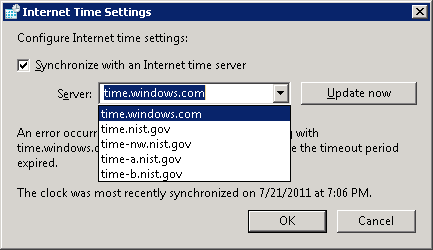

 For most companies, the cloud will still be the most cost-effective and reliable way to host your applications; few companies can compete with the big platform cloud vendors for expertise, focus, reliability, security, economies-of-scale, and efficiency. It is only a matter of time before you are there. Today, your competitors (known and unknown) are moving there already. As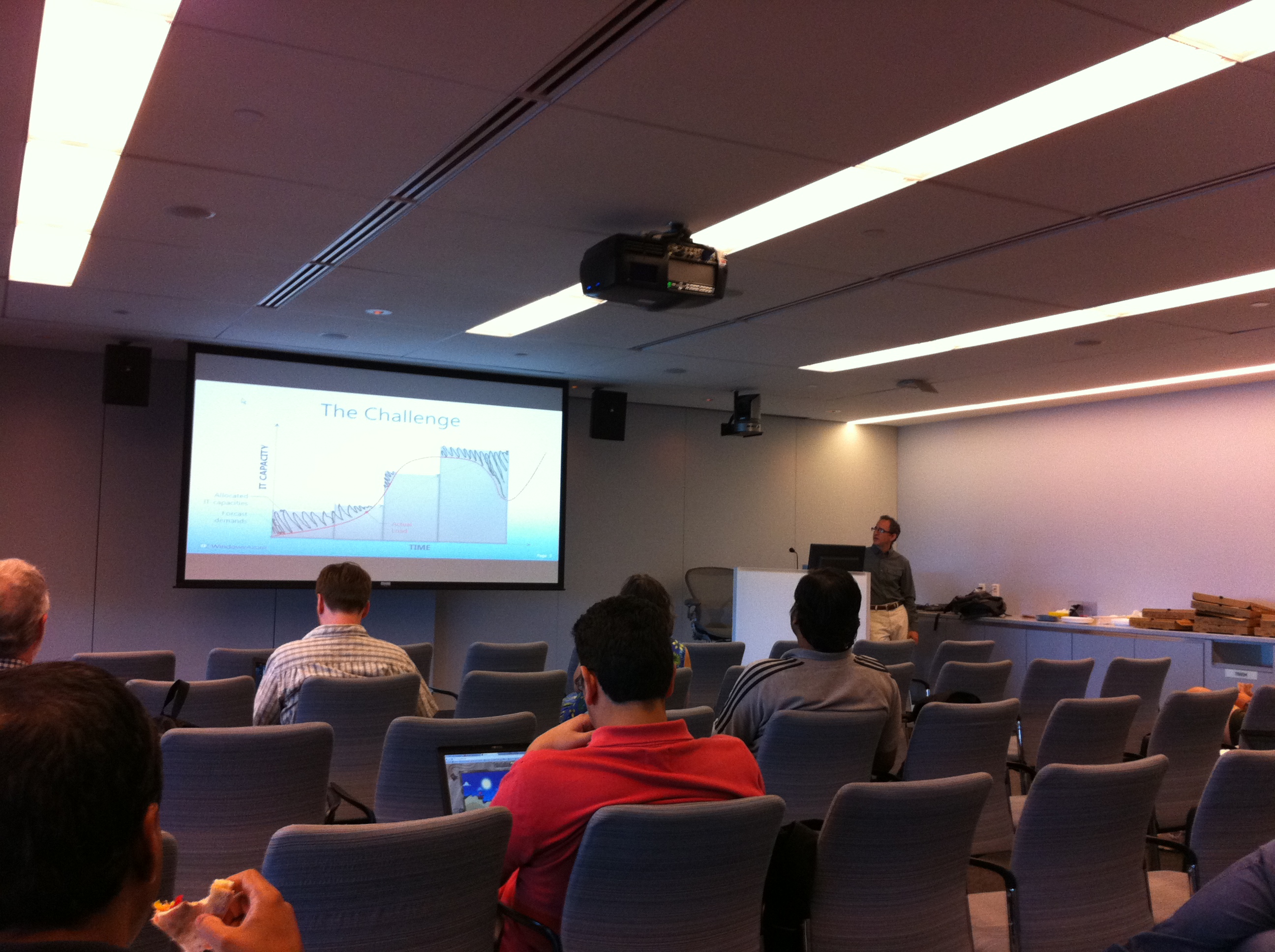



 Coding Out Loud