Category Archives: Programming

Related to some aspect of programming, software development, related tools, or supporting technologies, related standards, etc.

April 2011 Azure Cloud Events in Boston Area

Are you interested in Cloud Computing generally, or specifically Cloud Computing using the Windows Azure Platform? Listed below are the upcoming Azure-related events in the Boston/Cambridge area which you can attend in person and for FREE (or at least inexpensive).

They are listed in the order in which they will occur.

Know of any more cloud events of interest to the Windows Azure community? Have any more information or corrections on the events listed? Please let us know in the comments.

1. SQL Saturday #71

  • when: Sat 02-Apr-2011, 8:30 AM – 6:00 PM
  • where: Babson College
  • wifi: (unknown)
  • food: Provided
  • cost: Cheap (registration required)
  • what: All about SQL and related topics
  • More info & Register: http://www.sqlsaturday.com/71/eventhome.aspx

2. Cloud Platform Bake-Off led by Kyle C. Quest

  • when: Fri 15-Apr-2011, 10:00 AM – ??? PM
  • where: Hosted at Cafe On the Common, 677 Main Street Waltham, MA (but please DOUBLE CHECK the location at Meetup.com listing)
  • wifi: (unknown)
  • food: (unknown)
  • cost: FREE, but pre-registration appears to be required
  • what: “Putting different cloud platforms head to head is one of the original ideas for Cloud Hackathon. I’m sure lots of people are curious how each platform can measure up to its competition.” This is a coding/hacking event on Windows Azure plus Amazon EC3, Google App Engine, and maybe others.
  • More info: See Meetup.com for details
  • Register: See Meetup.com

3. Boston Azure User Group meeting with David Makogon as featured speaker

  • when: Thu 28-Apr-2011, 6:00 – 8:30 PM
  • where: Hosted at NERD Center
  • wifi: Wireless Internet access will be available
  • food: Pizza and drinks will be provided
  • cost: FREE
  • what: Exact topics to-be-announced, but they will be awesome 🙂 David Makogon from Microsoft will be featured speaker
  • More info: See Boston Azure cloud user group site for details (soon)
  • Register: (soon)

Beyond Virtualization – Welcome to the Cloud

Virtualization – of the server, desktop, application, storage, network, and more – was a seriously disruptive force in the previous decade. Virtualization – in concert with cheap & capable commodity hardware, automation galore, ubiquitous connectivity, and some new business models – will give way to Cloud Computing during the coming decade.

Today at the Virtualization Boston Deep Dive Day 2011 event (put on by the Virtualization Group-Boston), I joined forces with the ITProGuru (aka Mr. Dan Stolts) to share some thoughts in a presentation on this megatrend – what’s going on, what it means for data centers, and what today’s IT Pro might expect from a Cloud-dominated future.

The slides are available here:

Cloud Computing Essentials for the IT Pro – Bill Wilder and Dan Stolts – 11-Mar-2011

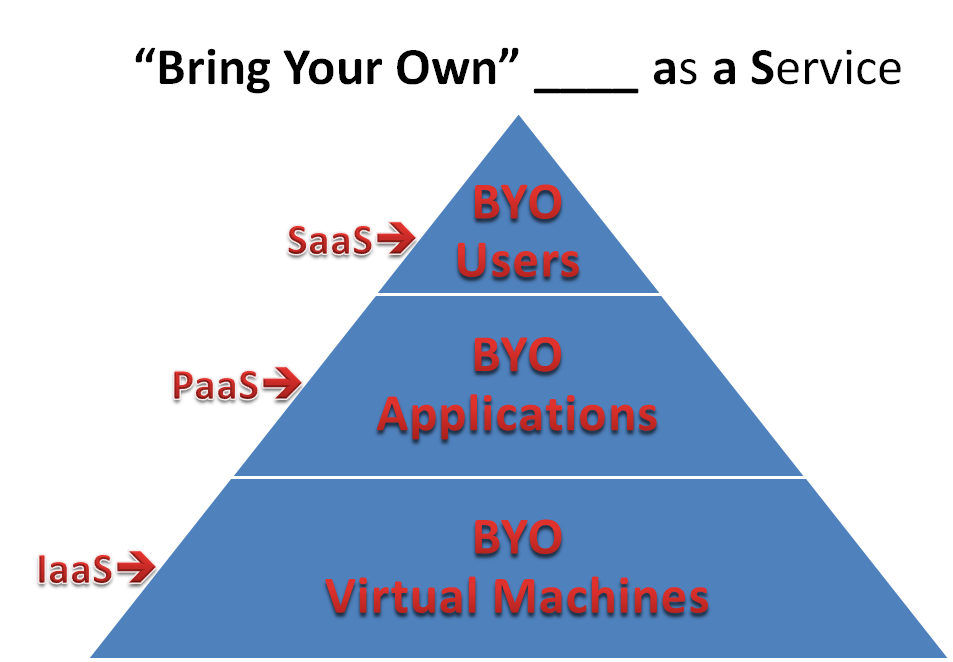
The following was not a slide all by itself, but could have been – and I think I’ll use it next time for the simplest definition I can think of for understanding SaaS, PaaS, IaaS:

I also posted a twitter-sized definition of SaaS, PaaS, and IaaS.

Boston Azure Hackathon

Do you know about the Boston Azure Hackathon to be held at NERD on Wed Feb 16, 2011?

A Hackathon You Say?

Yes, a Hackathon. This is in-person event where folks show up and hack (write code). In our case, we will meet at Microsoft NERD Center in Cambridge, MA, and our hacking will be on Windows Azure-related code.

  1. Rule #1: A Hackathon is fun! (Coding is fun when there is a lot of energy in the room… Plus, we’ll have give-aways – which always makes it even more fun, right?)
  2. Rule #2: We learn something! (We all learn better by doing. Plus, we’ll have many book give-aways – another great way to learn!)
  3. Rule #3: Aim to ship! (So don’t be overly ambitious with your idea – try to choose something that you can complete in the allotted time – then enhance it if you have extra time.)
  4. Rule #4: Goto Rule #1! (Yes, recursion abuse. Extra credit at the Hackathon if you employ recursion appropriately.)

(Did you say Windows Azure? Yes, Windows Azure is Microsoft’s platform for writing applications that will run in the cloud.)

A code base that we expect will get a lot of attention is www.bostonazure.org, which is the community’s web site, but is also a real honest-to-goodness-in-production Azure application using features like Web Role, Blob Storage, Table Storage, SQL Azure (with OData), and Azure Diagnostics. (And also an open source project on CodePlex.)

We will break up into small teams based on which subprojects people want to work on and… get coding.

Here’s the approx schedule:

  • 4:00-4:30 PM – Gather, get organized into teams, begin hacking! (We want this to be as efficient as possible so we maximize our time hacking. So please read the rest of this post to see how you can be prepared, such as by joining in the conversation on CodePlex in advance.)
  • 4:30-8:15 PM – Hack! We will break for pizza, but otherwise will crank away.
  • 8:15-9:00 PM – Show and Tell. What did you do? We will have fun seeing what everyone did, and some cool PRIZES and GIVEAWAYS. + +

Where and when?

Location: Microsoft NERD Center in Cambridge, MA. Parking available in the building (costs money), or take the T, or find on-street parking.

When: Wednesday February 16, 2011 from 4:00-9:00 PM. If you are late, that’s life, but something we can live with.

Food: Pizza will be provided.

What happens if I come late? Join a team when you get here. You will be “just in time” for something.

What do I need to do?

A few things:

  1. Sign up so we know you are coming
  2. Prepare your development laptop (www.bostonazure.org is running SDK 1.3)
  3. Join the conversation in this thread on the CodePlex space for the Boston Azure Project (where we can discuss ideas in advance of the event so we can “hit the ground running”)
  4. If you want to have access to a live, honest-to-goodness Azure-in-the-cloud instance of your own, please be sure to sign up A FEW DAYS IN ADVANCE for a Windows Azure Pass (use code: DPEA01). For very clear instructions, please check out Jim O’Neil’s screencast on signing up for Windows Azure Pass. Jim will be at the Hackathon helping out, and in case you don’t know him, Jim is definitely a friend of ours. [Note that an Azure development environment should be fine as well for most of us.]

IF YOU DO NOT HAVE YOUR OWN AZURE-CAPABLE DEV LAPTOP, then plan to pair up with someone who does…

What will we work on?

Here’s the rule: You can hack on anything you want that is either related to Windows Azure or related to the Boston Azure Community. The discussion thread mentioned above has some ideas. Add your ideas too.

This will break into three broad areas:

  1. Ehancing or adding Azure capabilities to www.bostonazure.org (generally speaking, this is what the group calls the Boston Azure Project). This does not need to be limited to .NET or ASP.NET MVC. Post your ideas to CodePlex.
  2. Writing Azure code unrelated to www.bostonazure.org (maybe a file upload utility, for example)
  3. Enhancing the Boston Azure community in ways unrelated to using Azure itself. For example, if you want to build a WP7 app for the Boston Azure community, go for it (though that could have an Azure-enabled back end). If you want to add features to www.bostonazure.org in jQuery or make it HTML5-capable, go for it. If you want to create a favicon or a privacy policy for the site, go for it.

Use your imagination.

Wait – I am not an Azure expert – is that okay?

Yes, that’s okay. We will have some folks in the room who do understand Azure, so we will help you. However, of course, it is better if you get warmed up in advance. Install the Azure dev environment. Learn a bit about Azure in advance. Download the code from bostonazure.codeplex.com to see the code for the site.

Do you have a hashtag for Twitter?

Yes: #bostonazurehack.

The Boston Azure User Group has a twitter handle: @bostonazure. My personal twitter handle is @codingoutloud.

Who do we have to thank for all this awesomeness?

Microsoft NERD Center provides the space and the food (thanks Leah!).

Microsoft people help make it happen (thanks Jim O’Neil and Mark Eisenberg – each is a friend of ours!).

And the following sponsors are providing software and books for prizes:

+ +

The event is organized by folks from the Boston Azure User Group.

Recognized as Windows Azure MVP

On a personal note, I got an email on January 1st from Microsoft informing me that I have been recognized as a Microsoft MVP for Windows Azure. This is for my community work around Windows Azure: founding the Boston Azure User Group, bloggingspeaking, and some customer advisor work with Patterns & Practices.

Thanks Microsoft!

Boston Azure User Group – Notes from November 2010 Meeting

Around 25-30 of us gathered together on November 18 to talk about Azure. What else would you expect us to do at a Boston Azure User Group meeting?

1. The featured talk led by Chander Khanna and Nazik Huq asked the provocative question Why choose the Azure cloud?  and (not surprisingly!) spirited discussion ensued. The slides are available (see link at the bottom of the page), and there is a blog post titled “Microsoft in the Clouds with Windows Azure Platform?” from Chander which considers some of the same material.

2. An Azure 101 talk was led by Mark Eisenberg. This is a challenging topic to cover, since the cloud has so many interesting concepts, and the audience at any given Boston Azure meeting always includes new faces. More Azure 101 to come at next meeting, Dec 13, 2010.

3. Several members discussed the Boston Azure Project. The most recent build includes some instrumentation changes made by Arra Derderian (part of which reused some code from Jason Haley).

4. After the meeting around 10 of us went down to the Muddy Charles Pub for a beer!

Follow me on twitter (@codingoutloud), follow the Boston Azure User Group on twitter (@bostonazure), join the low volume Boston Azure User Group email list, and come join us at an upcoming Boston Azure meeting such as our SPECIAL NIGHT FOR DECEMBER as we meet on Monday December 13, 2010 for a night of Azure-packed goodness!

As always, to see what’s COMING UP in Boston Azure meetings, check out our Azure-hosted web site at www.bostonazure.org – meetings beyond what is on the home page (if known) are listed on the Upcoming Events page.

An HTTP header that’s mandatory for this request is not specified: One Cause for Azure Error Message

I recently posted sample code that shows copying a file up to Azure Blob Storage in One Page Of Code. In repurposing the code that deals with Azure Queues, I encountered a perplexing error message in using the Azure CloudQueue class from the SDK. I was able to figure it out, and the actual solution may actually be less interesting than how the solution was discovered, so here it is…

The story of “an HTTP header that’s mandatory for this request is not specified”

First of all, my call to get a queue reference had completed without incident:

queue = queueStorage.GetQueueReference(“myqueue”);

Next I executed this line of seemingly innocuous code:

queue.CreateIfNotExist();

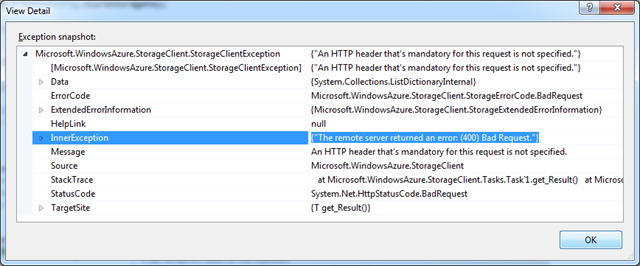
An Exception was raised – a “Microsoft.WindowsAzure.StorageClient.StorageClientException” to be exact – with the following message:

Exception Message: “An HTTP header that’s mandatory for this request is not specified” 

“An HTTP header that’s mandatory for this request is not specified.”

"An HTTP header that's mandatory for this request is not specified."

That didn’t help, so I then checked the Inner Exception:

Inner Exception Message: “The remote server returned an error: (400) Bad Request.”

"The remote server returned an error: (400) Bad Request."

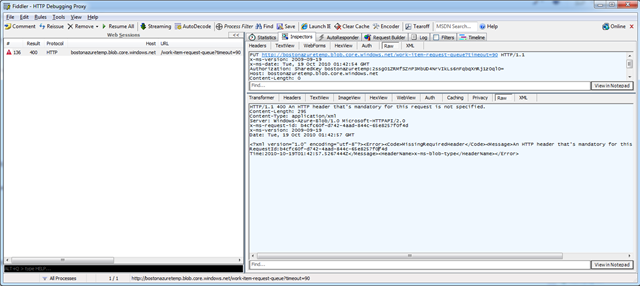
That didn’t help either. So I fired up Fiddler and looked at the http Request and Response (Raw views shown here):

Screen shot mentioning “Server: Windows-Azure-Blob/1.0 Microsoft-HTTPAPI/2.0” and “<HeaderName>x-ms-blob-type</HeaderName>”

If you look carefully in the Response, you will see there are two references to Blobs:

Circled “Server: Windows-Azure-Blob/1.0 Microsoft-HTTPAPI/2.0” and “<HeaderName>x-ms-blob-type</HeaderName>”

Blobs? Yes, blobs.

Blobs… That was my problem. This was supposed to be code to create a queue. A quick check back to my code immediately revealed a cut and paste error on my part. Two actually, as I tried this both against Development Storage and against live Cloud Storage with the same error.

This was the problem – the culpret – the issue – the bug:

    var clientStorageAccount = CloudStorageAccount.DevelopmentStorageAccount;
    CloudQueueClient queueStorage = new CloudQueueClient(clientStorageAccount.BlobEndpoint.AbsoluteUri,clientStorageAccount.Credentials);

As was this:

    CloudQueueClient queueStorage = new CloudQueueClient(String.Format(“http://{0}.blob.core.windows.net”, accountName), creds);

Replacing “Blob” with “Queue” did the trick for both snippets.

Pay the Fiddler

The error message was tricky, requiring that I fire up Fiddler to see the error of my ways. So..  Be careful out there when you Cut & Paste. Or don’t hack at 9:30 in the night. Or check out a Fiddler http trace, which may have additional information. Or all three..

Checking the Fiddler trace is really the interesting lesson from this post. If you are perplexed over some error condition, look at the raw http traffic for additional details – there may be a new clue in there.

Did This Post Help You?

Please leave me a comment if this blog post helped you or if you encountered the same exact error.

Why Don’t Windows Azure Libraries Show Up In Add Reference Dialog when Using .NET Framework Client Profile?

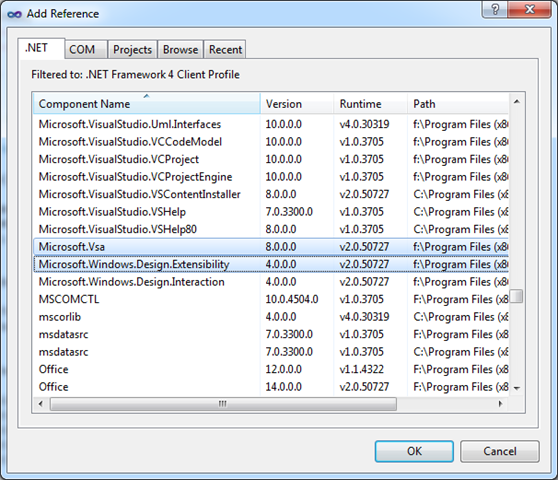
You are writing an application for Windows – perhaps a Console App or a WPF Application – or maybe an old-school Windows Forms app.  Every is humming along. Then you want to interact with Windows Azure storage. Easy, right? So you Right-Click on the References list in Visual Studio, pop up the trusty old Add Reference dialog box, and search for Microsoft.WindowsAzure.StorageClient in the list of assemblies.

But it isn’t there!

You already know you can’t use the .NET Managed Libraries for Windows Azure in a Silverlight app, but you just know it is okay in a desktop application.

You double-check that you have installed Windows Azure Tools for Microsoft Visual Studio 1.2 (June 2010) (or at least Windows Azure SDK 1.2 (last refreshed from June in Sept 2010 with a couple of bug-fixes)).

You sort the list by Component Name, then leveraging your absolute mastery of the alphabet, you find the spot in the list where the assemblies ought to be, but they are not there. You see the one before in the alphabet, the one after it in the alphabet, but no Microsoft.WindowsAzure.StorageClient assembly in sight. What gives?

Look familiar? Where is the Microsoft.WindowsAzure.StorageClient assembly?

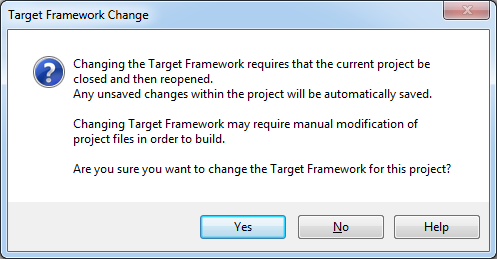
Confirmation Dialog after changing from Client Profile to full .NET

Azure Managed Libraries Not Included in .NET Framework 4 Client Profile

If your eyes move a little higher in the Add Reference dialog box, you will see the problem. You are using the .NET Framework 4 Client Profile. Nothing wrong with the Client Profile – it can be a friend if you want a lighter-weight version of the .NET framework for deployment to desktops where you can’t be sure your .NET platform bits are already there – but Windows Azure Managed Libraries are not included with the Client Profile.

image

Bottom line: Windows Azure Managed Libraries are simply not support in the .NET Framework 4 Client Profile

How Did This Happen?

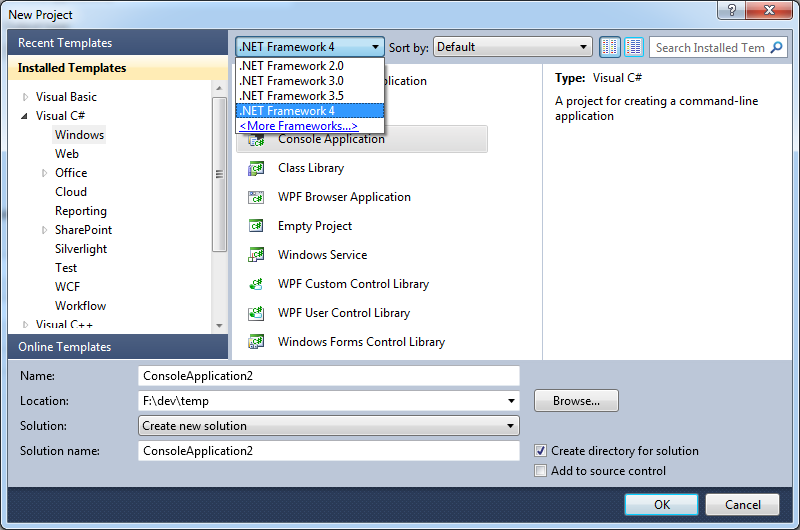
It turns out that in Visual Studio 2010, the default behavior for many common project types is to use the .NET Framework 4 Client Profile. There are some good reasons behind this, but it is something you need to know about. It is very easy to create a project that uses the Client Profile because it is neither visible – and with not apparent option for adjustment – on the Add Project dialog box – all you see is .NET Framework 4.0:

The “Work-around” is Simple: Do Not Use .NET Framework 4 Client Profile

While you are not completely out of luck, you just can’t use the Client Profile in this case. And, as the .NET Framework 4 Client Profile documentation states:

If you are targeting the .NET Framework 4 Client Profile, you cannot reference an assembly that is not in the .NET Framework 4 Client Profile. Instead you must target the .NET Framework 4.

So let’s use the (full) .NET Framework 4.

Changing from .NET Client Profile to Full .NET Framework

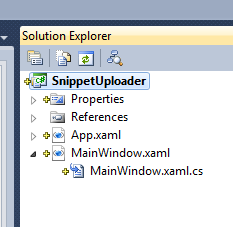
To move your project from Client Profile to Full Framework, right-click on your project in Solution Explorer (my project here is called “SnippetUploader”):

image

From the bottom of the pop-up list, choose Properties.

image

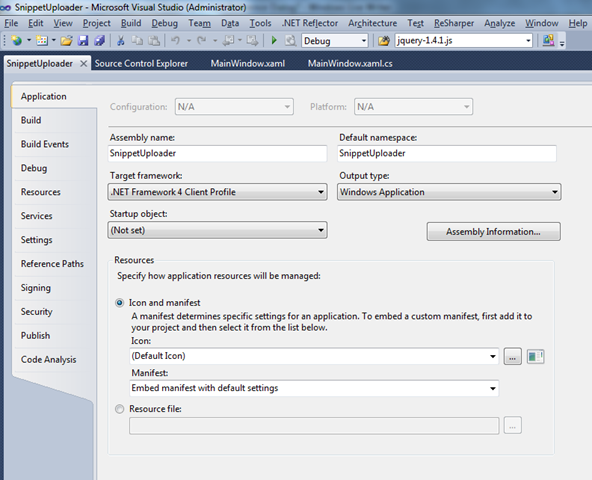
This will bring up the Properties window for your application. It will look something like this:

image

Of course, by now you probably see the culprit in the screen shot: change the “Target framework:” from “.NET Framework 4 Client Profile” to “.NET Framework 4” (or an earlier version) and you have one final step:

image

Now you should be good to go, provided you have Windows Azure Tools for Microsoft Visual Studio 1.2 (June 2010) installed. Note, incidentally, that the Windows Azure tools for VS mention support for

…targeting either the .NET 3.5 or .NET 4 framework.

with no mention of support the .NET Client Profile. So stop expecting it to be there!


You can’t add a reference to Microsoft.WindowsAzure.StorageClient.dll as it was not build against the Silverlight runtime

Are you developing Silverlight apps that would like to talk directly to Windows Azure APIs? That is perfectly legal, using the REST API. But if you want to use the handy-dandy Windows Azure Managed Libraries – such as Microsoft.WindowsAzure.StorageClient.dll to talk to Windows Azure Storage – then that’s not available in Silverlight.

As you may know, Silverlight assembly format is a bit different than straight-up .NET, and attempting to use Add Reference from a Silverlight project to a plain-old-.NET assembly just won’t work. Instead, you’ll see something like this:

Visual Studio error message from use of Add Reference in a Silverlight project: "You can’t add a reference to Microsoft.WindowsAzure.StorageClient.dll as it was not build against the Silverlight runtime. Silverlight projects will only work with Silverlight assemblies."

If you pick a class from the StorageClient assembly – let’s say, CloudBlobClient – and check the documentation, it will tell you where this class is supported:

Screen clipping from the StorageClient documentation with empty list of Target Platforms

Okay – so maybe it doesn’t exactly – the Target Platforms list is empty – presumably an error of omission. But going by the Development Platforms list, you wouldn’t expect it to work in Silverlight.

There’s Always REST

As mentioned, you are always free to directly do battle with the Azure REST APIs for Storage or Management. This is a workable approach. Or, even better, expose the operations of interest as Azure services – abstracting them as higher level activities. You have heard of SOA, haven’t you? 🙂

“Cloud Computing 101, Azure Style!” and “Building Cloud-Native Applications on Azure” – Two Talks I Presented at New England Code Camp 14

Yesterday I attended New England Code Camp 14 (check out the #necc14 twitter stream while it lasts). I enjoyed many talks:

  1. Maura Wilder on JavaScript Debugging (@squdgy)
  2. Jason Haley on Comparing the Azure and Amazon Cloud Platforms (@haleyjason)
  3. Jim O’Neil on Dissecting the Azure @Home Application (@jimoneil)
  4. Abby Fichtner on Lean Startups (@hackerchick)
  5. MC’d by Abby, various folks talking about their experiences at startups — 4 talks jam-packed into a fast-paced one-hour session:
    1. Vishal Kumar of savinz.com (“mint.com for shopping”)
    2. Allison Friedman (@rateitgreen) of Rate It Green (“yelp for the green building industry”)
    3. Sean Creely (@screeley) of Embedly (“make friendly embedded links”) – a Y Combinator company providing a service for turning tweets containing media links into something more user friendly (e.g., embed inline YouTube video rather than a link taking you to YouTube)
    4. Marc Held (@getzazu) of getzazu.com (“alarm clock 2.0”)

At Uno’s afterwards, I enjoyed chatting with many folks, including Veronica and Shawn Robichaud (all the way from Maine!), John from BUGC and Blue Fin, Slava Kokaev, entrepreneurs Marc, Billy, Brian, Vishal, and Dan Colon, dev evangelists Jim O’Neil and Chris Bowen, Yilmaz Rona from Trilogy, and of course Maura.

At the Code Camp, I presented twice on Azure-focused topics:

  1. Cloud Computing 101: Azure Style! – an introduction to cloud computing, and an overview of the services that Microsoft’s cloud stack offers
  2. Building Cloud-Native Applications with Azure – a mind-blowing tour of some of the changes that await the technology community as we move our world into the cloud

The Boston Azure User Group is one year old! You can follow the group on twitter @bostonazure. You can also follow me on twitter @codingoutloud. And I hope to see you at the next Boston Azure meeting on Thurs October 21 from 6:00-8:30 PM at NERD (registration and more info).

Programming Windows Azure Blob Storage in One Page of Code

Microsoft Windows Azure supports several storage approaches: Blobs, Tables, Queues, Drives, and CDN. We even have SQL Azure available to us for full relational power. This post will outline some basic thoughts on programming Blob storage in .NET. And at the end there will be one (long) page of example code (though you will need to supply your Database Access Keys for your Azure Cloud Account). This code is a complete program that will upload a file into Azure Blob Storage and mark it as Publicly Readable, as would be suitable for linking to such resources from a public web site.

Do I Need .NET?

No, .NET is not needed to program against Blob storage. Any programming language or platform can be used, provided it can support calling out via http. Programs speak to the Blob storage service in Azure via a RESTful interface – yes, good old-fashioned http goodness.

Isn’t REST Awkward to Program Against?

Well, there are a few details to making these REST requests: construct a well-formed request body, set up the http headers, add your hash (in most cases Azure requires this step as proof you have the right key), create a web connection, send your request, handle the response, and repeat. But in .NET it is even easier due to the Azure SDK where you will find some helper classes, such as CloudBlobContainer, CloudBlobClient, and CloudBlob. These helpful helpers help you help yourself to Blob storage services without having to worry about most of the details – you just deal with some objects.

How Do I Access the Azure SDK, and How Many Thousands of Dollars Does it Cost?

For .NET / Visual Studio developers, download the SDK as part of the Windows Azure Tools for Microsoft Visual Studio. Or, better still, follow these instructions from David Aiken for getting started with Windows Azure.

For non-.NET, non-Visual Studio developers, download the Windows Azure SDK separately.

And even though the Azure SDK makes Azure development super über ultra convenient on .NET, it does not cost any money. A freebie. If you are developing on a non-.NET platform, there is very likely an open source client library for you. Microsoft provides a library now for PHP, too.

Can You Give Me a Short Example?

Sure, here is a code snippet showing the two primary classes in action (and bold blue). Under the hood, there are REST calls being made out to the Blob storage services, but you don’t need to deal with this plumbing in your code.

FileInfo = new FileInfo(“c:/temp/foo.png”);
string blobUriPath = fileInfo.Name;

CloudBlobContainer blobContainer = // getting blob container not shown here

CloudBlob blob = blobContainer.GetBlobReference(blobUriPath);
blob.UploadFile(fileInfo.FullName);

blob.Metadata[“SomeArbitraryPropertyName”] = Guid.NewGuid().ToString(); // arbitrary value
blob.SetMetadata();

blob.Properties.ContentType = “image/png”;
blob.SetProperties();

Are these Calls Really REST Under the Hood!!??

They sure are. You can prove this by firing up an http sniffer like Fiddler. You will see http traffic whiz back and forth.

What if Something Goes Wrong?

Here are a couple of errors I’ve run into:

For other errors or issues, try the Azure Support Forum.

Is it Production Quality Code?

Hmmm… We have a continuous stream of code on a single (long) page, in a single source file… Is it “Production Quality Code” you might wonder? I’m going to go with “no” – this code is not production ready. It is for getting up to speed quickly and learning about Azure Blob Storage.

Can I Tell if My Blobs Get to the Cloud?

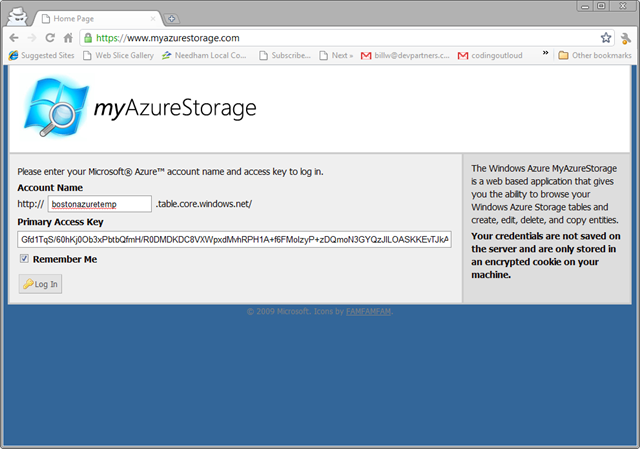
You sure can. One way is to use the nifty myAzureStorage.com tool:

Go to http://myAzureStorage.com in your browser:
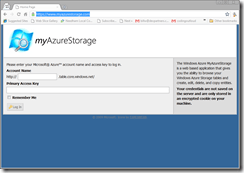
image

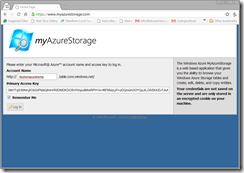
Now you need to know something about how your Azure Storage account was configured in the Cloud. You need to know both the Account Name and one of the Access Key values (Primary or Secondary – it doesn’t matter which).

In our case we will type in the following:

Account Name = bostonazuretemp

Access Key = Gfd1TqS/60hKj0Ob3xPbtbQfmH/R0DMDKDC8VXWpxdMvhRPH1A+f6FMoIzyP+zDQmoN3GYQzJlLOASKKEvTJkA==

Note: the Access Key above is no longer valid. Use a different real one if you like, or see the One Page of Code snippet below for how to do this using local storage in the Dev Fabric.

You may also want to check “Remember Me” and your screen will look something like this:
image

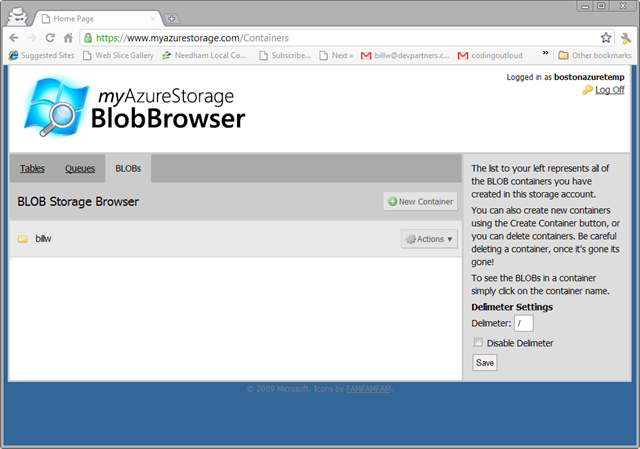
Now simply click on “Log In” and you will see your storage. The default tab is for Table storage, so click the BLOBs tab to view your Blob Containers:
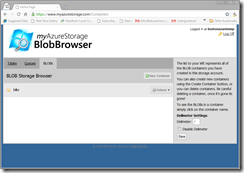
image

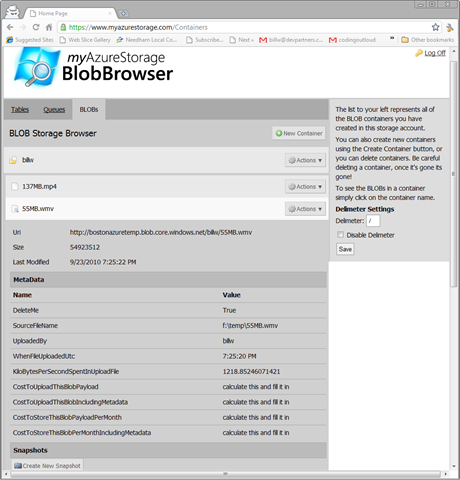
In my case I see one – “billw” – and I can click on it to drill into it and see its blobs:
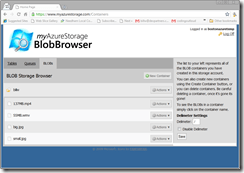
image

And for each blob, I can click on the blob to examine its attributes and metadata:
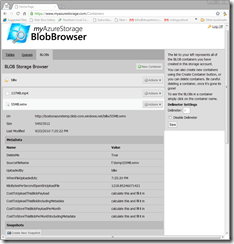
image

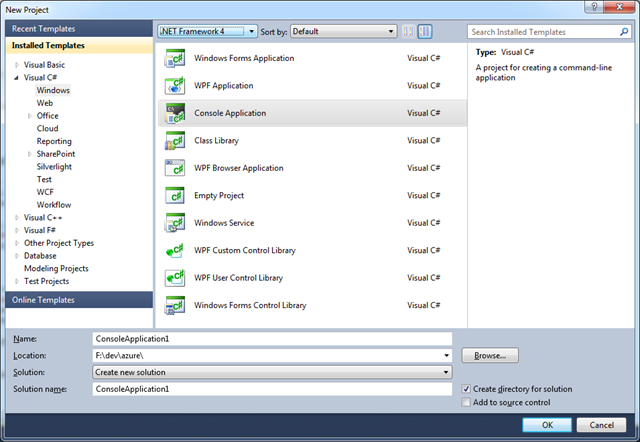
What Project Template Should I Use in Visual Studio?

Create a Visual C# Console Application on .NET Framework 4 using Visual Studio 2010 or Visual C# Express 2010:
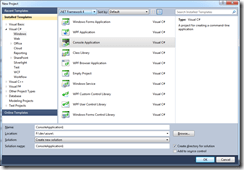
image

Show Me the Code!

Okay, the working code – fully functional – on One Page of Code – appears below. After you create a new Visual C# Console application in Visual Studio 2010, as shown above, simply clobber the contents of the file Program.cs with the code below. That oughta be easy. Then start playing with it.

You will also need to add a reference to Microsoft.WindowsAzure.StorageClient – but first you’ll need to switch away from the .NET Framework Client Profile.

Sharing Files on the Public Web using Azure Blob Storage

Also note that the following code will post to Azure Blob Storage in such a way that the item stored will be accessible from a web browser. This is not the default behaviour; read the code to see the couple of lines that influence this.

Note that this code is intensionally compressed to fit in a short space and all in one place – this is not intended to be production code, but “here is a simple example” code. For instance, this code does not use config files – but you should. This is just to help you quickly understand the flow and take all the magic out of getting a code sample to work.

You can also download this code directly: SnippetUploaderInOnePageOfCode.cs.

Without further ado, here is your One Page of Code

using System;
using System.Diagnostics;
using System.IO;
using Microsoft.WindowsAzure;
using Microsoft.WindowsAzure.StorageClient;

namespace CodeSnippetUploader
{
    class Program
    {
#if false
        private const string AccountKey = “Put a real Storage Account Key – find it on http://windows.azure.com dev portal for your Storage Service”;
#else
        private const string AccountKey = null;  // use local storage in the Dev Fabric
#endif
        private const string AccountName = “bostonazuretemp”;
        private const string ContainerName = “snippets”;
        private const string MimeTypeName = “text/plain”; // since these are assumed to be code snippets

        static void Main(string[] args)
        {
            // pass in the single snippet code file you want uploaded
            string snippetFilePath = args[0];

            string baseUri = null;
            CloudBlobClient blobStorage = null;

            if (AccountKey == null)
            {
                var clientStorageAccount = CloudStorageAccount.DevelopmentStorageAccount; // use storage services in the Developer Fabric, not real cloud
                baseUri = clientStorageAccount.BlobEndpoint.AbsoluteUri;
                blobStorage = new CloudBlobClient(baseUri, clientStorageAccount.Credentials);
            }
            else
            {
                byte[] key = Convert.FromBase64String(AccountKey);
                var creds = new StorageCredentialsAccountAndKey(AccountName, key);
                baseUri = string.Format(“http://{0}.blob.core.windows.net“, AccountName);
                blobStorage = new CloudBlobClient(baseUri, creds);
            }

            CloudBlobContainer blobContainer = blobStorage.GetContainerReference(ContainerName);
            bool didNotExistCreated = blobContainer.CreateIfNotExist();

            var perms = new BlobContainerPermissions
            {
                PublicAccess = BlobContainerPublicAccessType.Container // Blob (see files if you know the name) or Container (enumerate like a directory)
            };
            blobContainer.SetPermissions(perms); // This line makes the blob public so it is available from a web browser (no magic needed to read it)

            var fi = new FileInfo(snippetFilePath);
            string blobUriPath = fi.Name; // could also use paths, as in: “images/” + fileInfo.Name;
            CloudBlob blob = blobContainer.GetBlobReference(blobUriPath);
            blob.UploadFile(fi.FullName); // REST call under the hood; use tool like Fiddler to see generated http traffic (http://fiddler2.com)

            blob.Properties.ContentType = MimeTypeName; // IMPORTANT: Mime Type here needs to match type of the uploaded file
                                                        // e.g., *.png <=> image/png, *.wmv <=> video/x-ms-wmv (http://en.wikipedia.org/wiki/Internet_media_type)
            blob.SetProperties(); // REST call under the hood

            blob.Metadata[“SourceFileName”] = fi.FullName; // not required – just showing how to store metadata
            blob.Metadata[“WhenFileUploadedUtc”] = DateTime.UtcNow.ToLongTimeString();
            blob.SetMetadata(); // REST call under the hood

            string url = String.Format(“{0}/{1}/{2}”, baseUri, ContainerName, blobUriPath);
            Process process = System.Diagnostics.Process.Start(url); // see the image you just uploaded (works from Console, WPF, or Forms app – not from ASP.NET app)
        }
    }
}