Category Archives: Programming

Related to some aspect of programming, software development, related tools, or supporting technologies, related standards, etc.

Azure Development Requirements

Executive Summary

This post describes some key aspects of your development environment that need to be in place in order to to write and test code for Windows Azure.

Windows XP does not natively support Azure Development

For all the developers running Windows XP face an obstacle to writing code for Windows Azure:  developing for Azure requires Windows 7, Windows Vista, or Windows Server 2008. The fundamental dependency is that the Azure Fabric Controller (which runs on your desktop for development purposes, simulating cloud behavior) relies on IIS 7, which (you guessed it!) ships with Vista, Windows 7, and Windows Server 2008.

One option is to upgrade your operating system. If you are not quite ready to do that, you have another option – use Virtual PC to run Windows 7 from Windows XP. (This technique also works to run a virtualized Windows 7 image from Vista – or even Win 7 itself – since maybe you don’t want to foul your machine with beta software, like a sandbox for Visual Studio 2010 while it is still in beta (beta 1 as of this writing)).

Essential Software to Develop for Azure

The four essentials are:

  • Have IIS 7.x on one of Windows Vista (Business or Ultimate, I believe) –or– Windows Server 2008 –or– Windows 7
  • Install Visual Studio 2010 – currently in beta (beta 1 as of this writing) – or Visual Studio 2008
  • Install Azure plug-in – currently in beta – to Visual Studio 2010 or Visual Studio 2008
  • Create an account on Azure hosting in order to deploy to/test on the cloud

I wrote a separate, detailed post on creating a virtual machine image for Windows 7 using Virtual PC 2007.

Creating a Windows 7 Virtual Machine Image using Microsoft Virtual PC 2007

cool-monkey-thinker

Executive Summary

This post describes how to install Microsoft Virtual PC 2007, followed by a detailed walk-through of how to create a virtual machine image of a fresh Windows 7 installation using Virtual PC 2007.

In this post I concentrate on creating a Virtual PC image for Windows 7, but the steps for the other operating systems are similar.

Note this post deals with concerns for Developers. This post does not cover use of (related) virtualization techniques which are very popular today on the server-side.

Why Use Virtual Machines?

There are several reasons to use a Virtual PC-managed virtual machine for development:

You don’t want to install Pre-Release software (like a CTP – Community Technology Preview, which means “very rough”) or beta software directly on your development machine. A virtual machine environment makes it easy to manage these without risking your real machine.

You want to experiment. You may want to try out some testing with 4 GB or RAM, then maybe with 1/2 GB or RAM – so you know what to expect. Or you to keep testing something that changes your machine – and need to “start from scratch” frequently.

You want to run multiple operating systems. You may want to run Windows 7 to make sure your apps run fine on it – but you also don’t want to give up XP quite yet. You can run Windows 7 within a Windows XP host.

You want to set up a machine configuration and reuse it. You go through a lot of trouble to get your configuration “just so” and now want to share that with colleagues – or with yourself (on your home machine).

Are there other Virtualization options?

If you are a developer running XP -or- are running Win 7 on hardware that does not support hardware virtualization, Virtual PC 2007 is very likely what you want.

If you are running Windows 7, you can look into Virtual PC (sometimes seen as Virtual PC 7) (which includes XP Mode). Unlike Virtual PC 2007 which will work regardless of whether you have hardware virtualization, Virtual PC will work ONLY WHEN your computer supports hardware virtualization. Does my PC support hardware virtualization (or XP Mode)?

Unlike Virtual PC 2007, Virtual PC is for Windows 7 will not work on XP (but will work on the Windows 7 beta, sometimes known as Vista :-).

Only one of Virtual PC -or- Virtual PC 2007 can be installed concurrently on any given machine.

From Microsoft, other vendors, and open source, there are other sources of virtualization technology, and some might even be compatible with Virtual PC or VHD. [Did you know VHD format is an open standard?]. Though, consider that Virtual PC 2007 does not cost anything beyond the Windows license you (presumably) already have. Microsoft has many virtualization solutions, some with different purposes, such as App-V which is more for enterprise roll-out of apps (get it? App-V) to minimize incompatibilities due to other apps or environmental changes.

For developers, let’s assume (for reasons stated above in prior section) that you want a parallel universe to run other software within – safely – like an early beta… Virtual Machine images make these scenarios possible and easy! Let’s get down to business and walk through how to install & configure these virtual images.

Ready to Get Started?

Enable Hardware Virtualization in your Computer

The newer your PC, the more likely it is that it supports hardware acceleration for Virtualization. If you have this, you want to enable it for better performance. You may need to enable it in your BIOS. Unfortunately, the specific instructions will vary by computer manufacturer, so you’ll need to search the web for steps to enable Hardware Assisted Virtualization.

Installing Virtual PC 2007

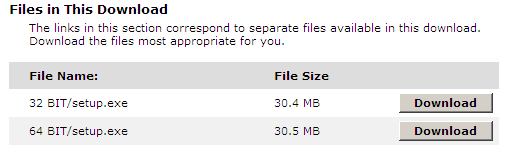
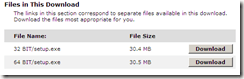
Visit the download page for Microsoft Virtual PC 2007 download page for Microsoft Virtual PC 2007 sp1 and then select the appropriate version for your system (that is, 32- or 64-bit version).
image

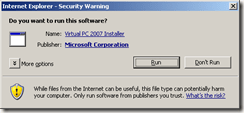
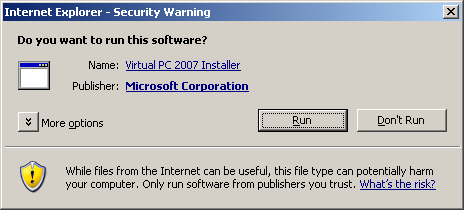
Once downloaded, install it.

image

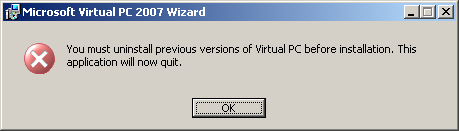
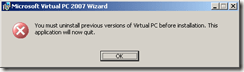
If you already have an earlier version of Virtual PC installed, you will likely see this self-explanatory message to uninstall the older version. If you are upgrading to Virtual PC 2007 sp1 from Virtual PC 2007, the installer will handle it for you.
image

Go to your trusty Add or Remove Programs applet and remove any remnants of old Virtual PC installs and proceed.

You can run Virtual PC 2007 and look in Help > About to see which version you are running. Version “Microsoft Virtual PC 6.0.192.0” is Virtual PC 2007 sp1, which is the one expected by the rest of this post.

Installing Microsoft Virtual PC 2007

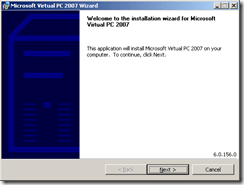
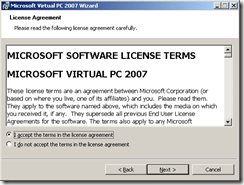
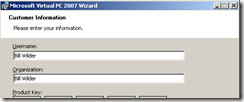
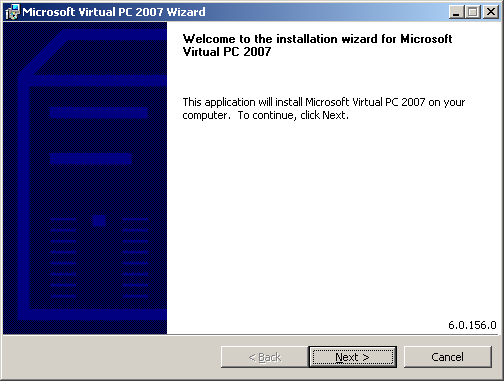
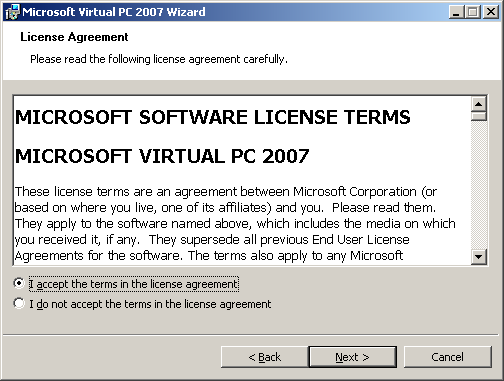
Run Virtual PC 2007 installer

image

image

image

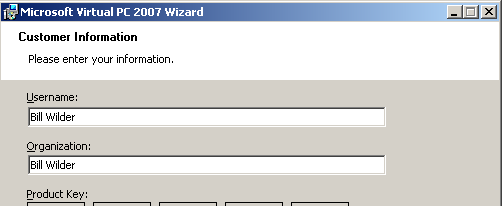
.. fill in your own info here, of course.
image

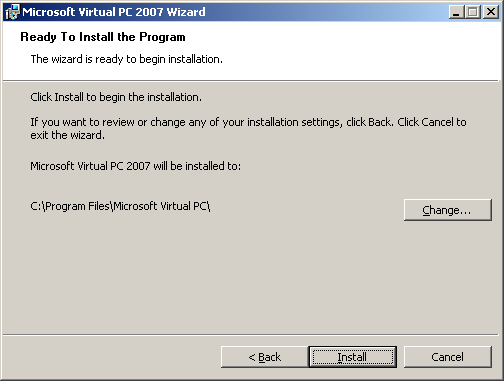
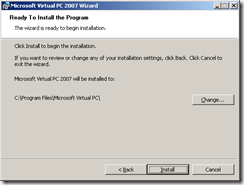
I kept the default installation location and let it rip. It completed around 2 minutes later.

NOW GET DOWN TO BUSINESS!

Create fresh Windows 7 virtual machine environment using Microsoft Virtual PC 2007

Download Your Windows 7 ISO Image

In order to install Windows 7, you need a copy of Windows 7. This could be a retail version of Windows 7 (from a DVD), but let’s make the assumption here that since you are a developer, you will be using a download image from MSDN that comes down as an ISO file, such as en_windows_7_professional_x86_dvd_x15-65804.iso. Note that you will need to install a 32-bit operating system to run under Virtual PC 2007. Log in to your MSDN account and select an appropriate version of Windows 7 to download, download it, and also be sure to copy the Activation Key (if applicable).

Run Upgrade Advisor

You may wish to run the Windows 7 Upgrade Advisor on your machine to make sure Windows 7 will be happy (as of this writing, the upgrade advisor tool is in beta). Assuming that goes well..

Run Virtual PC 2007

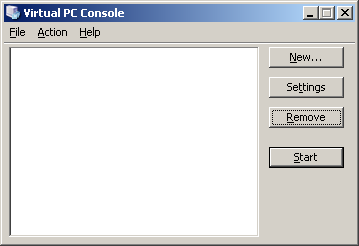
Run Microsoft Virtual PC 2007. From the opening screen, click the “New…” button:
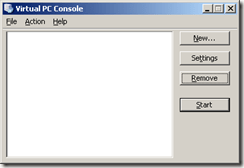
image

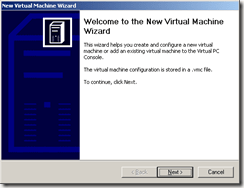
The wizard will start. Click the “Next >” button:
image

image

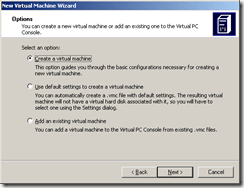
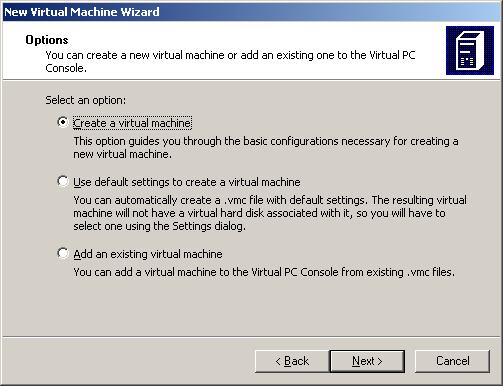
Select “Create a virtual machine” and click “Next >” button…

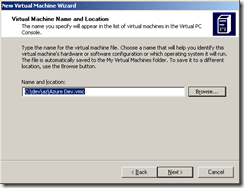
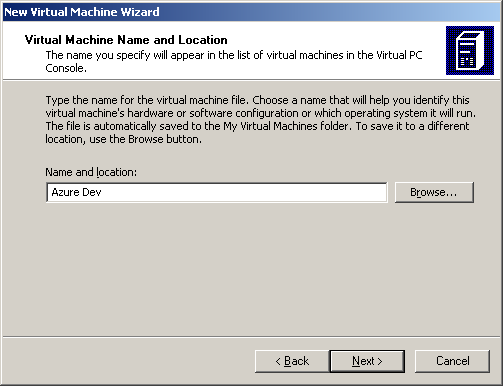
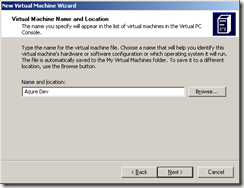
Give your new Virtual Machine an appropriate name:
image

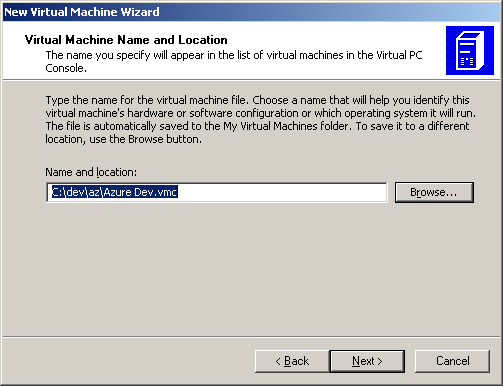
I also changed my location:

image

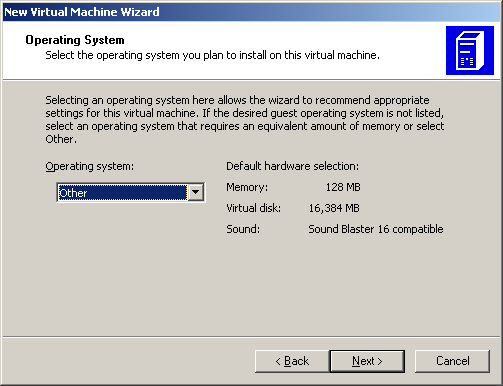
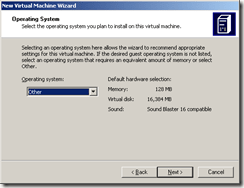
Select “Other” as Operating system and click “Next >” …
image

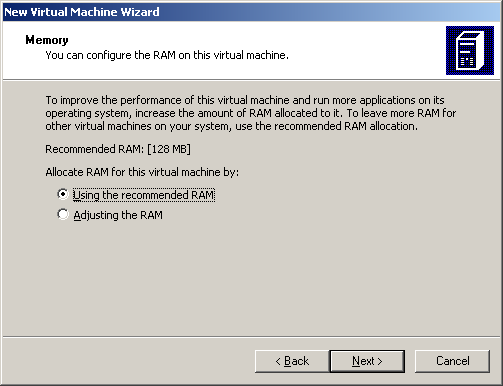
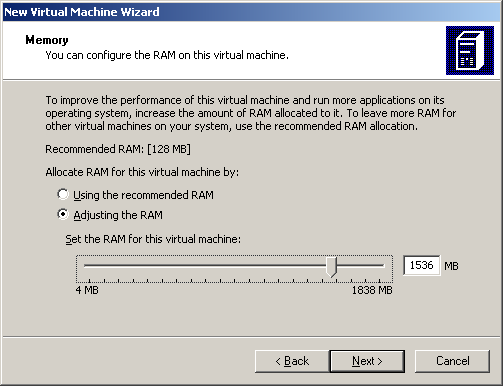
The recommended RAM will likely not be sufficient, so click “Adjusting the RAM” option:
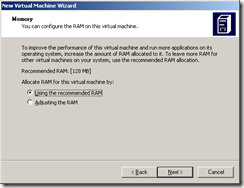
image

How much memory is right? Considering Windows 7 system requirements (which call for at least 1 GB in the 32-bit version) and Visual Studio 2010 (beta 1) system requirements (which also calls for 1 GB (though not an additional 1 GB), you will hopefully be able to allocate at least 1 GB. I have 3 GB on my host machine, so I allocated 1.5 GB (1024 MB + 512 MB = 1536 MB). These values can also be tweaked later using Virtual PC.
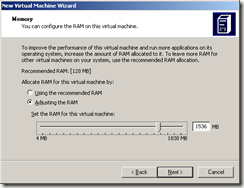
image

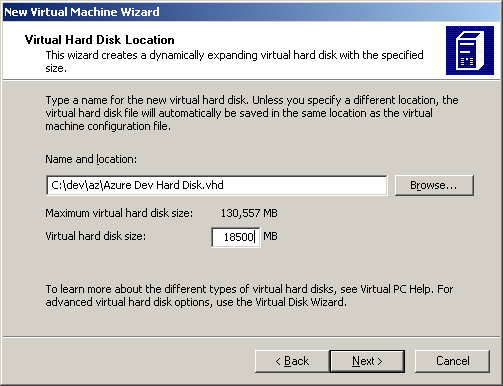
I chose to create a new virtual disk:
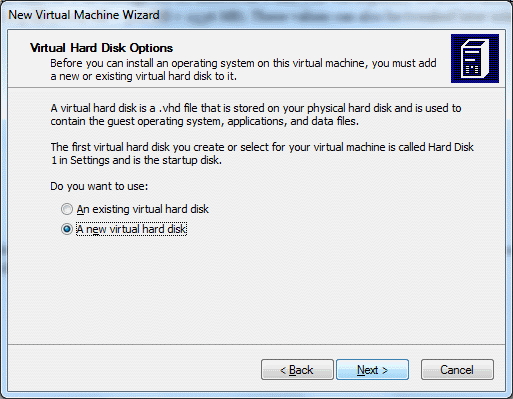
For disk space, you have another set of decisions – Windows 7 wants 15 GB, Visual Studio 2010 wants 3 GB, so I rounded up to a nice even 18.5 GB (since I don’t have an abundance of space here):
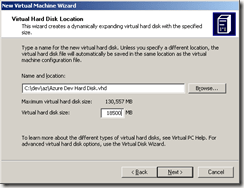
image

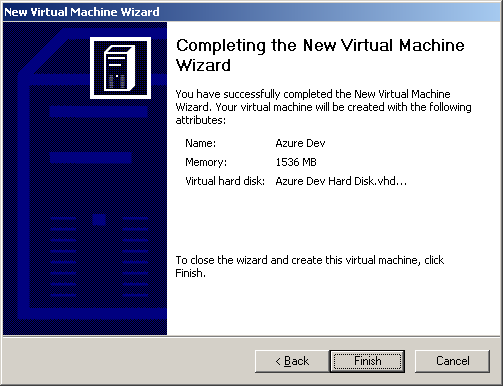
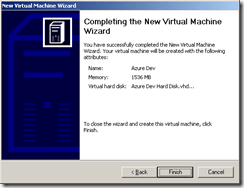
Click “Next >” and you are almost done with this step.
image

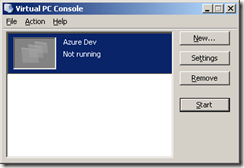
Click “Finish” and now we are in business within Virtual PC:
image

Click on “Azure Dev” (or whatever you called your image) and click “Start” button to proceed:

If you have trouble starting your virtual machine due to not enough memory available, as in the following message, you either need to adjust its memory requirements of free up some memory.

You might consider throttling back your Anti-Virus software which could be a big consumer of memory (I disabled the on-the-fly file-system protection). Also, of course, close all unnecessary processes. The long-term solution is to buy a 64-bit machine with oodles of memory and be happy with that.

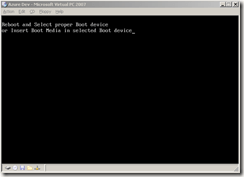
Once you have enough memory available, you will see the virtual machine complain very soon as it craps out after spinning up and thinking for a couple of minutes:
image

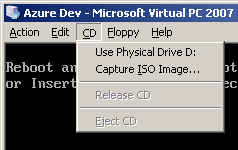
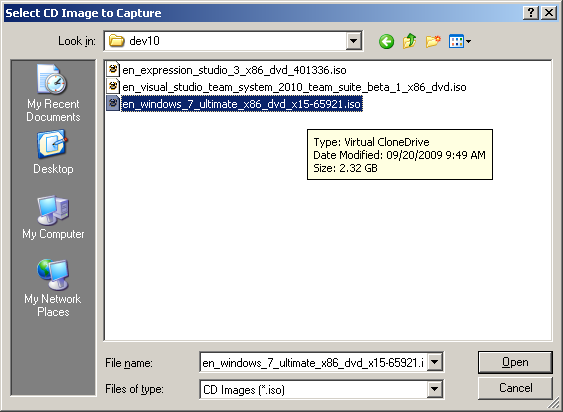
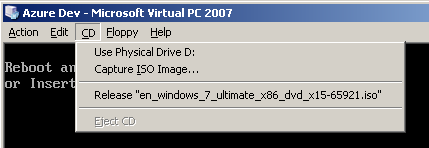
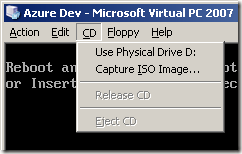
This is expected. You still need to install Windows 7 to move this along. To do this, make sure you have a ready-to-go image of Windows 7 as an ISO file (as you might download from MSDN) or physical media. You have two menu options, one for each of these cases:
image

In my case, I selected “Capture ISO Image…” and installed from there. Note that you navigate your host file-system for the ISO image to capture – not the file-system on your virtual machine, since that does not yet exist.
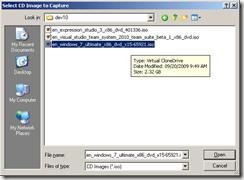
image

Click “Open” and notice how the CD menu on the virtual machine has been updated:
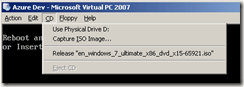
image

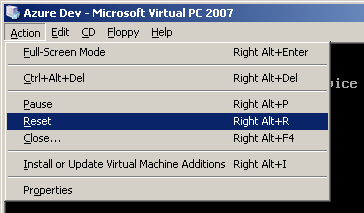
Now you can reboot your virtual machine to let the installation on the captured ISO image run (as if it was auto-starting to install on a physical machine). To reboot, choose Reset from the Action menu:
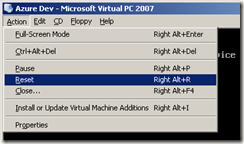
image

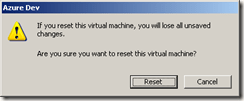
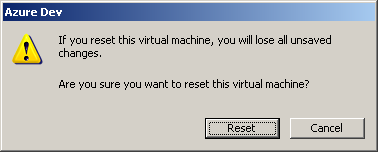
You will be warned:

image

But since you don’t have any unsaved changes to worry about, select the Reset button and proceed with the reset. (You have saved some information, you may be thinking, like memory and hard disk configuration; but that is all metadata about your image – not changes within the virtual machine itself – so there is no problem here.)

The reset begins…
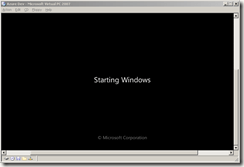
image

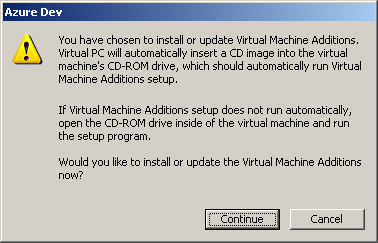
Here is a warning which we will come back to. Dismiss this for now:
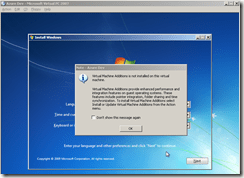
image

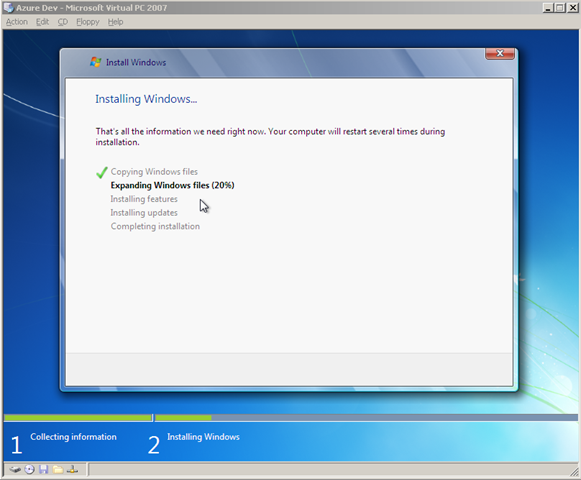
The system will chug and chug for a looong time – mine took around two hours to run (the good news is I let this run while I was watching the New England Patriots game this Sunday; the bad news is the Patriots fell to the Jets):
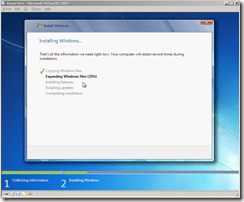
image

You will then proceed to install Windows 7 … mostly you will be just moving along without much fanfare, though you will need to name your “computer”, come up with a username (and optionally a password), and will need your Activation Key for Windows 7. Here is a good guide for installing Windows 7 on Virtual PC 2007. (And another.)

Don’t that forget the magic key/mouse combo to un-capture your mouse from the Virtual Machine is Right-Alt while dragging the mouse!!
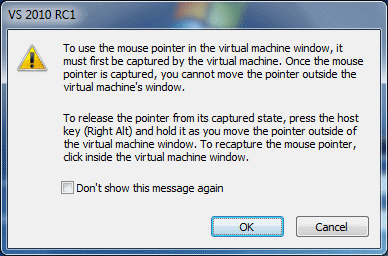
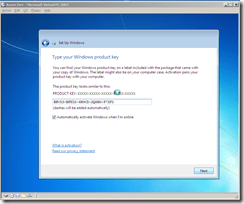
image

After you get Windows 7 all configured, you probably still want to come back and install some updates:
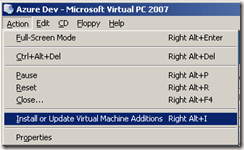
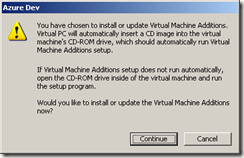
image

image

But that’s the end of the detailed tour. You should now have a usable baseline virtual machine image that you can reuse, share, play with, etc. Make sure you create a back-up copy! And have a look at the features which allow you to manage roll-backs.

Good luck!

Boston Azure User Group

Coming soon – a new user group for the Boston/Cambridge/Waltham area:

The Boston Azure User Group will focus on Cloud Computing, specifically as it relates to Microsoft’s Windows Azure platform.

This group will likely kick-off in October 2009 – exact date to be determined – exact dates have now been determined – now working on the times 🙂  – see the Boston Azure User Group site for details and updates – and to join the mailing list.

What would YOU like to see covered in the meetings of the Boston Azure User Group? Please leave a comment with your thoughts / feedback.

And see you at the Boston Azure User Group!
A Podcast Mashup for Agile Development Practices (hosted on SpokenWord.org)

Agile Development Practices Podcast

Delivered as a Podcast Mashup

Executive Summary

I’ve created a Podcast Mashup on SpokenWord.org. This is a hand-picked collection of episodes selected from assorted Podcasts (from other, currently-available sources, nothing originated by me!) which provided particularly insightful coverage of topics important in Agile Development Practices.

The RSS feed is here: http://feeds.feedburner.com/AgileDevPractices (wrapped by Feedburner so I have some idea of how many folks are using it).

Be aware that subscribing to a feed containing more than one episode will often only download for you the latest episode, unless you specifically ask for others.

A longer, more detailed discussion follows.

Motivation for Providing a Curated Feed

Okay, I admit it: I have been a heavy user of Podcasts for a very long time. I’ve been using audio downloaded from the web since before iPods existed and RSS feeds were pervasive – and surely long before the term Podcast became part of our vocabulary.

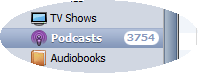
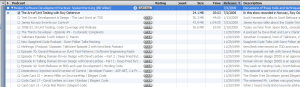
3,753 podcast episodes.. that'll keep me busy

This screen clipping from iTunes is showing there are a whopping 3,754 podcast episodes sitting on my hard disk; good thing I have a spacious 160GB iPod Video Classic!

Yes, I have several thousand episodes from a wide-range of Podcasts – from 120 Podcast feeds – all sitting in iTunes on my hard disk, and being sync’d to my trusty iPod Video Classic, consuming around 75% of its 160 gigabytes. I suppose this makes me clinically addicted. But I’m okay with that.

Many (okay, most) of my podcasts are technical in nature – I take my profession (software development) very seriously and remain permanently paranoid about ever falling behind or getting stale. I listen to a lot of excellent material (while commuting, at gym, out walking, though not while sleeping).

It is rather easy for me to recognize a worthwhile episode on a topic of interest and mark it on my iPod for future reference. (I do this by setting the episode’s “rating” – 0-5 stars – taking advantage of one of the few updates one can make on an iPod that gets sync’d back to iTunes.)

Now I want to offer something back by spreading the word. So I figure, if I am identifying these for my own benefit anyway, why not share these back with the community. I don’t know of anyone else doing this sort of curation.

By the way, I think this matters because of the astounding number of podcasts available out in the wild. I could not find a definitive number, but Steve Jobs announced back in 2007 – nearly exactly two years before this writing – that 125,000 podcasts were being published through iTunes. I believe there is value in helping each other navigate the resources available on a variety of topics – from software development to knitting. We all have limited time and we want to spend it well.

The SpokenWord.org Platform for Podcast Mashups

The cool guys like Doug Kaye who bring us the Conversations Network – with channels for IT Conversations, Social Innovation, and the recently added Computer Human Interaction (CHI) channel CHI Conversations – have gone Web 2.0 on us and are working hard on a platform – SpokenWord.org – which essentially lets individuals curate our own mini-channels, which SpokenWord calls Collections. We can share out our Collections via RSS feeds (plus other consumption options for those who create an account), which of course is the interesting part.

SpokenWord is not actually hosting any audio – SpokenWord only references existing audio (individual files or whole feeds) visible already on the web. So… This makes a SpokenWord Collection close to the moral equivalent of a bunch of Twitter Retweets – other people’s content re-disseminated. Or you could think about this as cross-cutting concern where the system is the podosphere and this related set of podcast episodes from across many podcasts is included in one convenient place (like an XML config file in an application, though this config file is an RSS feed). Or it is just like a list of recommended books; a useful list of recommended books is not just all the books from certain publishers; it is always more nuanced and far more focused than that or it just ain’t useful!

I like to think about this approach to curating & republishing as a Podcast Mashup, which I am defining as follows..

A Podcast Mashup is a curated Podcast with a theme. A Podcast Mashup is built by selectively including episodes from various sources – usually podcasts, but could even include an MP3 hanging out on the web – and combines these into a thematic whole.

This is in contrast to a feed that just aggregates other feeds; a Podcast Mashup is curated – it is selective – you want to tune in because it is “the best of” – not just “all of” – the topic. If there are two excellent episodes on the same topic, the curator may choose to just include one since there was not enough difference between the two.

Using SpokenWord’s Collection feature, I created my first Podcast Mashup this weekend on a topic of great interest to me and presumably many others: my theme is Agile Development Practices.

The process was fairly straightforward.

  1. Identify the podcast episodes of interest – the best ones that match your theme. I did this by marking them on my iPod using the zero-to-five star rating system supported on my iPod. I collected these ratings over many months of listening.
  2. The ratings are sync’d back to iTunes – so I created a Smart Playlist (filterted to only show 5-star-rated podcast episodes) to show them all at once.
  3. Make sure the episodes are known to the SpokenWord system (only 4 of the initial 16 episodes in my collection were already in SpokenWord; I needed to add 12, which surprised me); see the SpokenWord Collections FAQ for instructions for doing this. Note that I added individual episodes – which SpokenWord refers to as a program.  I did not add the entire feeds so that I could curate at the episode (program) level; this is important!
  4. Create a Collection to hold your Podcast Mashup episodes (I called mine “Agile Development Practices”)
  5. Add each episode of interest to my “Agile Development Practices” Collection
  6. Write a blog post about it 🙂 and share the feed: http://feeds.feedburner.com/AgileDevPractices

[I encourage you to check out SpokenWord.org more generally to see what else is there – I am using it more and more – and may even play with the SpokenWord API.]

What are “Agile Development Practices” anyway?

I’m glad you asked. This is the theme of my first Podcast Mashup.

Agile Developer Practices - a Podcast Mashup

Agile Developer Practices - a Podcast Mashup

Basically I am thinking about modern tactics used on the ground by today’s agile developers and development teams that just make them better. Unit Testing. Test-Driven-Development (TDD). Behavior-Driven-Development (BDD). Inversion of Control (IoC) containers. Continuous Integration. Philosophies around how to structure code (e.g., SOLID principles, Law of Demeter). Agile. Lean. Metrics (e.g., Cyclomatic Complexity – did you know it can help you know whether you have sufficient unit test coverage?). The unifying theme is those practices that some of the most successful developers are adopting. Stuff you may want to be processing so you can start to use, increase your use, improve your use, or help decide whether to use.

The content of each episode deals with one or more aspect. Usually the episodes are technology-agnostic, applicable to a Java, C#, Ruby, or Python developer, for example. (Some patterns may be deemed less applicable to some languages, especially Ruby and Python, but I won’t get into that here.)

Getting this to work in iTunes

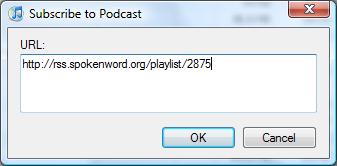
Making this work in iTunes – or your favorite Podcatcher – ought to be straight-forward. In iTunes, simply add the podcast using the Agile Development Practices RSS feed (http://feeds.feedburner.com/AgileDevPractices). In iTunes, this is accessed under the “Advanced” menu, via the “Subscribe to Podcast…” option and will look something like this:

Under "Options" menu, choose "Subscribe to Podcast..." option to get this dialog

Under "Options" menu, choose "Subscribe to Podcast..." then provide an RSS feeed URL in this dialog

iTunes Only Includes First Episode

When you first add a Podcast feed to iTunes (or other Podcatchers), if there is more than one episode, only the latest episode will be included. This may or may not be what you want generally, but in the case of a Podcast Mashup, you probably will want to manually add more episodes to your download list.

A feed with many existing episodes treated passively by iTunes

A feed with many existing episodes is treated passively by iTunes; you need to click "Get All" or click specific "Get" buttons to include others (Click on the image to zoom in)

If you want to include all of the episodes in the Podcast the first time you load it up, you can click on the “GET ALL” button.

Alternatively, you can expand the Podcast feed in iTunes (by clicking the triangle to the left of the Podcast title) and then clicking individual “GET” buttons.

What other Podcast Mashups ought to exist?

Do you find this idea useful? Is this the right granularity? Or would, say, separate Podcast Mashups for TDD, BDD, DI, and Unit Testing make sense? Or some other cut at it…

What other Podcast Mashup topics would you find useful? Which ones might you offer?

Your feedback is welcome.

Prism Talk – Slides and Code

I have spoken a few times recently (NH Code Camp 1 on 28-Feb-2009, Beantown .NET User Group on 05-Mar-2009, and Boston Code Camp 11 on 28-Mar-2009) on building composite applications for Silverlight and WPF using Prism (which is officially known as Composite Application Guidance for WPF and Silverlight). The slide deck and sample code are essentially the same in all cases, so I am only posting them once.

Recall from the talk that the Save As Podcast code was a (partial) demonstration of moving from “old school” code-behind WinForm pattern into Silverlight and WPF using a newer, cleaner pattern called Model-View-ViewModel and going on to leverage functionality specific to Prism. This code is a partial transformation of that code. To compile, you should first install Prism (aka Composite Application Guidance for WPF and Silverlight) and then essentially replace the “Hello World” QuickStart with this code – that will make your life easier since the projects will retain the relative links to other libraries.

A generic error occurred in GDI+ when reading from MemoryStream

I am playing with TagLib#, an Open Source library that supports reading and updating ID3 metadata from MP3 files. I ran across the following error — “a generic error occurred in gdi+” — displaying a bitmap image I pulled from the MP3 file.

   TagLib.File file = TagLib.File.Create(@"foo.mp3");
   int pictureCount = file.Tag.Pictures.Length;
   System.Drawing.Bitmap bmp = null;
   if (pictureCount > 0)
   {
      System.IO.MemoryStream pictureBitstream = new System.IO.MemoryStream(
                                                    file.Tag.Pictures[0].Data.Data);
      bmp = new System.Drawing.Bitmap(pictureBitstream);
      pictureBitstream.Close();

      string fn = "foo.jpg";

      // create thumbnail
      using (System.Drawing.Image thumb =
                      bmp.GetThumbnailImage(10, 10,
                               new System.Drawing.Image.GetThumbnailImageAbort(
                                        delegate { return false; }),
                               IntPtr.Zero))
      {
         thumb.Save(Response.OutputStream, System.Drawing.Imaging.ImageFormat.Jpeg);
      }
   }

The “a generic error occurred in gdi+” message is not very helpful. I did some googling and came up with a few helpful posts on the matter, including several that appeared to be different problems. Looks like 4 Guys from Rolla have functional code.

My problem was in closing the stream too soon, which was not obvious to me at first, though makes some sense. The fix is to defer

      pictureBitstream.Close();

until after the Bitmap object is done with its work. I was initially under the illusion that once I’d created the stream for the image it read the whole image; of course that’s not true – it is not read in until it is read in.

I would submit this is a confusing UI design. Developers deserve better affordances. Good thing an exception was thrown; otherwise, this may have blown up later in a less obvious manner or at a less convenient time.