Category Archives: Programming

Related to some aspect of programming, software development, related tools, or supporting technologies, related standards, etc.

Boston Azure Firestarter Wrap Up

Boston Azure Firestarter a Success!

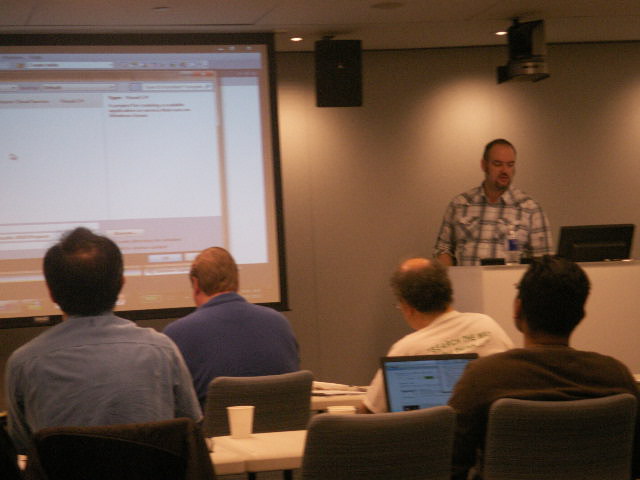
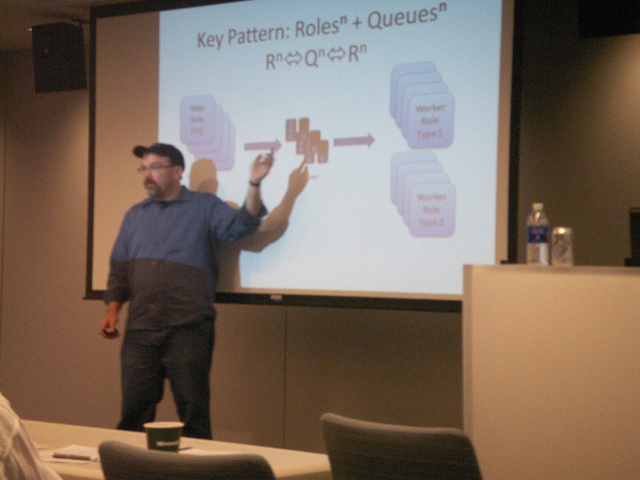
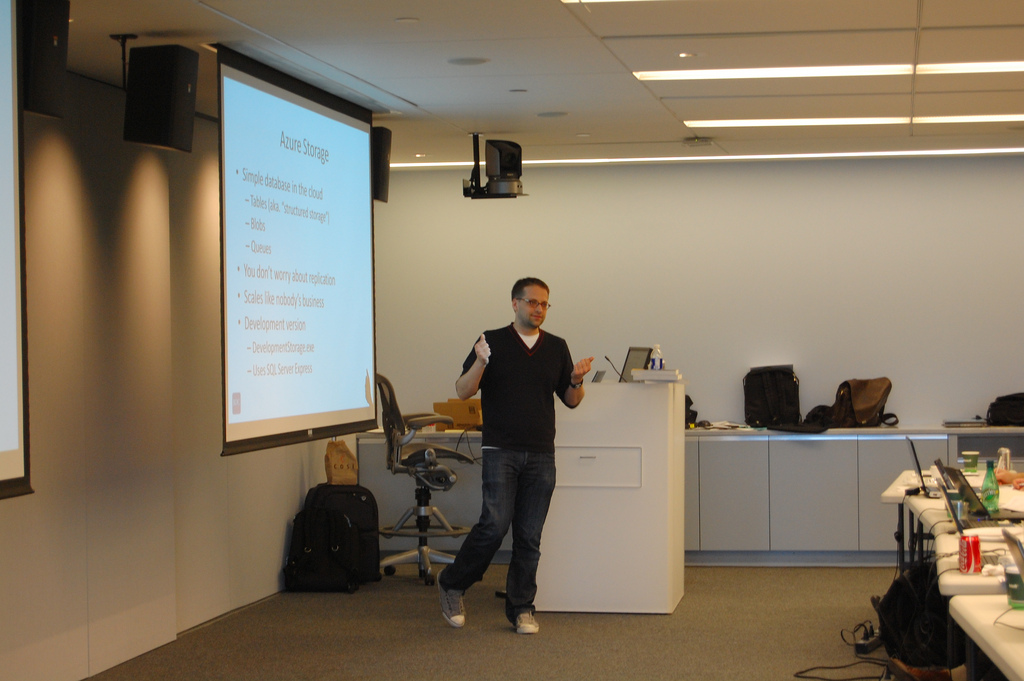
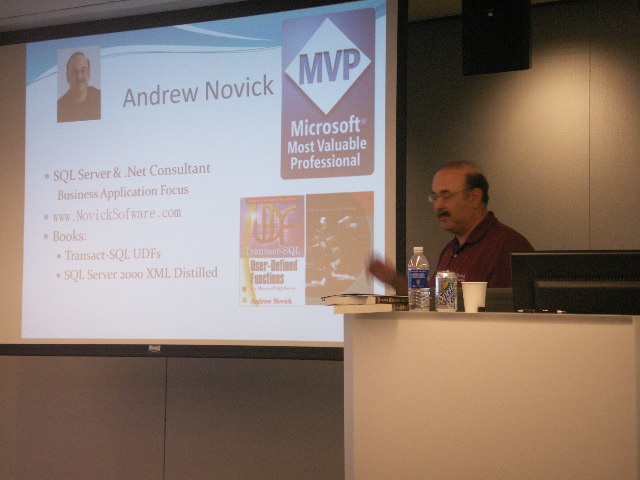
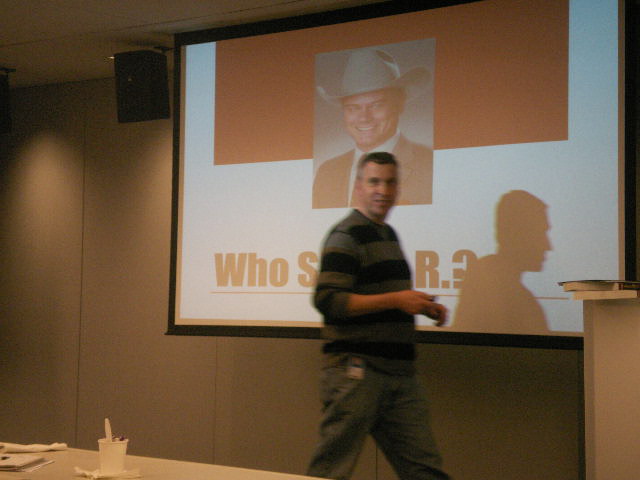
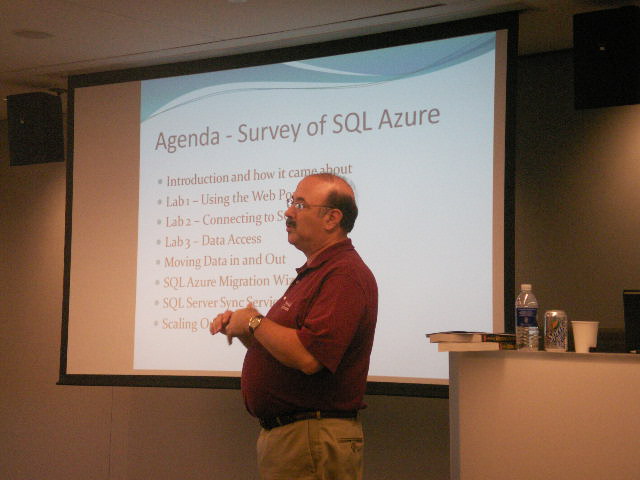
We had 60-something folks attend the Boston Azure Firestarter (more photos) on May 8, 2010 in Cambridge, MA. This event provided both talks about important Azure concepts and hands-on-roll-up-your-sleeves-and-write-some-code Labs. Yes, attendees brought laptops! Feedback was positive. Many thanks to all the folks who helped make this event possible. This was a Boston Azure cloud computing user group event, supported by and hosted at Microsoft.

Many Thanks!

Those who helped prepare for the event, work the sign-in desk, help with technical problems, and handle the pair-programmer matching service included Nazik Huq, Chander Khanna, Joan Linskey, and Maura Wilder. Jim O’Neil and Chris Bowen (our East Coast Microsoft Developer Evangelists) were also on hand for trouble-shooting and general support and help.


Here was our speaker lineup:

  1. David Aiken from Microsoft’s Windows Azure team came from the left-coast in Redmond to the right-coast in Boston to keynote the event. David gave many demos, a couple of which were My Azure Storage and his new URL shortening service hmbl.me.
    David’s keynote was followed by:
  2. Bill Wilder: Roles and Queues talk + lab (http://hmbl.me/1OHBMZ)
  3. Ben Day: Azure Storage + lab
  4. Andy Novick: SQL Azure + lab (http://hmbl.me/1H46PK)
  5. Jim O’Neil: Dallas and OData (http://hmbl.me/1OHC5W)
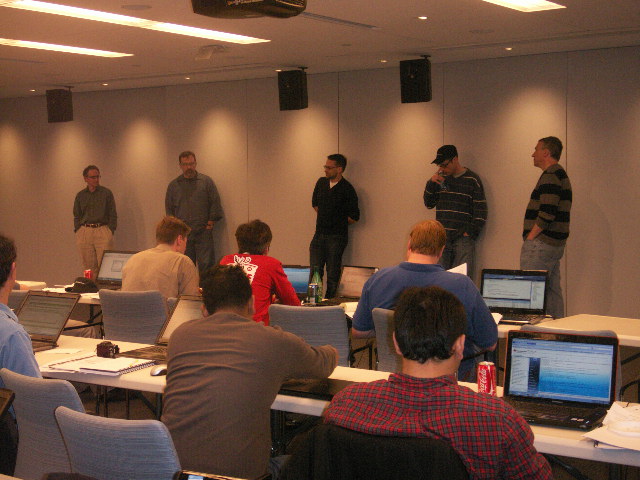
  6. Panel Q&A (in the order shown in photo below): Mark Eisenberg (Microsoft), Bill Wilder, Ben Day, Jason Haley, and Jim O’Neil

After hours, a smaller group unwound at the sports bar over at the Marriott. This included Jim O’Neil, Maura Wilder, Joan Linskey, Bill Wilder, Sri from New Jersey, (okay, other names are vague!) …

Two Roles and a Queue – Creating an Azure Service with Web and Worker Roles Communicating through a Queue

Two Roles and a Queue Lab from Boston Azure Firestarter

At the Firestarter event on May 8, 2010, I spoke about Roles and Queues and worked through a coding lab on same. The final code is available in a zip file. The Boston Azure Firestarter – Bill Wilder – Roles and Queues deck can be downloaded – though since there were so many questions we didn’t get to covering a number many of the slides! – this was a hot topic!

The remainder of this post contains the narrative for the LAB we did as a group at the Firestarter. It probably will not stand alone super well, but may be of interest to some folks, so I’ve posted it.

The following procedure assumes Microsoft Visual Web Developer 2010 Express on Windows 7. The same general steps apply to Visual Studio 2008, Visual Studio 2010, and Web Developer 2008 Express versions, though details will vary.

0. Open Microsoft Visual Web Developer 2010 Express and select File | New Project

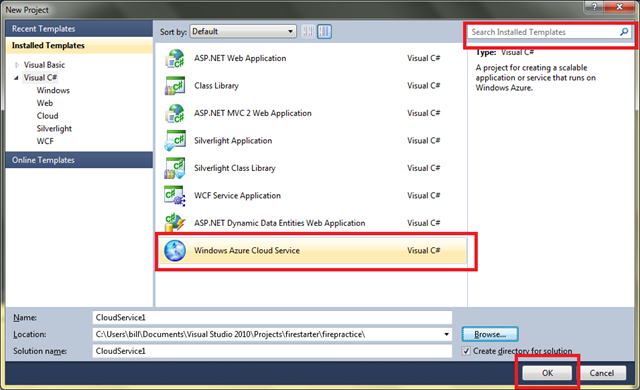
1. Select Windows Azure Service and click Okay:

image

If you have trouble finding the Windows Azure Service template, you can type “Azure” into the search box in the top-right to narrow the options. Also, if you don’t have the Windows Azure SDK installed, you will need to install that before proceeding – but there will be a link provided by Visual Web Developer 2010 Express that will direct you to the right page. Install it if you need to and try again up to this point.

2. You will see a special dialog box for New Cloud Service Project from which you will add both a Web Role

image

and a Worker Role

image

Verify that both WebRole1 and WorkerRole1 are in the list on the right side, then click OK.

3. Before you begin making code changes, you can run your new application. You can run it in the debugger by pressing the F5 key.

You will probably get the following error message:

image

The error message is telling you that you need to close Visual Web Developer 2010 Express and restart it with elevated privileges.

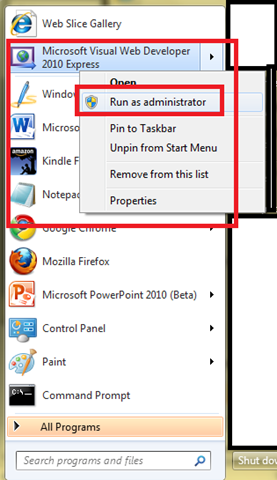
4. To start any Windows program with elevated privileges , right-click on the application then choose Run as administrator from the pop-up menu:

image

Before it obeys your request to run as administrator, Windows 7 will double-check by popping up a security dialog.

Now you can reload your project and try running it again. The app should run and you should see a blank web browser page.

5. Once you’ve proven your application runs, it is time to make some changes.

Make the code changes indicated for the Two Roles and A Queue Lab in CODING STEP 1.

Note: the “coding step 1” and future coding steps were handouts (paper!) at the Boston Azure Firestarter on Sat May 8, 2010. In lieue of reproducing them here, I will post the final solution.

This lab will establish some WebRole basics.

6. When done applying CODING STEP 1, run the application again.

7. After demonstrating your application runs, Deploy it to Azure.

This is a simple application so it helps us get through the initial deployment with minimal challenges.

8. Apply CODING STEP 2 – Add Queue (in local dev fabric storage)

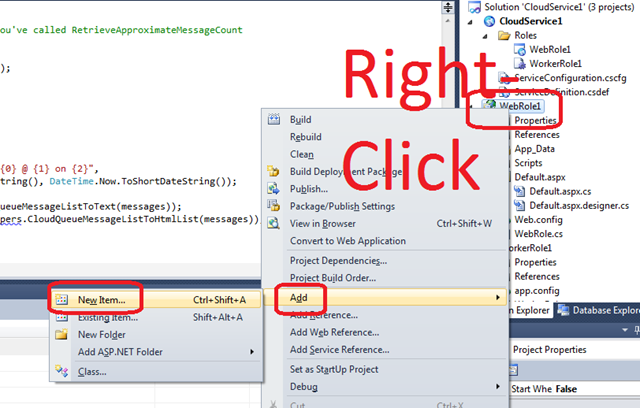
9. CODING STEP 3 – Add “DumpQueue” method and “FirestarterWebRoleHelpers.cs”

image

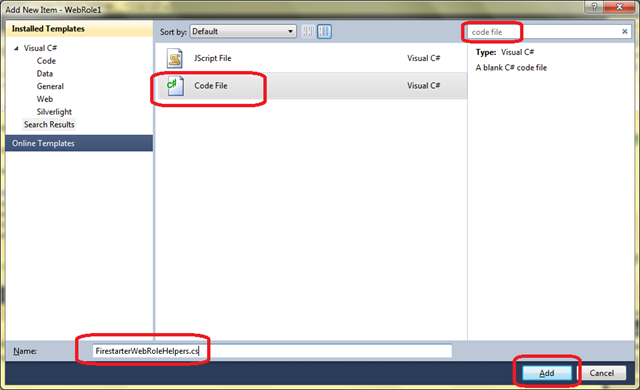
You will get the following dialog box – type “code file” into the search area on the top-right, select Visual C# Code File, and type in the filename “FirestarterWebRoleHelpers.cs” as shown and click Add:

image

The new file “FirestarterWebRoleHelpers.cs” will open in the editor. It should be empty to begin with. Cut and Paste in the contents from http://bostonazure.org/files/FirestarterWebRoleHelpers.cs.txt.

Why? The contents of this file has little to do with Windows Azure, so we don’t want to focus on it. But we want to use some utility routines from it so that we can focus on Azure concepts.

10. CODING STEP 4 – Adding Cloud-based Queue

First we need to configure the cloud.

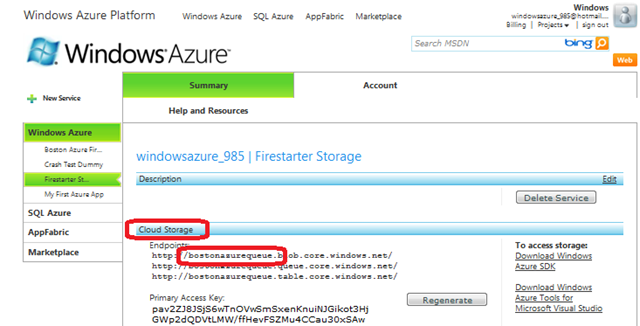
Go to http://windows.azure.com and log in. You may wish to consult instructions on redeeming a token at https://blog.codingoutloud.com/2010/05/06/redeeming-an-azure-token/ or http://bit.ly/dgCuMn

image

Your storage account has a subdomain, as circled above. This – and the Access Key – need to be added to your Web Role and Worker Role so that they can access (and share the same queue within) cloud-hosted storage.

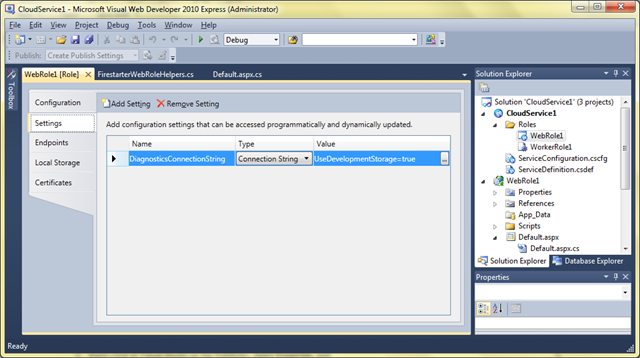
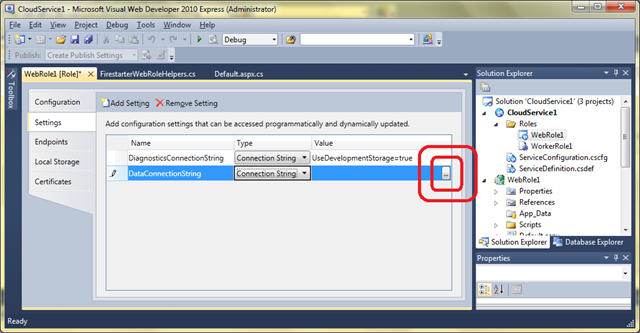
Right-click in Visual Studio on the WebRole1, select Properties, and select the Settings tab on the left. It will appear something like this:

image

Now click on Add Setting and give the new item the name “DataConnectionString”, the Type “Connection String”, and click on the “…”

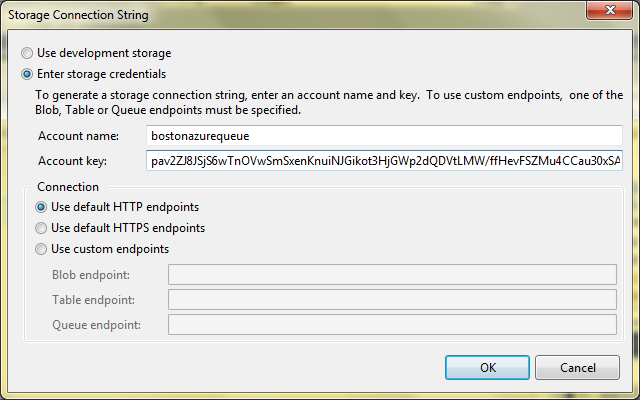
image

This will bring up the Storage Connection String editor – fill in the fields – where your “Account name” is the same as the subdomain shown on the Storage Service (see above – in that screen shot it is “bostonazurequeue”) and the Key can be either Primary or Secondary Access Key (from same area in the Azure Portal):

image

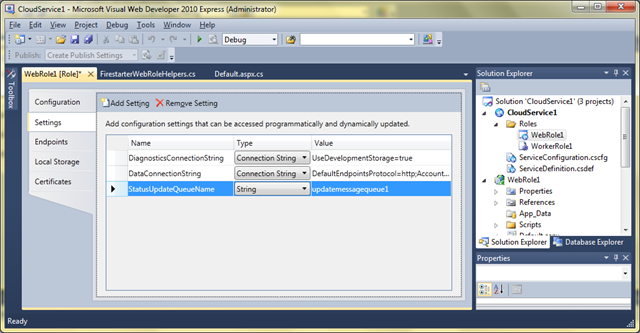
You are NOT DONE in the screen yet. Also add a Setting named “StatusUpdateQueueName”– of Type “String” – with Value “updatemessagequeue1” as follows:

image

Click OK.

11. Now REPEAT BOTH STEPS for WorkerRole1.

Yes, add both Settings also to WorkerRole1 – they both will end up with the same settings. You can “cheat” with cut and paste in the .cscfg and .csdef files.

12. Enable Cloud-hosted Queue from Web Role

Now you are ready go on to make the code changes to use this new configuration item.

Apply CODING STEP 4: Enabling the Cloud-hosted Queue from the Web Role

Now run your application using cloud storage for the queue:

image

Note that you can also examine the contents of the queue online by visiting http://myAzureStorage.com and providing the same credentials you used when setting up the DataConnectionString above for both the Web and Worker roles.

13. Enable Cloud-hosted Queue from Worker Role

Now you are ALMOST ready go on to make the code changes to use this new configuration item.

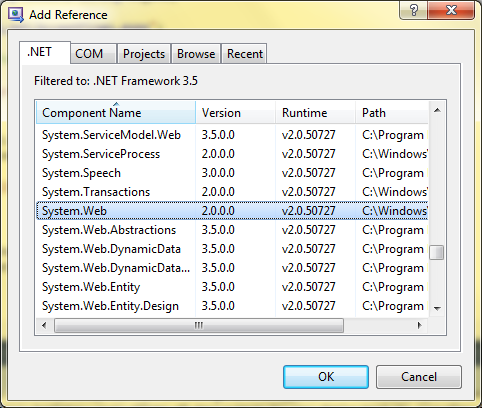
Before applying the coding, we need to add a project reference (otherwise you won’t be able to Resolve use of networking classes used in the FirestarterWorkerRoleHelpers.). In Visual Studio on the right side, under the Solution Explorer, right-click on the References element underneath WorkerRole1 and select Add Reference, then from the .NET tab, select System.Web and click okay:

image

Also, similar to step 9 above, add a new Code File called “FirestarterWorkerRoleHelpers.cs” to hold some additional needed (but not core to Azure) code.

The new file “FirestarterWorkerRoleHelpers.cs” will open in the editor. It should be empty to begin with. Cut and Paste in the contents from http://bostonazure.org/files/FirestarterWorkerRoleHelper.cs.txt.

Now you can apply Apply CODING STEP 5: Enabling the Cloud-hosted Queue from the Worker Role.

14. Deploying to Staging Area in Cloud to Staging

15. Cutover from Staging to Production

16. Add in secret Twitter posting code from your Worker Role…

Yes, this can be done by including a hash character (#) as part of the message you type into your web application.

One Cause of Azure Error – One of the request inputs is out of range

In making some innocuous seeming changes to working code in Windows Azure, I ran into an Exception when creating a Queue – and the cause was not at first obvious. The exception message was “One of the request inputs is out of range” and the inner exception message was “The remote server returned an error: (400) Bad Request.”

Illegal name causes “One of the request inputs is out of range”

Here is the code – why might this Windows Azure code snippet throw an Exception on the call to queue.CreateIfNotExist()?

CloudQueueClient queueStorage = storageAccount.CreateCloudQueueClient();
CloudQueue queue = queueStorage.GetQueueReference(“My Queue”);
bool queueJustCreated = queue.CreateIfNotExist();

The answer lies in the name we are using for the queue. Since the name is just a string, I assumed it can be any string. It cannot be any string.

Experimentation suggests the rules for naming a queue include: (a) use only lower case letters, (b) digits are allowed anywhere, and (c) internal single hyphens are okay too, but (d) name should not contain any spaces (e) nor any punctuation (other than hyphen).

So there would be no problem with valid names like:

  • myqueue
  • my-queue
  • myqueue-3

But there would be problems with illegal names like:

  • MyQueue
  • my queue
  • bill’squeue
  • -nogood
  • x-
  • not—quite
  • bad(name)

There may be additional nuances to the rules I didn’t discover, of course. One way to test out possible names quickly is with the myAzureStorage utility; just try to create a queue using the name and see if you get an error. Note that you can feed upper case chars to myAzureStorage but the created object will return with lower-case letter and will not cause an error.

Also, I only experimented with Queue names, but I assume the same rules apply to Blobs and Tables. Further research indicates this indeed is the case...

My challenge originally was to figure out why I got the Exception that was raised – that was the non-obvious part – the exception message did not tell me it was a problem with the name. After I figured it out and experimented a bit, of course then I found the documentation on allowed names which supports my conclusions… and adds details like length of name and the fact that the name is required to be a legal DNS name.

Redeeming an Azure Token

At some select events (like Boston Azure Firestarter, Boston Azure User Group hands-on meeting, or even Protein Folding with Azure @home), Microsoft sometimes provides tokens for participants who wish to try out Windows Azure for real – by deploying real bits into the cloud – deploying multiple instances of Web Roles and Worker Roles, using Queue for scaling, storing data and blobs in Azure Storage and exercising SQL Azure… Some of the tokens are good for up to 4 weeks – which is awesomely convenient for really kicking the tires on Azure if you are a developer. Which I am… Here is a little guidance on getting your account set up once you have a token in hand.

Note that you will be interacting with the Windows Azure Developer Portal (or Dev Portal for short) to redeem your token and establish your temporary account. The Dev Portal is useful to learn about and get to know.

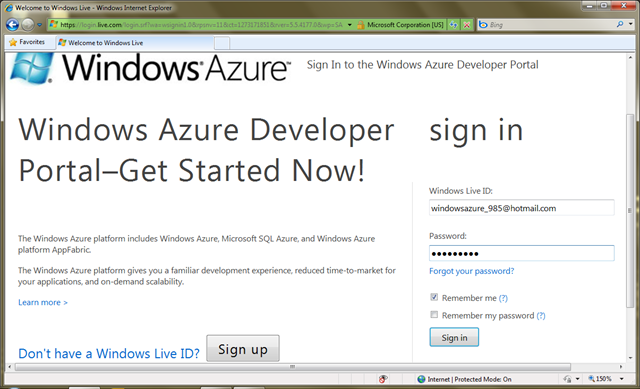
1. First visit http://windows.azure.com and log in with the provided credentials. Use the provided email address for your Windows Live ID.

(NOTE: If any of the images in this post are too small to read, click on them to see a larger version.)

image

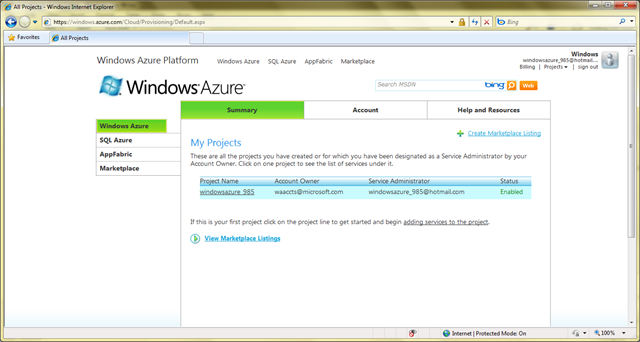
2. You will see a screen like the following. Note the row with the light blue background; this background color only appears when your mouse is hovering there. Click on the Project Name that matches your token account name.

image

(Notice that the account owner is “waaccts@microsoft.com” – this is because you are using a Token. Azure supports having an overall account that pays the bills, then sub-accounts for developers. This is an example.)

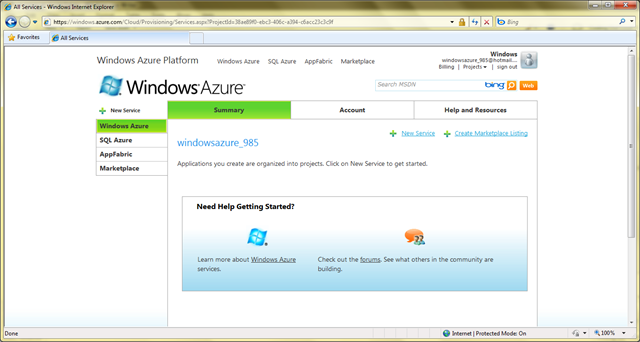
3.  Now you are in! You can proceed to review some of the help resources lists, or click around on any of the tabs to the left. But to create a new application that you can host on the Azure cloud, you can click on the “New Service” link next to the green “+” sign.

image

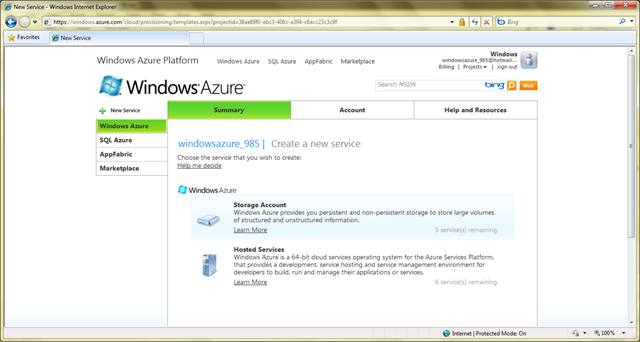
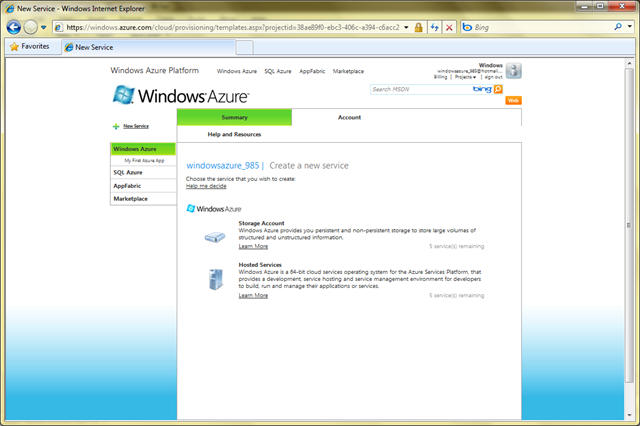
4. After you choose “New Service” you will see the following. Note the two main options in the middle for Storage Account and Hosted Services.

image 

Select Hosted Services to begin. Be sure to click on the words “Hosted Services” as opposed to the “Learn More” link, as they are different.

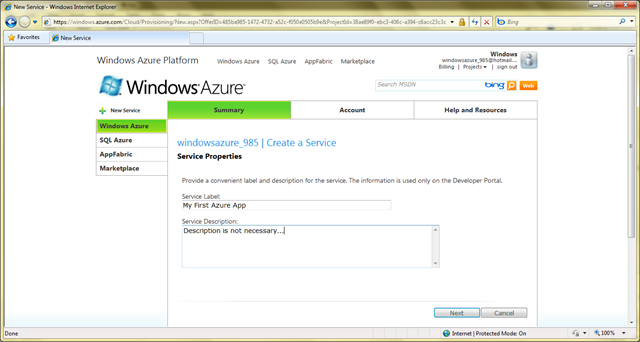
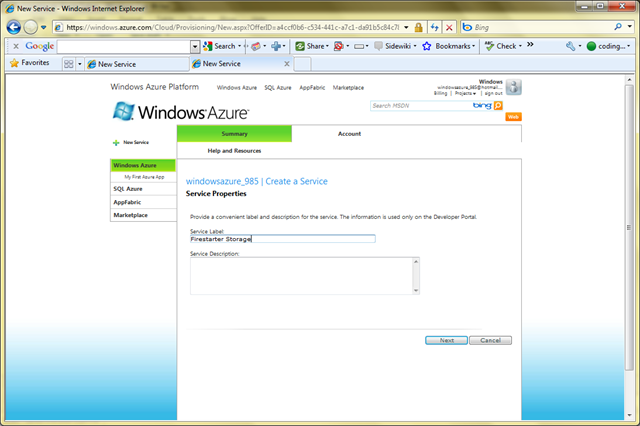
5. The next page will ask you for a name – this name will only be used to help you identify this service from a list in the developer portal, so don’t spend too much time coming up with the perfect name. You don’t need to provide anything for the Description.

image

After providing a name, click Next.

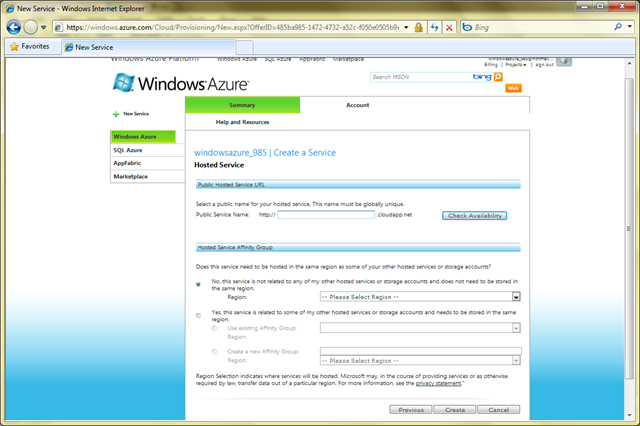
6.  Now you are faced with a form where the choices you make actually do matter.  Here’s what’ you’ll need to do:

image

Type in a “Public Service Name” – this will be the Internet-visible sub-domain from which your deployed application will be visible. For example, if you choose “foo” then your Azure Service will live at http://foo.cloudapp.net after you publish it.

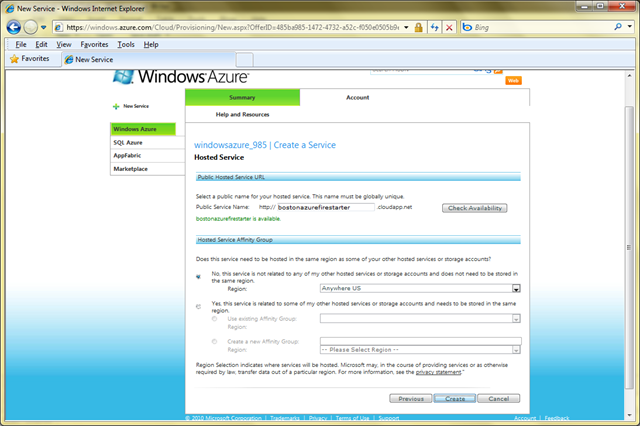
After you settle on a Public Service Name (using Check Availability button as need), you also need to select a Region. Pick the “anywhere” region in your continent (or closest to your continent) such as Anywhere US and click Create.

Here’s what mine looked like before I clicked Create:

image

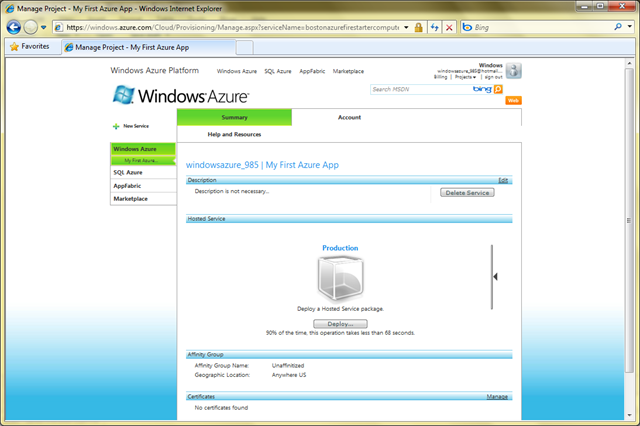
Now your Azure Service has been created.

7. You will see a screen inviting you to Deploy a Hosted Service Package. We won’t do that now (though you could if you had an application ready). Instead, we will create an Azure Storage Account. From here:

image

Click on the “New Service” link which is near the top-left – below the large Windows Azure logo – and you will see the same screen you saw in step 4:

 image

This time select Storage Account and you will see the following:

image

Give it a name, as I did in screenshot, and click Next.

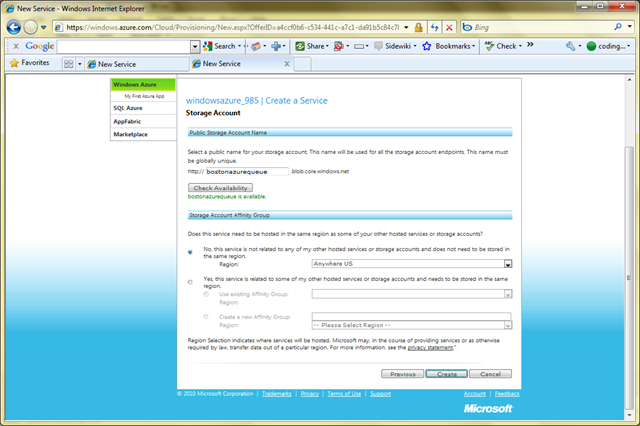
8. As in step 5, this is also an important choice, though not visible to humans visiting your site. You will need to know this address to program against it. Of course you can look it up in the Dev Portal at any time, but why not choose a logical name. Fill in the fields similar to step 5 – be sure to choose the same Region you chose with step 5 – and click Create.

image

9. You are now ready to build and deploy Azure applications that use Web Roles, Worker Roles, and various kinds of storage.

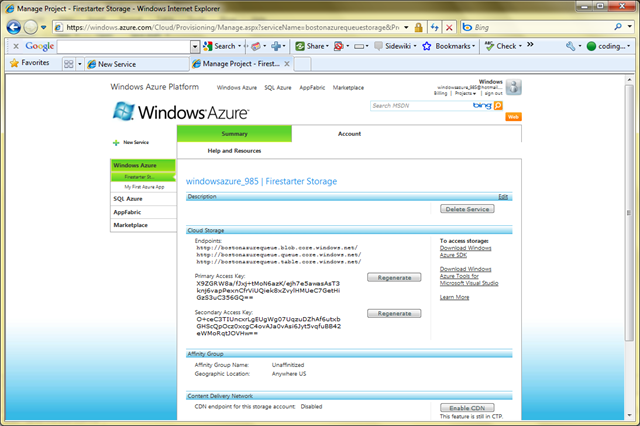
You will need the keys shows to programmatically access your storage.

image

You can always come back and look up the values of these keys, of course. Also, if a key is compromised, you can regenerate it easily, invalidating the prior one. There are two separate keys that can be used/invalidated independently. These keys are specific to this Storage Service you created; you can create more Storage Services with different keys and even use multiple of them together.

Enabling IIS on Windows 7

Azure developers running Windows 7 (and Vista should be similar) will want to enable IIS 7.5 on the desktop. This will make it possible to run the local development environment known as the Azure Dev Fabric.

Five easy steps to Enable IIS 7.5 for Windows 7 Developers

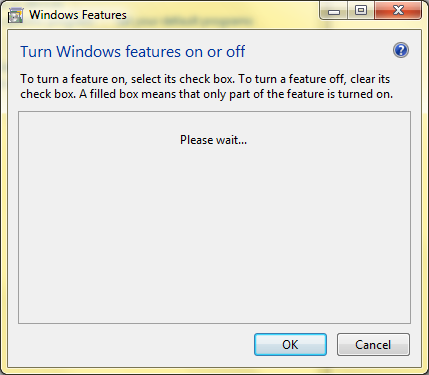
1. Open Control Panel. From the Search Control Panel search box in the top right, type in “turn windows features on or off” to show just this option. Click on the “Turn Windows features on or off” link underneath the “Programs and Features” heading.

This launches the Control Panel applet you will need.

Here are the Control Panel screens you will now see:

(If the graphics are too small for you, click on them to bring up a larger version.)

image

Eventually it loads.

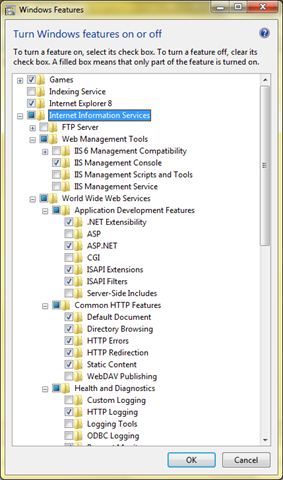
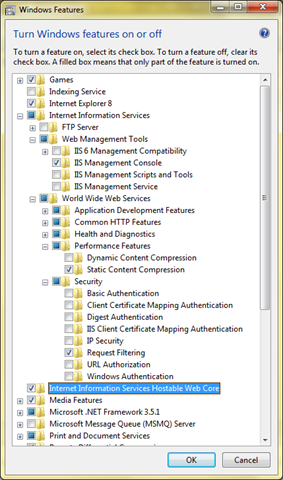
2. Once loaded, scroll down to Internet Information Services as shown below, and check the desired boxes (the one I chose are shown in the next two screen shots):

(If the graphics are too small for you, click on them to bring up a larger version.)

image

image

3. The hit okay and wait …

image

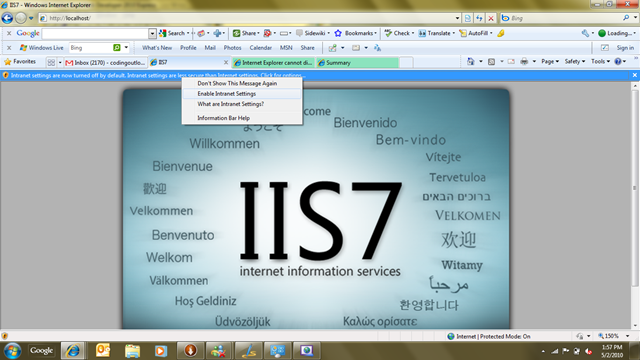
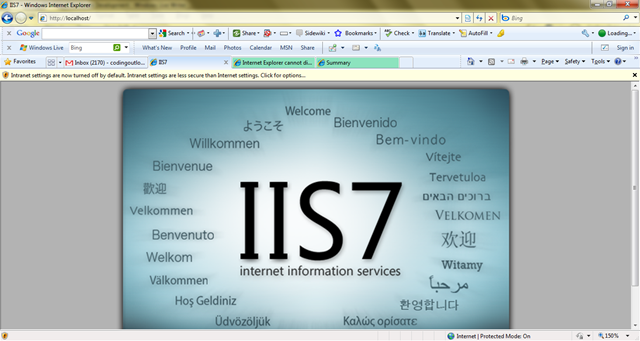
4. Once complete, you will see this browser window – note the yellow bar:

image

5. You may want to select “Enable Intranet Settings” as shown below:

image

Done!

Registration open for Boston Azure Firestarter May 8, 2010

Flaming Firestarter Logo

On May 8, 2010 there will be a Firestarter event focused on learning about Microsoft’s Windows Azure Cloud Platform. This FREE, ALL-DAY, HANDS-ON, IN-PERSON event will be held at the Microsoft NERD building in Cambridge, Massachusetts.

Here’s the idea…

You show up in the morning curious about Cloud Computing and the Windows Azure platform… and you leave at the end of the day loaded up from a crash-course/deep-dive into Azure, including a series of Azure-specific technical talks, Azure-specific programming experience (and working code), and access to resources to continue into the future…

Registration is now open!

Register at Eventbrite now.

What will be covered?

While we are still tweaking the schedule and exact contents, we didn’t want to delay opening registration. Rest assured the focus of the event is covering the most important Azure topics through a combination of informative talks and hands-on coding sessions.

We have some outstanding speakers lined up (including a keynote speaker we will announce soon).

More information on this community event – including a more complete/detailed schedule – will be updated progressively over the next few weeks on the web site of the Boston Azure cloud computing using group.

See you there!

[image credit: Firestarter logo built based on http://shaedsofgrey.deviantart.com/art/fire-45734782?moodonly=1 under Creative Commons Attribution-Noncommercial 3.0 License.]

At New England Code Camp #13, Gave Talks on Azure and Prism

At today’s New England Code Camp #13, I gave talks on Azure and Prism.

1. Azure Talk

2. Prism Talk

Getting Started with Windows Azure Development

This is an update from an old post on Azure Development Requirements, this time focused on a reasonable stack of tools for Azure development. (The structure is based on list from Jason Haley which he prepared for a talk to the April 29, 2010 meeting of the Boston Azure cloud computing user group.)

How-To Configure an Azure Development Environment

0. Operating System Running IIS 7.x

No way of getting around the need for a Windows operating system that runs IIS 7.0 or IIS 7.5 — either directly or indirectly (see note below on using virtualization).

The operating system versions that support IIS 7.0 include:

  • Vista Business Edition and Ultimate

The operating system versions that support IIS 7.5 include:

What happens if I don’t have Vista, Win 7, or Server 2008?

There is one other hope. Use Virtual PC (or your favorite virtualization solution) and run an instance of a supported operating system in a virtual mode. (This blog post on creating a virtual machine image for Windows 7 using Virtual PC 2007 may help.)

Once you have an operating environment – real or virtual – the rest is the same.

How do I enable IIS 7.x to run?

If you are running a desktop version of Windows (Vista or Windows 7), it is likely you need to enable IIS through the control panel. Here are step-by-step instructions for enabling IIS 7.5 on Windows 7.

If you are doing this to prepare for the April 29 Boston Azure or the May 8th Firestarter meeting, please make sure you have enabled IIS7 with ASP.NET and have WCF HTTP Activation enabled.

1. Visual Studio

You need a copy of Visual Studio that supports Azure development. Currently your options are Visual Studio 2008 SP1Visual Studio 2010 (many editions), and Visual Web Developer 2010 Express Edition.

If you don’t know which version of Visual Studio to install, go with Visual Web Developer 2010 Express Edition (which is also free).

2. Windows Azure Tools and SDK

Download and install Windows Azure Tools for Microsoft Visual Studio 1.1 (Feb 2010) – this includes the Windows Azure SDK (and its samples)

Pay special attention to the first note at the top of that post:

Visual Studio must be run as an Administrator

You must run Visual Studio with elevated permissions when building Cloud Services for Windows Azure.

It is possible to create a shortcut that will launch Visual Studio with administrative permissions by setting the “Run as Administrator” checkbox in the Advanced Properties page of the Shortcut tab; this is available from the Properties menu option off of the context menu.

3. Microsoft SQL Server

A local installation of SQL Server is needed for local development work involving SQL Azure, Azure Table Storage, or Azure queues.

You only need to do this step if you didn’t install a version of SQL Server during Step 1 (above) while installing Visual Studio.

If you do not have a paid license for SQL Server, your best bet is to download a free copy of either Microsoft SQL Server 2005 Express or Microsoft SQL Server 2008 Express.

If you don’t know which version of SQL Server to install, go with Microsoft SQL Server 2008 Express (which is also free).

4. Windows Azure Platform Training Kit

At least for the April Boston Azure meeting, you will  also need the Windows Azure Platform Training Kit (Dec 2009 update) since Jason Haley (the main speaker) will assume we have this installed so he can reference it during the meeting.

5. Future Optional Extra Credit Tools

Once you have deployed to the cloud, you may also be interested in:

  • Fiddler (for IE) and Firebug (for Firefox) to spy on http traffic going back and forth to a deployed Azure app
  • What else?

6. Do You Have a Token?

If you are lucky enough to have a token for free (though time-limited) access to Azure services in the cloud, here’s How to Redeem an Azure Token.

Three ways to tell if a .NET Assembly (DLL) has Strong Name

Three ways to tell if a .NET Assembly is Strongly Named (or has Strong Name)

Here are several convenient ways to tell whether a .NET assembly is strongly named(English language note: I assume the form “strongly named” is preferred over “strong named” since that’s the form used in the output of the sn.exe tool shown immediately below.)

Towards the end, this post discusses use of Strong Names with Silverlight.

Then in the final section of this post the often confusing – though very important – differences between Strongly Named assemblies and Digitally Signed assemblies are clarified.

But first, here are three approaches for telling whether a .NET Assembly is Strongly Named...

Approach #1: Testing for Strong Name on Command Line or in a Script

You tell whether an Assembly/DLL has been successfully strong-named using the Strong Name Tool (sn.exe) (which can be found somewhere like here: C:\Program Files\Microsoft SDKs\Windows\v7.0A\bin\sn.exe) by running the following at the command line:

sn -vf System.Data.dll

Here are the results when running against a strongly named assembly, then one that is not strongly named.

C:\> sn -v C:\WINDOWS\Microsoft.NET\Framework\v2.0.50727\System.Data.dll
Microsoft (R) .NET Framework Strong Name Utility  Version 4.0.30128.1
Copyright (c) Microsoft Corporation.  All rights reserved.
Assembly 'C:\...\System.Data.dll' is valid
C:\> sn -v C:\WINDOWS\ismif32.dll
Microsoft (R) .NET Framework Strong Name Utility  Version 4.0.30128.1
Copyright (c) Microsoft Corporation.  All rights reserved.
C:\WINDOWS\ismif32.dll does not represent a strongly named assembly

Since the return value from sn.exe is 0 (zero) when the strong name is in place, and 1 (one) if not correctly strong named, you can test for this in a script by examining ERRORLEVEL, as in the following (put it into a text file called “sn-test.bat” for example and run as “sn-test foo.dll”):

@ echo off
if "%1"=="" goto END 
sn -q -vf %1 > NUL 
if ERRORLEVEL 1 goto NOT_STRONG
:STRONG
echo Has strong name: %1
goto END
:NOT_STRONG
echo Not strong named: %1
goto END
:END

Note that this will tell you whether it has SOME strong name, but does not tell you which one. So this technique is not appropriate for all uses, but might help in, say, an automated script that checks your about-to-be-released assemblies to make sure you remembered to add the strong names to them. (See note below – “Strong Names not for Security”.)

If you need finer-grain control and wish to write low-level code to ascertain the strong-naming status of an assembly, you can do that too.

Approach #2: Viewing Strong Name Details with IL DASM

Visual Studio ships with a handy utility – the Microsoft Intermediate Language Disassembler (ILDASM.EXE (tutorial)) – which can be used for disassembling .NET binaries to peruse the contents, perhaps for viewing the method signatures or viewing the .NET Assembly Manifest. It is helpful to load an assembly using IL DASM and examine the manifest to see whether there is a strong name key available. Your first step is to load the desired Assembly using the ildasm.exe utility. On my Windows 7 machine, IL DASM is found at

C:\Program Files\Microsoft SDKs\Windows\v7.0A\bin\ildasm.exe

and you can load up the System.Drawing.dll .NET Assembly as in the following example:

C:\> ildasm C:\Windows\Microsoft.NET\Framework\v2.0.50727\System.Drawing.dll

Once loaded, you will see a screen like the one below.
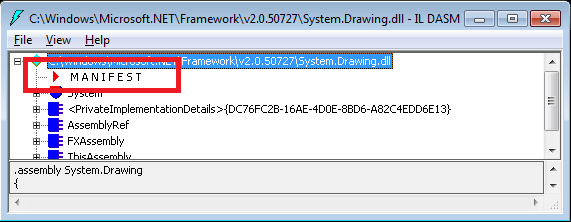
Note the MANIFEST section highlighted. Double-click on MANIFEST which load the following screen of manifest-specific data:
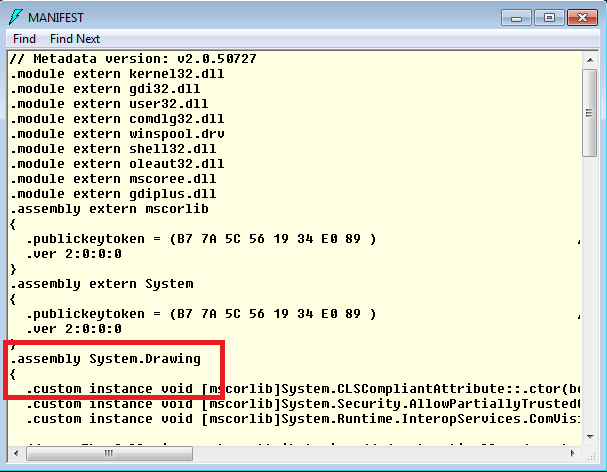
Find the section for the Assembly you’ve loaded – in this case, System.Drawing and following the section (which is marked with the “.assembly System.Drawing” directive highlighted above, and the content begins with the opening brace (“{“) shown above, and ends with its matching brace later in the manifest, and shown below.
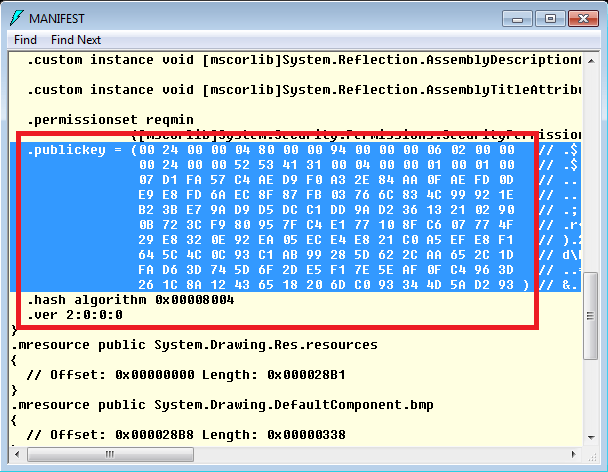
The highlighted part of the manifest is the public key for this assembly. This public key can also be seen using the sn.exe tool, as follows:

C:\> sn -Tp C:\Windows\Microsoft.NET\Framework\v2.0.50727\System.Drawing.dll echo Not strong named: %1
Microsoft (R) .NET Framework Strong Name Utility  Version 3.5.30729.1
Copyright (c) Microsoft Corporation.  All rights reserved.
Public key is 002400000480000094000000060200000024000052534131000400000100010007d1fa57c4aed9 f0a32e84aa0faefd0de9e8fd6aec8f87fb03766c834c99921eb23be79ad9d5dcc1dd9ad2361321 02900b723cf980957fc4e177108fc607774f29e8320e92ea05ece4e821c0a5efe8f1645c4c0c93 c1ab99285d622caa652c1dfad63d745d6f2de5f17e5eaf0fc4963d261c8a12436518206dc09334 4d5ad293
Public key token is b03f5f7f11d50a3a

Note that the Public key in the output from sn.exe matches the highlighted public key in the image immediately above it (of course you should ignore the spaces between pairs of digits in the screen shot).

If an assembly is not strongly named, the Public key will be missing from the manifest and will not be displayed by sn -Tp command.

Since IL DASM comes with both Visual Studio and with the .NET SDK, it is already on the desktop for most .NET Developers, and is therefore sometimes the handiest tool. The third option, .NET Reflector, is a third-party tool, though one adopted by many .NET Developers due to its awesomeness. Reflector conveniently shows more details about the strong name.

Approach #3: Viewing Strong Name Details with Reflector

You can load an assembly in the free version RedGate’s .NET Reflector and quickly see the strong name details – or lack thereof for non-strong named assemblies. In the image below, see at the bottom where the strong name string is highlighted. Note that the strong name has five parts (though the Culture is optional):

  1. Simple Name or Assembly name without the “.dll” extension (“System.Data” in case of assembly “System.Data.dll”)
  2. Assembly version (“2.0.0.0” in case of “System.Data.dll”)
  3. Culture (“neutral” in case of “System.Data.dll”, but might be “en-us” for US English, or one of many others)
  4. Public Key or PublicKeyToken (public part of the cryptographic public/private key pair used to strong name the assembly, “b77a5c561934e089” in case of “System.Data.dll”)
  5. Processor Architecture – Defines the assembly’s format, such as MSIL (intermediate language) or x86 (binary for Intel x86 processors)
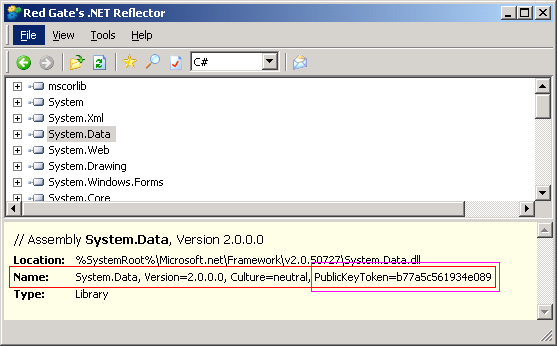
Using Reflector to show strong name

In the next image, see at the bottom where the LACK OF complete name string is highlighted; this assembly does not have a strong name to display, so “Name” field includes a null value for PublicKeyToken. (Note that in the real world, Spring.Core.dll is in fact released as strongly named by the good folks on the Spring.NET project; the screen shot below was done on a non-production version of that DLL.)
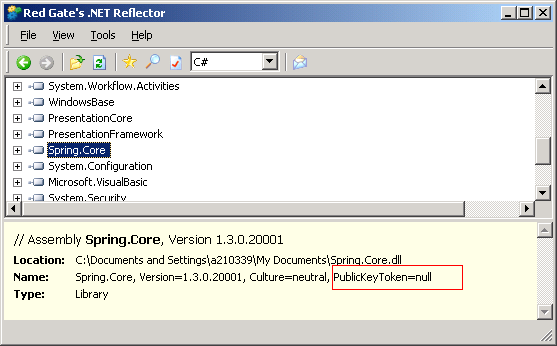
Reflector shows missing strong name

While you are at it… make Reflector the default program for “launching” assemblies (actually would need to be for all files ending in the .DLL extension, but Reflector is smart enough to not choke on non-.NET assemblies).

Approach #4: (Bonus!) Viewing Strong Name with Windows Explorer

This post promised three ways to tell if a .NET Assembly has a strong name – but here is a bonus 4th way. Windows Explorer will not show you the strong name characteristics of an assembly, with one exception – for assemblies in the Global Assembly Cache (GAC), strong name data is included in the Properties dialog. If  you are examining the GAC, this can be handy.

Of course, if an assembly is in the GAC at all, it is strongly named by definition; assemblies are required by .NET to be strongly named to be allowed in the GAC.

Strong Naming for Silverlight

Silverlight also has support for strongly named assemblies, which is needed for the Cached Assembly Feature introduced in Silverlight 3.0.

(Silverlight 4 also introduces supports for digital signatures on XAP files, created by signtool.exe, which are validated by the Silverlight runtime for out-of-browser (OOB) applications running with elevated trust.)

Strongly Name Assembly != Digitally Signed Assembly

Strong Names and Digital Signatures are Orthogonal Concerns – Almost

Strongly Naming and Digitally Signing are largely orthogonal concerns. They have different purposes, different tools, and the digital certificates may come from different sources (for publicly distributed binaries, the certs for Digital Signing usually will come from a PKI source, though that is not essential for the Strong Naming certs).

The only dependency among them is that if the Assembly is to be Strongly Named, then the Strong Naming step has to happen before the Digital Signing step.

How do I check whether an assembly is Digitally Signed? You can run the following command to determine whether assembly “foo.dll” is digitally signed:

signtool verify /pa foo.dll

If you want to see the hash – for example, to compare with another assembly’s hash – then you can view it using the following command sequence:

signtool verify /v /pa /ph foo.dll | find "Hash"

Of course, you can use sn.exe and signtool.exe together (one after another) to examine an assembly to ascertain both whether it is strongly named and whether it has been digitally signed.

Strong Names are NOT for Security!

Finally, a word of caution… Strong names are about versioning, not about security. Strong names are more about avoiding DLL Hell (which is largely an accidental concern) than about avoiding hackers (which is deliberate). While a strong name may help alert you to tampering, realize that strong names can be hacked, and Microsoft emphasizes that  strong-named assemblies do not give the same level of trust as digitally signing:

Strong names provide a strong integrity check. Passing the .NET Framework security checks guarantees that the contents of the assembly have not been changed since it was built. Note, however, that strong names in and of themselves do not imply a level of trust like that provided, for example, by a digital signature and supporting certificate.

Consider digitally signing your .NET assemblies if it is important to you or your customers that the origin of the assemblies be traceable and verifiable. One source of digital certificates that can be used for Digitally Signing assemblies is Verisign which has Authenticode Certificates.

See also the response to this comment for more details.

Make Reflector the default action for opening .NET Assemblies in Windows Explorer

Many .NET developers know and love the .NET Reflector tool. If you are one of them, consider making Reflector the default action for when you double-click on (i.e., open) a .DLL file. Just like assigning Microsoft Word to open .DOC files, you can assign a program to open your .DLL files. It is easy… Here are the instructions for Windows 7 – for other versions of Windows the process is similar.
1. Download Reflector and install it; remember where it is installed

2. Using Windows Explorer, navigate to any DLL file on your computer

3. Right-click on the DLL and select “Open with…” from the popup menu

4. From the Caution dialog that appears, select “Open with…” (yes, you have to select it twice, once in step 3, again in step 4):

5. From the dialog that appears, choose the second option – “Select a program from a list of installed programs”:

6. Now you will simply need to choose  the “Browse…” button and navigate to wherever it is you installed Reflector.exe, click the “Open” button and you are done.

Now whenever you want to examine a DLL in Reflector, you can double-click on it from Windows Explorer. If you tool around in the command line like I sometimes will do, you can also launch the DLL in Reflector by just “running” it from the command line like you might do for a .txt document to open it in Notepad.

Realize that Reflector can’t do much with a DLL that is not actually a .NET Assembly, but will handle that case gracefully.