Category Archives: Cloud Computing

Boston Azure Firestarter Wrap Up

Boston Azure Firestarter a Success!

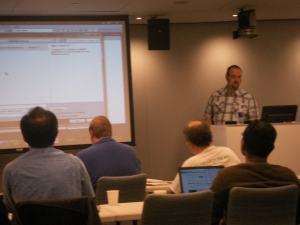
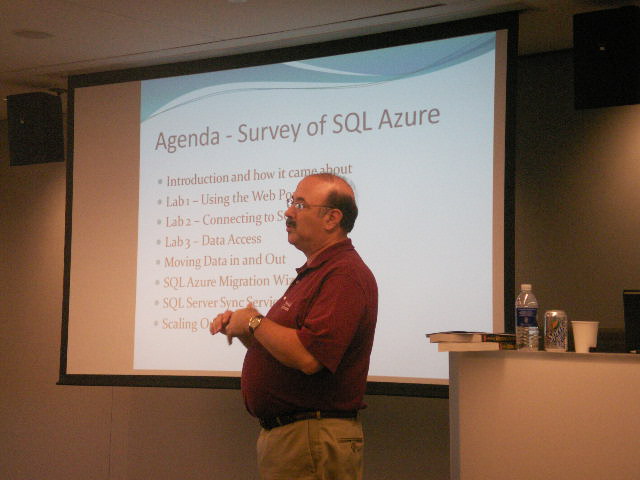
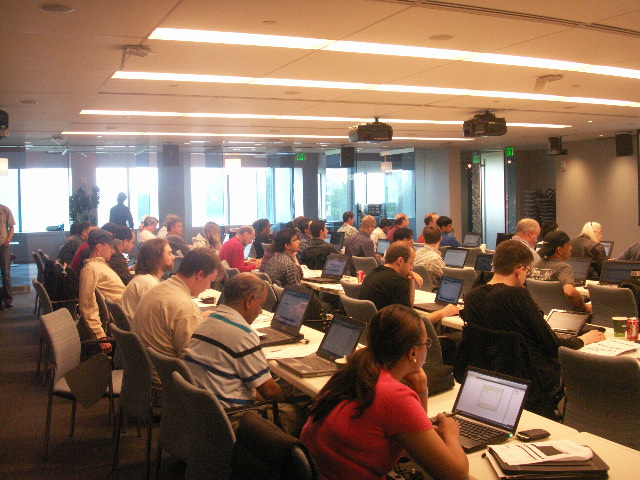
We had 60-something folks attend the Boston Azure Firestarter (more photos) on May 8, 2010 in Cambridge, MA. This event provided both talks about important Azure concepts and hands-on-roll-up-your-sleeves-and-write-some-code Labs. Yes, attendees brought laptops! Feedback was positive. Many thanks to all the folks who helped make this event possible. This was a Boston Azure cloud computing user group event, supported by and hosted at Microsoft.

Many Thanks!

Those who helped prepare for the event, work the sign-in desk, help with technical problems, and handle the pair-programmer matching service included Nazik Huq, Chander Khanna, Joan Linskey, and Maura Wilder. Jim O’Neil and Chris Bowen (our East Coast Microsoft Developer Evangelists) were also on hand for trouble-shooting and general support and help.


Here was our speaker lineup:

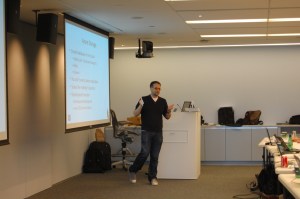
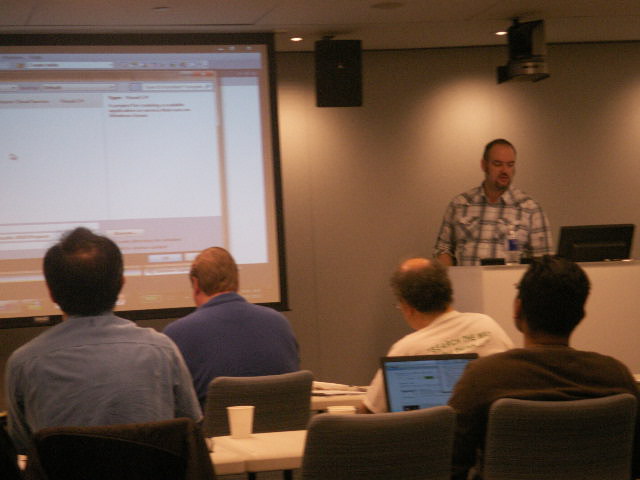
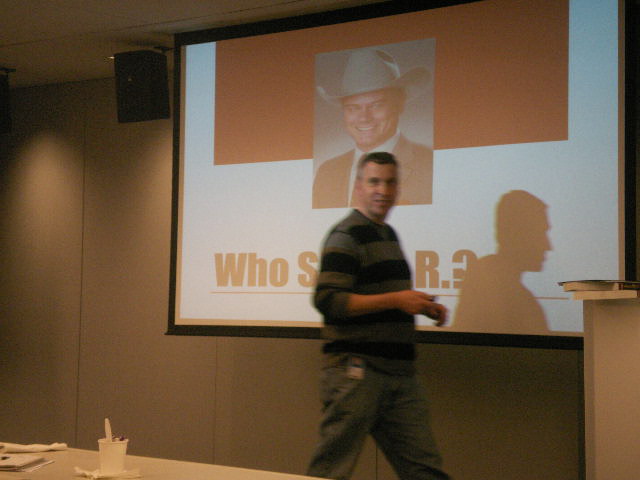
  1. David Aiken from Microsoft’s Windows Azure team came from the left-coast in Redmond to the right-coast in Boston to keynote the event. David gave many demos, a couple of which were My Azure Storage and his new URL shortening service hmbl.me.
    David’s keynote was followed by:
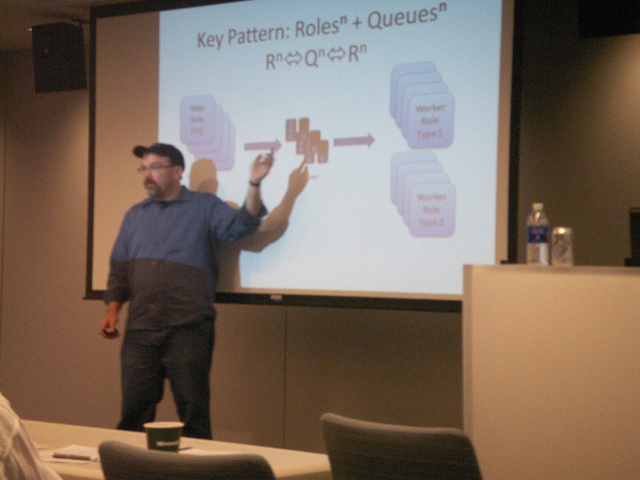
  2. Bill Wilder: Roles and Queues talk + lab (http://hmbl.me/1OHBMZ)
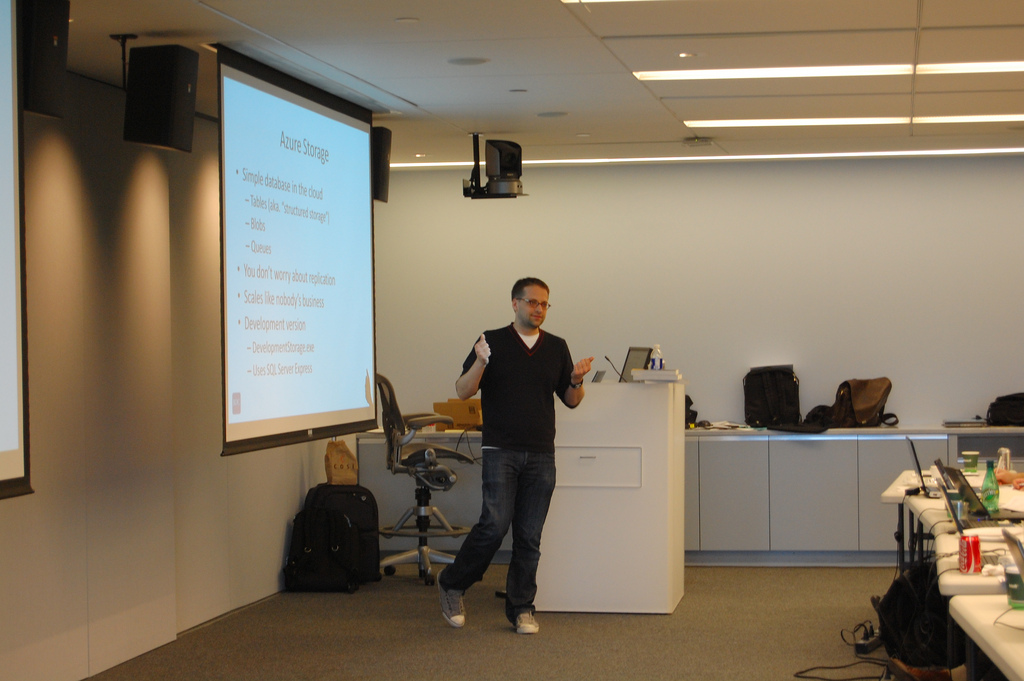
  3. Ben Day: Azure Storage + lab
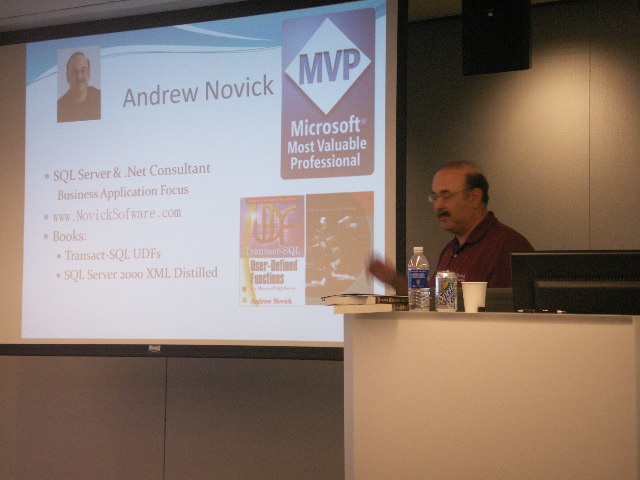
  4. Andy Novick: SQL Azure + lab (http://hmbl.me/1H46PK)
  5. Jim O’Neil: Dallas and OData (http://hmbl.me/1OHC5W)
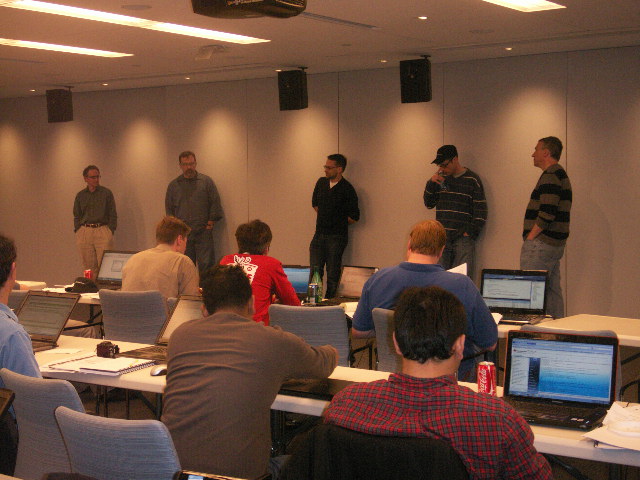
  6. Panel Q&A (in the order shown in photo below): Mark Eisenberg (Microsoft), Bill Wilder, Ben Day, Jason Haley, and Jim O’Neil

After hours, a smaller group unwound at the sports bar over at the Marriott. This included Jim O’Neil, Maura Wilder, Joan Linskey, Bill Wilder, Sri from New Jersey, (okay, other names are vague!) …

Two Roles and a Queue – Creating an Azure Service with Web and Worker Roles Communicating through a Queue

Two Roles and a Queue Lab from Boston Azure Firestarter

At the Firestarter event on May 8, 2010, I spoke about Roles and Queues and worked through a coding lab on same. The final code is available in a zip file. The Boston Azure Firestarter – Bill Wilder – Roles and Queues deck can be downloaded – though since there were so many questions we didn’t get to covering a number many of the slides! – this was a hot topic!

The remainder of this post contains the narrative for the LAB we did as a group at the Firestarter. It probably will not stand alone super well, but may be of interest to some folks, so I’ve posted it.

The following procedure assumes Microsoft Visual Web Developer 2010 Express on Windows 7. The same general steps apply to Visual Studio 2008, Visual Studio 2010, and Web Developer 2008 Express versions, though details will vary.

0. Open Microsoft Visual Web Developer 2010 Express and select File | New Project

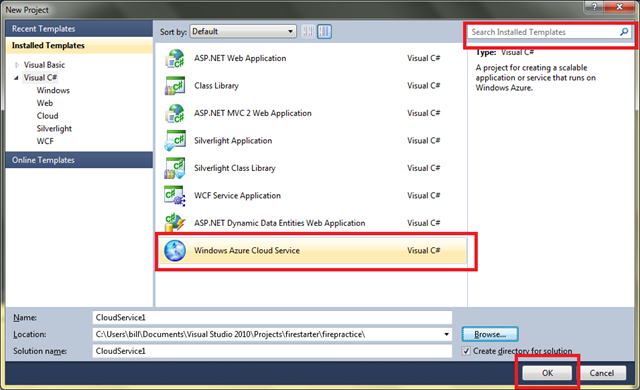
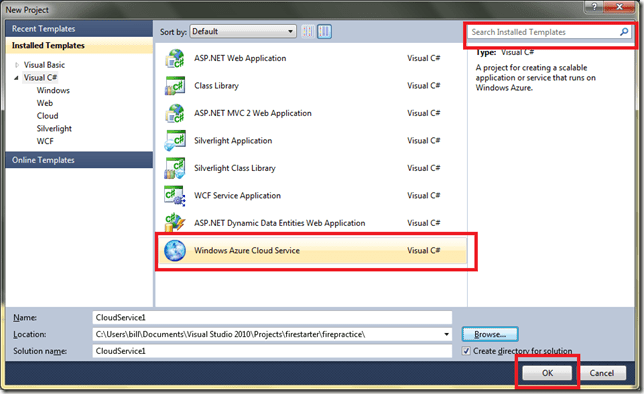
1. Select Windows Azure Service and click Okay:
image

If you have trouble finding the Windows Azure Service template, you can type “Azure” into the search box in the top-right to narrow the options. Also, if you don’t have the Windows Azure SDK installed, you will need to install that before proceeding – but there will be a link provided by Visual Web Developer 2010 Express that will direct you to the right page. Install it if you need to and try again up to this point.

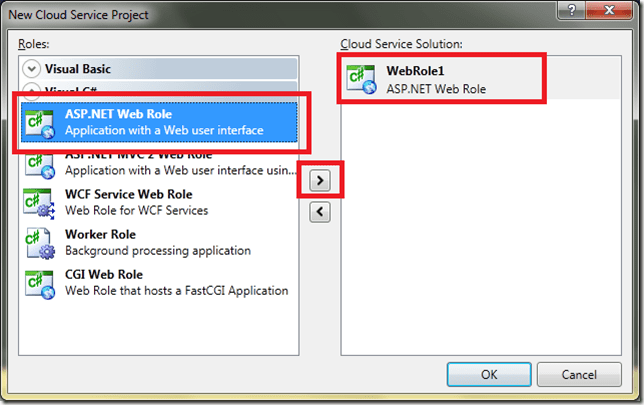
2. You will see a special dialog box for New Cloud Service Project from which you will add both a Web Role

image

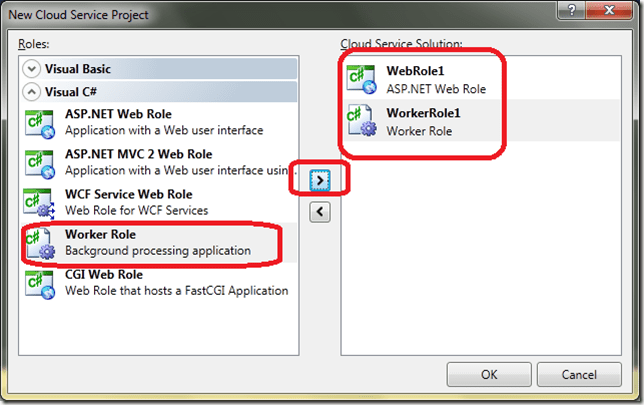
and a Worker Role

image

Verify that both WebRole1 and WorkerRole1 are in the list on the right side, then click OK.

3. Before you begin making code changes, you can run your new application. You can run it in the debugger by pressing the F5 key.

You will probably get the following error message:

image

The error message is telling you that you need to close Visual Web Developer 2010 Express and restart it with elevated privileges.

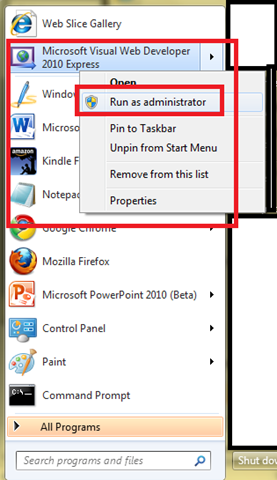
4. To start any Windows program with elevated privileges , right-click on the application then choose Run as administrator from the pop-up menu:

image

Before it obeys your request to run as administrator, Windows 7 will double-check by popping up a security dialog.

Now you can reload your project and try running it again. The app should run and you should see a blank web browser page.

5. Once you’ve proven your application runs, it is time to make some changes.

Make the code changes indicated for the Two Roles and A Queue Lab in CODING STEP 1.

Note: the “coding step 1” and future coding steps were handouts (paper!) at the Boston Azure Firestarter on Sat May 8, 2010. In lieue of reproducing them here, I will post the final solution.

This lab will establish some WebRole basics.

6. When done applying CODING STEP 1, run the application again.

7. After demonstrating your application runs, Deploy it to Azure.

This is a simple application so it helps us get through the initial deployment with minimal challenges.

8. Apply CODING STEP 2 – Add Queue (in local dev fabric storage)

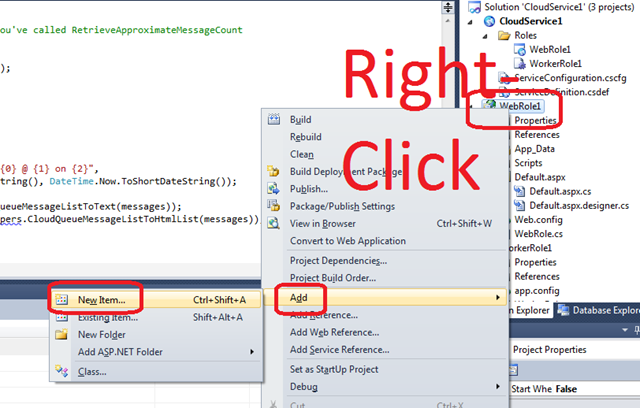
9. CODING STEP 3 – Add “DumpQueue” method and “FirestarterWebRoleHelpers.cs”

image

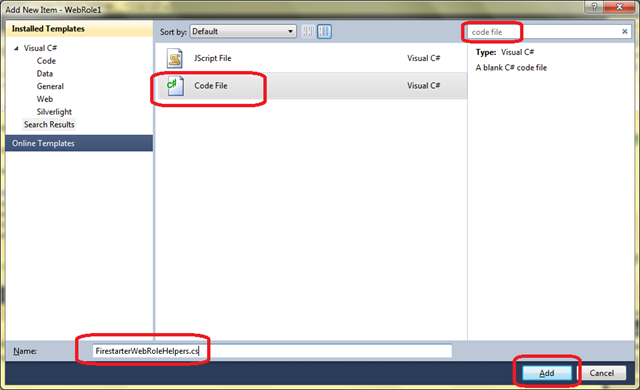
You will get the following dialog box – type “code file” into the search area on the top-right, select Visual C# Code File, and type in the filename “FirestarterWebRoleHelpers.cs” as shown and click Add:

image

The new file “FirestarterWebRoleHelpers.cs” will open in the editor. It should be empty to begin with. Cut and Paste in the contents from http://bostonazure.org/files/FirestarterWebRoleHelpers.cs.txt.

Why? The contents of this file has little to do with Windows Azure, so we don’t want to focus on it. But we want to use some utility routines from it so that we can focus on Azure concepts.

10. CODING STEP 4 – Adding Cloud-based Queue

First we need to configure the cloud.

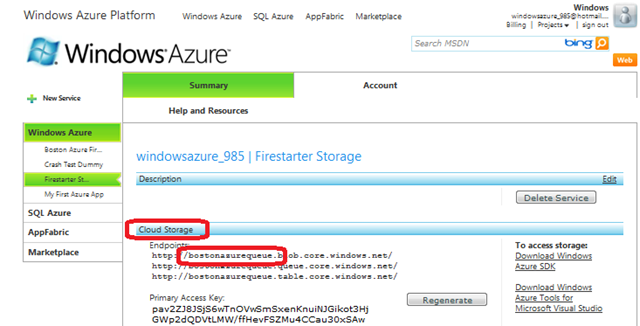
Go to http://windows.azure.com and log in. You may wish to consult instructions on redeeming a token at https://blog.codingoutloud.com/2010/05/06/redeeming-an-azure-token/ or http://bit.ly/dgCuMn

image

Your storage account has a subdomain, as circled above. This – and the Access Key – need to be added to your Web Role and Worker Role so that they can access (and share the same queue within) cloud-hosted storage.

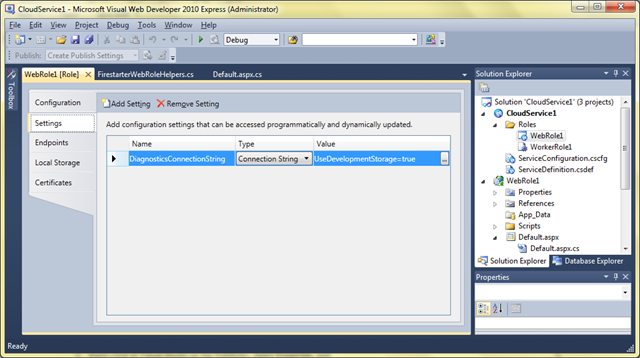
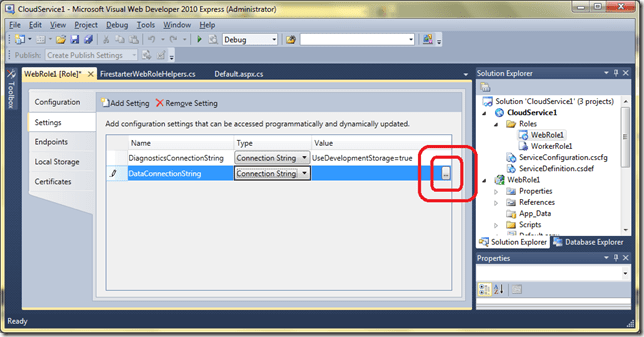
Right-click in Visual Studio on the WebRole1, select Properties, and select the Settings tab on the left. It will appear something like this:

image

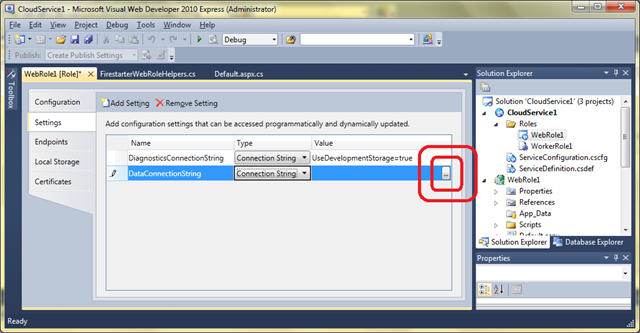
Now click on Add Setting and give the new item the name “DataConnectionString”, the Type “Connection String”, and click on the “…”
image

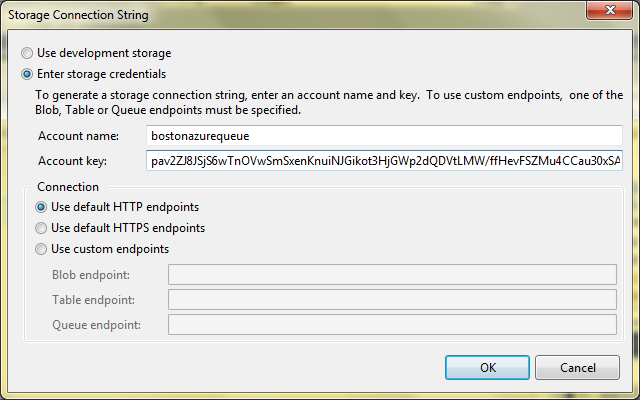
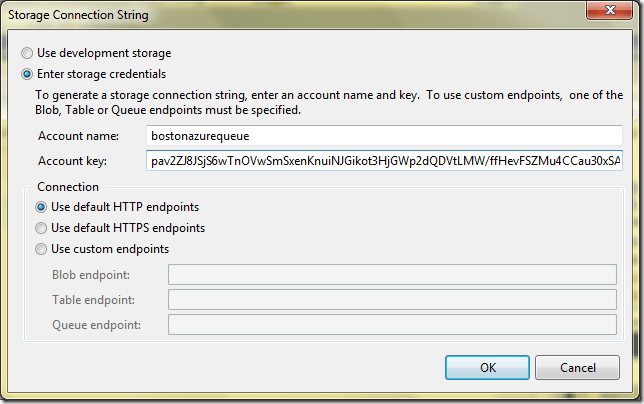
This will bring up the Storage Connection String editor – fill in the fields – where your “Account name” is the same as the subdomain shown on the Storage Service (see above – in that screen shot it is “bostonazurequeue”) and the Key can be either Primary or Secondary Access Key (from same area in the Azure Portal):
image

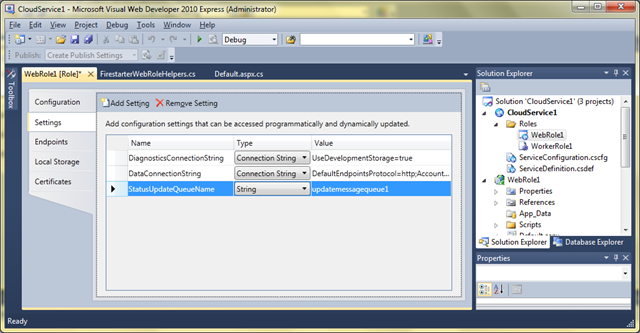
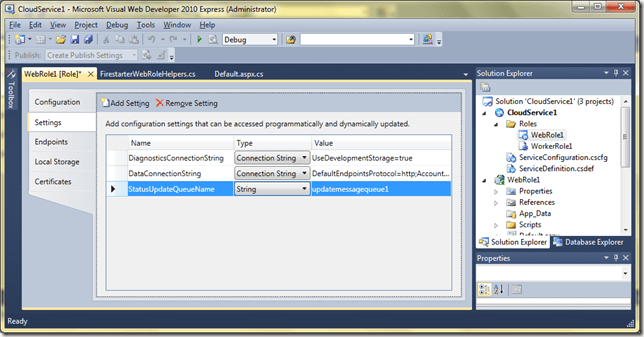
You are NOT DONE in the screen yet. Also add a Setting named “StatusUpdateQueueName”– of Type “String” – with Value “updatemessagequeue1” as follows:
image

Click OK.

11. Now REPEAT BOTH STEPS for WorkerRole1.

Yes, add both Settings also to WorkerRole1 – they both will end up with the same settings. You can “cheat” with cut and paste in the .cscfg and .csdef files.

12. Enable Cloud-hosted Queue from Web Role

Now you are ready go on to make the code changes to use this new configuration item.

Apply CODING STEP 4: Enabling the Cloud-hosted Queue from the Web Role

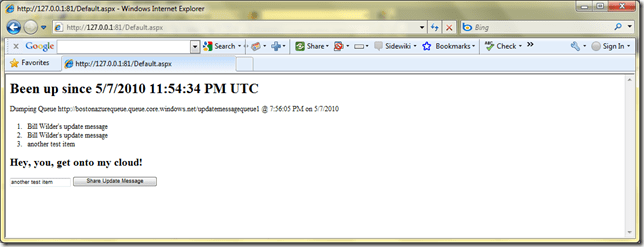
Now run your application using cloud storage for the queue:
image

Note that you can also examine the contents of the queue online by visiting http://myAzureStorage.com and providing the same credentials you used when setting up the DataConnectionString above for both the Web and Worker roles.

13. Enable Cloud-hosted Queue from Worker Role

Now you are ALMOST ready go on to make the code changes to use this new configuration item.

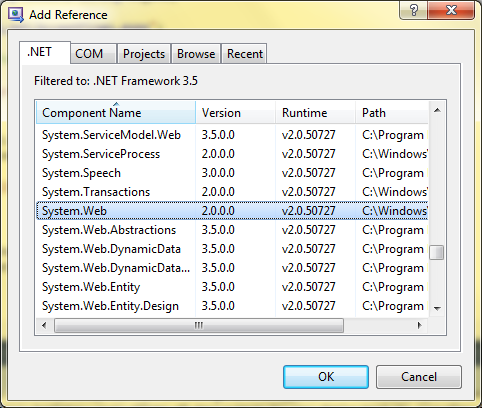
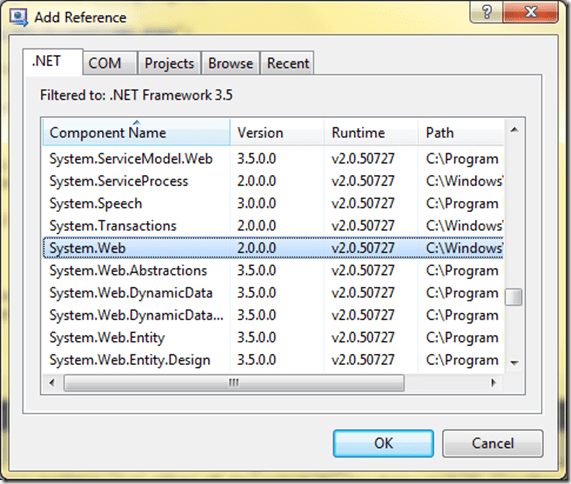
Before applying the coding, we need to add a project reference (otherwise you won’t be able to Resolve use of networking classes used in the FirestarterWorkerRoleHelpers.). In Visual Studio on the right side, under the Solution Explorer, right-click on the References element underneath WorkerRole1 and select Add Reference, then from the .NET tab, select System.Web and click okay:
image

Also, similar to step 9 above, add a new Code File called “FirestarterWorkerRoleHelpers.cs” to hold some additional needed (but not core to Azure) code.

The new file “FirestarterWorkerRoleHelpers.cs” will open in the editor. It should be empty to begin with. Cut and Paste in the contents from http://bostonazure.org/files/FirestarterWorkerRoleHelper.cs.txt.

Now you can apply Apply CODING STEP 5: Enabling the Cloud-hosted Queue from the Worker Role.

14. Deploying to Staging Area in Cloud to Staging

15. Cutover from Staging to Production

16. Add in secret Twitter posting code from your Worker Role…

Yes, this can be done by including a hash character (#) as part of the message you type into your web application.

One Cause of Azure Error – One of the request inputs is out of range

In making some innocuous seeming changes to working code in Windows Azure, I ran into an Exception when creating a Queue – and the cause was not at first obvious. The exception message was “One of the request inputs is out of range” and the inner exception message was “The remote server returned an error: (400) Bad Request.”

Illegal name causes “One of the request inputs is out of range”

Here is the code – why might this Windows Azure code snippet throw an Exception on the call to queue.CreateIfNotExist()?

CloudQueueClient queueStorage = storageAccount.CreateCloudQueueClient();
CloudQueue queue = queueStorage.GetQueueReference(“My Queue”);
bool queueJustCreated = queue.CreateIfNotExist();

The answer lies in the name we are using for the queue. Since the name is just a string, I assumed it can be any string. It cannot be any string.

Experimentation suggests the rules for naming a queue include: (a) use only lower case letters, (b) digits are allowed anywhere, and (c) internal single hyphens are okay too, but (d) name should not contain any spaces (e) nor any punctuation (other than hyphen).

So there would be no problem with valid names like:

  • myqueue
  • my-queue
  • myqueue-3

But there would be problems with illegal names like:

  • MyQueue
  • my queue
  • bill’squeue
  • -nogood
  • x-
  • not—quite
  • bad(name)

There may be additional nuances to the rules I didn’t discover, of course. One way to test out possible names quickly is with the myAzureStorage utility; just try to create a queue using the name and see if you get an error. Note that you can feed upper case chars to myAzureStorage but the created object will return with lower-case letter and will not cause an error.

Also, I only experimented with Queue names, but I assume the same rules apply to Blobs and Tables. Further research indicates this indeed is the case...

My challenge originally was to figure out why I got the Exception that was raised – that was the non-obvious part – the exception message did not tell me it was a problem with the name. After I figured it out and experimented a bit, of course then I found the documentation on allowed names which supports my conclusions… and adds details like length of name and the fact that the name is required to be a legal DNS name.

Redeeming an Azure Token

At some select events (like Boston Azure Firestarter, Boston Azure User Group hands-on meeting, or even Protein Folding with Azure @home), Microsoft sometimes provides tokens for participants who wish to try out Windows Azure for real – by deploying real bits into the cloud – deploying multiple instances of Web Roles and Worker Roles, using Queue for scaling, storing data and blobs in Azure Storage and exercising SQL Azure… Some of the tokens are good for up to 4 weeks – which is awesomely convenient for really kicking the tires on Azure if you are a developer. Which I am… Here is a little guidance on getting your account set up once you have a token in hand.

Note that you will be interacting with the Windows Azure Developer Portal (or Dev Portal for short) to redeem your token and establish your temporary account. The Dev Portal is useful to learn about and get to know.

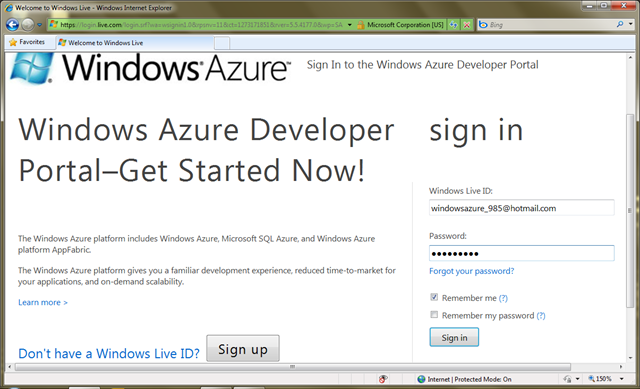
1. First visit http://windows.azure.com and log in with the provided credentials. Use the provided email address for your Windows Live ID.

(NOTE: If any of the images in this post are too small to read, click on them to see a larger version.)

image

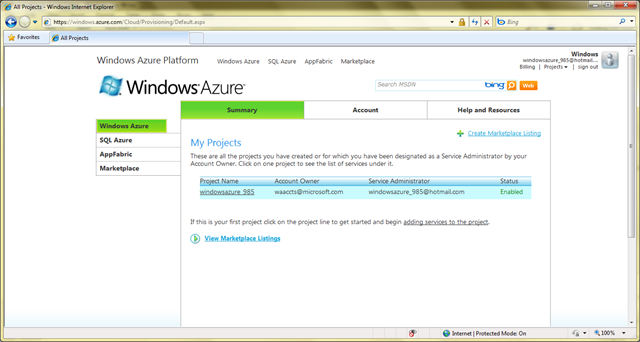
2. You will see a screen like the following. Note the row with the light blue background; this background color only appears when your mouse is hovering there. Click on the Project Name that matches your token account name.

image

(Notice that the account owner is “waaccts@microsoft.com” – this is because you are using a Token. Azure supports having an overall account that pays the bills, then sub-accounts for developers. This is an example.)

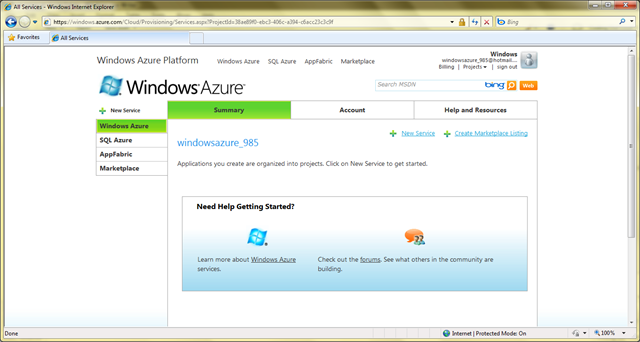
3.  Now you are in! You can proceed to review some of the help resources lists, or click around on any of the tabs to the left. But to create a new application that you can host on the Azure cloud, you can click on the “New Service” link next to the green “+” sign.

image

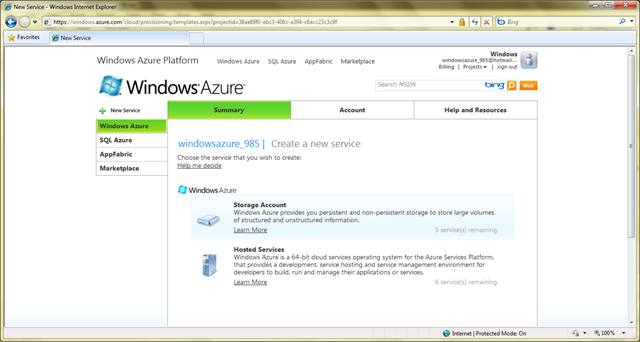
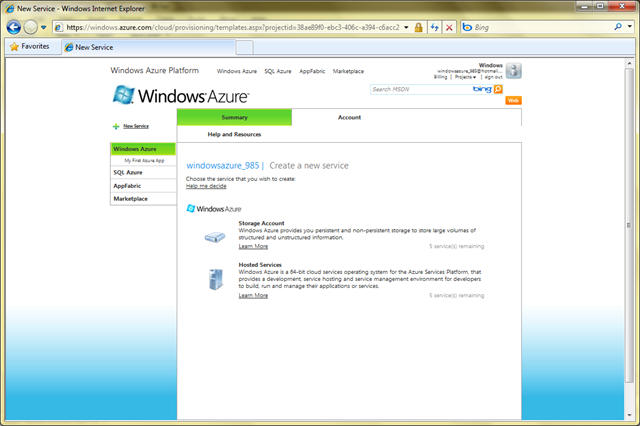
4. After you choose “New Service” you will see the following. Note the two main options in the middle for Storage Account and Hosted Services.

image 

Select Hosted Services to begin. Be sure to click on the words “Hosted Services” as opposed to the “Learn More” link, as they are different.

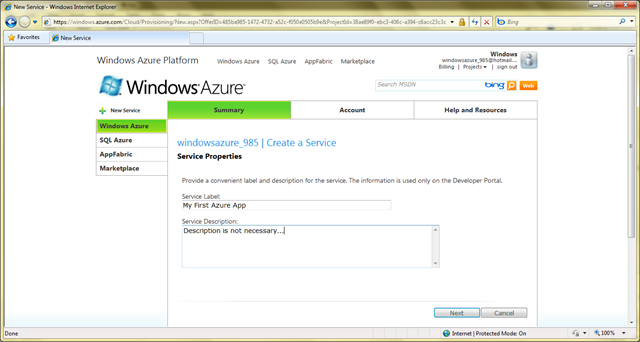
5. The next page will ask you for a name – this name will only be used to help you identify this service from a list in the developer portal, so don’t spend too much time coming up with the perfect name. You don’t need to provide anything for the Description.

image

After providing a name, click Next.

6.  Now you are faced with a form where the choices you make actually do matter.  Here’s what’ you’ll need to do:

image

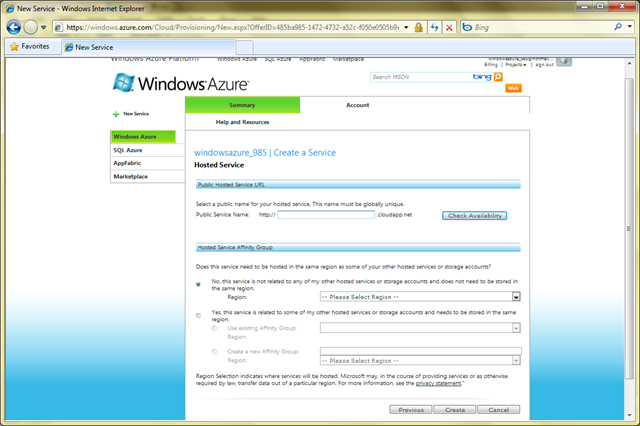
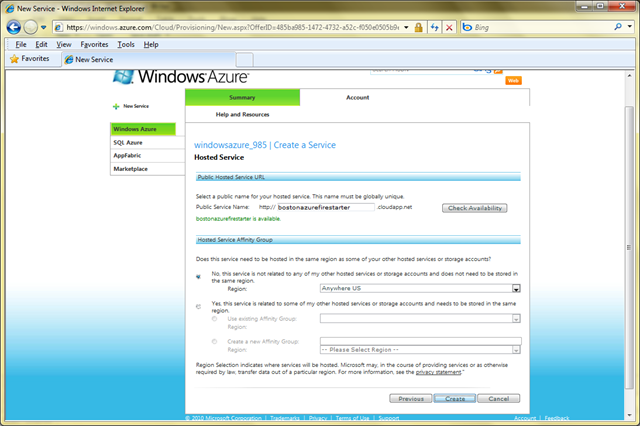
Type in a “Public Service Name” – this will be the Internet-visible sub-domain from which your deployed application will be visible. For example, if you choose “foo” then your Azure Service will live at http://foo.cloudapp.net after you publish it.

After you settle on a Public Service Name (using Check Availability button as need), you also need to select a Region. Pick the “anywhere” region in your continent (or closest to your continent) such as Anywhere US and click Create.

Here’s what mine looked like before I clicked Create:

image

Now your Azure Service has been created.

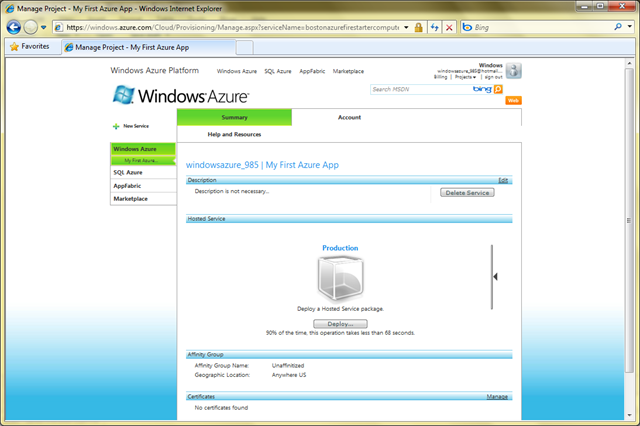
7. You will see a screen inviting you to Deploy a Hosted Service Package. We won’t do that now (though you could if you had an application ready). Instead, we will create an Azure Storage Account. From here:

image

Click on the “New Service” link which is near the top-left – below the large Windows Azure logo – and you will see the same screen you saw in step 4:

 image

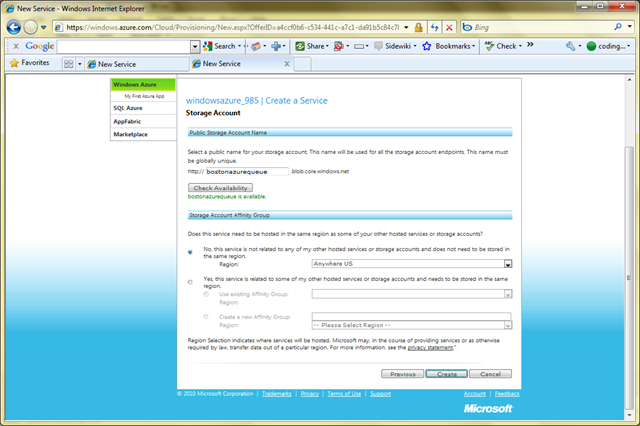
This time select Storage Account and you will see the following:

image

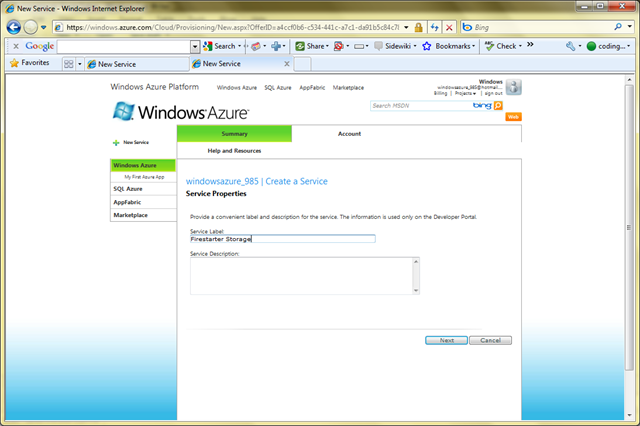
Give it a name, as I did in screenshot, and click Next.

8. As in step 5, this is also an important choice, though not visible to humans visiting your site. You will need to know this address to program against it. Of course you can look it up in the Dev Portal at any time, but why not choose a logical name. Fill in the fields similar to step 5 – be sure to choose the same Region you chose with step 5 – and click Create.

image

9. You are now ready to build and deploy Azure applications that use Web Roles, Worker Roles, and various kinds of storage.

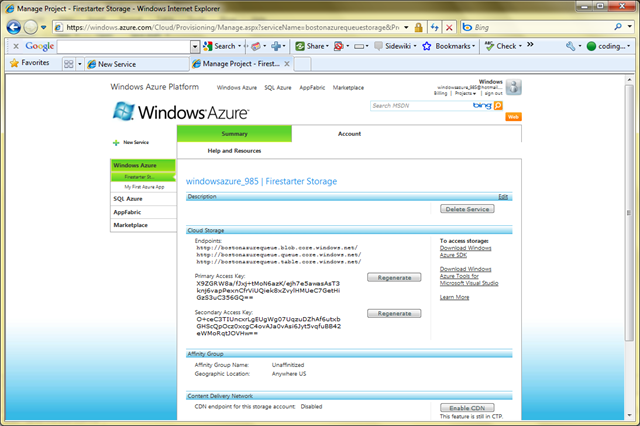
You will need the keys shows to programmatically access your storage.

image

You can always come back and look up the values of these keys, of course. Also, if a key is compromised, you can regenerate it easily, invalidating the prior one. There are two separate keys that can be used/invalidated independently. These keys are specific to this Storage Service you created; you can create more Storage Services with different keys and even use multiple of them together.

Registration open for Boston Azure Firestarter May 8, 2010

Flaming Firestarter Logo

On May 8, 2010 there will be a Firestarter event focused on learning about Microsoft’s Windows Azure Cloud Platform. This FREE, ALL-DAY, HANDS-ON, IN-PERSON event will be held at the Microsoft NERD building in Cambridge, Massachusetts.

Here’s the idea…

You show up in the morning curious about Cloud Computing and the Windows Azure platform… and you leave at the end of the day loaded up from a crash-course/deep-dive into Azure, including a series of Azure-specific technical talks, Azure-specific programming experience (and working code), and access to resources to continue into the future…

Registration is now open!

Register at Eventbrite now.

What will be covered?

While we are still tweaking the schedule and exact contents, we didn’t want to delay opening registration. Rest assured the focus of the event is covering the most important Azure topics through a combination of informative talks and hands-on coding sessions.
We have some outstanding speakers lined up (including a keynote speaker we will announce soon).

More information on this community event – including a more complete/detailed schedule – will be updated progressively over the next few weeks on the web site of the Boston Azure cloud computing using group.

See you there!

[image credit: Firestarter logo built based on http://shaedsofgrey.deviantart.com/art/fire-45734782?moodonly=1 under Creative Commons Attribution-Noncommercial 3.0 License.]

At New England Code Camp #13, Gave Talks on Azure and Prism

At today’s New England Code Camp #13, I gave talks on Azure and Prism.

1. Azure Talk

2. Prism Talk

Intuit and Azure – Better Together

The March 25th Boston Azure cloud user group meeting line-up includes the following:

6:00 – 6:45 PM – LAPTOP TIME! – if your laptop is capable of running IIS 7.x, bring it and we’ll help you configure it so you can program against Windows Azure. If you are already configured, come for LAPTOP TIME anyway and help out the others – or submit an entry to the Azure Code Project contest.

(pizza + salad will arrive during LAPTOP TIME)

6:45 – 7:00 – MAIN MEETING BEGINS with the Azure Update from Mark Eisenberg of Microsoft. Any questions about what’s happening with Azure? Want to hear some of the recent announcements? What’s moving and shaking in the Azure world? Join us at 6:45 to stay plugged in.

7:00 – 8:15 – INTUIT PARTNER PLATFORMIntuit‘s Alex Barnett (Group Manager for Developer Relations) and his colleague Jarred Keneally (Developer Relations Engineer) will talk about the Intuit Partner Platform, the fantastic synergy with Windows Azure, the recently announced agreement between Microsoft and Intuit, and the opportunity for developers.

8:15 – 8:30 – WRAP UP – Boston Azure announcements, SWAG/Give-Aways, and Update on the Azure Firestarter we will be hosting on Saturday May 8th at NERD (all day learning event).

Please RSVP to help us with the list for front-desk security and to make sure we order enough pizza and salad. Hope to see you there!

Getting Started with Windows Azure Development

This is an update from an old post on Azure Development Requirements, this time focused on a reasonable stack of tools for Azure development. (The structure is based on list from Jason Haley which he prepared for a talk to the April 29, 2010 meeting of the Boston Azure cloud computing user group.)

How-To Configure an Azure Development Environment

0. Operating System Running IIS 7.x

No way of getting around the need for a Windows operating system that runs IIS 7.0 or IIS 7.5 — either directly or indirectly (see note below on using virtualization).

The operating system versions that support IIS 7.0 include:

  • Vista Business Edition and Ultimate

The operating system versions that support IIS 7.5 include:

What happens if I don’t have Vista, Win 7, or Server 2008?

There is one other hope. Use Virtual PC (or your favorite virtualization solution) and run an instance of a supported operating system in a virtual mode. (This blog post on creating a virtual machine image for Windows 7 using Virtual PC 2007 may help.)

Once you have an operating environment – real or virtual – the rest is the same.

How do I enable IIS 7.x to run?

If you are running a desktop version of Windows (Vista or Windows 7), it is likely you need to enable IIS through the control panel. Here are step-by-step instructions for enabling IIS 7.5 on Windows 7.

If you are doing this to prepare for the April 29 Boston Azure or the May 8th Firestarter meeting, please make sure you have enabled IIS7 with ASP.NET and have WCF HTTP Activation enabled.

1. Visual Studio

You need a copy of Visual Studio that supports Azure development. Currently your options are Visual Studio 2008 SP1Visual Studio 2010 (many editions), and Visual Web Developer 2010 Express Edition.
If you don’t know which version of Visual Studio to install, go with Visual Web Developer 2010 Express Edition (which is also free).

2. Windows Azure Tools and SDK

Download and install Windows Azure Tools for Microsoft Visual Studio 1.1 (Feb 2010) – this includes the Windows Azure SDK (and its samples)

Pay special attention to the first note at the top of that post:

Visual Studio must be run as an Administrator

You must run Visual Studio with elevated permissions when building Cloud Services for Windows Azure.

It is possible to create a shortcut that will launch Visual Studio with administrative permissions by setting the “Run as Administrator” checkbox in the Advanced Properties page of the Shortcut tab; this is available from the Properties menu option off of the context menu.

3. Microsoft SQL Server

A local installation of SQL Server is needed for local development work involving SQL Azure, Azure Table Storage, or Azure queues.

You only need to do this step if you didn’t install a version of SQL Server during Step 1 (above) while installing Visual Studio.

If you do not have a paid license for SQL Server, your best bet is to download a free copy of either Microsoft SQL Server 2005 Express or Microsoft SQL Server 2008 Express.

If you don’t know which version of SQL Server to install, go with Microsoft SQL Server 2008 Express (which is also free).

4. Windows Azure Platform Training Kit

At least for the April Boston Azure meeting, you will  also need the Windows Azure Platform Training Kit (Dec 2009 update) since Jason Haley (the main speaker) will assume we have this installed so he can reference it during the meeting.

5. Future Optional Extra Credit Tools

Once you have deployed to the cloud, you may also be interested in:

  • Fiddler (for IE) and Firebug (for Firefox) to spy on http traffic going back and forth to a deployed Azure app
  • What else?

6. Do You Have a Token?

If you are lucky enough to have a token for free (though time-limited) access to Azure services in the cloud, here’s How to Redeem an Azure Token.

Notes from Curt Devlin on Identity, Claims, and Azure Geneva from 4th Boston Azure Meeting Feb 2010

Curt Devlin keynotes 4th Boston Azure User Group meeting

Identity, Claims, Geneva, and Trust in the Cloud

This was Boston Azure meeting #4, Feb 25, 2010

(Curt’s slide deck will be made is now available (PPT 2003 format))

Some notes from Curt’s talk:

  • Azure devs need to care about claims-based-identity and federated identity
  • Geneva is Microsoft’s solution in this space
  • Perfect storm of paradigm shifts
  • Caution: Geneva is not a panacea for “Identity in the Cloud”

“The most important thing Microsoft has done in identity since they came out with ActiveDirectory” – and think about how much we rely on AD for enterprise-class apps – “it’s like air”

First two lines of every program (with nod to Kim Cameron):

  1. Who are you?
  2. What are you allowed to do?
  • The answer to the second generally depends on the answer to the first. “Identity” is an input.

Big architectural problem: the ‘net was built w/o any way of knowing who you are connecting to (http has no identity)

  • RBAC (role-based access control) is not as flexible or powerful as claims
  • Any statement that can be validated can be a claim

Microsoft’s Federated Identity Group very focused on standards. To be serious also about Azure, you need to pay deep attention to the key standards.

Azure is only cloud solution REALLY solving the SSO problem in the cloud – and into your data center. Identity must flow…

Geneva Technology stack:

  • Microsoft Federation Gateway (“ADS 2.0 in the sky”)
  • Windows Identity Foundation (some .NET namespaces)
  • Active Directory Federation Services 2.0
  • Windows CardSpace 2.0

Curt will focus for a while in his talk on Windows Identity Foundation…

Consider three parties – Security Token Service, Your App, End User

  1. Secure Token Service <=> Your App – Initial handshake uses WS-Federation (metadata, X-509 cert)
  2. End User <=> Your App – claims via WS-Policy (which Security Token Service(s) I trust)
  3. End User <=> Security Token Service – verify policy
  4. End User <=> Security Token Service – WS-Trust
  5. End User <=> Your App – lots of interactions – signed tokens, claims

ADF 2.0 – same programming model across web and desktop

RP = relying party – someone that consumes tokens

PingIdentity.com

OpenID cannot help with Man-in-the-middle attacks

“Shred the token” is lingo meaning to decrypt a token.

Coded example showing implementation of Passive Federation.
  • Showed the 8 (!) prerequisites
  • Create full-trust app (Since runtime not fully baked in Azure yet – and certainly not yet in GAC)
  • Add a reference to Microsoft.IdentityModel (which is a stronger programming model than older System.IdentityModel)
  • using Microsoft.IdentityModel.Claims;
  • using System.Threading;
  • Then write like 5 lines of code…
  • Subclasses from IIdentity, IClaimsIdentity, IClaimsPrincipal (same ones used in other .NET apps)
  • WIF ASP.NET Processing Pipeline does a lot of behind-the-scenes work for us
  • IsInRole method is key
  • Then in the ASP.NET app, there is some 10 lines of key code for X-509 cert – which contains the URL (or domain, really) of the web site that the cert applies to – a problem with “localhost” and “stage.foo.com” etc. due to mismatch – this goes in Global.asax – plus several other blocks of code…

Now for the STS (which you don’t need if you have ADFS 2.0)

  • There is a Token Service for ASP.NET visual studio template with Geneva install
  • Many coding steps here (see slides)
  • Use FedUtil (which comes with Geneva and VS 2008, VS 2010) to create a trust between your application and your STS
  • There is a lab to create your own STS

Claims-based systems externalized the work of AuthZ, AuthN to your STS – not stuck in your code.

Geneva supports delegation – embedding one token within another…

(21 people at the meeting)

Curt Devlin to Speak about Identity in the Cloud at Boston Azure Meeting

Boston Azure meeting to feature Microsoft’s Curt Devlin on Identity in the Cloud

Thursday February 25, 2010 at NERD in Cambridge, MA

The following is an update to the agenda for the upcoming Boston Azure User Group meeting this coming Thursday.

logo for BostonAzure.org

To RSVP for the meeting (helps you breeze through security and helps us have enough pizza on hand), for directions, and more details about the group, please check out http://BostonAzure.org.

To get on the Boston Azure email list, please visit http://bostonazure.org/Announcements/Subscribe.

[6:00-6:30 PM] Boston Azure Theater

The meeting activities begin at 6:00 PM with Boston Azure Theater, which is an informal viewing of some Azure-related video. This month will feature the first half of
Matthew Kerner‘s talk on Windows Azure Monitoring, Logging, and Management APIs from the November 2009 Microsoft PDC conference.

[6:30-7:00 PM] Upcoming Boston Azure Events and Firestarter

Around 6:30, Bill Wilder (that’s me) will first show off an interesting CodeProject contest, then will lead a discussion about the future of the Boston Azure user group and the upcoming All-Day-Saturday-May-8th event.

Curt Devlin will take the stage at 7:00 PM.

Before the meeting, if you want a little more context, you may wish to read Kim Cameron’s essay The Laws of Identity, which is an insightful analysis of challenges around Identity.

[7:00-8:15] Featured speaker: Curt Devlin of Microsoft

Photo of Curt Devlin, Architect at Microsoft

Abstract

The Azure platform presents new challenges for identity management. As developers and architects, we will still have to answer the same two perennial questions: 1) Who are you? 2) And what are you allowed to do? But the traditional on-premise approaches to authentication, authorization and identity lifecycle control are not adequate to meet these new challenges. The Geneva suite of technologies for claims-based identity management can be help because cloud computing can be thought of as a “special case” of federation, with many similar requirements. Together these two paradigms appear to be converging to create the perfect storm of paradigm shifts. However, even WIF, ADFS 2.0 and CardSpace 2.0, will only take us part way to a complete solution in the near term. This session will provide a simple recipe for claims-based identity management in Azure using Geneva, discuss some of the most important reasons why this is necessary, and finally some of the shortcomings we will still have to contend with on the road ahead. The aim is to educate, motivate, and caution.
About Curt Devlin

Curt Devlin is currently an architect in Microsoft DPE (Developer & Platform Evangelism) focusing on distributed solutions across many industries and customer segments. Curt is a Microsoft veteran of many technology wars, with more than 20 years of experience developing solutions on the Windows and .NET. platforms. He is also a dyed-in-the-wool New Englander with avid interests in sailing, skiing and nearly everything else.
Curt blogs as the philosophical architect, plus you can check out his MSDN articles Enterprise Authorization Strategy and SaaS Capacity Planning: Transaction Cost Analysis Revisited.

Curt’s blog post announcing his participation in this meeting: http://blogs.msdn.com/curtd/archive/2010/02/23/an-evening-with-identity-in-the-clouds-and-the-boston-azure-user-group.aspx