Author Archives: Bill Wilder

Unknown's avatar

About Bill Wilder

My professional developer persona: coder, blogger, community speaker, founder/leader of Boston Azure cloud user group, and Azure MVP

Stupid Azure Trick #6 – A CORS Toggler Command-line Tool for Windows Azure Blobs

[Edit: I originally accidentally published an old draft. The draft went out to all email subscribers and was public for around 90 minutes. Fixed now.]

In the most recent Stupid Azure Trick installment, I explained how one could host a 1000 visitor-per-day web site for one penny per month. Since then I also explained my choice to use CORS in that same application. Here I will dig into specifically using CORS with Windows Azure.

I also show how the curl command line tool can be helpful to examine CORS properties in HTTP headers for a blob service.

I also will briefly describe a simple tool I built that could quickly turn CORS on or off for a specified Blob service – the CORS Toggler. The CORS Toggler (in its current simple form) was useful to me because of two constraints that were true for my scenario:

  • I was only reading files from the Windows Azure Blob Service. When just reading, pre-flight request doesn’t matter when you are just reading. Simplification #1.
  • I didn’t care whether the blob resource is publicly available, rather than just available to my application. So the CORS policy was to open to any caller (‘*’). Simplification #2.

These two simplifications mean that the toggler knew what it meant to enable CORS (open up for reading to all comers) and to disable. (Though it is worth noting that opening up CORS to any caller is probably a common scenario. Also worth noting that tool could easily extended to support a whitelist for allowed domains or other features.)

First, here’s the code for the toggler – there are three files here:

  1. Driver program (Console app in C#) – handles command line params and such and then calls into the …
  2. Code to perform simple CORS manipulation (C# class)
  3. The above two and driven (in my fast toggler) through the third file (command line batch file) which passes in the storage keys and storage account name for the service I was working with
@echo off
D:\dev\path\to\ToggleCors.exe azuremap 123abcYourStorageKeyIsHere987zyx== %1
echo.
echo FOR COMPARISON QUERY THE nocors SERVICE (which never has CORS set)
echo.
D:\dev\path\to\ToggleCors.exe nocors 123abcYourStorageKeyIsHere987zyx== -q
echo.
PowerShell -Command Get-Date
using System;
using Microsoft.WindowsAzure.Storage.Auth;
using Microsoft.WindowsAzure.Storage.Blob;
using Microsoft.WindowsAzure.Storage.Shared.Protocol;
using Newtonsoft.Json;
namespace BlobCorsToggle
{
public class SimpleAzureBlobCorsSetter
{
public CloudBlobClient CloudBlobClient { get; private set; }
public SimpleAzureBlobCorsSetter(Uri blobServiceUri, StorageCredentials storageCredentials)
{
this.CloudBlobClient = new CloudBlobClient(blobServiceUri, storageCredentials);
}
public SimpleAzureBlobCorsSetter(CloudBlobClient blobClient)
{
this.CloudBlobClient = blobClient;
}
/// <summary>
/// Set Blob Service CORS settings for specified Windows Azure Storage Account.
/// Either sets to a hard-coded set of values (see below) or clears of all CORS settings.
///
/// Does not check for any existing CORS settings, but clobbers with the CORS settings
/// to allow HTTP GET access from any origin. Non-CORS settings are left intact.
///
/// Most useful for scenarios where a file is published in Blob Storage for read-access
/// by any client.
///
/// Can also be useful in conjunction with Valet Key Pattern-style limited access, as
/// might be useful with a mobile application.
/// </summary>
/// <param name="clear">if true, clears all CORS setting, else allows GET from any origin</param>
public void SetBlobCorsGetAnyOrigin(bool clear)
{
// http://msdn.microsoft.com/en-us/library/windowsazure/dn535601.aspx
var corsGetAnyOriginRule = new CorsRule();
corsGetAnyOriginRule.AllowedOrigins.Add("*"); // allow access to any client
corsGetAnyOriginRule.AllowedMethods = CorsHttpMethods.Get; // only CORS-enable http GET
corsGetAnyOriginRule.ExposedHeaders.Add("*"); // let client see any header we've configured
corsGetAnyOriginRule.AllowedHeaders.Add("*"); // let clients request any header they can think of
corsGetAnyOriginRule.MaxAgeInSeconds = (int)TimeSpan.FromHours(10).TotalSeconds; // clients are safe to cache CORS config for up to this long
var blobServiceProperties = this.CloudBlobClient.GetServiceProperties();
if (clear)
{
blobServiceProperties.Cors.CorsRules.Clear();
}
else
{
blobServiceProperties.Cors.CorsRules.Clear(); // replace current property set
blobServiceProperties.Cors.CorsRules.Add(corsGetAnyOriginRule);
}
this.CloudBlobClient.SetServiceProperties(blobServiceProperties);
}
public void DumpCurrentProperties()
{
var blobServiceProperties = this.CloudBlobClient.GetServiceProperties();
var blobPropertiesStringified = StringifyProperties(blobServiceProperties);
Console.WriteLine("Current Properties:\n{0}", blobPropertiesStringified);
}
internal string StringifyProperties(ServiceProperties serviceProperties)
{
// JsonConvert.SerializeObject(serviceProperties) for whole object graph or
// JsonConvert.SerializeObject(serviceProperties.Cors) for just CORS
return Newtonsoft.Json.JsonConvert.SerializeObject(serviceProperties, Formatting.Indented);
}
}
}
using System;
using System.Diagnostics;
using System.IO;
using Microsoft.WindowsAzure.Storage.Auth;
namespace BlobCorsToggle
{
class Program
{
static string clearFlag = "-clear";
static string queryFlag = "-q";
static void Main(string[] args)
{
if (args.Length == 0 || !ValidCommandArguments(args))
{
#region Show Correct Usage
if (args.Length != 0 && !ValidCommandArguments(args))
{
var saveForegroundColor = Console.ForegroundColor;
Console.ForegroundColor = ConsoleColor.Red;
Console.Write("\nINVALID COMMAND LINE OR UNKNOWN FLAGS: ");
foreach (var arg in args) Console.Write("{0} ", arg);
Console.WriteLine();
Console.ForegroundColor = saveForegroundColor;
}
Console.WriteLine("usage:\n{0} <storage acct name> <storage acct key> [{1}]",
Path.GetFileNameWithoutExtension(Environment.GetCommandLineArgs()[0]),
clearFlag);
Console.WriteLine();
Console.WriteLine("example setting:\n{0} {1} {2}",
Path.GetFileNameWithoutExtension(Environment.GetCommandLineArgs()[0]),
"mystorageacct",
"lala+aou812SomERAndOmStrINglOlLolFroMmYStORaG3akounT314159265358979323ilIkEpi==");
Console.WriteLine();
Console.WriteLine("example clearing:\n{0} {1} {2} {3}",
Path.GetFileNameWithoutExtension(Environment.GetCommandLineArgs()[0]),
"mystorageacct",
"lala+aou812SomERAndOmStrINglOlLolFroMmYStORaG3akounT314159265358979323ilIkEpi==",
clearFlag);
if (Debugger.IsAttached)
{
Console.WriteLine("\nPress any key to exit.");
Console.ReadKey();
}
#endregion
}
else
{
var storageAccountName = args[0];
var storageKey = args[1];
var blobServiceUri = new Uri(String.Format("https://{0}.blob.core.windows.net", storageAccountName));
var storageCredentials = new StorageCredentials(storageAccountName, storageKey);
var blobConfig = new SimpleAzureBlobCorsSetter(blobServiceUri, storageCredentials);
bool query = (args.Length == 3 && args[2] == queryFlag);
if (query)
{
blobConfig.DumpCurrentProperties();
return;
}
blobConfig.DumpCurrentProperties();
Console.WriteLine();
bool clear = (args.Length == 3 && args[2] == clearFlag);
blobConfig.SetBlobCorsGetAnyOrigin(clear);
Console.WriteLine("CORS Blob Properties for Storage Account {0} have been {1}.",
storageAccountName, clear ? "cleared" : "set");
Console.WriteLine();
blobConfig.DumpCurrentProperties();
}
}
private static bool ValidCommandArguments(string[] args)
{
if (args.Length == 2) return true;
if (args.Length == 3 && (args[2] == clearFlag || args[2] == queryFlag)) return true;
return false;
}
}
}
view raw ToggleCors.cs hosted with ❤ by GitHub

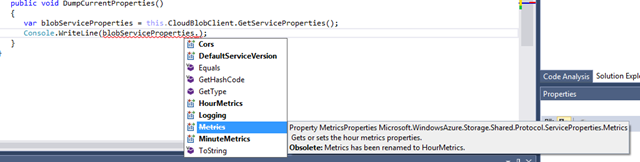
One simple point to highlight – CORS properties are simply available on the Blob service object (and would be same for Table or Queue service within Storage):
image

Yes, this is a very simple API.

Showing the Service Object Contents

For those interested in the contents of these objects, here are a few ways to show content of properties (in code) before turning on CORS and after. (The object views are created using the technique I described my post on using JSON.NET as an object dumper that’s Good Enough™.)

DUMPING OBJECT BEFORE CORS ENABLED (just CORS properties):

{“Logging”:{“Version”:”1.0″,”LoggingOperations”:0,”RetentionDays”:null},”Metrics”:{“Version”:”1.0″,”MetricsLevel”:0,”RetentionDays”:null},”HourMetrics”:{“Version”:”1.0″,”MetricsLevel”:0,”RetentionDays”:null},”Cors”:{“CorsRules”:[]},”MinuteMetrics”:{“Version”:”1.0″,”MetricsLevel”:0,”RetentionDays”:null},”DefaultServiceVersion”:null}
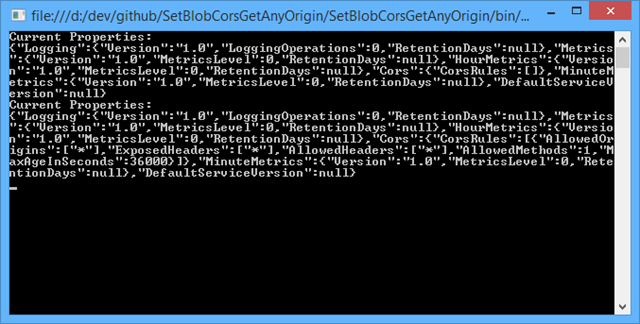
DUMPING OBJECT AFTER CORS ENABLED:

{“Logging”:{“Version”:”1.0″,”LoggingOperations”:0,”RetentionDays”:null},”Metrics”:{“Version”:”1.0″,”MetricsLevel”:0,”RetentionDays”:null},”HourMetrics”:{“Version”:”1.0″,”MetricsLevel”:0,”RetentionDays”:null},”Cors”:{“CorsRules”:[{“AllowedOrigins”:[“*”],”ExposedHeaders”:[“*”],”AllowedHeaders”:[“*”],”AllowedMethods”:1,”MaxAgeInSeconds”:36000}]},”MinuteMetrics”:{“Version”:”1.0″,”MetricsLevel”:0,”RetentionDays”:null},”DefaultServiceVersion”:null}

image

DUMPING OBJECT BEFORE CORS ENABLED (but including ALL properties):

Current Properties:
{“Logging”:{“Version”:”1.0″,”LoggingOperations”:0,”RetentionDays”:null},”Metrics
“:{“Version”:”1.0″,”MetricsLevel”:0,”RetentionDays”:null},”HourMetrics”:{“Versio
n”:”1.0″,”MetricsLevel”:0,”RetentionDays”:null},”Cors”:{“CorsRules”:[]},”MinuteM
etrics”:{“Version”:”1.0″,”MetricsLevel”:0,”RetentionDays”:null},”DefaultServiceV
ersion”:null}

DUMPING OBJECT AFTER CORS ENABLED (but including ALL properties):

Current Properties:
{“Logging”:{“Version”:”1.0″,”LoggingOperations”:0,”RetentionDays”:null},”Metrics
“:{“Version”:”1.0″,”MetricsLevel”:0,”RetentionDays”:null},”HourMetrics”:{“Versio
n”:”1.0″,”MetricsLevel”:0,”RetentionDays”:null},”Cors”:{“CorsRules”:[{“AllowedOr
igins”:[“*”],”ExposedHeaders”:[“*”],”AllowedHeaders”:[“*”],”AllowedMethods”:1,”M
axAgeInSeconds”:36000}]},”MinuteMetrics”:{“Version”:”1.0″,”MetricsLevel”:0,”Rete
ntionDays”:null},”DefaultServiceVersion”:null}

image

Using ‘curl’ To Examine CORS Data:

curl -H "Origin: http://example.com&quot; -H "Access-Control-Request-Method: GET" -H "Access-Control-Request-Headers: X-Requested-With" -X OPTIONS --verbose http://azuremap.blob.core.windows.net/maps/azuremap.geojson
view raw check-cors hosted with ❤ by GitHub

image

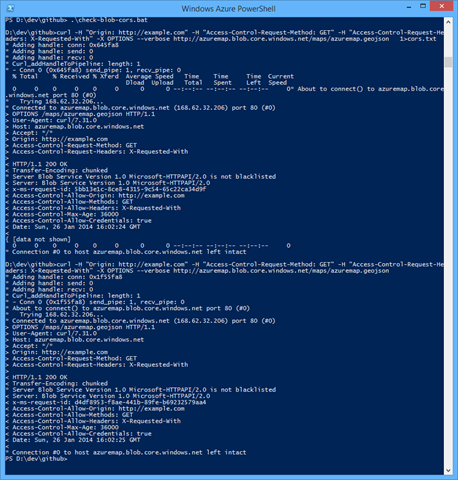
CURL OUTPUT BEFORE CORS ENABLED:

D:\dev\github>curl -H “Origin: http://example.com” -H “Access-Control-Request-Method: GET” -H “Access-Control-Request-Headers: X-Requested-With” -X OPTIONS –verbose http://azuremap.blob.core.windows.net/maps/azuremap.geojson

* Adding handle: conn: 0x805fa8
* Adding handle: send: 0
* Adding handle: recv: 0
* Curl_addHandleToPipeline: length: 1
* – Conn 0 (0x805fa8) send_pipe: 1, recv_pipe: 0
* About to connect() to azuremap.blob.core.windows.net port 80 (#0)
*   Trying 168.62.32.206…
* Connected to azuremap.blob.core.windows.net (168.62.32.206) port 80 (#0)
> OPTIONS /maps/azuremap.geojson HTTP/1.1
> User-Agent: curl/7.31.0
> Host: azuremap.blob.core.windows.net
> Accept: */*
> Origin: http://example.com
> Access-Control-Request-Method: GET
> Access-Control-Request-Headers: X-Requested-With
>
< HTTP/1.1 403 CORS not enabled or no matching rule found for this request.
< Content-Length: 316
< Content-Type: application/xml
* Server Blob Service Version 1.0 Microsoft-HTTPAPI/2.0 is not blacklisted
< Server: Blob Service Version 1.0 Microsoft-HTTPAPI/2.0
< x-ms-request-id: 04402242-d4a7-4d0c-bedc-ff553a1bc982
< Date: Sun, 26 Jan 2014 15:08:11 GMT
<
<?xml version=”1.0″ encoding=”utf-8″?><Error><Code>CorsPreflightFailure</Code><Message>CORS not enabled or no matching rule found for this request.
RequestId:04402242-d4a7-4d0c-bedc-ff553a1bc982
Time:2014-01-26T15:08:12.0193649Z</Message><MessageDetails>No CORS rules matches this request</MessageDetails></Error>*
Connection #0 to host azuremap.blob.core.windows.net left intact

CURL OUTPUT AFTER CORS ENABLED:

D:\dev\github>curl -H “Origin: http://example.com” -H “Access-Control-Request-Method: GET” -H “Access-Control-Request-Headers: X-Requested-With” -X OPTIONS –verbose http://azuremap.blob.core.windows.net/maps/azuremap.geojson
* Adding handle: conn: 0x1f55fa8
* Adding handle: send: 0
* Adding handle: recv: 0
* Curl_addHandleToPipeline: length: 1
* – Conn 0 (0x1f55fa8) send_pipe: 1, recv_pipe: 0
* About to connect() to azuremap.blob.core.windows.net port 80 (#0)
*   Trying 168.62.32.206…
* Connected to azuremap.blob.core.windows.net (168.62.32.206) port 80 (#0)
> OPTIONS /maps/azuremap.geojson HTTP/1.1
> User-Agent: curl/7.31.0
> Host: azuremap.blob.core.windows.net
> Accept: */*
> Origin: http://example.com
> Access-Control-Request-Method: GET
> Access-Control-Request-Headers: X-Requested-With
>
< HTTP/1.1 200 OK
< Transfer-Encoding: chunked
* Server Blob Service Version 1.0 Microsoft-HTTPAPI/2.0 is not blacklisted
< Server: Blob Service Version 1.0 Microsoft-HTTPAPI/2.0
< x-ms-request-id: d4df8953-f8ae-441b-89fe-b69232579aa4
< Access-Control-Allow-Origin: http://example.com
< Access-Control-Allow-Methods: GET
< Access-Control-Allow-Headers: X-Requested-With
< Access-Control-Max-Age: 36000
< Access-Control-Allow-Credentials: true
< Date: Sun, 26 Jan 2014 16:02:25 GMT
<
* Connection #0 to host azuremap.blob.core.windows.net left intact

Resources

A new version of the Windows Azure Storage Emulator (v2.2.1) is now in Preview. This release has support for “2013-08-15” version of Storage which includes CORS (and JSON and other) support.

Overall description of Azure Storage’s CORS Support:

http://msdn.microsoft.com/en-us/library/windowsazure/dn535601.aspx

REST API doc (usually the canonical doc for any feature, though in code it is easily accessed with the Windows Azure SDK for .NET)

http://msdn.microsoft.com/en-us/library/windowsazure/hh452235.aspx

A couple of excellent posts from the community on CORS support in Windows Azure Storage:

[This is part of a series of posts on #StupidAzureTricks, explained here.]
Choosing CORS over JSONP over Inline… and Lessons Learned Using CORS

I recently created a very simple client-only (no server-side code) that loads needed data dynamically. In order to access data from another storage location (in my case the data came from a Windows Azure Blob), the application needed to make a choice: how to load the data.

It really came down to three choices:

  1. Load the data synchronously as the page loaded using an Inline script tag
  2. Load the data asynchronously as part of initial page load using JSONP
  3. Load the data asynchronously as part of initial page load using CORS

All 3 options effectively work within the Same Origin Policy (SOP) sandbox security measures that browsers implement. If access is not coming from a browser (but from, say, curl or a server application), SOP has no effect. SOP is there to protect end users from web sites that might not behave themselves.

Option 1 would be to basically have a hardcoded script tag load the data. One disadvantage of this is put perfectly by Douglas Crockford: “A <script src="url"></script> will block the downloading of other page components until the script has been fetched, compiled, and executed.” This means that the page will block while the data is loaded, potentially making the initial load appear a bit more visually chaotic. Also, if this technique is the only mechanism for loading data, once the page is loaded, the data is never refreshed, a potentially severe limitation for some applications; in the very old days, the best we could do was periodically trigger a full-page refresh, but that’s not state-of-the-art in 2014.

Option 2 would be to load the data asynchronously using JSONP. This is a fine solution from a user experience point of view: the page structure is first loaded, then populated once the data arrives. The client invokes the request using the XMLHttpRequest object in JavaScript.

Option 3 would be to load the data asynchronously using CORS. This offers essentially the identical user experience as option 2 and also relies on the XMLHttpRequest object.

Options 1 and 2 require that the data be encapsulated in JavaScript code. For option 2 with JSONP the convention is a function (often named callback) that simply returns a JSON object. The client making the call will then need to execute the function to get at the data. Option 1 has slightly more flexibility and could be simply a data structure declared with a known name like var mapData = ... which the client can access directly.

Option 3 with CORS is able to return the data directly. In that regard it is a little tiny bit more efficient since no bubble-wrap is needed – and is a lot safer since you are not executing a JavaScript function returned returned by a potentially untrusted server.

JSONP is not based on any official standard, but is common practice. CORS is a standard that is supported in modern browsers and comes with granular access policies. As an example, CORS policies can be set to allow access from a whitelist of domains (such as paying customers), while disallowing from any other domain.

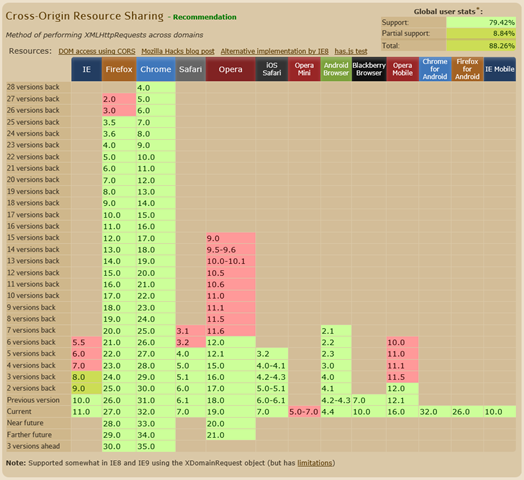
For all three options there needs to be coordination between the client and the server since they need to agree on how the data is packaged for transmission. For CORS, this also requires browser support (see chart below). All options require that JavaScript is enabled in the client browser.

Summarizing CORS, JSONP, Inline

The following summary compares key qualities.

Inline JavaScript JSONP CORS Comments
Synchronous or Async Synchronous Async Async
Granular domain-level security no no yes In any of the three, you could also implement an authorization scheme. This is above and beyond that.
Risk no yes no JSONP requires that you execute a JavaScript function to get at the data. Neither of the other two approaches require that. There’s an extra degree of caution needed for JSONP data sources outside of your control.
Efficiency on the wire close close most efficient Both Inline and JSONP both wrap your data in JavaScript constructs. These add a small amount of overhead. Depending on what you are doing, these could add up. But minor.
Browser support full full partial
Server support full full partial Servers need to support the CORS handshake with browsers to (a) deny disallowed domains, and (b) to give browsers the information they need to honor restrictions
Supported by a Standard no no yes
Is it the future no no yes Safer. Granular security. Standardized. Max efficiency.

Lessons Learned Using CORS

Yes, my simple one-page map app (described here) ended up using CORS. In large part since it is mature, and the browser support (see below) was sufficient.

Reloading Browser Pages: In debugging, CTRL-F5 is your friend in Chrome, Firefox, and IE if you want to clear the cache and reload the page you are on. I did this a lot as I was continually enabled and disabling CORS on the server to test out the effects.

Overriding CORS Logic in CHROME: It turns out that Chrome normally will honor all CORS settings. This is what most users will see. Let’s call this “civilian mode” for Chrome. But there’s also a developer mode – which you enable by running chrome with the chrome.exe –disable-web-security parameter. It was initially confused since it seemed Chrome’s CORS support didn’t work, but of course it did. This is one of the perils of living with a software nerd; my wife had used my computer and changed this a long time ago when she needed to build some CORS features, and I never knew until I ran into the perplexing issue.

Handling CORS Rejection: Your browser may not not let your JavaScript code know directly that a remote call was rejected due to a CORS policy. Some browsers silently map 404 to 0 if against a CORS-protected resource. You’ll see this mentioned in the code for httpGetString.js (if you look at my sample code).

Testing CORS from curl: Helped by a post on StackOverflow, I found it very handy to look at CORS headers from the command line. Note that you need to provide SOME origin in the request for it to be valid CORS, but here’s the command that worked for my cloud-host resource (you should also be able to run this same command):

curl -H “Origin: http://localhost” -H “Access-Control-Request-Method: GET” -H “Access-Control-Request-Headers: X-Requested-With” -X OPTIONS –verbose http://azuremap.blob.core.windows.net/maps/azuremap.geojson

Browser Support for CORS

To understand where CORS support stands with web browsers, this fantastic site http://caniuse.com/cors offers a nice visual showing CORS support across today. A corresponding chart for JSONP is not needed since it works within long-standing capabilities.

image

Resources

http://en.wikipedia.org/wiki/Same-origin_policy

My simple one-page map app is described here. That page includes a link to a running instance and its source code is easily viewed with View Source.

http://blog.auth0.com/2014/01/27/ten-things-you-should-know-about-tokens-and-cookies/#preflight

Stupid Azure Trick #5 – Got a Penny? Run a Simple Web Site 100% on Blob Storage for a Month – Cost Analysis Provided

Suppose you have a simple static web site you want to publish, but your budget is small. You could do this with Windows Azure Storage as a set of blobs. The “simple static” qualifier rules out ASP.NET and PHP and Node.js – and anything that does server-side processing before serving up a page. But that still leaves a lot of scenarios – and does not preclude the site from being interactive or loading external data using AJAX and behaving like it is dynamic. This one does.

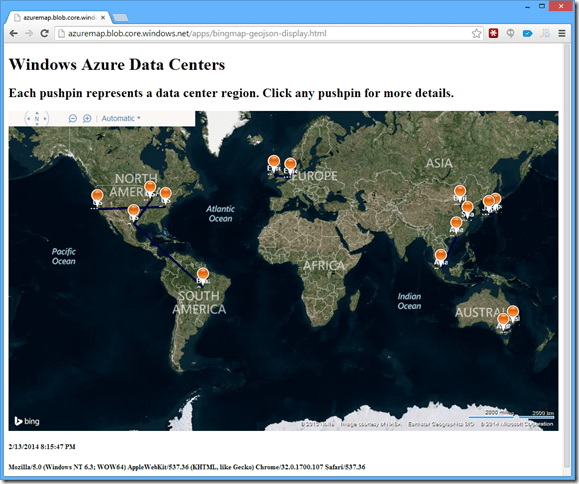
Check out the web site at http://azuremap.blob.core.windows.net/apps/bingmap-geojson-display.html.

image

You may recognize the map from an earlier post that showed how one could visualize Windows Azure Data Center Regions on a map. It should look familiar because this web site uses the exact same underlying GeoJSON data used earlier, except this time the map implementation is completely different. This version has JavaScript code that loads and parses the raw GeoJSON data and renders it dynamically by populating a Bing Maps viewer control (which is also in JavaScript).

But the neat part is there’s only JavaScript behind the scenes. All of the site’s assets are loaded directly from Windows Azure Blob Storage (plus Bing Maps control from an external location).

Here’s the simple breakdown. There is the main HTML page (the URL specifies that directly), and that in turn loads the following four JavaScript files:

  1. http://ecn.dev.virtualearth.net/mapcontrol/mapcontrol.ashx?v=7.0 – version 7.0 of the Bing Map control
  2. httpGetString.js – general purposes data fetcher (used to pull in the GeoJSON data)
  3. geojson-parse.js – application-specific to parse the GeoJSON data
  4. bingmap-geojson-display.js – application-specific logic to put elements from the GeoJSON file onto the Bing Map

I have not tried this to prove the point, but I think that to render on, say, Google Maps, the only JavaScript that would need to change would be bingmap-geojson-display.js (presumably replaced by googlemap-geojson-display.js).

Notice that the GeoJSON data lives in a different Blob Storage Container here:  http://azuremap.blob.core.windows.net/maps/azuremap.geojson. We’ll get into the details in another post, but in order for this to work – in order for …/apps/bingmap-geojson.html to directly load a JSON data file from …/maps/azuremap.geojson – we enabled CORS for the Blob Service within the host Windows Azure Storage account.

Costs Analysis

Hosting a very low-cost (and low-complexity) web site as a few blobs is really handy. It is very scalable and robust. Blob Storage costs come from three sources:

  1. cost of data at rest – for this scenario, probably Blob Blobs and Locally Redundant Storage would be appropriate, and the cost there is $0.068 per GB / month (details)
  2. storage transactions – $0.005 per 100,000 transactions (details – same as above link, but look lower on the page) – where a storage transaction is (loosely speaking) a file read or write operation
  3. outbound data transfers (data leaving the data center) – first 5 GB / month is free, then there’s a per GB cost (details)

The azuremap web site shown earlier weighs in at under 18 KB and is spread across 5 files (1 .html, 3 .js, 1 .geojson). If we assume a healthy 1000 hits a day on our site, here’s the math.

  • We have around 1000 x 31 = 31,000 visits per month.
  • Cost of data at rest would be 18 KB x $0.068 / GB = effectively $0. Since storage starts at less than 7 cents per GB and our data is 5 orders of magnitude smaller, the cost is too small to meaningfully measure.
  • Storage transactions would be 31,000 x 5 (one per file in our case) x $0.005 / 100,000 = $0.00775, or a little more than 3/4 of a penny in US currency per month, around 9 cents per year, or $1 every 11 years.
  • Outbound data transfer total would be 31,000 x 18 KB = 560 MB, which is around 1/10th of the amount allowed for free, so there’d be no charge for that.

So our monthly bill would be for less than 1 penny (less than US$0.01).

This is also a good (though very simple) example of the sort of cost analysis you will need to do when understanding what it takes to create cloud applications or migrate from on-premises to the cloud. The Windows Azure Calculator and information on lower-cost commitment plans may also prove handy.

Alternative Approaches

Of course in this day and age, for a low-cost simple site it is hard to beat Windows Azure Web Sites. There’s an entirely free tier there (details) – allowing you to save yourself nearly a penny every month. That’s pretty good since Benjamin Franklin, one of America’s founding fathers, famously quipped A penny saved is a penny earned!.BenFranklinDuplessis.jpg

Windows Azure Web Sites also has other features – your site can be in PHP or ASP.NET or Node.js or Python. And you can get continuous deployment from GitHub or Bitbucket or TFS or Dropbox or others. And you get monitoring and other features from the portal. And more.

But at least you know you can host in blob storage if you like.

[This is part of a series of posts on #StupidAzureTricks, explained here.]
Stupid Azure Trick #4 – C#, Node.js, and Python side-by-side – Three Simple Command Line Tools to Copy Files up to Windows Azure Blob Storage

Windows Azure has a cloud file storage service known as Blob Storage.

[Note: Windows Azure Storage is broader than just Blob Storage, but in this post I will ignore its sister services Table Storage (a NoSQL key/value store) and Queues (a reliable queuing service).]

Before we get into the tricks, it is useful to know a bit about Blog Storage.

The code below is very simple – it uploads a couple of files to Blob Storage. The files being uploaded are JSON, so it includes proper setting of the HTTP content-type and sets up caching. Then it lists a directory of the files up in that particular Blob Storage container (where a container is like a folder or subdirectory in a regular file system).

The code listed below will work nicely on a Windows Azure Dev-Test VM, or on your own desktop. Of course you need a Windows Azure Storage Account first, and the storage credentials. (New to Azure? Click here to access a free trial.) But once you do, the coding is straight-forward.

  • For C#: create a Windows Console application and add the NuGet packaged named “Windows Azure Storage”
  • For Node.js: run “npm install azure” (or “npm install azure – –global”)
  • For Python: run “pip install azure” to get the SDK
  • We don’t cover it here, but you could also use PowerShell or the CLI or the REST API directly.

Note: these are command line tools, so there isn’t a web project with config values for the storage keys. So in lieu of that I used a text file on the file system. Storage credentials should be stored safely, regardless of which computer they are used on, so beware my demonstration only using public data so my storage credentials in this case may not be as damaging, if lost, as some others.

Here’s the code. Enjoy!

using System;
using System.Diagnostics;
using System.IO;
using Microsoft.WindowsAzure.Storage;
using Microsoft.WindowsAzure.Storage.Auth;
using Microsoft.WindowsAzure.Storage.Blob;
internal class Program
{
private static void Main(string[] args)
{
var storageAccountName = "azuremap";
// storage key in file in parent directory called <storage_account_name>.storagekey
var storageAccountKey = File.ReadAllText(String.Format("d:/dev/github/{0}.storagekey", storageAccountName));
//Console.WriteLine(storageAccountKey);
var storageContainerName = "maps";
var creds = new StorageCredentials(storageAccountName, storageAccountKey);
var storageAccount = new CloudStorageAccount(creds, useHttps: true);
var blobClient = storageAccount.CreateCloudBlobClient();
var container = blobClient.GetContainerReference(storageContainerName);
string[] files = {"azuremap.geojson", "azuremap.topojson"};
foreach (var file in files)
{
CloudBlockBlob blockBlob = container.GetBlockBlobReference(file);
var filepath = @"D:\dev\github\azuremap\upload\" + file;
blockBlob.UploadFromFile(filepath, FileMode.Open);
}
Console.WriteLine("Directory listing of all blobs in container {0}", storageContainerName);
foreach (IListBlobItem blob in container.ListBlobs())
{
Console.WriteLine(blob.Uri);
}
if (Debugger.IsAttached) Console.ReadKey();
}
}
view raw upload.cs hosted with ❤ by GitHub
var azure = require('azure');
var fs = require('fs');
var storageAccountName = 'azuremap' // storage key in file in parent directory called <storage_account_name>.storagekey
var storageAccountKey = fs.readFileSync('../../%s.storagekey'.replace('%s', storageAccountName), 'utf8');
//console.log(storageAccountKey);
var storageContainerName = 'maps';
var blobService = azure.createBlobService(storageAccountName, storageAccountKey, storageAccountName + '.blob.core.windows.net');
var fileNameList = [ 'azuremap.geojson', 'azuremap.topojson' ];
for (var i=0; i<fileNameList.length; i++) {
var fileName = fileNameList[i];
console.log('=> ' + fileName);
blobService.createBlockBlobFromFile(storageContainerName, fileName, fileName,
{ contentType: 'application/json', cacheControl: 'public, max-age=3600' }, // max-age units is seconds, so 31556926 is 1 year
function(error) {
if (error) {
console.error(error);
}
});
}
blobService.listBlobs(storageContainerName,
function(error, blobs) {
if (error) {
console.error(error);
}
else {
console.log('Directory listing of all blobs in container ' + storageContainerName);
for(var i in blobs) {
console.log(blobs[i].name);
}
}
});
view raw upload.js hosted with ❤ by GitHub
from azure.storage import *
storage_account_name = 'azuremap' # storage key in file in parent directory called <storage_account_name>.storagekey
storage_account_key = open(r'../../%s.storagekey' % storage_account_name, 'r').read()
//print(storage_account_key)
blob_service = BlobService(account_name=storage_account_name, account_key=storage_account_key)
storage_container_name = 'maps'
blob_service.create_container(storage_container_name)
blob_service.set_container_acl(storage_container_name, x_ms_blob_public_access='container')
for file_name in [r'azuremap.geojson', r'azuremap.topojson']:
myblob = open(file_name, 'r').read()
blob_name = file_name
blob_service.put_blob(storage_container_name, blob_name, myblob, x_ms_blob_type='BlockBlob')
blob_service.set_blob_properties(storage_container_name, blob_name, x_ms_blob_content_type='application/json', x_ms_blob_cache_control='public, max-age=3600')
# Show a blob listing which now includes the blobs just uploaded
blobs = blob_service.list_blobs(storage_container_name)
print("Directory listing of all blobs in container '%s'" % storage_container_name)
for blob in blobs:
print(blob.url)
# format for blobs is: <account>.blob.core.windows.net/<container>/<file>
# example blob for us: pytool.blob.core.windows.net/pyfiles/clouds.jpeg
view raw upload.py hosted with ❤ by GitHub

Useful Links

Python

http://research.microsoft.com/en-us/projects/azure/an-intro-to-using-python-with-windows-azure.pdf

http://research.microsoft.com/en-us/projects/azure/windows-azure-for-linux-and-mac-users.pdf

http://www.windowsazure.com/en-us/develop/python/

SDK Source for Python: https://github.com/WindowsAzure/azure-sdk-for-python

Node.js

http://www.windowsazure.com/en-us/develop/nodejs/

SDK Source for Node.js: https://github.com/WindowsAzure/azure-sdk-for-node

http://www.windowsazure.com/en-us/documentation/articles/storage-nodejs-how-to-use-blob-storage/

C#/.NET

http://www.windowsazure.com/en-us/develop/net/

Storage SDK Source for .NET: https://github.com/WindowsAzure/azure-storage-net

Storage Client Library 3: http://msdn.microsoft.com/en-us/library/dn495001%28v=azure.10%29.aspx

[This is part of a series of posts on #StupidAzureTricks, explained here.]

Where’s Azure? Mapping Windows Azure 4 years after full General Availability.

On October 27, 2008, Windows Azure was unveiled publicly by Microsoft Chief Architect Ray Ozzie at Microsoft’s Professional imageDeveloper’s Conference.

Less than a year later, on November 17, 2009, Windows Azure was unleashed on the world – anyone could go create an account.

image

Only a couple of months later, on January 1, 2010, Windows Azure turned on its Service Level Agreement (SLA) – you could now get production support.

And finally, on Feb 1, 2010, Windows Azure became self-aware – billing was turned on, completing the last step in them being fully open as a business.

That was 4 years ago today. Happy Anniversary Azure! I am not calling this a “birthday” since it isn’t – it was born years earlier as the Red Dog project – but this is the fourth anniversary of it being a fully-operational, pay-as-you-go, public cloud platform.

At the time, there were 6 Windows Azure data centers available – 2 each in Asia, Europe, and North America: East Asia, SE Asia, North Europe, West Europe, North Central US, South Central US. (Ignoring the Content Delivery Network (CDN) nodes which I plan to cover another time.)

What about today? With the addition in 2012 of East US and West US data centers, today there are 8 total production data centers, but more on the way.

Here’s a map of the Windows Azure data center landscape. (Source data is in a JSON file in GitHub; pull requests with additions/corrections welcome. CDN data is TBD.)

The lines between data center regions represent failover relationships drawn from published geo-replication sites for Windows Azure Storage. Mostly they are bi-directional, except for Brazil which is one-directional; the metadata on each pushpin specifies its failover region explicitly.

NOTE: this is a work-in-progress that will be updated as “official” names are published for geos and regions.

Also, be sure to click on the map pushpins to see which data center regions are in production and where are coming attractions. Not all of these pushpins represent data centers you can access right now.

There are three insets in order – first a GeoJSON rendering, second a TopoJSON rendering (which should look identical to the GeoJSON one, but included for demonstration purposes, as it is lighter weight), and the third is the raw JSON data from which I am generating the GeoJSON and TopoJSON files. [All the code is here: https://github.com/codingoutloud/azuremap. I plan to blog in the future on how it works.]

Loading
Sorry, something went wrong. Reload?
Sorry, we cannot display this file.
Sorry, this file is invalid so it cannot be displayed.
Loading
Sorry, something went wrong. Reload?
Sorry, we cannot display this file.
Sorry, this file is invalid so it cannot be displayed.
[
{ "Geo" : "Asia Pacific", "Region": "Asia Pacific East", "Location": "Hong Kong", "Failover Region" : "Asia Pacific Southeast", "Status" : "Production" },
{ "Geo" : "Asia Pacific", "Region": "Asia Pacific Southeast", "Location": "Singapore", "Failover Region" : "Asia Pacific East", "Status" : "Production" },
{ "Geo" : "Asia Pacific", "Region": "Shanghai China", "Location": "Shanghai China", "Failover Region" : "Beijing China", "Status" : "Production" },
{ "Geo" : "Asia Pacific", "Region": "Beijing China", "Location": "Beijing, China", "Failover Region" : "Shanghai China", "Status" : "Production" },
{ "Geo" : "Australia", "Region": "Australia East", "Location": "Sydney, New South Wales, Australia", "Failover Region" : "Australia SE", "Status" : "Production" },
{ "Geo" : "Australia", "Region": "Australia SE", "Location": "Melbourne, Victoria, Australia", "Failover Region" : "Australia East", "Status" : "Production" },
{ "Geo" : "South America", "Region": "Brazil South", "Location": "Brazil", "Failover Region" : "US South Central", "Status" : "Production" },
{ "Geo" : "Europe", "Region": "Europe West", "Location": "Amsterdam, Netherlands", "Failover Region" : "Europe North", "Status" : "Production" },
{ "Geo" : "Europe", "Region": "Europe North", "Location": "Dublin, Ireland", "Failover Region" : "Europe West", "Status" : "Production" },
{ "Geo" : "Japan", "Region": "Japan East", "Location": "Saitama, Japan", "Failover Region" : "Japan West", "Status" : "Production" },
{ "Geo" : "Japan", "Region": "Japan West", "Location": "Osaka, Japan", "Failover Region" : "Japan East", "Status" : "Production" },
{ "Geo" : "United States", "Region": "US North Central", "Location": "Chicago, IL, USA", "Failover Region" : "US South Central", "Status" : "Production" },
{ "Geo" : "United States", "Region": "US Central", "Location": "Iowa, USA", "Failover Region" : "US East 2", "Status" : "Production" },
{ "Geo" : "United States", "Region": "US East", "Location": "Bristow, Virginia, USA", "Failover Region" : "US West", "Status" : "Production" },
{ "Geo" : "United States", "Region": "US East 2", "Location": "Virginia, USA", "Failover Region" : "US Central", "Status" : "Preview" },
{ "Geo" : "United States", "Region": "US West", "Location": "San Francisco, California, USA", "Failover Region" : "US East", "Status" : "Production" },
{ "Geo" : "United States", "Region": "US Gov-Iowa", "Location": "Iowa, USA", "Failover Region" : "US Gov-Virginia", "Status" : "Preview" },
{ "Geo" : "United States", "Region": "US Gov-Virginia", "Location": "Virginia, USA", "Failover Region" : "US Gov-Iowa", "Status" : "Production" }
]

The map data is derived from public (news releases and blog posts for coming data centers and Windows Azure documentation for existing production regions).

The city information for data centers is not always published, so what I’m using is a mix of data directly published, and information derived from published data. For example, it is well known there is a data center in Dublin, Ireland, but where city should I used for US West region that’s in California? For the latter, I used IP address geocoding of the published data center IP address ranges. This is absolutely not definitive, but just makes for a slightly nicer map. It was from this data that I made assumptions around Tokyo and Osaka locations in Japan and San Francisco in California for US West.

Finally, this map is at the region level which equates roughly to a city (see the project readme for terminology I am using). A region is not necessarily a single location, since there may well be multiple data centers per region and though they will be “near” each other, this is not necessarily in the same city – they could be 1 kilometer apart with a city border between them.

Stupid Azure Trick #3 – Create a Dev Virtual Machine in Windows Azure

“Everyone” knows about using cloud services for running web applications and databases. For example, Windows Azure offers a bevy of integrated compute, storage, messaging, monitoring, networking, identity, and ALM services across its world-wide data centers.

But what about the idea of leveraging the cloud for software development and testing? Of course there is great productivity in using hosted services for a lot of the ancillary tasks in software development – source control, issue tracking, and so on. Example cloud solutions for source control would include two that I use regularly, GitHub and Team Foundation Service (TFS). But what about for hands-on software development – creating, running, testing, and iterating on code?

There are really two significant ways you can go here. One way – that I will not be drilling into – is to use a cloud-hosted web browser-based development environment. This is what’s going on with Monaco, which is a cloud-hosted version of Visual Studio that runs entirely in a web browser – but (very awesomely) integrates with Windows Azure. There are also third-parties playing in this space, such as Cloud 9.

The other way – the one I am going to drill into – is using a Windows Azure Virtual Machine for certain development duties.

[Making a case for when and why one might create a dev-test environment in the cloud will be left for another time…]

With great power comes great responsibility

Spiderman knows this, and you need to know it as well.

Virtual Machines in the cloud cost money while they are deployed. It is your great responsibility to turn them off when you don’t need them.

The pricing for “normal” virtual machines (as opposed to MSDN Pricing which is described below) is listed at http://www.windowsazure.com/en-us/pricing/details/virtual-machines/. For example, at the time of this writing, the price for a Windows Server VM ranges from $0.02 (two cents) to $1.60 per hour, while the price for a Windows Server VM with SQL Server ranges from $2.92 to $7.40 per hour. The $7.40/hour VM is an instance running on a VM with 8 cores and 56 GB of RAM.

NOTE: just before publication time, Windows Azure announced some even larger “compute-intensive” VMs, A8 and A9 sizes. The A9 costs $4.90 per hour and sports 16 cores, 112 GB of memory, and runs on a “40 Gbit/s InfiniBand network that includes remote direct memory access (RDMA) technology for maximum efficiency of parallel Message Passing Interface (MPI) applications. […] Compute-intensive instances are optimal for running compute and network-intensive applications such as high-performance cluster applications, applications using modeling, simulation and analysis, and video encoding.” Nice! These are available for VMs in Cloud Services, and I would expect them to become available for all VMs in due course.

Some VMs cost more per hour (I’m looking at you BizTalk Server) and some costs are as yet unknown (such as for Oracle databases, which are in preview and production pricing has yet to be revealed).

VM prices vary for two reasons: (a) resources allocated (e.g., # of cores, how much RAM) and (b) licensing. For the same sized VM, one running SQL Server will cost more than one running Windows Server only. This is a feature – for example, you can rent a SQL Server license for 45 minutes if you like.

Of course, while inexpensive, and nearly inconsequential in small quantities, these prices can add up if you use a lot of VM hours. The good news is, you can release VM resources when you are not using them. You don’t incur VM costs when the VM is not occupying a VM, though there is a small storage cost that starts at $0.07 (seven cents) per GB per month.

Just don’t forget to free your resources before leaving for vacation.

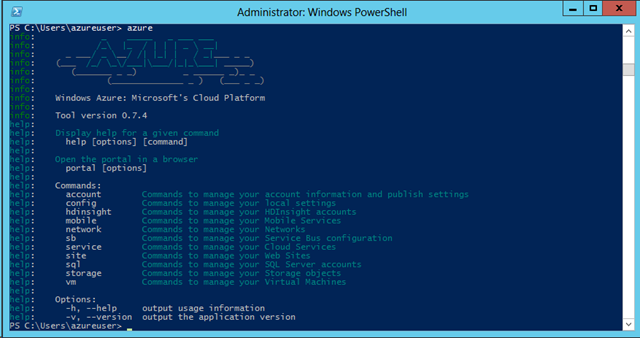
Fortunately, VMs can easily be stopped in the portal, by using the Remove-AzureVM PowerShell cmdlet, by using the azure vm shutdown command from the cross-platform CLI, through management REST APIs, or using one of the language SDKs.

Example prices were expressed in terms of “per hour” but the pricing granularity is actually by the minute. In some clouds, usage granularity is hourly, or possibly “any part of the hour” meaning a VM deployed from, say, 7:50 to 8:10 would incur 120 minutes of billing (two hours), even though actual time was 20 minutes. In Azure, you would be billed 20 minutes. The billing granularity matters more when using VMs for focused tasks like developers and testers would tend to do.

Further, there’s a data transfer price for data leaving the data center.

You may be interested in Windows Azure Billing Alerts.

MSDN Pricing – A Big Cloudy Discount

If you have an MSDN account (not just for big companies, but also with startups) – as long as you claim your Azure benefits – magically, you are eligible for special MSDN Pricing. Check for the current MSDN discounted pricing, but as of this writing MSDN includes either $50, $100, or $150 of Azure credits per month, depending on your level of MSDN. Anyone on your team with an MSDN account will have their own Azure credits.

This means that your monthly bill will draw from this balance before you incur actual costs. You can also choose to configure the account to not allow overages, such that when your monthly allotment is exhausted, consumption stops. This way you know your credit card will not be charged. You can selectively re-enable it for the rest of the month. This is not a bad default setting to avoid runaway dev-test costs due to forgetting to turn off resources when you didn’t need them.

Beyond this, you get a huge discount on other VMs – no matter what the VM is, you never pay more than $0.06 per hour per small VM unit.

MSDN pricing only applies to resources used for Dev-Test – it is not licensed for production use, nor does it come with an SLA.

But that’s such a good deal, that anyone using Windows Azure for Dev-Test should take a hard look at this option if they don’t already have an MSDN account. But this post is all about creating a Dev-Test VM, so let’s get on with it.

Creating a Dev-Test Virtual Machine in Windows Azure

Let’s set up for C#, Python, and Node.js development.

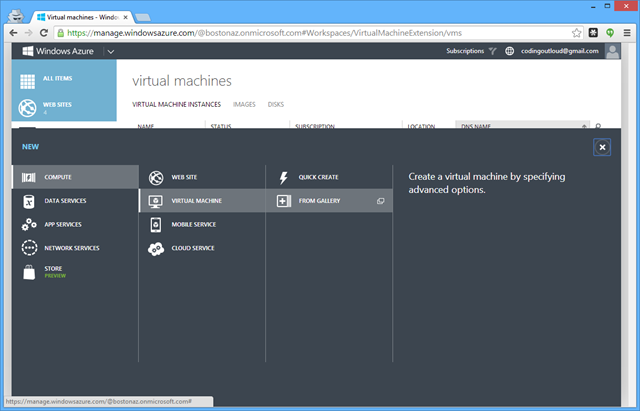
First, log into your Windows Azure account at https://manage.windowsazure.com.

image

image

image

image

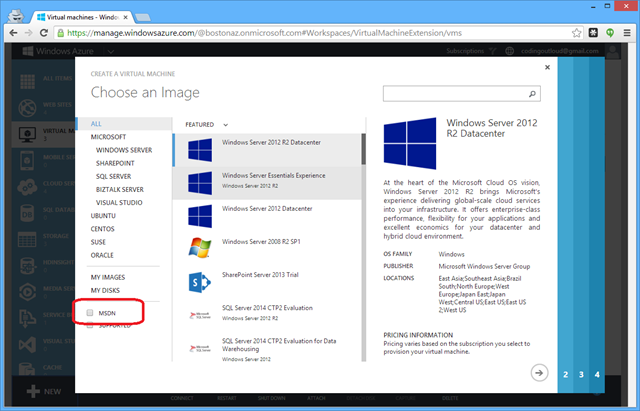
If the MSDN checkbox is disabled, you have logged into a Windows Azure account that is not associated with your MSDN account. Change to the correct account to proceed.

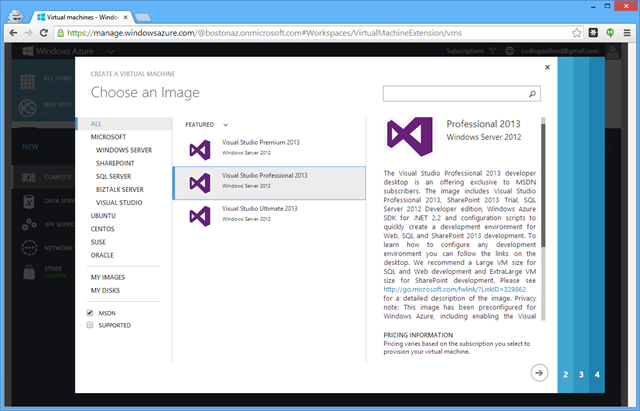
Select the MSDN checkbox to filter out any VM image not specific to MSDN subscribers, and see the list of available VM images change to the following:

image

Note the text on the descriptive text on the right-hand side, which I’ve included here since it provides some useful information.

The Visual Studio Professional 2013 developer desktop is an offering exclusive to MSDN subscribers. The image includes Visual Studio Professional 2013, SharePoint 2013 Trial, SQL Server 2012 Developer edition, Windows Azure SDK for .NET 2.2 and configuration scripts to quickly create a development environment for Web, SQL and SharePoint 2013 development.

To learn how to configure any development environment you can follow the links on the desktop.

We recommend a Large VM size for SQL and Web development and ExtraLarge VM size for SharePoint development.

Please see http://go.microsoft.com/fwlink/?LinkID=329862 for a detailed description of the image. Privacy note: This image has been preconfigured for Windows Azure, including enabling the Visual Studio Experience Improvement Program for Visual Studio, which can be disabled.”

Choose one of the Visual Studio images (I will choose Visual Studio Professional 2013) and go to the next page by clicking the arrow at the bottom-right.

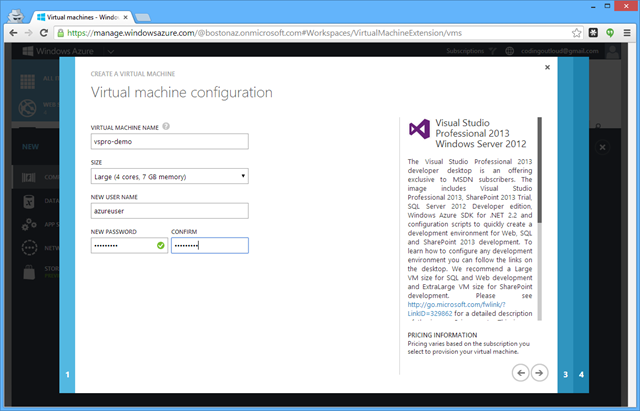
image

Fill in the fields. The username and password will be needed later to RDP into the box. Click the arrow to go to the next page.

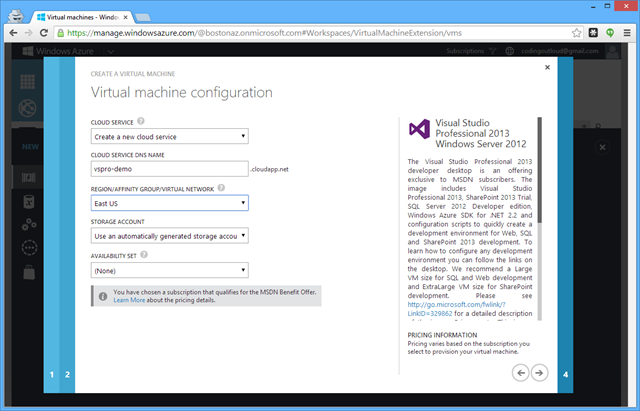
image

I kept most of the defaults, only changing the REGION to be “East US” to minimize latency to my current location. Click arrow to go to next page.

If I planned to use this for giving a talk in another geographic location, I may choose a different region. For example, I may choose “North Europe” (Dublin) if I was speaking in Ireland (which would be wonderful and I hope happens some day :-)).

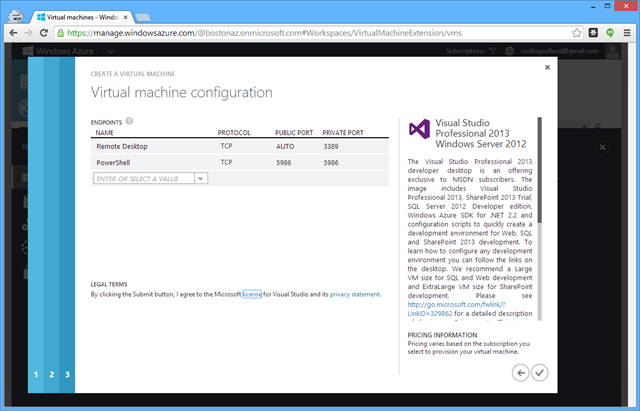
image

No changes on this page, so click check-mark to finish.

image

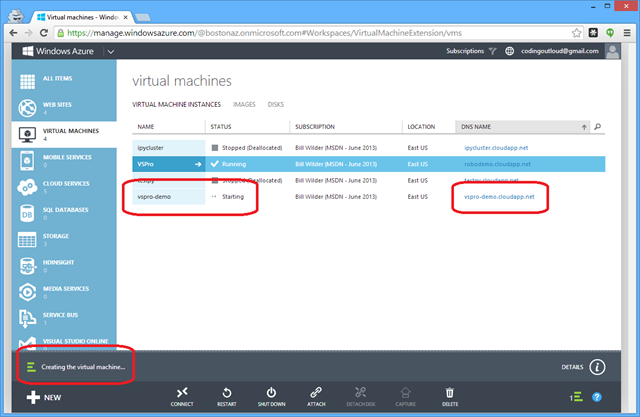
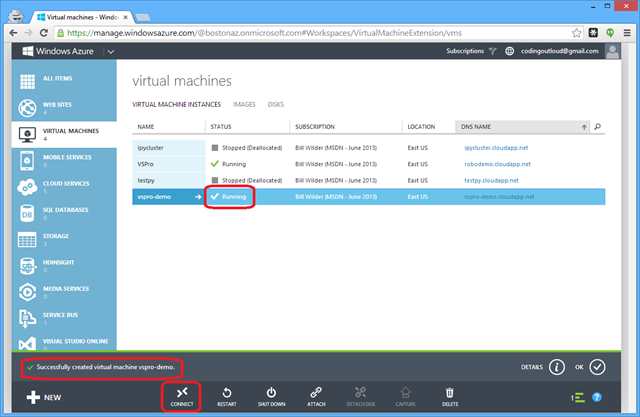
The portal will “think” for a short time, then your new virtual machine – listed under the name you gave it (“vspro-demo” for me), with the corresponding cloud service that was created (“vspro-demo.cloudapp.net” for me) which also serves as its DNS name (that you’ll use to access it via RDP).

image

Once it finishes, you can select it and hit CONNECT. This will download a file that will launch the RDP client which will allow you to login.

image

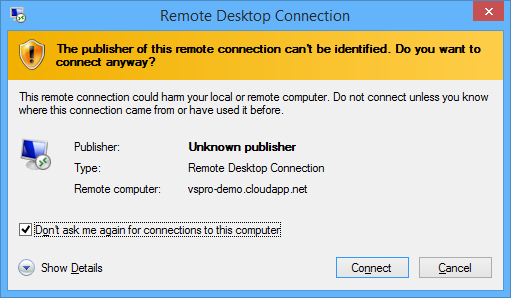
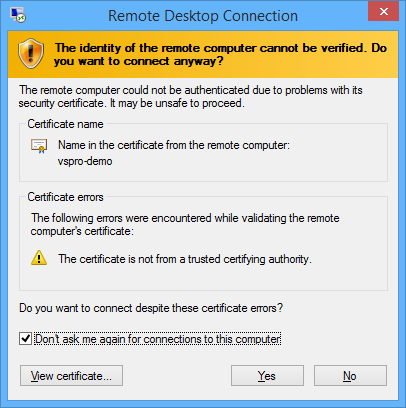
I usually check off “Don’t ask me again…” because I know this connection is fine.

image

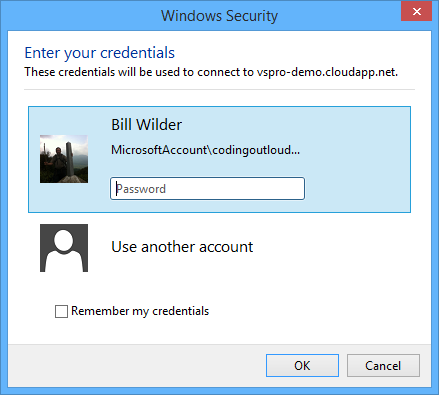
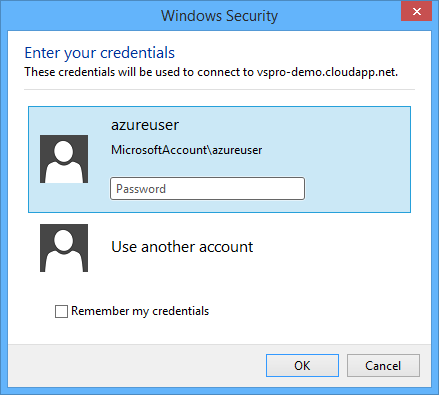
Note that here you will want to click “Use another account” so you can specify your VM-specific credentials.

image

Click OK then…

image

I usually check off “Don’t ask me again…” because I know this connection is fine.

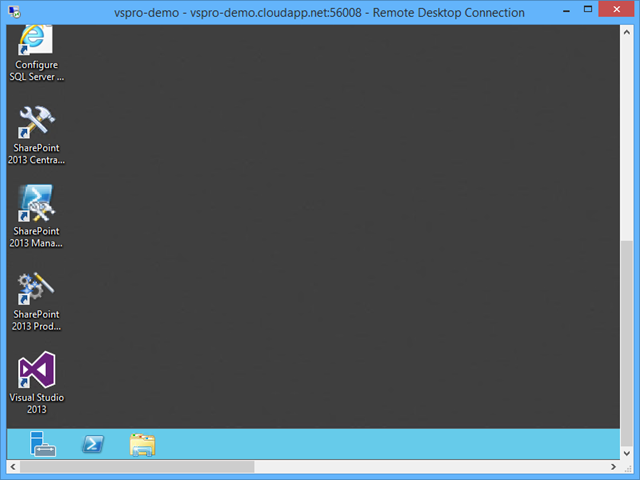
Now I’m in!

image

Configuring your Dev-Test Machine on Windows Azure

When configuring a new machine, there are many tools you may want to install. For this exercise, I will keep it simple. (The following use my handy “which” function in PowerShell to find locations of commands in the path. If you add “which” to your environment, be sure to close your PowerShell shell and open a new one so that the new $PROFILE is processed. If you
choose to not install “which” then issue the same commands and you should just get errors instead.)

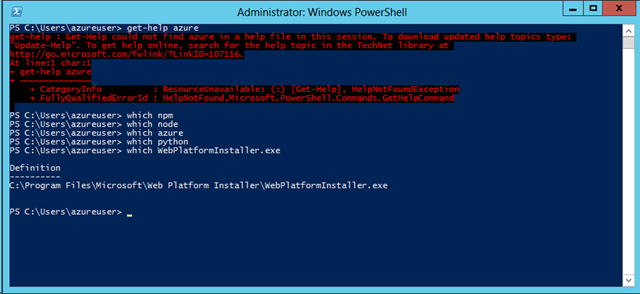
With a PowerShell shell, let’s investigate what we have on a new machine.

image

We can see that, in turn, that:

  • While PowerShell is installed (we are running in a PowerShell shell), there are no PowerShell cmdlets with “Azure” in the name.
  • Node.js is not found (no Node Package Manager (npm) and no Node runtime (node).
  • The cross-platform (xplat) Command Line Interface (CLI) is not installed. This has Node.js as a dependency.
  • No Python interpreter is installed.
  • The Web Platform Installer actually is installed, so let’s use that to add the other pieces to our development environment.

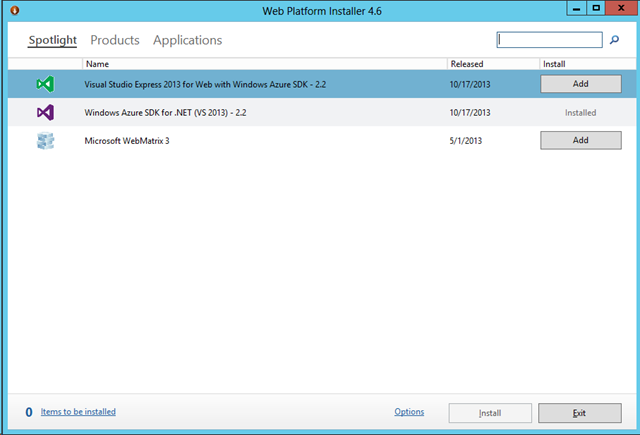
image

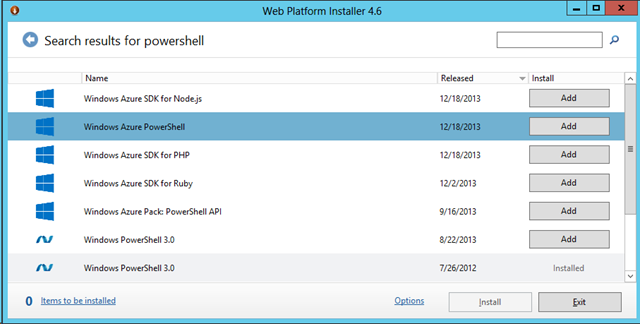
After filtering, in succession, (in search box at the top-right)…

.. on PowerShell:

image

Click the “Add” button to add the latest “Windows Azure PowerShell” release.

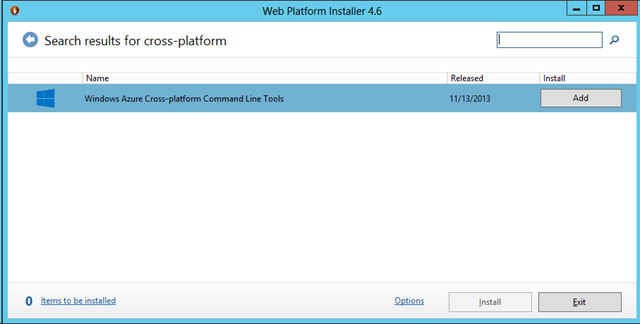
.. on Cross-platform:

image

Click the “Add” button to add the latest “Windows Azure Cross-platform Command Line Tools” release.

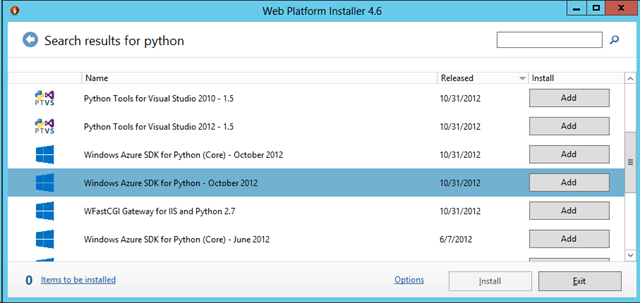
and .. on Python:

image

Click the “Add” button to add the latest “Windows Azure SDK for Python” release.

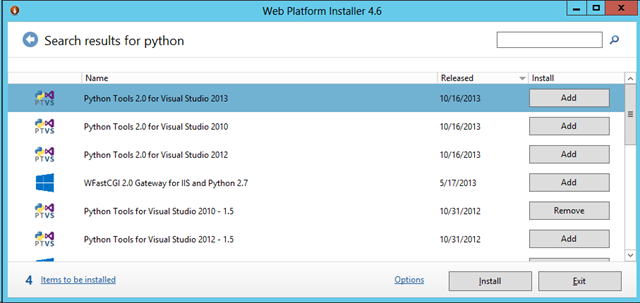
image

Click the “Add” button to add the latest “Python Tools 2.0 for Visual Studio 2013” release. This includes some really cool python tooling for Visual Studio, though we won’t discuss it further in this post.

Now click the “Install” button to start the installation.

image

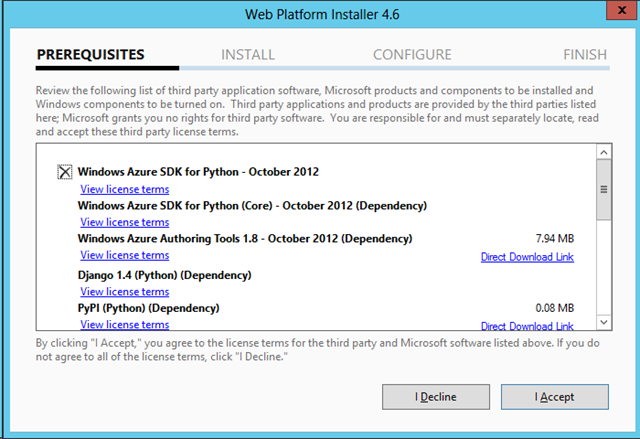
You can accept all the licensing with one click.

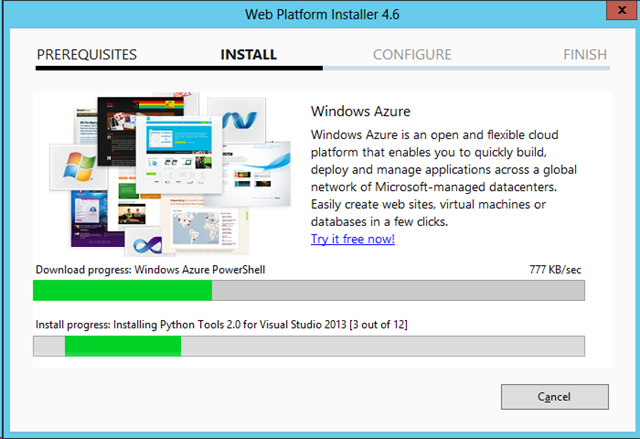
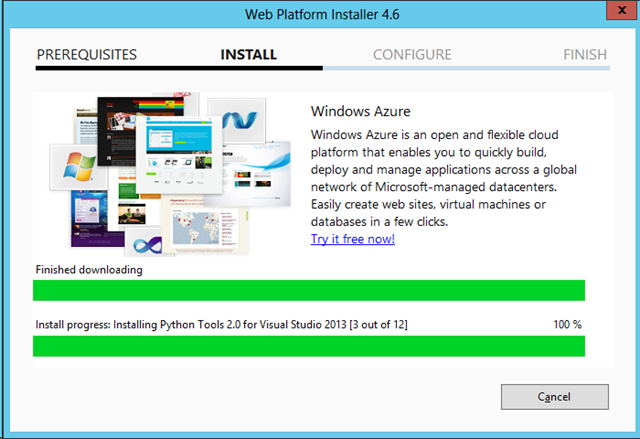
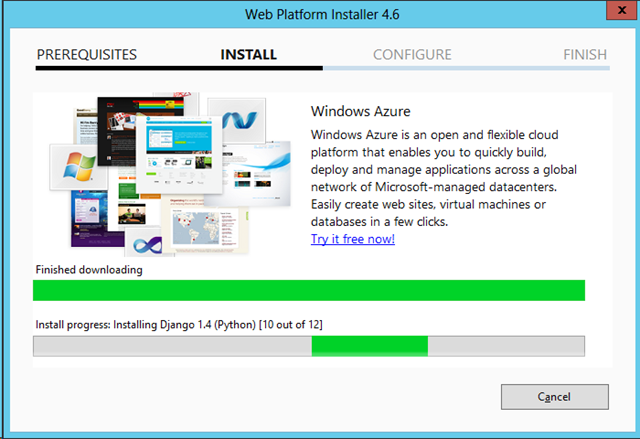
The installation will download and install the items you selected, including any dependencies.

image

image

image

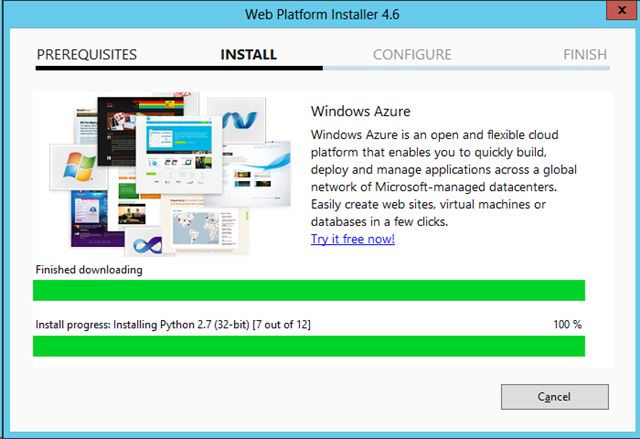
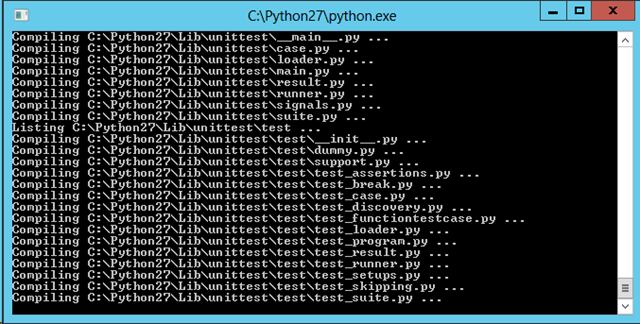
(compiling Python distribution as part of the installation…)

image

image

image

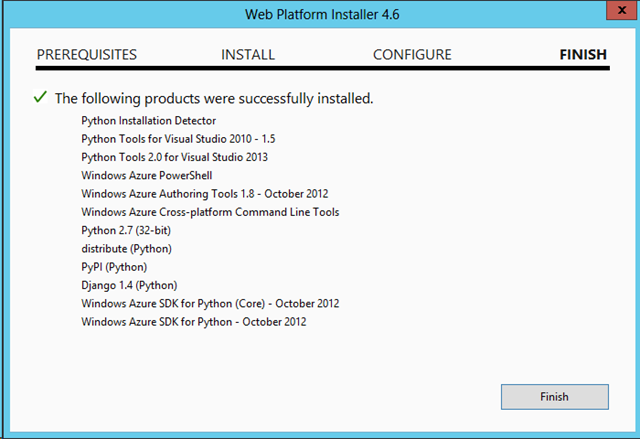
Installation is complete.

Verifying the Installation

Open a new PowerShell Window to explore once again.

image

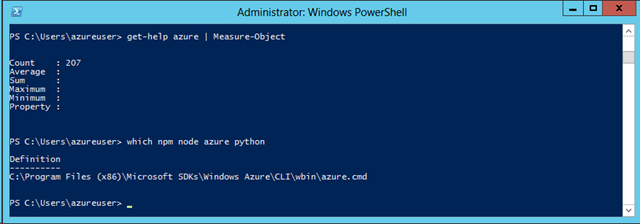
Note that we ran the “get-help azure” command through a filter (the Measure-Object cmdlet, which was used to count lines) since output would otherwise not have fit on one screen (there are a couple of hundred Azure cmdlets in the list). Of npm, node, azure, and python, only azure (via azure.cmd, the entry point to the CLI) shows up in our path. This is okay, since we can now run azure at the command line and it knows where to find Node.js.

image

As for python, that is now installed at c:\python27\python.exe. We can either add c:\python to our path, or invoke it explicitly using the full path. For our simple example, we’ll just invoke it explicitly. To see that the Windows Azure SDK for Python is installed, we can use pip, a Python package manager, to list the installed packages.

image

We can see that “azure (0.7.1)” is installed.

Done. Now go write some Python, Node, or C# code!

Useful Links

[This is part of a series of posts on #StupidAzureTricks, explained here.]

Can I use Multiple Monitors with Remote Desktop (RDP)? Yes. Here’s how.

Like lots of developers I know, I am more productive with multiple monitors. I have two displays, though I’m sure many of you have more screens than that.

Picture of Bill's two-monitor setup

I also spend a lot of time connecting into the cloud from my desktop. A common scenario is to use Remote Desktop to connect to a VM running in Windows Azure. I have always been disappointed that my remote desktop session did not take advantage of my multi-monitor setup. To be honest, until recently I assumed it was not even possible. I recently explored the Remote Desktop options and realized I was very wrong. It is very simple!

Why RDP Options are Easy to Overlook

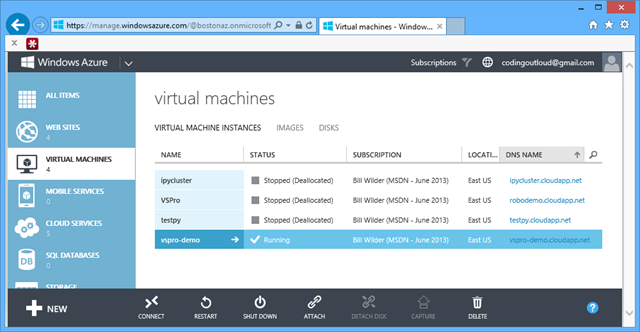
First, let’s suppose you are launching RDP from the Windows Azure portal. You bring up the Virtual Machines screen, click on the VM of interest, and you’ll be looking at a screen like the following.

image

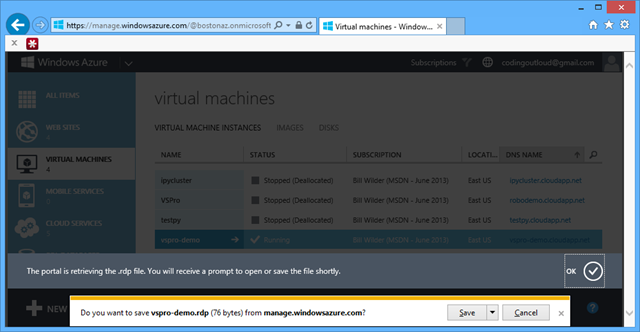
After clicking Connect along the bottom, you see this (or similar – different browsers handle downloads a little differently – this is Firefox):

image

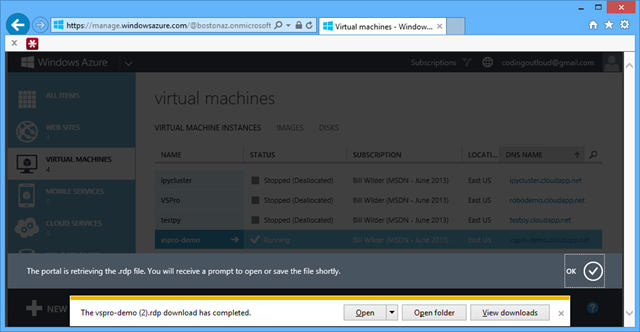
Now you may click Save and the .rdp file is now local, leading to this:

image

You can simply now click Open to open up your session. Up pops a dialog asking for your credentials:

image

After you supply your credentials, you are logged into the VM. Done.

The problem with this is that it is too convenient – it bypasses the main Remote Deskop UI – and that’s where all the fancy options are for enabling support for multiple monitors.

Determining RDP Public Port for Windows Azure VM

For this step you need to know which public port you need to use to access your VM.

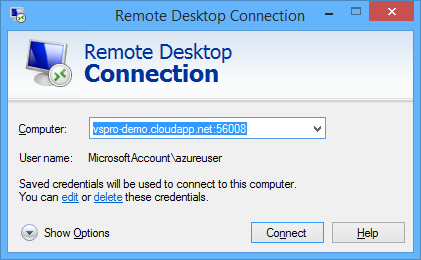
This port number is available in a couple of places. One place is in the Remote Desktop client itself. If you bring up a new instance of the Remote Desktop client, it will usually show you the last connection you made. The screen below shows port number 56008 after the DNS name.

image

Another place to check for from the Windows Azure Portal. The Remote Desktop port is configured on the ENDPOINTS tab, so viewing that will give you the information you need:

image

The public port is what you need (56008) in this case. This port number will vary from VM to VM, though will always redirect to private port 3389 (which is the default port at which Remote Desktop servers listen for Remote Desktop Protocol (RDP) connections).

Configuring Multi-Monitor Support in Remote Desktop Client

With the DNS name and port number in hand, you can construct the correct “Computer” value, such as:

image_thumb[5]

Click “Show Options” and then move to the “Display” tab.

image_thumb[6]

Select the “Use all my monitors for the remote session” option.

Done. Yes, it was that easy.

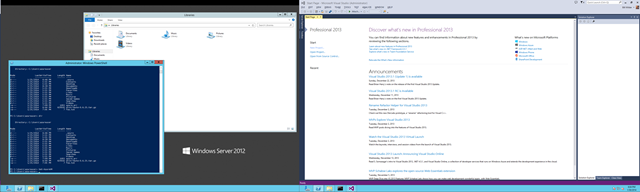
We’ll close out with a screen shot showing PowerShell and Explorer on one monitor and Visual Studio on the other, all running from a Windows Azure Virtual Machine.

image

Dumping objects one property at a time? A Pretty-Printer for C# objects that’s Good Enough™

Over the years, I’ve written a lot of code that simple dumps out an object’s properties. Sometimes this is for debugging, sometimes it is for output to Console.WriteLine. But a lot of those cases are plain old BORING, and the only reason I end up typing in obj.foo, obj.bar, and obj.gizmo is that I was too lazy to figure out how to easily stringify an entire object at a time – so I kept doing it one property (and sub-property (and sub-sub-property ..)) at a time.

I know that ToString() is supposed to help out (in .NET at least), but you probably noticed how uncommon it is for this to be usefully implemented.

There’s a better way.

A Pretty-Printer for C# objects that’s usually Good Enough™

The simple way to dump objects that’s often good enough (but not always good enough) is to use Json.NET’s object serializer.

Add Json.NET using NuGet, then using a code snippet like the following to dump out an object named someObject :

Console.WriteLine(Newtonsoft.Json.JsonConvert.SerializeObject(
someObject
, Formatting.Indented));

That’s pretty much it. That’s the whole trick.

Note: You can use Formatting.None instead of Formatting.Indented if you want a more compact output (though harder to read).

Here are a couple of reasons why is isn’t always better:

  • You get the WHOLE object graph (no filtering – but see this and this)
  • Fields appear in JSON in the order they appear in the object – you don’t get to change it
  • Not easily massaged (e.g., do you want only a certain number of decimal places?)
  • (Probably more since I just started using this…)

Useful in other languages

This hack applies to any language that supports JSON serializers and formatters. For example, in Python, check out the json module.

Examples in C#

Here is are a couple of examples using a CORS tool I was fiddling with. In these examples, the serviceProperties object is of type ServiceProperties, a class from the Windows Azure Storage SDK for .NET.

Dump Just CORS:
Newtonsoft.Json.JsonConvert.SerializeObject(
serviceProperties.Cors, Formatting.Indented);

"Cors": {
   "CorsRules": [
   {
      "AllowedOrigins": [
      "*"
   ],
   "ExposedHeaders": [
      "*"
   ],
   "AllowedHeaders": [
      "*"
   ],
   "AllowedMethods": 1,
   "MaxAgeInSeconds": 36000
   }
   ]
}

Dump Entire Properties object:

Newtonsoft.Json.JsonConvert.SerializeObject(serviceProperties, Formatting.Indented);

{
   "Logging": {
      "Version": "1.0",
      "LoggingOperations": 0,
      "RetentionDays": null
   },
   "Metrics": {
      "Version": "1.0",
      "MetricsLevel": 0,
      "RetentionDays": null
   },
      "HourMetrics": {
      "Version": "1.0",
      "MetricsLevel": 0,
      "RetentionDays": null
   },
   "Cors": {
      "CorsRules": [
      {
         "AllowedOrigins": [
            "*"
         ],
         "ExposedHeaders": [
            "*"
         ],
         "AllowedHeaders": [
            "*"
         ],
         "AllowedMethods": 1,
         "MaxAgeInSeconds": 36000
      }
      ]
   },
   "MinuteMetrics": {
      "Version": "1.0",
      "MetricsLevel": 0,
      "RetentionDays": null
   },
   "DefaultServiceVersion": null
}

To use another concrete example, consider a simple program that I wrote a while back called DumpAllWindowsCerts.cs. The program just iterates through the Certificate Store on the current machine and dumps out a bunch of information. It uses Console.WriteLine statements to do this.

To compare the old and new outputs, I jumped to the LAST Console.WriteLine statement in the file and changed it to a JsonConvert.SerializeObject statement. Here’s what happened.

Note that the old Console.WriteLine statement was very limited since the contents of these objects varied a lot, so I had kept is simple (I didn’t know what I wanted, really). But the JSON output is pretty reasonable.

————————————————– Console.WriteLine

OID = Key Usage
OID = Basic Constraints [Critical]
OID = Subject Key Identifier
OID = CRL Distribution Points
...

————————————————– JSON.NET

{
   "KeyUsages": 198,
   "Critical": false,
   "Oid": {
      "Value": "2.5.29.15",
      "FriendlyName": "Key Usage"
   },
   "RawData": "AwIBxg=="
}
{
   "CertificateAuthority": true,
   "HasPathLengthConstraint": false,
   "PathLengthConstraint": 0,
   "Critical": true,
   "Oid": {
      "Value": "2.5.29.19",
      "FriendlyName": "Basic Constraints"
   },
   "RawData": "MAMBAf8="
}
{
   "SubjectKeyIdentifier": "DAED6474149C143CABDD99A9BD5B284D8B3CC9D8",
   "Critical": false,
   "Oid": {
      "Value": "2.5.29.14",
      "FriendlyName": "Subject Key Identifier"
   },
   "RawData": "BBTa7WR0FJwUPKvdmam9WyhNizzJ2A=="
}
{
   "Critical": false,
   "Oid": {
      "Value": "2.5.29.31",
      "FriendlyName": "CRL Distribution Points"
   },
   "RawData": "MDkw...9iamVjdC5jcmw="
}

Stupid Azure Trick #2 – How do I create a new Organizational Account on Windows Azure Active Directory without any existing accounts or EA?

Suppose your company is ready to create a corporate production environment using Windows Azure. If you are an enterprise of sufficient size, you will want to do this through your company’s Enterprise Agreement (commonly called an “EA”). But suppose you are a smaller company, or a 100% cloud company, and you want to do it the “right” way – but are not ready for an EA. How do you do it?

Microsoft Account is for Personal Use

First, while technically possible, there are reasons to not create production Windows Azure resources for your organization using a Microsoft Account (née Live Id (and many variants of Passport Account before that – it’s been around!)). The reason to avoid a Microsoft Account is that this is decidedly non-corporate – Microsoft accounts are intended for use by individuals. As a consequence, they are based on arbitrary email addresses and offer no way for an organization to manage them centrally. Even using your company email address as your login for a Microsoft Account is not a sufficiently manageable arrangement since you can continue to log into the associated Microsoft Account even after the email address no longer corresponds to a valid company email account.

Though you can get it done from a technical point of view – your Windows Azure assets can be deployed in production for sure from a Microsoft Account – there is a better way.

WAAD Organizational Account is for Organizations

Windows Azure Active Directory (WAAD) accounts are intended for use by organizations and are known as Organizational Accounts. And an “organization” in the context could be your company, school, non-profit, or any other entity from which centralized management of user accounts is beneficial.

Easily Create an Organizational Account from Windows Azure Portal

In the Windows Azure portal it is pretty easy to create additional Windows Azure Active Directory accounts all day long:

image

But the catch with that approach is that in order to create a new WAAD Organizational Account you need to be already logged into the Windows Azure Portal. So you already need an Azure Account. Though I have many accounts on Windows Azure, I wanted to understand the workflow to create a brand new Windows Azure setup without ever using an existing Windows Azure Account or a Microsoft Id…

In other words, what if I want to start from scratch?

Create Organization Account from Scratch

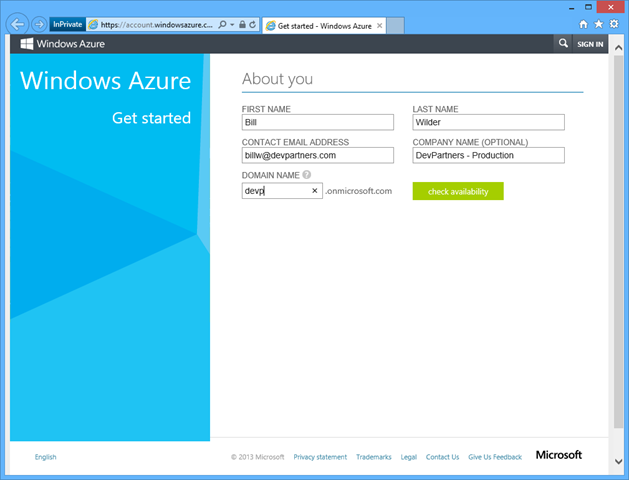
To create a new Organizational Account without already being logged into the portal, took some searching around and trying a few things, but turns out that one accomplish this by starting at https://account.windowsazure.com/organization.

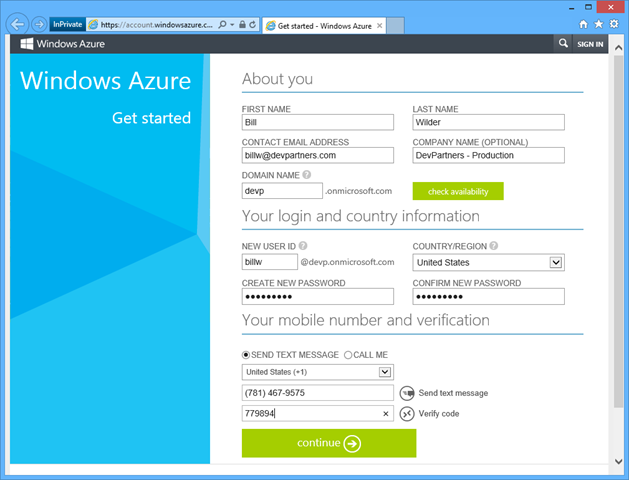
The flow looks like this:

image

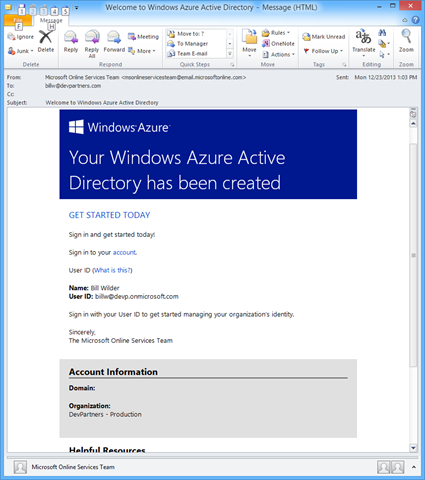
Note that later, once your new WAAD account has been established a few steps from now, you will receive a welcome email at the email you provided on this screen that will look something like this:

image

But back to the sign-up workflow… you will next click “check availability” then:

image

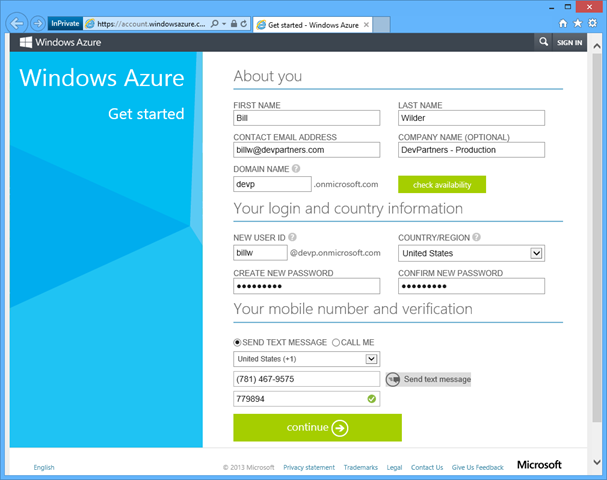
Click “Send text message” then type in the verification code:

image

Click “Verify code” then:

image

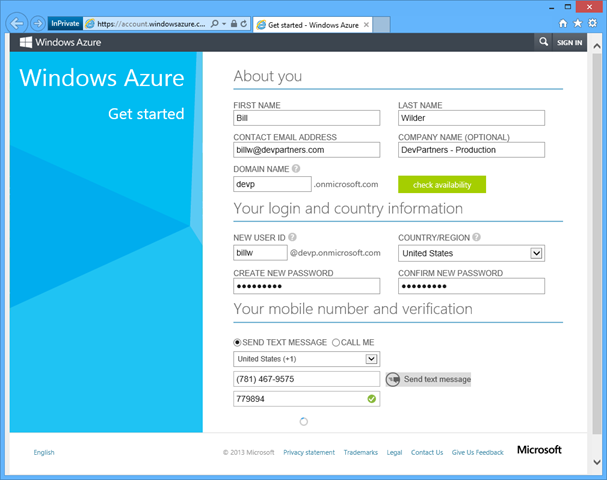
Click “continue” then:

image

after spinning you are invited to sign into Windows Azure:

image

After logging in…

image

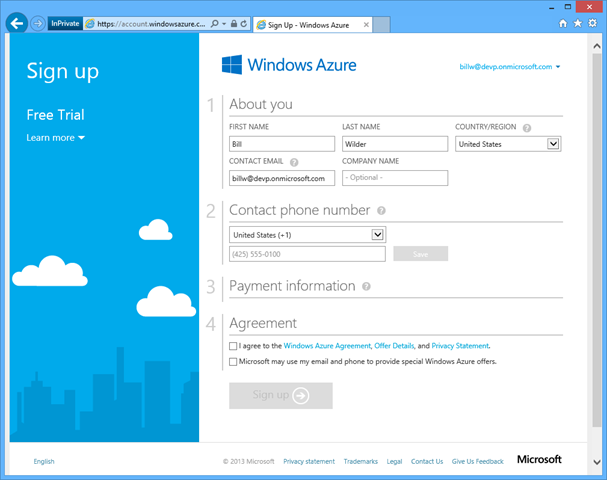
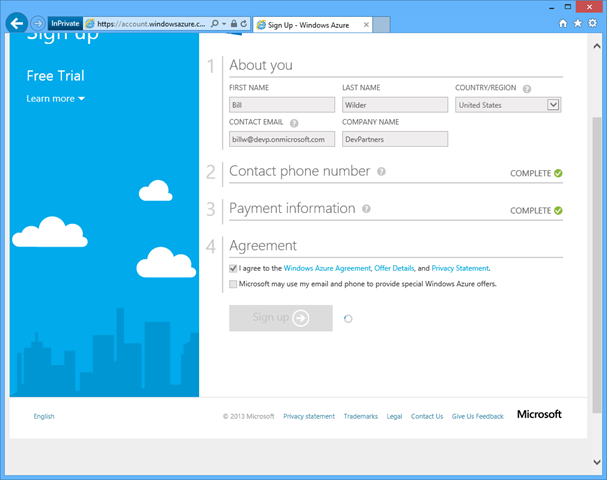
After that spins a bit then asks you to sign up for the Windows Azure Free Trial:

image

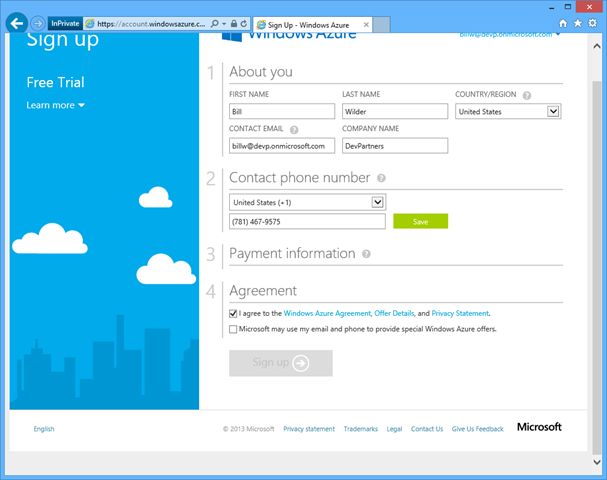
Fill it in:

image

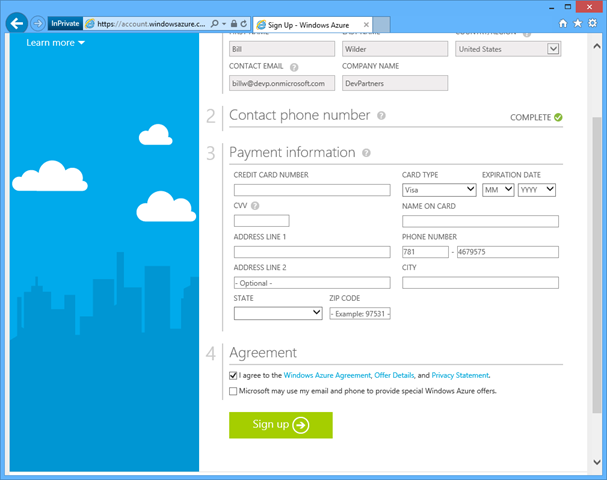
Click “Save” then fill in credit card details (not shown :-):

image

image

Then click “Sign up” to complete the process.

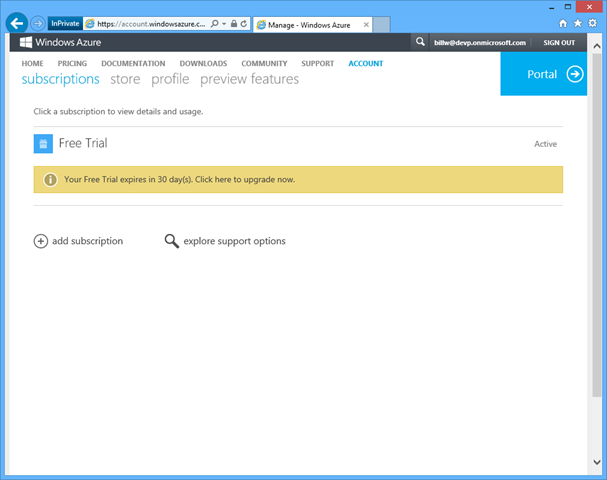
Tada! You are ready to go:

image

Now you can begin…

  • Adding users to your WAAD Organizational Account
  • Provisioning Windows Azure resources to the Subscription owned your Organizational Account

You can also configure your Organizational Account with a custom domain name (such as devpartners.com instead of devp.onmicrosoft.com) if desired.

But those are details for another time.

Office 365 Accounts are WAAD Organizational Accounts

Just so you know, Office 365’s directory service uses WAAD under the hood, and any Office 365 account is also a WAAD Organizational Account.

So most of the steps listed above (the ones associated with creating a WAAD Organizational Account) are not needed. You can create an Office 365 Account for your organization then jump directly to creating a Windows Azure account (or Free Trial).

Useful Links

[This is part of a series of posts on #StupidAzureTricks, explained here.]

Stupid Azure Trick #1 – Rename Your Windows Azure Subscription

As a consultant, I have access to a number of my clients’ Windows Azure Subscriptions. When you have many subscriptions to sort through, it is not very helpful if they have subscription names like Subscription-1 or Free Trial – especially when you have multiple of them by these names!

But fear not, you are not stuck with the name. You can change it to something more useful.

BACKGROUND:  How does a “subscription” fit into Windows Azure? When you log into Windows Azure, you log into an “account” where an account is tied to some login credential. Once logged in, that account can see zero, one, or more subscriptions. A subscription can have cloud resources allocated against it, such as virtual machines and web sites and databases. In the simplest case (e.g., not under an enterprise agreement), the subscription is also the unit of billing, typically tied to a credit card and possibly attached to an MSDN account or free trial.

How to Change the Name of Your Windows Azure Subscription

  1. Navigate to https://manage.windowsazure.com and sign in.
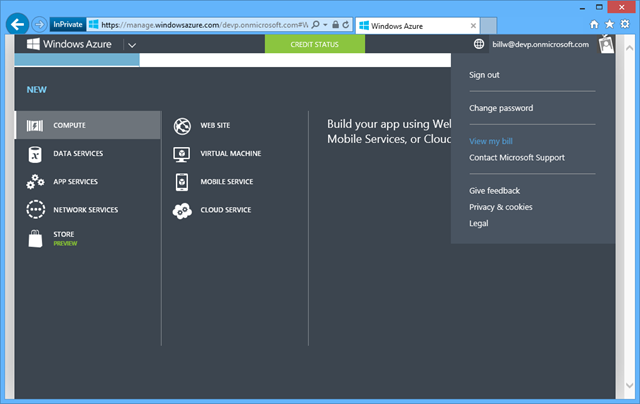
  2. Once signed in, in the top-right corner, click on your account name, and then “View my bill” from the drop-down menu:
    image
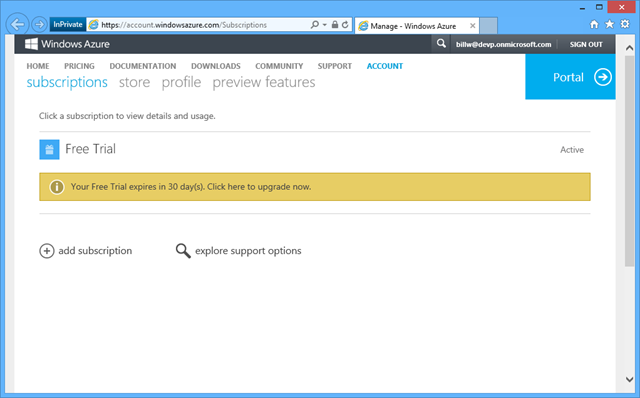
  3. This will take you to https://account.windowsazure.com/Subscriptions – and of course you could have navigated here directly, but I wanted to start from the more familiar portal experience.
    image
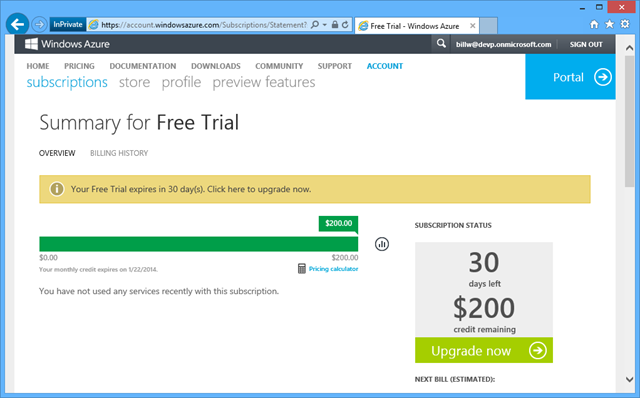
  4. In this example, the subscription we will rename is currently called “Free Trial” – click on that to bring up the details page specific to that subscription.
    image
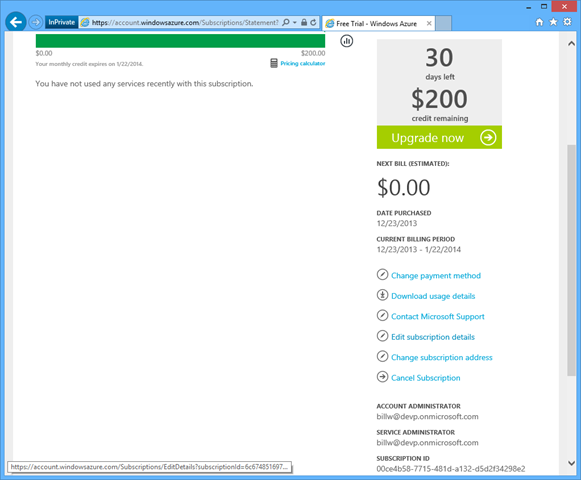
  5. Scroll down the page a bit until you see “Edit subscription details” along the right-hand side:
    image
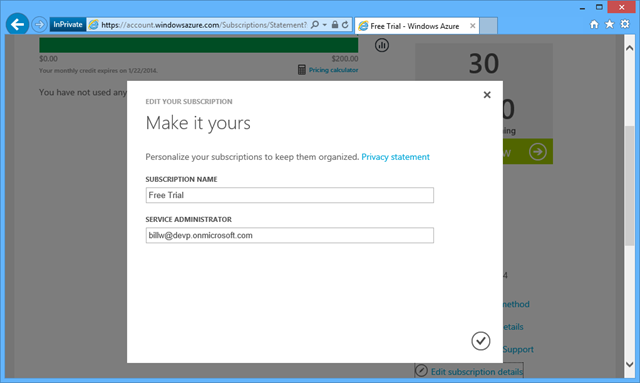
  6. Click on “Edit subscription details” to pop up a page that will allow you to change the subscription name or its service administrator:
    image
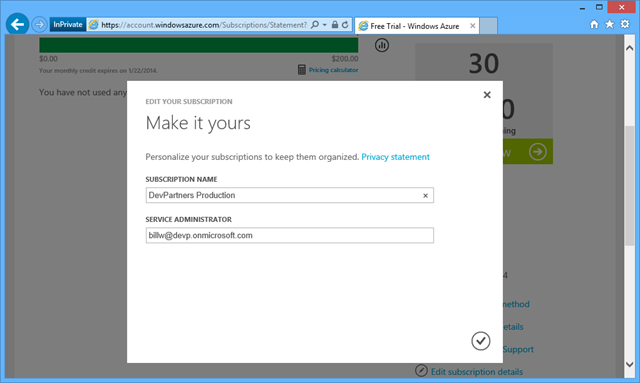
  7. Change the name to something more descriptive. Here I change my to “DevPartners Production” which indicates this subscription holds assets for DevPartners (which is my company), and these are Production assets (not Dev, Test, UAT, Play, Disposable, Demo, etc.). Some companies might prefer separate accounts for indvidual applications or teams.
    image
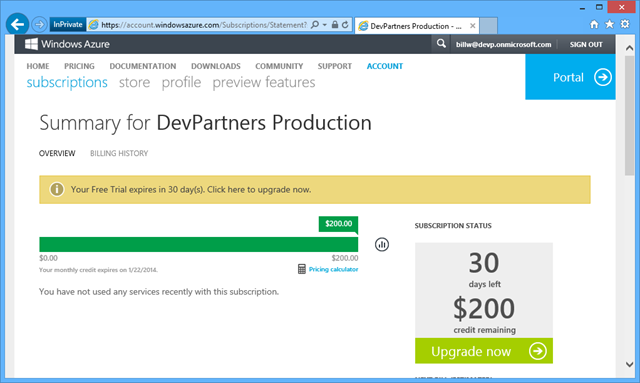
  8. Click the check mark, and you’ll see that your Windows Azure Subscription is now helpfully named:
    image

It only takes seconds to make this change, but think of all the mistakes and misunderstanding it could help prevent.

[This is part of a series of posts on #StupidAzureTricks, explained here.]