Microsoft Windows Azure supports several storage approaches: Blobs, Tables, Queues, Drives, and CDN. We even have SQL Azure available to us for full relational power. This post will outline some basic thoughts on programming Blob storage in .NET. And at the end there will be one (long) page of example code (though you will need to supply your Database Access Keys for your Azure Cloud Account). This code is a complete program that will upload a file into Azure Blob Storage and mark it as Publicly Readable, as would be suitable for linking to such resources from a public web site.
Do I Need .NET?
No, .NET is not needed to program against Blob storage. Any programming language or platform can be used, provided it can support calling out via http. Programs speak to the Blob storage service in Azure via a RESTful interface – yes, good old-fashioned http goodness.
Isn’t REST Awkward to Program Against?
Well, there are a few details to making these REST requests: construct a well-formed request body, set up the http headers, add your hash (in most cases Azure requires this step as proof you have the right key), create a web connection, send your request, handle the response, and repeat. But in .NET it is even easier due to the Azure SDK where you will find some helper classes, such as CloudBlobContainer, CloudBlobClient, and CloudBlob. These helpful helpers help you help yourself to Blob storage services without having to worry about most of the details – you just deal with some objects.
How Do I Access the Azure SDK, and How Many Thousands of Dollars Does it Cost?
For .NET / Visual Studio developers, download the SDK as part of the Windows Azure Tools for Microsoft Visual Studio. Or, better still, follow these instructions from David Aiken for getting started with Windows Azure.
For non-.NET, non-Visual Studio developers, download the Windows Azure SDK separately.
And even though the Azure SDK makes Azure development super über ultra convenient on .NET, it does not cost any money. A freebie. If you are developing on a non-.NET platform, there is very likely an open source client library for you. Microsoft provides a library now for PHP, too.
Can You Give Me a Short Example?
Sure, here is a code snippet showing the two primary classes in action (and bold blue). Under the hood, there are REST calls being made out to the Blob storage services, but you don’t need to deal with this plumbing in your code.
FileInfo = new FileInfo(“c:/temp/foo.png”);
string blobUriPath = fileInfo.Name;
CloudBlobContainer blobContainer = // getting blob container not shown here
CloudBlob blob = blobContainer.GetBlobReference(blobUriPath);
blob.UploadFile(fileInfo.FullName);
blob.Metadata[“SomeArbitraryPropertyName”] = Guid.NewGuid().ToString(); // arbitrary value
blob.SetMetadata();
blob.Properties.ContentType = “image/png”;
blob.SetProperties();
Are these Calls Really REST Under the Hood!!??
They sure are. You can prove this by firing up an http sniffer like Fiddler. You will see http traffic whiz back and forth.
What if Something Goes Wrong?
Here are a couple of errors I’ve run into:
For other errors or issues, try the Azure Support Forum.
Is it Production Quality Code?
Hmmm… We have a continuous stream of code on a single (long) page, in a single source file… Is it “Production Quality Code” you might wonder? I’m going to go with “no” – this code is not production ready. It is for getting up to speed quickly and learning about Azure Blob Storage.
Can I Tell if My Blobs Get to the Cloud?
You sure can. One way is to use the nifty myAzureStorage.com tool:
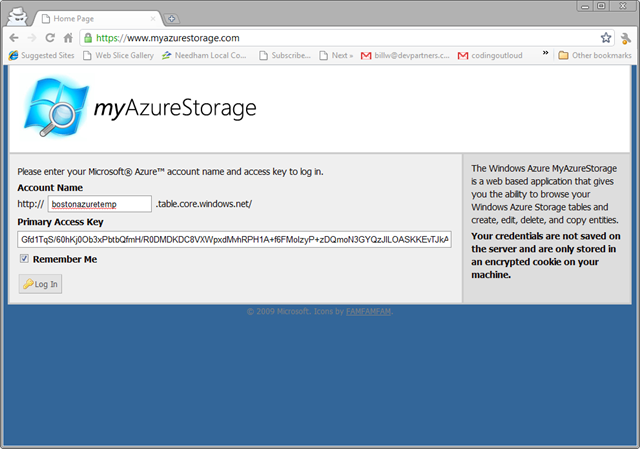
Go to http://myAzureStorage.com in your browser:

Now you need to know something about how your Azure Storage account was configured in the Cloud. You need to know both the Account Name and one of the Access Key values (Primary or Secondary – it doesn’t matter which).
In our case we will type in the following:
Account Name = bostonazuretemp
Access Key = Gfd1TqS/60hKj0Ob3xPbtbQfmH/R0DMDKDC8VXWpxdMvhRPH1A+f6FMoIzyP+zDQmoN3GYQzJlLOASKKEvTJkA==
Note: the Access Key above is no longer valid. Use a different real one if you like, or see the One Page of Code snippet below for how to do this using local storage in the Dev Fabric.
You may also want to check “Remember Me” and your screen will look something like this:
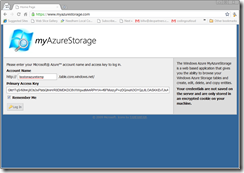
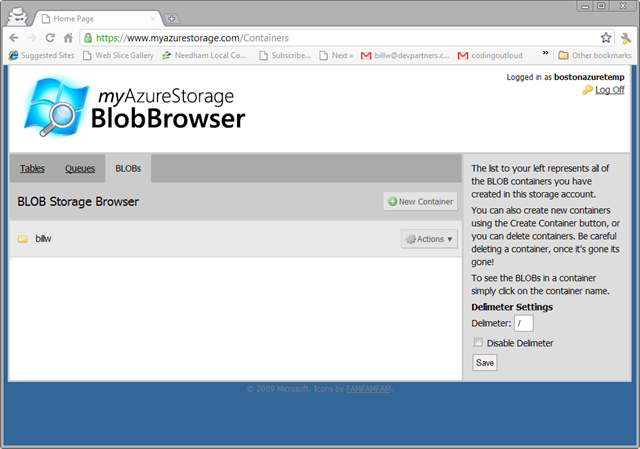
Now simply click on “Log In” and you will see your storage. The default tab is for Table storage, so click the BLOBs tab to view your Blob Containers:
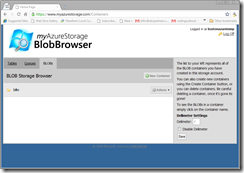
In my case I see one – “billw” – and I can click on it to drill into it and see its blobs:
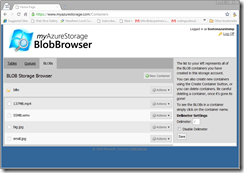
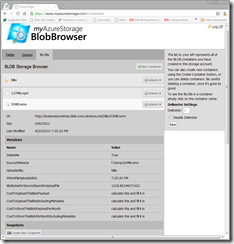
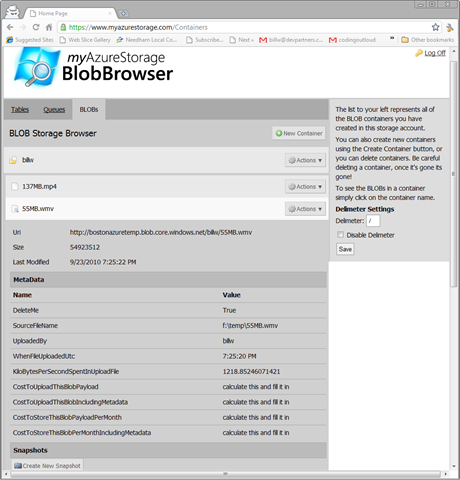
And for each blob, I can click on the blob to examine its attributes and metadata:
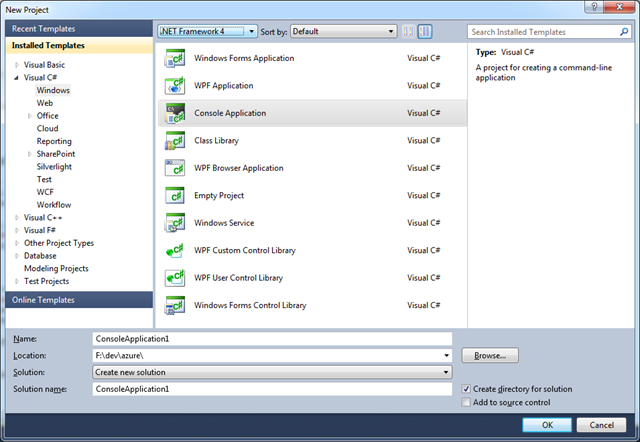
What Project Template Should I Use in Visual Studio?
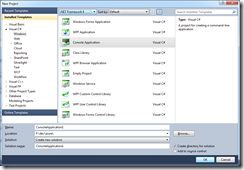
Create a Visual C# Console Application on .NET Framework 4 using Visual Studio 2010 or Visual C# Express 2010:
Show Me the Code!
Okay, the working code – fully functional – on One Page of Code – appears below. After you create a new Visual C# Console application in Visual Studio 2010, as shown above, simply clobber the contents of the file Program.cs with the code below. That oughta be easy. Then start playing with it.
You will also need to add a reference to Microsoft.WindowsAzure.StorageClient – but first you’ll need to switch away from the .NET Framework Client Profile.
Sharing Files on the Public Web using Azure Blob Storage
Also note that the following code will post to Azure Blob Storage in such a way that the item stored will be accessible from a web browser. This is not the default behaviour; read the code to see the couple of lines that influence this.
Note that this code is intensionally compressed to fit in a short space and all in one place – this is not intended to be production code, but “here is a simple example” code. For instance, this code does not use config files – but you should. This is just to help you quickly understand the flow and take all the magic out of getting a code sample to work.
You can also download this code directly: SnippetUploaderInOnePageOfCode.cs.
Without further ado, here is your One Page of Code…
using System;
using System.Diagnostics;
using System.IO;
using Microsoft.WindowsAzure;
using Microsoft.WindowsAzure.StorageClient;
namespace CodeSnippetUploader
{
class Program
{
#if false
private const string AccountKey = “Put a real Storage Account Key – find it on http://windows.azure.com dev portal for your Storage Service”;
#else
private const string AccountKey = null; // use local storage in the Dev Fabric
#endif
private const string AccountName = “bostonazuretemp”;
private const string ContainerName = “snippets”;
private const string MimeTypeName = “text/plain”; // since these are assumed to be code snippets
static void Main(string[] args)
{
// pass in the single snippet code file you want uploaded
string snippetFilePath = args[0];
string baseUri = null;
CloudBlobClient blobStorage = null;
if (AccountKey == null)
{
var clientStorageAccount = CloudStorageAccount.DevelopmentStorageAccount; // use storage services in the Developer Fabric, not real cloud
baseUri = clientStorageAccount.BlobEndpoint.AbsoluteUri;
blobStorage = new CloudBlobClient(baseUri, clientStorageAccount.Credentials);
}
else
{
byte[] key = Convert.FromBase64String(AccountKey);
var creds = new StorageCredentialsAccountAndKey(AccountName, key);
baseUri = string.Format(“http://{0}.blob.core.windows.net“, AccountName);
blobStorage = new CloudBlobClient(baseUri, creds);
}
CloudBlobContainer blobContainer = blobStorage.GetContainerReference(ContainerName);
bool didNotExistCreated = blobContainer.CreateIfNotExist();
var perms = new BlobContainerPermissions
{
PublicAccess = BlobContainerPublicAccessType.Container // Blob (see files if you know the name) or Container (enumerate like a directory)
};
blobContainer.SetPermissions(perms); // This line makes the blob public so it is available from a web browser (no magic needed to read it)
var fi = new FileInfo(snippetFilePath);
string blobUriPath = fi.Name; // could also use paths, as in: “images/” + fileInfo.Name;
CloudBlob blob = blobContainer.GetBlobReference(blobUriPath);
blob.UploadFile(fi.FullName); // REST call under the hood; use tool like Fiddler to see generated http traffic (http://fiddler2.com)
blob.Properties.ContentType = MimeTypeName; // IMPORTANT: Mime Type here needs to match type of the uploaded file
// e.g., *.png <=> image/png, *.wmv <=> video/x-ms-wmv (http://en.wikipedia.org/wiki/Internet_media_type)
blob.SetProperties(); // REST call under the hood
blob.Metadata[“SourceFileName”] = fi.FullName; // not required – just showing how to store metadata
blob.Metadata[“WhenFileUploadedUtc”] = DateTime.UtcNow.ToLongTimeString();
blob.SetMetadata(); // REST call under the hood
string url = String.Format(“{0}/{1}/{2}”, baseUri, ContainerName, blobUriPath);
Process process = System.Diagnostics.Process.Start(url); // see the image you just uploaded (works from Console, WPF, or Forms app – not from ASP.NET app)
}
}
}



 Coding Out Loud