Free Data Transfer into Azure Datacenters is a Big Deal

One of the basic changes in Cloud Computing is the cost-transparency that comes with it: you know the cost of every CPU core you use, and every byte you read, write, or transmit. This is an amazing transformation in how much we know about our operations. (Of course, it may still be challenging in many cases to compare cloud solution costs to what we are paying today on-prem, since usually we don’t really know the actual on-prem costs.)

While hybrid cloud models will surely be around for many companies for a long time – we won’t all move to the cloud over night – the economics of moving to the cloud are too compelling to ignore. Many newer companies are heading directly into the cloud – never owning any infrastructure.

One of the the costs in managing a hybrid cloud model – where some data is on-prem, some data is in the cloud – is the raw data transfer when you copy bits to or from the cloud. This can cost you real money: for example, in the USA and Europe, both the Windows Azure Platform and the Amazon S3 services charge $0.10 per GB to move the data into the datacenter. If you have a huge amount of data, that cost can add up.

Announced today on the Windows Azure blog, as of July 1, 2011 the Windows Azure datacenters will no longer have a data transfer charge for inbound data. What are the implications?

Here are a few I can think of:

  1. Overall cost savings can only help general overall cloud adoption
  2. Backing up data from on-prem into the cloud just got more interesting (good point I stole from maura )
  3. HPC applications which may have a lot of data to move into the cloud for processing – but may never need that data to come out of the cloud (other than in much smaller digested form) just became more appealing
  4. Use of Windows Azure as a collection for disparate data sources from around the internet – for management, aggregation, or analysis – just became more attractive
  5. While experimentation on the cloud has always been cheaper than buying boxes, it now makes it even simpler and cheaper to try out something big in the cloud because you are now an even smaller blip on the corporate cost radar – go ahead, upload that Big Data and run your experiment – you can always delete it when you are done
  6. There are cloud storage vendors who sit on top of big cloud storage vendor platforms, such as on Azure and Amazon – if I was one of these vendors, I would be delighted – business just got a little easier

Points 2, 3, 4, and 5 above all deal with an asymmetric use of bandwidth where the amount of data moving into the cloud is far less than the amount of data leaving the cloud. With backups – your hope is to NEVER need to pull that data – but it is there in the event you need it. With HPC – in many cases you just want answers or insights – you may not care about all the raw data. With data aggregation – you probably just want some reports. With one-off experiments, when you are finished you just delete all the storage containers – so simple!

This is a big and interesting step towards accelerating cloud computing adoption generally, and Windows Azure specifically. This friction-reducing move brings us closer to a world where we don’t ask “should we be in the cloud?” but rather “why aren’t we in the cloud?”

Using PowerShell with Windows Azure

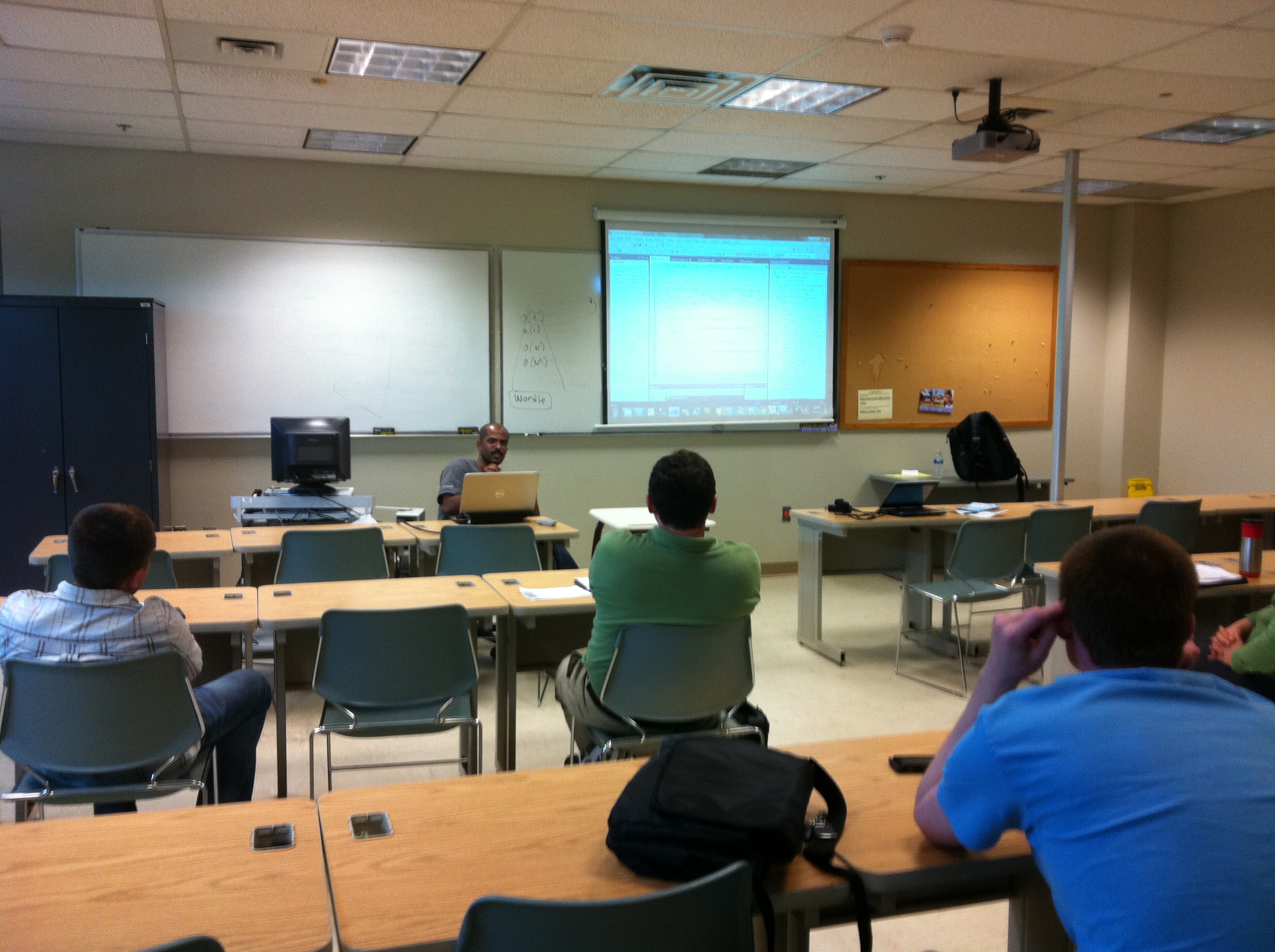
At the May 26, 2011 Boston Azure User Group meeting, Joel Bennett – a Microsoft PowerShell MVP from the Rochester, NY area – spoke about PowerShell basics, then got into a bunch of useful ways PowerShell can be applied to Windows Azure. We had around 25 people at the event.

[Update 23-June-2011: Joel Bennett posted his slide deck from the talk.] 
[Update 05-July-2011: Added another handy link to post from Patrick Butler called Developing and Debugging Azure Management API CmdLets.]

Some of the pointers:

  • Go get the PowerShell Community Extensions (from codeplex)
  • You can use the PS command line to CD into folders/directories, look at files, etc. — but you can also look at the Registry or your Certificate Store as if they were directories!
  • There are no plural nouns in PS (e.g., get-provider, not get-providers)
  • Learn these commands first: Get-Command, Get-Help, Get-Member, Select-Object, Where-Object, Format-Table, … others you can learn later
  • Somebody needs to write a PowerShell Provider for Azure Storage
  • Joel created an open-shell WPF-ish PowerShell shell called POSH

Try some commands:

  • dir | get-objec
  • dir | fl *  —formats as lis
  • get-verb | fw -col
  • get-verb | fw -col 6 -groupby Group
  • Get-ExecutionPolicy
  • dir | where { $_.PSIsContainer } — where $_ is “the thing over there (directory)”
  • dir | select CreationTime, Name | gm
  • dir | select * —will look different than command above
  • $global:foo = “some value”
  • cd c:\windows\system32\windowspowershell\v1.0… see Help.format.ps1xml controls the default output formatting properties for object types not already known by PowerShell – can have property names, even script blocks in it – very powerful
  • # is single-line comment char; <# … #> for multi-line comments
  • You can create aliases for scripts
  • Powershell is an interpreted scripting language
  • Can access WinForms, WPF, lots of stuff.. though not Threading

Three ways to manage Azure from PowerShell

  1. Remoting
  2. WASM (Windows Azure Services Management commandlets) – superceded by http://wappowershell.codeplex.com/ – developed by Development Evangelist group (e.g., Vittorio)
  3. Cerebrata (3rd party, commercial)

Remoting:

  • Need to get some goodness in a Startup Script, along with crecentials
  • Set OS Family = 2 (so you get Windows Server 2008 R2)
  • Need a certificate – can be self-signed

WAP PowerShell:

  • 36 Cmdlets
  • “the 80% library”
  • very good example

Cerebrata Cmdlets

  • Requires .NET 4.0 (which is different than baseline support for PS, which is .NET CLR 2.0
  • $70
  • 114 Cmdlets
  • Cerebrata
  • gcm –mo cerebrata | gr0up Noun | sort

Snap-ins need to be in the GAC – so put WAP PowerShell stuff where you want to keep them, since that’s where they’ll be built — or build the file in Visual Studio

  • Add-Module is for SNAPINS
  • IPMO is for ImportModule for Modules
  • ipmo AzurePlatform
  • gcm –mo AzurePlatform

PowerShell has something called “splatting”

  • Starting with a hashtable… put in the parms you’ll need
  • variables start with $
  • retrieving (splatting) starts with @

Both cerebrata and WAP are snap-ins

WHAT FOLLOWS… are somewhat random notes I captured…

Get-Certificate $azure | Get-HostedCertificateStore

Your personal profile for PowerShell lives in c:\Users\YOURNAME\Documents\WindowsPowerShell\Modules\AzurePlatform as Startup.ps1 (?)

Two kinds of errors in PowerShell: 1. Terminating Errors (exceptions, can be “trapped” or use try/catch as of PS2) and 2. Non-Terminating Errors which are harder to deal with

$? ==> did the last command succeed

dir doesnotexist –ev er –ea “”

$er[0].categoryinfo

“Don’t Produce Snap-ins!” Here’s why: to figure out what is in there (get-command –Module

Get-Module –ListAvailable

– run the above on AZure and see “NetworkLoadBalancingCl…” – is this Azure relate

OTHER INTERESTING POWERSHELL/AZURE LINKS


Writing to Azure Local Storage from a Windows Service

As you may know, Windows Azure roles do not generally write freely to the file system. Instead of hard-coding a path into our code, we declare in our service model that we plan to write data to disk, and we supply it with a logical name. We can declare multiple such logical names. Windows Azure uses these named locations to provide us managed local, writeable folders which it calls Local Storage.

To specificy your intent to use a Local Storage location, you add an entry to ServiceDefinition.csdef under the specific role from which you plan to access it. For example:

<LocalStorage name="LocalTempFolder" sizeInMB="11"
      cleanOnRoleRecycle="true" />

You can read more about the details over in Neil Mackenzie’s post, but the main thing you need to do is call a method to access the full path to the read/write folder associated with the name you provided (e.g., “LocalTempFolder” in the config snippet above). The method call looks like this:

LocalResource localResource =
      RoleEnvironment.GetLocalResource("LocalTempFolder");
var pathToReadWriteFolder = localResource.RootPath;
var pathToFileName = pathToReadWriteFolder + "foo.txt";

Now you can use “the usual” classes to write and read these files. But calling RoleEnvironment.GetLocalResource only works from within the safe confines of a your Role code – as in a Worker Role or Web Role – you know, the process that inherits from (and completes) the RoleEntryPoint abstract class. What happens if I am inside of a Windows Service?

Your Windows Service Has Super Powers

Well… your Windows Service does not exactly have Super Powers, but it does have powers and abilities far above those of ordinary Roles. This is due to the differences in their security contexts. Your Windows Service runs as the very powerful LocalSystem account, while your Roles run as a lower priviledge user. Due to this, your Windows Service can do things your Role can’t, such as write to the file system generally, access Active Directory commands, and more.

[Your Startup Tasks might also have more powers than your Roles, if you configure them to run with elevated privileges using executionContext=”elevated” as in:
<Task commandLine=”startuptask.cmd” executionContext=”elevated” />
See also David Aiken’s post on running a startup task as a specific user.]

However, there are some things your Windows Service can’t do, but that your Role can: access RoleEnvironment!

Problem Querying Local Storage from a Windows Service

Inside of a Windows Service (which is outside of the Role environment), the RoleEnvironment object is not populated. So, for example, you cannot call

RoleEnvironment.GetLocalResource("LocalTempFolder")

and expect to get a useful result back. Rather, an exception will be raised.

But here’s a trick: it turns out that calling RoleEnvironment.GetLocalResource returns the location of the folder, but it is just the location of a folder on disk at this point – this folder can be accessed by any process that knows about it. So how about if your Web  or Worker Role could let the Windows Service know where its storage location happens to be? (As an aside, we have a good idea where they might ultimately end up on disk in practice (see last section of this post) – but of course subject to variability and change – but it is useful if you want to poke around on your local machine or through Remote Desktop to an instance in the cloud.)

The Trick: Pass the Local Storage location into your Windows Service

If you are deploying a Windows Service along with your Role, you will need to install the Windows Service and you will need to start the Windows Service. A reasonable way to install your Windows Service is to use the handy InstallUtil.exe program that is included with .NET. Here is how you might invoke it:

%windir%\microsoft.net\framework\v4.0.30319\installutil.exe
      MyWindowsService.exe

Now the Windows Service is installed, but not running; you still need to start it. Here is a reasonable way to start it:

net start MyWindowsServiceName

Typically, both the InstallUtil and net start commands would be issued (probably in a .bat or .cmd file) from a Startup Task. But there is another way to start an installed Windows Service which allows some additional control over it, such as the ability to pass it arguments. This is done with a few lines of code from within the OnStart method of your Role, such as in the following code snippet which uses the .NET ServiceController class to get the job done:

var windowsServiceController =
      new System.ServiceProcess.ServiceController
            ("MyWindowsServiceName");
System.Diagnostics.Debug.Assert(
      windowsServiceController.Status ==  
      windowsServiceControllerStatus.Stopped);
windowsServiceController.Start();

Putting together both acquiring the Local Storage location and starting the Windows Service, your code might look like the following:

string[] args = { 
      RoleEnvironment.GetLocalResource
            ("LocalTempFolder").RootPath
      }
var windowsServiceController =
      new System.ServiceProcess.ServiceController  
            ("MyWindowsServiceName");
System.Diagnostics.Debug.Assert(
      windowsServiceController.Status == 
      windowsServiceControllerStatus.Stopped);
// pass in Local Storage location
windowsServiceController.Start(args);

Within your Windows Service’s OnStart method you will need to pick up the arguments passed in, which at that point has nothing specific to Azure. Your code might look like the following:

protected override void OnStart(string[] args)
{
   var myTempFolderPath = args[0];
   // ...
}

That oughta do it! Please let me know in the comments if you find this useful.

Intro to Azure and ACS Talk to NE ASP.NET User Group

Tonight I spoke to an enthusiastic and engaged group at the New England ASP.NET Professionals User Group about the cloud, the Windows Azure Platform, and how ASP.NET professionals can take advantage of it. Thanks for all the great questions and discussion! Some points brought up or discussed:

  • Development tools for Azure are available for free
  • Azure provides an excellent cloud simulation environment on your desktop
  • Not every application is a good fit for the cloud – for example, a small app that doesn’t need to scale and need not be highly available might fit better with a less costly hosted solution
  • When comparing costs of Azure with other approaches, keep in mind that Azure is a robust, highly available, scable, flexible platform – what you get for your dollar is often of much greater value than the dollar you spend for some other types of solution
  • Azure affords fantastic cost-saving opportunities through the flexible scale down model – don’t need a data or compute resource anymore? stop using it, and you’ll stop paying for it. Try that kind of “on-a-dime” manuever with a hosted solution, with hardware you purchase, or rack space you lease
  • Azure services are available a la carte – though of course they are also a fantastic approach when used all together
  • There are a number of ways to auto-scale, though don’t underestimate the boundary conditions and there are also some nuances

Since I did only give a taste of the Access Control Service, the plan discussed was for me to come back after the summer for a deeper dive into that fascinating topic.

Although I did not proceed linearly through it, here is the deck I used: [neasp.net-bill_wilder-intro-cloud-azure-acs-for-asp.net-devs-15-june-2011]. The Access Control Service (ACS) content did not include any slides – all talk and demo – though I gave a similar talk at Boston Azure back in February that used the following deck: [Solving the Identity Crisis-using-azure-cloud-access-control-service-(ACS)-talk-24-Feb-2011-Boston-Azure-User-Group] (Since then, the final ACS v2 has been release and changed a few things.)


Azure FAQ: Can I write to the file system on Windows Azure?

[Update 12-Oct-2012] This post only applies to Windows Azure Cloud Services (which have Web Roles and Worker Roles). This post was written a year before Windows Azure Web Sites and Windows Azure Virtual Machines (including Windows and Linux flavors) were announced and does not apply to either of them.

Q. Can I write to the file system from an application running on Windows Azure?

A. The short answer is that, yes, you can. The longer answer involves better approaches to persisting data in Windows Azure, plus a couple of caveats in writing data to (virtual) hard disks attached to the (virtual) machines on which your application is deployed.

Any of your code running in either (a) ASP.NET (e.g., default.aspx or default.aspx.cs) or (b) WebRole.cs/WorkerRole.cs (e.g., methods OnStartup, OnRun, and OnStop which are derived from RoleEntryPoint class) will not have permission to write to the file system. This. is. a. good. thing.®

To be clear, if you have code that currently writes to fixed locations on the file system, you will probably need to change it. For example, your ASP.NET or Role code cannot directly create/write the file c:\foo.txt – the permissions are against you, so Windows will not allow it. (To round out the picture though… You can write to the file system directly if you are running in an elevated Startup Task, but cannot write to it from a limited Startup Task. For more on Startup Tasks and how to configure them see How to Define Startup Tasks for a Role.)

The best option is usually to use one of the cloud-native solutions: use one of the Windows Azure Storage Services or use SQL Azure. These services are all built into Windows Azure for the purpose of supporting scalable, reliable, highly available storage. In practice, this means choosing among Windows Azure Blob storage, Windows Azure Table storage, or SQL Azure.

The second-best option is usually to use a Windows Azure Cloud Drive – which is an abstraction that sits on top of Blob storage (Page blobs, specifically) – and looks and acts a lot like an old-fashioned hard disk. You can access it with a drive letter (though you won’t know the drive letter until deployment time!), it can be mounted by and read from multiple of your role instances, but only one of these at a time will be able to mount it for updating. The Windows Azure Drive feature is really there for backward compatibility – to make it easier to migrate existing applications into the cloud without having to change them. Learn more from Neil Mackenzie’s detailed post on Azure Drives.

The third-best option is usually to use the local hard disk. (And this is what the original FAQ question specifically asked about.) Read on…

Writing Data to Local Drive from Windows Azure Role

So… Can I write to the hard disk? Yes. And you have a decent amount of disk at your disposal, depending on role size. Using Azure APIs to write to disk on your role is known as writing to Local Storage. You will need to configure some space in Local Storage from your ServiceDefinition.csdef by giving that space (a) a name, (b) a size, and (c) indicating whether the data there should survive basic role recycles (via cleanOnRoleRecycle). Note – cleanOnRoleRecycle does not guarantee your data will survive – it is just a hint to the Fabric Controller that, if it is available, should it leave it around or clean it up.  That limitation is fine for data that is easily recalculated or generated when the role starts up – so there are some good use cases for this data, even for cloud-native applications – think of it as a handy place for a local cache. (Up above I refer to this as the usually being the third-best option. But maybe it is the best option! In some use cases it might be. One good example might be if you were simply exploding a ZIP file that was pulled from blob storage, but there are others too. But let’s get back to Local Storage…)

Here is the snippet from ServiceDefinition.csdef:

...
<LocalResources>
<LocalStorage name="SomeLocationForCache"
cleanOnRoleRecycle="false"
sizeInMB="10" />
</LocalResources>
...

You can also use the Windows Azure Tools for Visual Studio user interface to edit these values; double-click on the role you wish to configure from the Roles list in your Windows Azure solution. This is the easiest approach.

Once specified, the named Local Storage area can be written to and read from using code similar to the following:

// reference Microsoft.WindowsAzure.ServiceRuntime.dll from SDK
// (probably in C:\Program Files\Windows Azure SDK\v1.4\ref)
const string azureLocalResourceNameFromServiceDefinition =
"SomeLocationForCache";
var azureLocalResource =
RoleEnvironment.GetLocalResource(
azureLocalResourceNameFromServiceDefinition);
var filepath =
azureLocalResource.RootPath +
"myCacheFile.xml"; // build full path to file
// the rest of the code is plain old reading and writing of files
// using the 'filepath' variable immediately above

Learn more from Neil Mackenzie’s blog post on Local Storage.

Writing to TEMP Folder from Windows Azure Role

How about writing temporary files? Is that supported? Yes, same as in Windows. For example, in .NET one can get a temporary scratch space and write to it using code similar to the following:

var filepath = System.IO.Path.GetTempFileName();
System.IO.File.WriteAllText(filepath, "some text");

Do Not Use Environment.SpecialFolder Locations in Azure

You may also have some existing code which writes files for the currently logged in user. Check the Environment.SpecialFolder Enumeration for the full list, but one examples is Environment.SpecialFolder.ApplicationData. You would access this location with code such as the following:

string filepath = Environment.GetFolderPath(
Environment.SpecialFolder.ApplicationData,
Environment.SpecialFolderOption.DoNotVerify);

You will find that your ASP.NET code will be able to write to this location, but that is almost certainly not what you want! By default, the user account under which you will be saving this data is one that is generated when your role is deployed – something like RD00155D328831$ – not some IPrincipal from your Windows domain.

Further, for data you care about, you don’t want to store data it in the local file system in Windows Azure. Better options should be apparent from earlier points made in this article.

And, finally, you may prefer the elegance of claims-based federated authentication using the Access Control Service.

Writing to File System from Windows Service in Windows Azure Role

If you want to do something unusual, like write to the file system from outside of Role’s code, there are ways to write to the file system from a Windows Service or a Startup Task (though be sure to run your Startup Task with elevated permissions).

Is this useful? Did I leave out something interesting or get something wrong? Please let me know in the comments! Think other people might be interested? Spread the word!
Azure FAQ: How much will it cost me to run my application on Windows Azure?

Q. How much will it cost me to run my application in the Windows Azure cloud platform?

A. The anwer, of course, depends on what you are doing. Official pricing information is available on the Windows Azure Pricing site, and to help you model pricing for your application you can check out the latest Windows Azure Pricing Calculator. Also, the Microsoft Assessment and Planning (MAP) Toolkit is now in beta.

Simple cost example: Running One Instance of a Small Compute Role costs 12¢ per hour, which is around $1052 per year. A SQL Azure instance that holds up to 1 GB costs $9.99 per month. If you have Two Small Compute Instances & 1 GB of SQL Azure storage, plus throwing in some bandwidth use, a dash of Content Delivery Network (CDN) use, and your baseline cost might start at around $2,225.

Update 22-June-2011: The pricing calculators may not reflect this interesting development: data transfer into the Azure Data Centers becomes free on July 1, 2011. See: https://blog.codingoutloud.com/2011/06/22/free-data-transfer-into-azure-datacenters-is-a-big-deal/ and http://blogs.msdn.com/b/windowsazure/archive/2011/06/22/announcing-free-ingress-for-all-windows-azure-customers-starting-july-1st-2011.aspx

But it is not always that simple: this is just the simplest, pay-as-you-go model! In the short term, there are many deals, offers, and trials – some free. There are Azure benefits included with MSDN. And long term there are ways to get better rates if you have an Enterprise Agreement with Microsoft, or by selecting a more predictable baseline than pay-as-you-go. See the Windows Azure Pricing site for current options.

Further, when comparing costs with other options, consider a few factors:

  • The SQL Azure storage is really a SQL Azure cluster of three instances giving you storage redundancy (3 copies of every byte), high availability (with automagic failover), high performance, and other advanced capabilities.
  • Similarly, every byte written to Windows Azure Storage (blobs, tables, and queues) is stored as three copies.
  • Running two Small Compute instances of a role comes with a 99.9% uptime Service Level Agreement (SLA), and a 99.95% connectivity SLA. Read more about the Compute, SQL Azure, and other Windows Azure Platform SLAs here.
  • Since Windows Azure is Platform as a Service (PaaS), be careful to also consider that you may have fewer hassles and lower engineering and operational costs – these are lower staff-time costs – if you are comparing to an Infrastructure as a Service (IaaS) offering.

While you are at it, consider checking out some of these related third-party offerings:

  • CloudValue – A whole company dedicated to understanding and optimizing costs in moving to the cloud. I saw them at TechEd Atlanta in May 2011. They (a) presented a generally useful talk on Cost-Oriented Development (not specific to their technology, though we saw a glimpse of their Visual Studio integrated cost analyzer); and they (b) had a booth so people could check out their CloudValue Online Service Tracking (COST) service which provides ongoing analysis of your costs in the Windows Azure cloud. I am trying out the COST product now that my beta request has been approved!
  • CloudTally – A service offering from Red Gate Software – currently in beta, and currently free – will keep an eye on your SQL Azure database instance and based on how much data you have in it over time, it will report your daily storage costs via email. I’ve been using this for a few months. The data isn’t very sophisticated – of the “you spent $3.21 yesterday” variety – but I think they are considering some enhancements (I even sent them some suggestions).
  • Windows Azure Migration Scanner – An open source tool created by Neudesic to help you identify changes your application might require in order to make it ready for Azure. This is not specifically a cost-analysis tool, but is useful from a cost-analysis point of view since it can help you predict operational costs of the Azure-ready version of your application – for example if you will make changes to leverage the reliable queue service in Windows Azure Storage, you will know enough to model this. Read David Pallmann’s introduction to the scanner, where he also mentions some other tools.
  • Greybox – While not a core tool for calculating costs, it is a interesting open source utility to help you avoid the “I-deployed-to-Azure-for-testing-purposes-but-forgot-all-about-it” memory lapse. (If deployed, you pay – whether you are using it or not. Like an apartment – you pay for it, even while you are at work – though Azure has awesome capabilities for you to “move out of your cloud apartment” during times when you don’t need it!) You may not need it, but its existance illustrates an important lesson!

Credit: I discovered the new Windows Azure Pricing Calcular from http://twitter.com/#!/dhamdhere/status/73056679599677440.

Is this useful? Did I leave out something interesting or get something wrong? Please let me know in the comments! Think other people might be interested? Spread the word!
New Hampshire Code Camp #3 (and my talks)

Today I attended (and spoke at) the New Hampshire Code Camp 3 in Concord, NH.

Here’s how my day went:

  1. Spoke about the cloud and Azure’s role in the cloud. Special thanks to Corinne, Sandra, and Matthew for the excellent questions and discussion. Here is the slide deck (new-hampshire-code-camp-3-concord-bill_wilder-demystifying_cloud_computing_and_azure-04-june-2011.ppt) – though I didn’t use much of it! – we freestyled a lot. Of particular interest to attendees of this talk. check out my post called “Azure FAQ: How much will it cost me to run my application on Windows Azure?” (actually posted “tomorrow” – the day after I posted this note from code camp).
  2. Was torn between Phil Denoncourt‘s talk on “25 Things I’ve Learned about C# over the past 10 years” and Andy Novick‘s talk on SQL Azure. Ended up hanging out for Andy’s talk to see if there was anything new in SQL Azure and to get his take on the awesomeness that is SQL Azure Federations.
  3. Lunch break
  4. Spoke about Architecture Patterns for the Cloud. Here is the slide deck: New-Hampshire-Code-Camp-3-Concord-_bill_wilder_-_cloud_scalability_patterns_in_windows_azure_platform_-_04-june-2011 – we talked focused on three specific scalability patterns and how you might implement those on the Windows Azure Platform: Sharding, NoSQL Data (and eventual consistency), and CQRS.
  5. Watched Udai Ramachandran talk about Windows Azure AppFabric Caching in the final session.

GITCA 24 Hours in the Cloud – Scale On!

GITCA‘s 24 Hours in the Cloud is under way!

Thursday morning at 5:00 AM – my time, which is Eastern Time (Boston) – I will be delivering one of these sessions to the world. This is also 2:00 AM PST, and 10:00 AM UTC. But the key for me is that it is 5:00 AM in the morning in my time zone. Just sayin… 🙂

My “talk” is scalability concepts and patterns that are relevant for cloud applications, with most examples given using Windows Azure. I put “talk” in quotes since the video is pre-recorded – I will be there however answering questions – live – via Twitter. The public can join the free and easy-access broadcast, and participate via twitter using the #24HitC hashtag. (My personal Twitter handle is @codingoutloud.)

Speakers and Sessions are listed on GITCA’s site. Here is the Cloud Scalability Patterns – 24 Hours in the Cloud presentation as a PDF. I will update this post when (if?) a direct link to the video presentation becomes avaialble.

I look forward to meeting you on the Twitters in a few hours! I look forward to your candid feedback and tough questions.

Azure FAQ: How do I run MapReduce on Windows Azure?

Q. Some cloud environments support running MapReduce. Can I do this in Windows Azure?

A. You can run MapReduce in Windows Azure. First we give some pointers, then get into some other options that might even be more useful or powerful, depending on what you are doing.

Summary of most obvious Azure-oriented choices: (1) Apache Hadoop on Azure, (2) LINQ to HPC leveraging Azure, or (3) Daytona Map/Reduce on Azure.

The first approach is to use the open source Apache Hadoop project which implements MapReduce. Details on how to run Hadoop on Azure are available on the Distributed Development Blog. Update 14-Oct-2011: Check out this write-up by Ted Kummert about his keynote at PASS where he discussed deeper Hadoop support for Windows Azure: “Microsoft makes this possible through SQL Server 2012 and through new investments to help customers manage ‘big data’, including an Apache Hadoop-based distribution for Windows Server and Windows Azure and a strategic partnership with Hortonworks. Our announcements today highlight how we enable our customers to take advantage of the cloud to better manage the ‘currency’ of their data.” Also, Avkash Chauhan provides a nice summary of the announcement.

The MapReduce tutorial on the Apache Hadoop project site explains the goal of the project, as followed by detailed steps on how to use the software.

“Hadoop MapReduce is a software framework for easily writing applications which process vast amounts of data (multi-terabyte data-sets) in-parallel on large clusters (thousands of nodes) of commodity hardware in a reliable, fault-tolerant manner.” – from Overview section of Hadoop MapReduce tutorial

Another entrant in this Big Data Analytics space is LINQ to HPC. For more details on LINQ to HPC, check out David Chappell‘s whitepaper called Introducing LINQ to HPC: Processing Big Data on Windows. Chappell explains the value proposition, and also talks about when you might use it versus using SQL Server Parallel Data Warehouse. LINQ to HPC beta 2 is availlable for download.

[Update 19-July-2011: Daytona enters the fray] “Microsoft has developed an iterative MapReduce runtime for Windows Azure, code-named Daytona.” It is available for download as of early July, though has a non-commercial-use-only license attached to it. (credit: saw it on the insideHPC blog)

[Update 19-July-2011: It is now clear that LINQ to HPC (available in beta 2!) is supplanting DryadLINQ.] You may also be interested in checking out DryadLINQ from Microsoft Research. Though not identical to MapReduce, they describe it as “a simple, powerful, and elegant programming environment for writing large-scale data parallel applications running on large PC clusters.” As of this writing it was not licensed for commercial use, but was available under an academic use license. (With the introduction of LINQ to HPC, I can’t tell whether these projects are related, or whether LINQ to HPC is the productized version of DryadLINQ.)

And, finally, I also just read an interesting post called Hadoop is the Answer! What is the Question? by Tim Negris. This brings up some good points about the maturity of Hadoop and other points – if you are thinking about MapReduce, Hadoop, DryadLINQ, or other approaches, give his article a read.

[05-June-2011 updates] Added info from David Chappell and Tim Negris.

Is this useful? Did I leave out something interesting or get something wrong? Please let me know in the comments! Think other people might be interested? Spread the word!

June 2011 Azure Cloud Events in Boston Area

Are you interested in Cloud Computing generally, or specifically Cloud Computing using the Windows Azure Platform? Listed below are the upcoming Azure-related events in the Greater Boston area which you can attend in person and for FREE (or at least inexpensively).

Since this summary page is – by necessity – a point-in-time SNAPSHOT of what I see is going on, it will not necessarily be updated when event details change. So please always double-check with official event information!

Know of any more cloud events of interest to the Windows Azure community? Have any more information or corrections on the events listed? Please let us know in the comments.

They are listed in the order in which they will occur.

[10-June-2011 – added the New England ASP.NET Professionals User Group talk on June 15; I am the featured speaker. Moved Kyle Quest’s cloud hackathon to new date: June 16.]

1. 24 Hours in the Cloud – Cloud Scalability Patterns for the Windows Azure Platform

Note: GITCA’s 24 Hours in the Cloud event begins on Wed June 1 and ends on Thu June 2. This post just highlights the talk I am giving. There are MANY OTHER talks you may wish to check out. Many of the talks are IT Pro-oriented.

  • when: Thurs June 2, 5:00 – 6:00 AM (yes, in the MORNING, Boston time) [changed to earlier still! I was rescheduled to begin at 5:00 AM!]
  • where: Online – see below for registration
  • cost: Free
  • what: Talk on scalability patterns that are important for cloud applications; my session consists of a 40 minute (pre-recorded) talk, followed by 20 minutes of live Q&A. Since the talks are pre-recorded, speakers will be able to respond to questions from Twitter during the talk (then again in the live Q&A at the end) via the #24HitC hashtag. My twitter handle is @codingoutloud.
  • more info & Register: http://sp.gitca.org/sites/24hours
  • twitter: #24HitC

2. CloudCamp Boston

3. Beantown .NET Meeting – Architecture Patterns for Scalability and Reliability

4. Hack the Cloud – Cloud Platform Bake-Off

Moved to June 16th – see below

5. New Hampshire Code Camp – Concord, NH

  • when: Sat 04-June-2011, 8:00 – 4:00 PM
  • where: New Hampshire Technical Institute 31 College Drive Concord, NH 03301
  • wifi: not sure
  • food: I think they do dinner afterwards
  • cost: FREE
  • what: In the Code Camp spirit, come learn many things from many people!
  • more info: here or at www.nhdn.com
  • register: here
  • twitter: (not sure)

6. The Architect Factory

  • when: Thu 09-June-2011, 1:00 – 8:00 PM
  • where: Hosted at NERD Center
  • wifi: Wireless Internet access will be available
  • food: (not sure of details yet)
  • cost: FREE
  • what: Real, Practical Guidance on becoming and Architect, or becoming a Better Architect
  • more info: http://architectfactory.com/
  • register: http://architectfactory-eorg.eventbrite.com/
  • twitter: #architectfactory or #af3 (not sure which is “official”)

7. New England ASP.NET Professionals Group

  • when: Wed 25-June-2011, 6:15 – 8:30 PM
  • where: Microsoft Office on Jones Road, Waltham
  • wifi: no
  • food: group does to dinner afterwards
  • cost: FREE
  • what: A talk that introduces Cloud Computing and the Windows Azure Platform and shows how it relates to the ASP.NET developer – tools, libraries, and how to build and deploy.
  • more info: http://neasp.net/
  • register: see http://neasp.net/
  • twitter: (not sure)

8. Hack the Cloud – Cloud Platform Bake-Off

9. 4th Annual Hartford Code Camp

  • when: Sat 18-June-2011, 8:00 – 5:30 PM
  • where: Hosted at New Horizons Learning Center (Bloomfield CT)
  • wifi: Wireless Internet access will be available
  • food: Pizza and drinks will be provided
  • cost: FREE
  • what: In the Code Camp spirit, come learn many things from many people!
  • more info: http://ctdotnet.org/
  • register: see http://ctdotnet.org/ until a direct link is published
  • twitter: (not sure)

10. Boston Azure User Group meeting: Rock, Paper, Azure Event!

  • when: Thu 23-June-2011, 6:00 – 8:30 PM (come at 5:30 if you need help getting set up)
  • where: Hosted at NERD Center
  • wifi: Wireless Internet access will be available
  • food: Pizza and drinks will be provided
  • cost: FREE
  • what: Bring your Windows Azure-ready laptop (or get a loaner, or pair up with someone) as we go head-to-head in an Azure programming contest (it is a simple game, but you will compete with others in the room). Also, there will be prizes – like an Xbox 360, Kinect, and other goodies.
  • more info: See Boston Azure cloud user group site for details or see Jim O’Neil’s blog post on the event. Of special note is to request your free account (no credit card, etc. – easy), following details on Jim’s post – takes only a minute of YOUR time, but will help make sure you don’t need to wait for it on Thurs night – do it NOW! 🙂
  • register: here
  • twitter: #bostonazure

11. Maine Bytes: Azure State of the Union

  • when: Thu 30-June-2011, 6:00 – 8:00 PM
  • where: Unum’s Home Office 3 building at 2211 Congress Street in Maine
  • wifi:
  • food:
  • cost: FREE
  • what: Ben Day will give a talk: “Microsoft’s Azure platform moves fast and new features get added all the time. It can definitely be tough to keep up. In this session, Ben will give you a tour around the current features and offerings in Azure with some tips on how to use them in your applications and how to integrate Azure into your software development process.”
  • more info: See http://www.mainebytes.org/ for details
  • register:
  • twitter:

Coming in July:

  • Boston Azure User Group meeting on July 28
  • And more? Please let me know in the comments if you know about an event relevant to those who care about the Windows Azure Platform

Omissions? Corrections? Comments? Please leave a comment or reply on the Twitters!