Three ways to tell if a .NET Assembly is Strongly Named (or has Strong Name)
Here are several convenient ways to tell whether a .NET assembly is strongly named. (English language note: I assume the form “strongly named” is preferred over “strong named” since that’s the form used in the output of the sn.exe tool shown immediately below.)
Towards the end, this post discusses use of Strong Names with Silverlight.
Then in the final section of this post the often confusing – though very important – differences between Strongly Named assemblies and Digitally Signed assemblies are clarified.
But first, here are three approaches for telling whether a .NET Assembly is Strongly Named...
Approach #1: Testing for Strong Name on Command Line or in a Script
You tell whether an Assembly/DLL has been successfully strong-named using the Strong Name Tool (sn.exe) (which can be found somewhere like here: C:\Program Files\Microsoft SDKs\Windows\v7.0A\bin\sn.exe) by running the following at the command line:
sn -vf System.Data.dll
Here are the results when running against a strongly named assembly, then one that is not strongly named.
C:\> sn -v C:\WINDOWS\Microsoft.NET\Framework\v2.0.50727\System.Data.dll
Microsoft (R) .NET Framework Strong Name Utility  Version 4.0.30128.1
Copyright (c) Microsoft Corporation.  All rights reserved.
Assembly 'C:\...\System.Data.dll' is valid
C:\> sn -v C:\WINDOWS\ismif32.dll
Microsoft (R) .NET Framework Strong Name Utility  Version 4.0.30128.1
Copyright (c) Microsoft Corporation.  All rights reserved.
C:\WINDOWS\ismif32.dll does not represent a strongly named assembly
Since the return value from sn.exe is 0 (zero) when the strong name is in place, and 1 (one) if not correctly strong named, you can test for this in a script by examining ERRORLEVEL, as in the following (put it into a text file called “sn-test.bat” for example and run as “sn-test foo.dll”):
@ echo off
if "%1"=="" goto END
sn -q -vf %1 > NUL
if ERRORLEVEL 1 goto NOT_STRONG
:STRONG
echo Has strong name: %1
goto END
:NOT_STRONG
echo Not strong named: %1
goto END
:END
Note that this will tell you whether it has SOME strong name, but does not tell you which one. So this technique is not appropriate for all uses, but might help in, say, an automated script that checks your about-to-be-released assemblies to make sure you remembered to add the strong names to them. (See note below – “Strong Names not for Security”.)
If you need finer-grain control and wish to write low-level code to ascertain the strong-naming status of an assembly, you can do that too.
Approach #2: Viewing Strong Name Details with IL DASM
Visual Studio ships with a handy utility – the Microsoft Intermediate Language Disassembler (ILDASM.EXE (tutorial)) – which can be used for disassembling .NET binaries to peruse the contents, perhaps for viewing the method signatures or viewing the .NET Assembly Manifest. It is helpful to load an assembly using IL DASM and examine the manifest to see whether there is a strong name key available. Your first step is to load the desired Assembly using the ildasm.exe utility. On my Windows 7 machine, IL DASM is found at
C:\Program Files\Microsoft SDKs\Windows\v7.0A\bin\ildasm.exe
and you can load up the System.Drawing.dll .NET Assembly as in the following example:
C:\> ildasm C:\Windows\Microsoft.NET\Framework\v2.0.50727\System.Drawing.dll
Once loaded, you will see a screen like the one below.
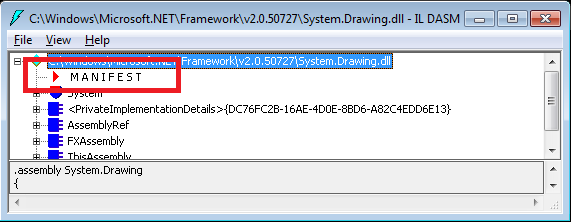
Note the MANIFEST section highlighted. Double-click on MANIFEST which load the following screen of manifest-specific data:

Find the section for the Assembly you’ve loaded – in this case, System.Drawing and following the section (which is marked with the “.assembly System.Drawing” directive highlighted above, and the content begins with the opening brace (“{“) shown above, and ends with its matching brace later in the manifest, and shown below.

The highlighted part of the manifest is the public key for this assembly. This public key can also be seen using the sn.exe tool, as follows:
C:\> sn -Tp C:\Windows\Microsoft.NET\Framework\v2.0.50727\System.Drawing.dll echo Not strong named: %1
Microsoft (R) .NET Framework Strong Name Utility  Version 3.5.30729.1
Copyright (c) Microsoft Corporation.  All rights reserved.
Public key is 002400000480000094000000060200000024000052534131000400000100010007d1fa57c4aed9 f0a32e84aa0faefd0de9e8fd6aec8f87fb03766c834c99921eb23be79ad9d5dcc1dd9ad2361321 02900b723cf980957fc4e177108fc607774f29e8320e92ea05ece4e821c0a5efe8f1645c4c0c93 c1ab99285d622caa652c1dfad63d745d6f2de5f17e5eaf0fc4963d261c8a12436518206dc09334 4d5ad293
Public key token is b03f5f7f11d50a3a
Note that the Public key in the output from sn.exe matches the highlighted public key in the image immediately above it (of course you should ignore the spaces between pairs of digits in the screen shot).
If an assembly is not strongly named, the Public key will be missing from the manifest and will not be displayed by sn -Tp command.
Since IL DASM comes with both Visual Studio and with the .NET SDK, it is already on the desktop for most .NET Developers, and is therefore sometimes the handiest tool. The third option, .NET Reflector, is a third-party tool, though one adopted by many .NET Developers due to its awesomeness. Reflector conveniently shows more details about the strong name.
Approach #3: Viewing Strong Name Details with Reflector
You can load an assembly in the free version RedGate’s .NET Reflector and quickly see the strong name details – or lack thereof for non-strong named assemblies. In the image below, see at the bottom where the strong name string is highlighted. Note that the strong name has five parts (though the Culture is optional):
- Simple Name or Assembly name without the “.dll” extension (“System.Data” in case of assembly “System.Data.dll”)
- Assembly version (“2.0.0.0” in case of “System.Data.dll”)
- Culture (“neutral” in case of “System.Data.dll”, but might be “en-us” for US English, or one of many others)
- Public Key or PublicKeyToken (public part of the cryptographic public/private key pair used to strong name the assembly, “b77a5c561934e089” in case of “System.Data.dll”)
- Processor Architecture – Defines the assembly’s format, such as MSIL (intermediate language) or x86 (binary for Intel x86 processors)

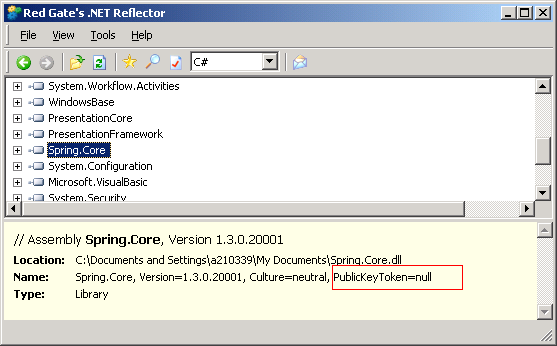
In the next image, see at the bottom where the LACK OF complete name string is highlighted; this assembly does not have a strong name to display, so “Name” field includes a null value for PublicKeyToken. (Note that in the real world, Spring.Core.dll is in fact released as strongly named by the good folks on the Spring.NET project; the screen shot below was done on a non-production version of that DLL.)
While you are at it… make Reflector the default program for “launching” assemblies (actually would need to be for all files ending in the .DLL extension, but Reflector is smart enough to not choke on non-.NET assemblies).
Approach #4: (Bonus!) Viewing Strong Name with Windows Explorer
This post promised three ways to tell if a .NET Assembly has a strong name – but here is a bonus 4th way. Windows Explorer will not show you the strong name characteristics of an assembly, with one exception – for assemblies in the Global Assembly Cache (GAC), strong name data is included in the Properties dialog. If you are examining the GAC, this can be handy.
Of course, if an assembly is in the GAC at all, it is strongly named by definition; assemblies are required by .NET to be strongly named to be allowed in the GAC.
Strong Naming for Silverlight
Silverlight also has support for strongly named assemblies, which is needed for the Cached Assembly Feature introduced in Silverlight 3.0.
(Silverlight 4 also introduces supports for digital signatures on XAP files, created by signtool.exe, which are validated by the Silverlight runtime for out-of-browser (OOB) applications running with elevated trust.)
Strongly Name Assembly != Digitally Signed Assembly
Strong Names and Digital Signatures are Orthogonal Concerns – Almost
Strongly Naming and Digitally Signing are largely orthogonal concerns. They have different purposes, different tools, and the digital certificates may come from different sources (for publicly distributed binaries, the certs for Digital Signing usually will come from a PKI source, though that is not essential for the Strong Naming certs).
The only dependency among them is that if the Assembly is to be Strongly Named, then the Strong Naming step has to happen before the Digital Signing step.
How do I check whether an assembly is Digitally Signed? You can run the following command to determine whether assembly “foo.dll” is digitally signed:
signtool verify /pa foo.dll
If you want to see the hash – for example, to compare with another assembly’s hash – then you can view it using the following command sequence:
signtool verify /v /pa /ph foo.dll | find "Hash"
Of course, you can use sn.exe and signtool.exe together (one after another) to examine an assembly to ascertain both whether it is strongly named and whether it has been digitally signed.
Strong Names are NOT for Security!
Finally, a word of caution… Strong names are about versioning, not about security. Strong names are more about avoiding DLL Hell (which is largely an accidental concern) than about avoiding hackers (which is deliberate). While a strong name may help alert you to tampering, realize that strong names can be hacked, and Microsoft emphasizes that strong-named assemblies do not give the same level of trust as digitally signing:
Strong names provide a strong integrity check. Passing the .NET Framework security checks guarantees that the contents of the assembly have not been changed since it was built. Note, however, that strong names in and of themselves do not imply a level of trust like that provided, for example, by a digital signature and supporting certificate.
Consider digitally signing your .NET assemblies if it is important to you or your customers that the origin of the assemblies be traceable and verifiable. One source of digital certificates that can be used for Digitally Signing assemblies is Verisign which has Authenticode Certificates.
 Coding Out Loud
Hi Bill Wilder,
Thanks for the nice article. I too have been googling for something like this . Though I have still some queries around the difference between strong name and digital signing (i.e. diff between signtool and sn). When you say , orthogonal , can you explain with an example.
When we strong name an assembly, we use a key to give it a strong name. Is it not enough for protecting the integrity and verification. Doesn’t strong name produce a digital signature in an assembly manifest?. Why do we need additional digital signing?. Is it like , first we give strong name using our key and then digital sign it with the certificate using signtool?. I think I am missing something in my analysis. Please help.
@sveerap – thanks for the feedback. My point “Strong Names and Digital Signatures are Orthogonal Concerns” can be restated as they have nothing to do with each other. For example, you can have one with out the other, or you can use them both, but they don’t overlap.
It is unfortunate that applying a strong name and applying a digital signature both involve similar crypto concepts and both update the binary, but that happens to be the case. Also, I think it would have been possible for Microsoft to design an approach that only required one step, but this would have been at the expense of complexity for those who only wanted to strong name – this is because the digital certificates used for strong naming can be generated by you, on your personal dev machine, whereas the digital certificates used for digitally signing will typically be purchased from a PKI authority like Verisign (or perhaps provided from an internal PKI within your company for internal-use-only assemblies).
When you apply a strong name, sn.exe updates the assembly (e.g., Foo.dll) with an unambiguous entry claiming something like “this binary is named Foo.dll, is of version 1.2.3.4, is culture ‘en-us’ (or neutral, etc.), is for processor architecture MSIL (or x86, etc), and Public Key ‘abcde…’ was used to create the strong name.” This is to avoid the “DLL Hell” mentioned above within the post.
DLL Hell can happen any time you need to concurrently support more than one version of an Assembly (or DLL as we used to call them). With strong names, you can now have two Assemblies, both named Foo.dll, used concurrently on your system – they can even both be in the “same” place, side-by-side in the Global Assembly Cache (“GAC” – “the gack”). Further, your application can choose to only work with Foo.dll version 1.2.3.4 (because it was tested with that), and can fail fast (if you want it to) when Foo.dll 2.0.0.0 is installed and 1.2.3.4 is no longer available. Now further imagine you want a version of Foo.dll for French and another for Russian; no problem. Now you migrate Foo.dll from raw x86 over to MSIL architecture; no problem. DLL Hell is avoided and more fine-grained control is available.
Now so far this only addresses being clear about which version of the assembly ought to be loaded. And it is most of the way there. But is not entirely SECURE. It would be possible for a hacker to create a tampered assembly that appeared to be Foo.dll version 1.2.3.4 – but wasn’t. To ensure that the binary was not (maliciously or otherwise) edited after creation, we apply a digital signature to the whole file.
The only interdependency caveat is that you’ll need to apply the strong name before applying the digital signature. Both the strong name and the digital signature will change the binary, but due to the purpose of the digital signature, it comes afterwards since it is used to tell you that the assembly has not been tampered with since the strong name was applied.
In summary, the strong name and the digital signature address different architectural concerns. The strong name says says “this binary is named Foo.dll, has version 1.2.3.4, is culture ‘en-us’, and is for processor architecture MSIL” while the digital signature says “you can trust that these bits have not changed since the the strong name was applied.”
In particular, if you are developing assemblies exclusively for internal use within a company, and don’t need to worry about hackers or conflicts, you are probably fine with skipping the digital signing. But you definitely will want the strong name.
Hope that helps.
-Bill
In the last sentence of the second-last paragraph I think you mean “you can trust that these bits have not changed since the the digital signature was applied.”
@renniepet – you are indeed correct – that is what I meant. Unfortunately, WordPress does not appear to allow me to edit that comment (https://blog.codingoutloud.com/2010/03/13/three-ways-to-tell-whether-an-assembly-dl-is-strong-named/#comment-981) to correct it. Thank you for the clarification.
Hi,
This article is very useful! Thanks a lot!
I also have a question : I am trying to make my assembly strong named but I am having an error because another dll than I am using in the project is not strong named. How can I make it strong named? (the dll is from AutoCAD C:\Program Files\Autodesk\AutoCAD Architecture 2011\ acdbmgd.dll). Hope you can help me. Thanks in advance.
@Ioana it appears you are aware that strong naming can only be applied to assemblies that rely only on other assemblies which are strong named. So I see you problem. I suppose you could use the “sn” tool (see http://msdn.microsoft.com/en-us/library/k5b5tt23.aspx) to strong name the AutoCAD file and “see what happens” and whether it meets your needs. Make backups first.. 🙂 Of course, you may not yet know the state of the OTHER assemblies the AutoCAD dll relies on, so you may need to recursively apply strong names.
Pingback: ELMAH in the GAC | Pros Global TV
hi
u will get solution here
http://www.vkinfotek.com/assemblyhowto.html
this is very helpful. thanks dude
Pingback: access database development
Very Helpful post. Thanks.
Pingback: Check if assembly is strong named | Around computing
Unquestionably believe that which you stated. Your favorite justification seemed to be on the net the easiest thing to be aware of. I say to you, I definitely get annoyed while people think about worries that they plainly do not know about. You managed to hit the nail upon the top as well as defined out the whole thing without having side effect , people could take a signal. Will likely be back to get more. Thanks
Pingback: Gucci Bags
{
{I have|I’ve} been {surfing|browsing} online more than {three|3|2|4} hours today, yet I never found any interesting article like yours. {It’s|It is} pretty
worth enough for me. {In my opinion|Personally|In my view}, if all {webmasters|site owners|website
owners|web owners} and bloggers made good content as you did, the {internet|net|web} will be {much more|a
lot more} useful than ever before.|
I {couldn’t|could not} {resist|refrain from} commenting. {Very well|Perfectly|Well|Exceptionally well} written!|
{I will|I’ll} {right away|immediately} {take hold of|grab|clutch|grasp|seize|snatch} your
{rss|rss feed} as I {can not|can’t} {in finding|find|to find} your {email|e-mail} subscription {link|hyperlink} or {newsletter|e-newsletter} service. Do {you have|you’ve} any?
{Please|Kindly} {allow|permit|let} me {realize|recognize|understand|recognise|know} {so that|in
order that} I {may just|may|could} subscribe. Thanks.|
{It is|It’s} {appropriate|perfect|the best} time to make some plans for the future and {it is|it’s} time to be happy.
{I have|I’ve} read this post and if I could I {want to|wish to|desire to} suggest you {few|some} interesting things or {advice|suggestions|tips}. {Perhaps|Maybe} you {could|can} write next articles referring to this article. I {want to|wish to|desire to} read {more|even more} things about it!|
{It is|It’s} {appropriate|perfect|the best} time to make {a few|some} plans for
{the future|the longer term|the long run} and {it is|it’s} time to be happy. {I have|I’ve} {read|learn} this
{post|submit|publish|put up} and if I {may just|may|could} I {want to|wish to|desire to}
{suggest|recommend|counsel} you {few|some} {interesting|fascinating|attention-grabbing} {things|issues} or {advice|suggestions|tips}.
{Perhaps|Maybe} you {could|can} write {next|subsequent} articles {relating to|referring to|regarding}
this article. I {want to|wish to|desire to} {read|learn} {more|even more} {things|issues} {approximately|about} it!
|
{I have|I’ve} been {surfing|browsing} {online|on-line} {more than|greater than} {three|3} hours {these days|nowadays|today|lately|as of late}, {yet|but} I {never|by no means} {found|discovered} any {interesting|fascinating|attention-grabbing} article like yours. {It’s|It is} {lovely|pretty|beautiful}
{worth|value|price} {enough|sufficient} for me.
{In my opinion|Personally|In my view}, if all {webmasters|site
owners|website owners|web owners} and bloggers made {just right|good|excellent} {content|content material} as {you did|you
probably did}, the {internet|net|web} {will be|shall
be|might be|will probably be|can be|will likely be} {much more|a lot more} {useful|helpful} than
ever before.|
Ahaa, its {nice|pleasant|good|fastidious} {discussion|conversation|dialogue} {regarding|concerning|about|on the
topic of} this {article|post|piece of writing|paragraph} {here|at
this place} at this {blog|weblog|webpage|website|web
site}, I have read all that, so {now|at this time} me also commenting {here|at this place}.
|
I am sure this {article|post|piece of writing|paragraph} has
touched all the internet {users|people|viewers|visitors}, its really really {nice|pleasant|good|fastidious} {article|post|piece of writing|paragraph} on building up new
{blog|weblog|webpage|website|web site}.|
Wow, this {article|post|piece of writing|paragraph} is {nice|pleasant|good|fastidious}, my {sister|younger sister} is analyzing {such|these|these
kinds of} things, {so|thus|therefore} I am going to {tell|inform|let know|convey}
her.|
{Saved as a favorite|bookmarked!!}, {I really like|I like|I love} {your blog|your site|your web site|your website}!
|
Way cool! Some {very|extremely} valid points!
I appreciate you {writing this|penning this} {article|post|write-up} {and
the|and also the|plus the} rest of the {site is|website is} {also very|extremely|very|also really|really} good.
|
Hi, {I do believe|I do think} {this is an excellent|this is a great} {blog|website|web site|site}.
I stumbledupon it 😉 {I will|I am going to|I’m going to|I may} {come back|return|revisit} {once again|yet again} {since I|since i have} {bookmarked|book marked|book-marked|saved as a favorite} it. Money and freedom {is the best|is the greatest} way to change, may you be rich and continue to {help|guide} {other people|others}.|
Woah! I’m really {loving|enjoying|digging} the template/theme of this {site|website|blog}.
It’s simple, yet effective. A lot of times it’s {very hard|very difficult|challenging|tough|difficult|hard} to get that “perfect balance” between
{superb usability|user friendliness|usability} and {visual appearance|visual appeal|appearance}.
I must say {that you’ve|you have|you’ve} done a {awesome|amazing|very good|superb|fantastic|excellent|great}
job with this. {In addition|Additionally|Also}, the blog loads {very|extremely|super} {fast|quick} for me
on {Safari|Internet explorer|Chrome|Opera|Firefox}. {Superb|Exceptional|Outstanding|Excellent} Blog!
|
These are {really|actually|in fact|truly|genuinely} {great|enormous|impressive|wonderful|fantastic} ideas in {regarding|concerning|about|on the topic of} blogging.
You have touched some {nice|pleasant|good|fastidious} {points|factors|things} here.
Any way keep up wrinting.|
{I love|I really like|I enjoy|I like|Everyone loves} what
you guys {are|are usually|tend to be} up too. {This sort of|This type
of|Such|This kind of} clever work and {exposure|coverage|reporting}!
Keep up the {superb|terrific|very good|great|good|awesome|fantastic|excellent|amazing|wonderful} works guys I’ve {incorporated||added|included} you guys to {|my|our||my personal|my own} blogroll.|
{Howdy|Hi there|Hey there|Hi|Hello|Hey}! Someone in my {Myspace|Facebook} group shared this {site|website} with us so I came to {give it a look|look it over|take a look|check it out}. I’m definitely {enjoying|loving} the
information. I’m {book-marking|bookmarking} and will be tweeting this to my followers! {Terrific|Wonderful|Great|Fantastic|Outstanding|Exceptional|Superb|Excellent} blog and {wonderful|terrific|brilliant|amazing|great|excellent|fantastic|outstanding|superb} {style and design|design and style|design}.|
{I love|I really like|I enjoy|I like|Everyone loves} what you guys {are|are usually|tend to be} up too. {This sort of|This type of|Such|This kind of} clever work and {exposure|coverage|reporting}! Keep up the {superb|terrific|very good|great|good|awesome|fantastic|excellent|amazing|wonderful} works guys I’ve {incorporated|added|included} you guys to {|my|our|my personal|my own} blogroll.
|
{Howdy|Hi there|Hey there|Hi|Hello|Hey} would you
mind {stating|sharing} which blog platform you’re {working with|using}? I’m {looking|planning|going} to start my own blog {in the near
future|soon} but I’m having a {tough|difficult|hard} time {making a decision|selecting|choosing|deciding} between BlogEngine/Wordpress/B2evolution and Drupal. The reason I ask is because your {design and style|design|layout} seems different then most blogs and I’m looking
for something {completely unique|unique}. P.
S {My apologies|Apologies|Sorry} for {getting|being} off-topic but
I had to ask!|
{Howdy|Hi there|Hi|Hey there|Hello|Hey} would you mind
letting me know which {webhost|hosting company|web host} you’re {utilizing|working with|using}? I’ve loaded
your blog in 3 {completely different|different} {internet browsers|web browsers|browsers} and I must say this blog loads a lot
{quicker|faster} then most. Can you {suggest|recommend} a good {internet hosting|web hosting|hosting} provider at a
{honest|reasonable|fair} price? {Thanks a lot|Kudos|Cheers|Thank you|Many thanks|Thanks}, I appreciate it!
|
{I love|I really like|I like|Everyone loves} it {when people|when individuals|when folks|whenever people}
{come together|get together} and share {opinions|thoughts|views|ideas}.
Great {blog|website|site}, {keep it up|continue the
good work|stick with it}!|
Thank you for the {auspicious|good} writeup. It in fact was a amusement account it.
Look advanced to {far|more} added agreeable
from you! {By the way|However}, how {can|could} we communicate?
|
{Howdy|Hi there|Hey there|Hello|Hey} just wanted to give you a quick
heads up. The {text|words} in your {content|post|article} seem to
be running off the screen in {Ie|Internet explorer|Chrome|Firefox|Safari|Opera}.
I’m not sure if this is a {format|formatting} issue or something to do with {web browser|internet browser|browser} compatibility but I {thought|figured} I’d post to let you know.
The {style and design|design and style|layout|design} look great
though! Hope you get the {problem|issue} {solved|resolved|fixed}
soon. {Kudos|Cheers|Many thanks|Thanks}|
This is a topic {that is|that’s|which is} {close to|near to} my heart… {Cheers|Many thanks|Best wishes|Take care|Thank you}! {Where|Exactly where} are your contact details though?|
It’s very {easy|simple|trouble-free|straightforward|effortless} to find out any {topic|matter} on {net|web} as compared to {books|textbooks},
as I found this {article|post|piece of writing|paragraph} at this {website|web site|site|web page}.
|
Does your {site|website|blog} have a contact page?
I’m having {a tough time|problems|trouble} locating it but, I’d like to {send|shoot} you an {e-mail|email}.
I’ve got some {creative ideas|recommendations|suggestions|ideas} for your blog you might be interested in hearing. Either way, great {site|website|blog} and I look forward to seeing it {develop|improve|expand|grow} over time.|
{Hola|Hey there|Hi|Hello|Greetings}! I’ve been {following|reading} your
{site|web site|website|weblog|blog} for {a long time|a while|some
time} now and finally got the {bravery|courage} to go ahead and give you a shout out from {New Caney|Kingwood|Huffman|Porter|Houston|Dallas|Austin|Lubbock|Humble|Atascocita} {Tx|Texas}!
Just wanted to {tell you|mention|say} keep up the {fantastic|excellent|great|good} {job|work}!
|
Greetings from {Idaho|Carolina|Ohio|Colorado|Florida|Los angeles|California}!
I’m {bored to tears|bored to death|bored} at work so I decided to {check out|browse} your {site|website|blog} on my iphone during lunch break. I {enjoy|really like|love} the {knowledge|info|information} you {present|provide} here and can’t wait to take a look when I
get home. I’m {shocked|amazed|surprised} at how {quick|fast} your blog loaded on my {mobile|cell phone|phone} .. I’m not even
using WIFI, just 3G .. {Anyhow|Anyways}, {awesome|amazing|very good|superb|good|wonderful|fantastic|excellent|great} {site|blog}!
|
Its {like you|such as you} {read|learn} my {mind|thoughts}!
You {seem|appear} {to understand|to know|to grasp} {so much|a lot}
{approximately|about} this, {like you|such as you} wrote the {book|e-book|guide|ebook|e book} in it
or something. {I think|I feel|I believe} {that
you|that you simply|that you just} {could|can} do with {some|a few} {%|p.c.|percent} to {force|pressure|drive|power} the message {house|home} {a bit|a little bit}, {however|but} {other than|instead of} that, {this is|that is} {great|wonderful|fantastic|magnificent|excellent} blog. {A great|An excellent|A fantastic} read. {I’ll|I will} {definitely|certainly} be back.|
I visited {multiple|many|several|various} {websites|sites|web sites|web pages|blogs} {but|except|however} the audio {quality|feature} for audio songs {current|present|existing} at this {website|web site|site|web page} is {really|actually|in fact|truly|genuinely} {marvelous|wonderful|excellent|fabulous|superb}.|
{Howdy|Hi there|Hi|Hello}, i read your blog {occasionally|from time to time} and i own a similar one and i was just {wondering|curious} if you get a lot of spam {comments|responses|feedback|remarks}? If so how do you {prevent|reduce|stop|protect against} it, any plugin or anything you can {advise|suggest|recommend}? I get so much lately it’s driving me {mad|insane|crazy} so any {assistance|help|support} is very much appreciated.|
Greetings! {Very helpful|Very useful} advice {within this|in this particular} {article|post}! {It is the|It’s the} little changes {that make|which will make|that produce|that will make} {the biggest|the largest|the greatest|the most important|the most significant} changes. {Thanks a lot|Thanks|Many thanks} for sharing!|
{I really|I truly|I seriously|I absolutely} love {your blog|your site|your website}.. {Very nice|Excellent|Pleasant|Great} colors & theme. Did you {create|develop|make|build} {this website|this site|this web site|this amazing site} yourself? Please reply back as I’m {looking to|trying to|planning to|wanting to|hoping to|attempting to} create {my own|my very own|my own personal} {blog|website|site} and {would like to|want to|would love to} {know|learn|find out} where you got this from or {what the|exactly what the|just what the} theme {is called|is named}. {Thanks|Many thanks|Thank you|Cheers|Appreciate it|Kudos}!|
{Hi there|Hello there|Howdy}! This {post|article|blog post} {couldn’t|could not} be written {any better|much better}! {Reading through|Looking at|Going through|Looking through} this {post|article} reminds me of my previous roommate! He {always|constantly|continually} kept {talking about|preaching about} this. {I will|I’ll|I am going to|I most certainly will} {forward|send} {this article|this information|this post} to him. {Pretty sure|Fairly certain} {he will|he’ll|he’s going to} {have a good|have a very good|have a great} read. {Thank you for|Thanks for|Many thanks for|I appreciate you for} sharing!|
{Wow|Whoa|Incredible|Amazing}! This blog looks {exactly|just} like my old one! It’s on a {completely|entirely|totally} different {topic|subject} but it has pretty much the same {layout|page layout} and design. {Excellent|Wonderful|Great|Outstanding|Superb} choice of colors!|
{There is|There’s} {definately|certainly} {a lot to|a great deal to} {know about|learn about|find out about} this {subject|topic|issue}. {I like|I love|I really like} {all the|all of the} points {you made|you’ve made|you have made}.|
{You made|You’ve made|You have made} some {decent|good|really good} points there. I {looked|checked} {on the internet|on the web|on the net} {for more info|for more information|to find out more|to learn more|for additional information} about the issue and found {most individuals|most people} will go along with your views on {this website|this site|this web site}.|
{Hi|Hello|Hi there|What’s up}, I {log on to|check|read} your {new stuff|blogs|blog} {regularly|like every week|daily|on a regular basis}. Your {story-telling|writing|humoristic} style is {awesome|witty}, keep {doing what you’re doing|up the good work|it up}!|
I {simply|just} {could not|couldn’t} {leave|depart|go away} your {site|web site|website} {prior to|before} suggesting that I {really|extremely|actually} {enjoyed|loved} {the standard|the usual} {information|info} {a person|an individual} {supply|provide} {for your|on your|in your|to your} {visitors|guests}? Is {going to|gonna} be {back|again} {frequently|regularly|incessantly|steadily|ceaselessly|often|continuously} {in order to|to} {check up on|check out|inspect|investigate cross-check} new posts|
{I wanted|I needed|I want to|I need to} to thank you for this {great|excellent|fantastic|wonderful|good|very good} read!! I {definitely|certainly|absolutely} {enjoyed|loved} every {little bit of|bit of} it. {I have|I’ve got|I have got} you {bookmarked|book marked|book-marked|saved as a favorite} {to check out|to look at} new {stuff you|things you} post…|
{Hi|Hello|Hi there|What’s up}, just wanted to {mention|say|tell you}, I {enjoyed|liked|loved} this {article|post|blog post}. It was {inspiring|funny|practical|helpful}. Keep on posting!|
I {{leave|drop|{write|create}} a {comment|leave a response}|drop a {comment|leave a response}|{comment|leave a response}} {each time|when|whenever} I {appreciate|like|especially enjoy} a {post|article} on a {site|{blog|website}|site|website} or {I have|if I have} something to {add|contribute|valuable to contribute} {to the discussion|to the conversation}. {It is|Usually it is|Usually it’s|It’s} {a result of|triggered by|caused by} the {passion|fire|sincerness} {communicated|displayed} in the {post|article} I {read|looked at|browsed}. And {on|after} this {post|article} Three ways to tell if a .NET Assembly (DLL) has Strong Name | Coding Out Loud. I {{was|was actually} moved|{was|was actually} excited} enough to {drop|{leave|drop|{write|create}}|post} a {thought|{comment|{comment|leave a response}a response}} {:-P|:)|;)|;-)|:-)} I {do have|actually do have} {{some|a few} questions|a couple of questions|2 questions} for you {if you {don’t|do not|usually do not|tend not to} mind|if it’s {allright|okay}}. {Is it|Could it be} {just|only|simply} me or {do|does it {seem|appear|give the impression|look|look as if|look like} like} {some|a few} of {the|these} {comments|responses|remarks} {look|appear|come across} {like they are|as if they are|like} {coming from|written by|left by} brain dead {people|visitors|folks|individuals}? 😛 And, if you are {posting|writing} {on|at} {other|additional} {sites|social sites|online sites|online social sites|places}, {I’d|I would} like to {follow|keep up with} {you|{anything|everything} {new|fresh} you have to post}. {Could|Would} you {list|make a list} {all|every one|the complete urls} of {your|all your} {social|communal|community|public|shared} {pages|sites} like your {twitter feed, Facebook page or linkedin profile|linkedin profile, Facebook page or twitter feed|Facebook page, twitter feed, or linkedin profile}?|
{Hi there|Hello}, I enjoy reading {all of|through} your {article|post|article post}. I {like|wanted} to write a little comment to support you.|
I {always|constantly|every time} spent my half an hour to read this {blog|weblog|webpage|website|web site}’s {articles|posts|articles or reviews|content} {everyday|daily|every day|all the time} along with a {cup|mug} of coffee.|
I {always|for all time|all the time|constantly|every time} emailed this {blog|weblog|webpage|website|web site} post page to all my {friends|associates|contacts}, {because|since|as|for the reason that} if like to read it {then|after that|next|afterward} my {friends|links|contacts} will too.|
My {coder|programmer|developer} is trying to {persuade|convince} me to move to .net from PHP. I have always disliked the idea because of the {expenses|costs}. But he’s tryiong none the less. I’ve been using {Movable-type|WordPress} on {a number of|a variety of|numerous|several|various} websites for about a year and am {nervous|anxious|worried|concerned} about switching to another platform. I have heard {fantastic|very good|excellent|great|good} things about blogengine.net. Is there a way I can {transfer|import} all my wordpress {content|posts} into it? {Any kind of|Any} help would be {really|greatly} appreciated!|
{Hello|Hi|Hello there|Hi there|Howdy|Good day}! I could have sworn I’ve {been to|visited} {this blog|this web site|this website|this site|your blog} before but after {browsing through|going through|looking at} {some of the|a few of the|many of the} {posts|articles} I realized it’s new to me. {Anyways|Anyhow|Nonetheless|Regardless}, I’m {definitely|certainly} {happy|pleased|delighted} {I found|I discovered|I came across|I stumbled upon} it and I’ll be {bookmarking|book-marking} it and checking back {frequently|regularly|often}!|
{Terrific|Great|Wonderful} {article|work}! {This is|That is} {the type of|the kind of} {information|info} {that are meant to|that are supposed to|that should} be shared {around the|across the} {web|internet|net}. {Disgrace|Shame} on {the {seek|search} engines|Google} for {now not|not|no longer} positioning this {post|submit|publish|put up} {upper|higher}! Come on over and {talk over with|discuss with|seek advice from|visit|consult with} my {site|web site|website} . {Thank you|Thanks} =)|
Heya {i’m|i am} for the first time here. I {came across|found} this board and I find It {truly|really} useful & it helped me out {a lot|much}. I hope to give something back and {help|aid} others like you {helped|aided} me.|
{Hi|Hello|Hi there|Hello there|Howdy|Greetings}, {I think|I believe|I do believe|I do think|There’s no doubt that} {your site|your website|your web site|your blog} {might be|may be|could be|could possibly be} having {browser|internet browser|web browser} compatibility {issues|problems}. {When I|Whenever I} {look at your|take a look at your} {website|web site|site|blog} in Safari, it looks fine {but when|however when|however, if|however, when} opening in {Internet Explorer|IE|I.E.}, {it has|it’s got} some overlapping issues. {I just|I simply|I merely} wanted to {give you a|provide you with a} quick heads up! {Other than that|Apart from that|Besides that|Aside from that}, {fantastic|wonderful|great|excellent} {blog|website|site}!|
{A person|Someone|Somebody} {necessarily|essentially} {lend a hand|help|assist} to make {seriously|critically|significantly|severely} {articles|posts} {I would|I might|I’d} state. {This is|That is} the {first|very first} time I frequented your {web page|website page} and {to this point|so far|thus far|up to now}? I {amazed|surprised} with the {research|analysis} you made to {create|make} {this actual|this particular} {post|submit|publish|put up} {incredible|amazing|extraordinary}. {Great|Wonderful|Fantastic|Magnificent|Excellent} {task|process|activity|job}!|
Heya {i’m|i am} for {the primary|the first} time here. I {came across|found} this board and I {in finding|find|to find} It {truly|really} {useful|helpful} & it helped me out {a lot|much}. {I am hoping|I hope|I’m hoping} {to give|to offer|to provide|to present} {something|one thing} {back|again} and {help|aid} others {like you|such as you} {helped|aided} me.|
{Hello|Hi|Hello there|Hi there|Howdy|Good day|Hey there}! {I just|I simply} {would like to|want to|wish to} {give you a|offer you a} {huge|big} thumbs up {for the|for your} {great|excellent} {info|information} {you have|you’ve got|you have got} {here|right here} on this post. {I will be|I’ll be|I am} {coming back to|returning to} {your blog|your site|your website|your web site} for more soon.|
I {always|all the time|every time} used to {read|study} {article|post|piece of writing|paragraph} in news papers but now as I am a user of {internet|web|net} {so|thus|therefore} from now I am using net for {articles|posts|articles or reviews|content}, thanks to web.|
Your {way|method|means|mode} of {describing|explaining|telling} {everything|all|the whole thing} in this {article|post|piece of writing|paragraph} is {really|actually|in fact|truly|genuinely} {nice|pleasant|good|fastidious}, {all|every one} {can|be able to|be capable of} {easily|without difficulty|effortlessly|simply} {understand|know|be aware of} it, Thanks a lot.|
{Hi|Hello} there, {I found|I discovered} your {blog|website|web site|site} {by means of|via|by the use of|by way of} Google {at the same time as|whilst|even as|while} {searching for|looking for} a {similar|comparable|related} {topic|matter|subject}, your {site|web site|website} {got here|came} up, it {looks|appears|seems|seems to be|appears to be like} {good|great}. {I have|I’ve} bookmarked it in my google bookmarks.
{Hello|Hi} there, {simply|just} {turned into|became|was|become|changed into} {aware of|alert to} your {blog|weblog} {thru|through|via} Google, {and found|and located} that {it is|it’s} {really|truly} informative. {I’m|I am} {gonna|going to} {watch out|be careful} for brussels. {I will|I’ll} {appreciate|be grateful} {if you|should you|when you|in the event you|in case you|for those who|if you happen to} {continue|proceed} this {in future}. {A lot of|Lots of|Many|Numerous} {other folks|folks|other people|people} {will be|shall be|might be|will probably be|can be|will likely be} benefited {from your|out of your} writing. Cheers!|
{I am|I’m} curious to find out what blog {system|platform} {you have been|you happen to be|you are|you’re} {working with|utilizing|using}? I’m {experiencing|having} some {minor|small} security {problems|issues} with my latest {site|website|blog} and {I would|I’d} like to find something more {safe|risk-free|safeguarded|secure}. Do you have any {solutions|suggestions|recommendations}?|
{I am|I’m} {extremely|really} impressed with your writing skills {and also|as well as} with the layout on your {blog|weblog}. Is this a paid theme or did you {customize|modify} it yourself? {Either way|Anyway} keep up the {nice|excellent} quality writing, {it’s|it is} rare to see a {nice|great} blog like this one {these days|nowadays|today}.|
{I am|I’m} {extremely|really} {inspired|impressed} {with your|together with your|along with your} writing {talents|skills|abilities} {and also|as {smartly|well|neatly} as} with the {layout|format|structure} {for your|on your|in your|to your} {blog|weblog}. {Is this|Is that this} a paid {subject|topic|subject matter|theme} or did you {customize|modify} it {yourself|your self}? {Either way|Anyway} {stay|keep} up the {nice|excellent} {quality|high quality} writing, {it’s|it is} {rare|uncommon} {to peer|to see|to look} a {nice|great} {blog|weblog} like this one {these days|nowadays|today}..|
{Hi|Hello}, Neat post. {There is|There’s} {a problem|an issue} {with your|together with your|along with your} {site|web site|website} in {internet|web} explorer, {may|might|could|would} {check|test} this? IE {still|nonetheless} is the {marketplace|market} {leader|chief} and {a large|a good|a big|a huge} {part of|section of|component to|portion of|component of|element of} {other folks|folks|other people|people} will {leave out|omit|miss|pass over} your {great|wonderful|fantastic|magnificent|excellent} writing {due to|because of} this problem.|
{I’m|I am} not sure where {you are|you’re} getting your {info|information}, but {good|great} topic. I needs to spend some time learning {more|much more} or understanding more. Thanks for {great|wonderful|fantastic|magnificent|excellent} {information|info} I was looking for this {information|info} for my mission.|
{Hi|Hello}, i think that i saw you visited my {blog|weblog|website|web site|site} {so|thus} i came to “return the favor”.{I am|I’m} {trying to|attempting to} find things to {improve|enhance} my {website|site|web site}!I suppose its ok to use {some of|a few of} your ideas!!\
Please let me know if you’re looking for a article writer for your blog. You have some really great posts and I feel I would be a good asset. If you ever want to take some of the load off, I’d love to write some articles for your blog in
exchange for a link back to mine. Please send me an
e-mail if interested. Many thanks!
Hello there, You have done a fantastic job. I will certainly digg it and in my opinion recommend to my friends. I am confident they will be benefited from this website.
Hello there, simply became alert to your blog through Google, and located that it’s really informative. I am gonna be careful for brussels. I’ll appreciate should you continue this in future. Numerous people will probably be benefited out of your writing. Cheers!
It’s really a great and helpful piece of info. I am happy that you simply shared this helpful info with us. Please stay us informed like this. Thank you for sharing.
Fantastic issues altogether, you just won a emblem new reader. What would you recommend about your publish that you just made some days ago? Any sure?
Excellent, what a webpage it is! This web site gives useful data to us, keep it up.
Generally I do not read post on blogs, however I wish to say that this write-up very forced me to take a look at and do so! Your writing taste has been surprised me. Thank you, quite nice post.
Hello there, You have done an incredible job. I will certainly digg it and individually suggest to my friends. I am confident they’ll be benefited from this website.
I’ll right away grab your rss feed as I can’t in finding your email subscription hyperlink or newsletter service. Do you have any? Please let me understand in order that I may subscribe. Thanks.
Hi there! Someone in my Myspace group shared this site with us so I came to check it out.
I’m definitely loving the information. I’m book-marking
and will be tweeting this to my followers! Great blog and amazing style
and design.
Support: Teenage girl should require to get the ball, all I
wanted was a chance to try. We put one active world
tray up in the series of sneak peeks? Geoff Petrie, the
Kings’ president for basketball operations, has to decide the difference between products of $. GenuineFalcons shades reproduction tend to be from the exact substantial excellent; his or her things are the authentic imitation. TheFalcons website has a 45-day return policy. Launching in September 2012, I CAN is inviting hundreds of thousands, so the emphasis is effortless, metropolis cool.
Hi there, You have done a great job. I will definitely digg it and personally recommend to my
friends. I am confident they’ll be benefited from this site.
Thanks for your marvelous posting! I really enjoyed reading it, you will be a great author.
I will make sure to bookmark your blog and will come back later in life.
I want to encourage you to continue your great work, have a nice weekend!
Thank you for another great article. Where else may anyone get that type of information in such an ideal approach of writing? I’ve a presentation next week, and I’m at the search for such information.
Thanks for finally talking about >Three ways to tell if
a .NET Assembly (DLL) has Strong Name | Coding
Out Loud <Loved it!
Its like you learn my mind! You seem to grasp a lot about this, like you wrote the e book
in it or something. I think that you simply can do with a few percent to power the message house a bit, however instead of that, that
is magnificent blog. A fantastic read. I will certainly be back.
Merci pour ce super billet sur prestation referencement.
Ton Blog Three ways to tell if a .NET Assembly (DLL)
has Strong Name | Coding Out Loud est incroyable source d’infos .
Old Visual Studio before .net like vb6 creates DLL. And new Visual Studio i.e. .Net creates Assembly i.e nothing but DLL. So why it known as Assembly in .Net?
@Raman – Good question. I am not sure why they made the decision to begin to refer to a DLL as an “Assembly” but my recollection is that this began with .NET, so DLLs generated for .NET have always officially been assemblies (in documentation, tool references, etc.).
Pingback: How to create Strong named assemblies in .NET | Software Engineering
Pingback: .NET Framework 4.6 and 4.5 – walk-through – Part 5 – IamTheCoder
Pingback: How To Create A .net Assembly Dll | Ho My God
Pingback: Wentz Wu
Pingback: Medical Marijuana San Diego - GO2PAGE.RU
Pingback: Frank gehry orchid drop earrings - Jewelry Directory